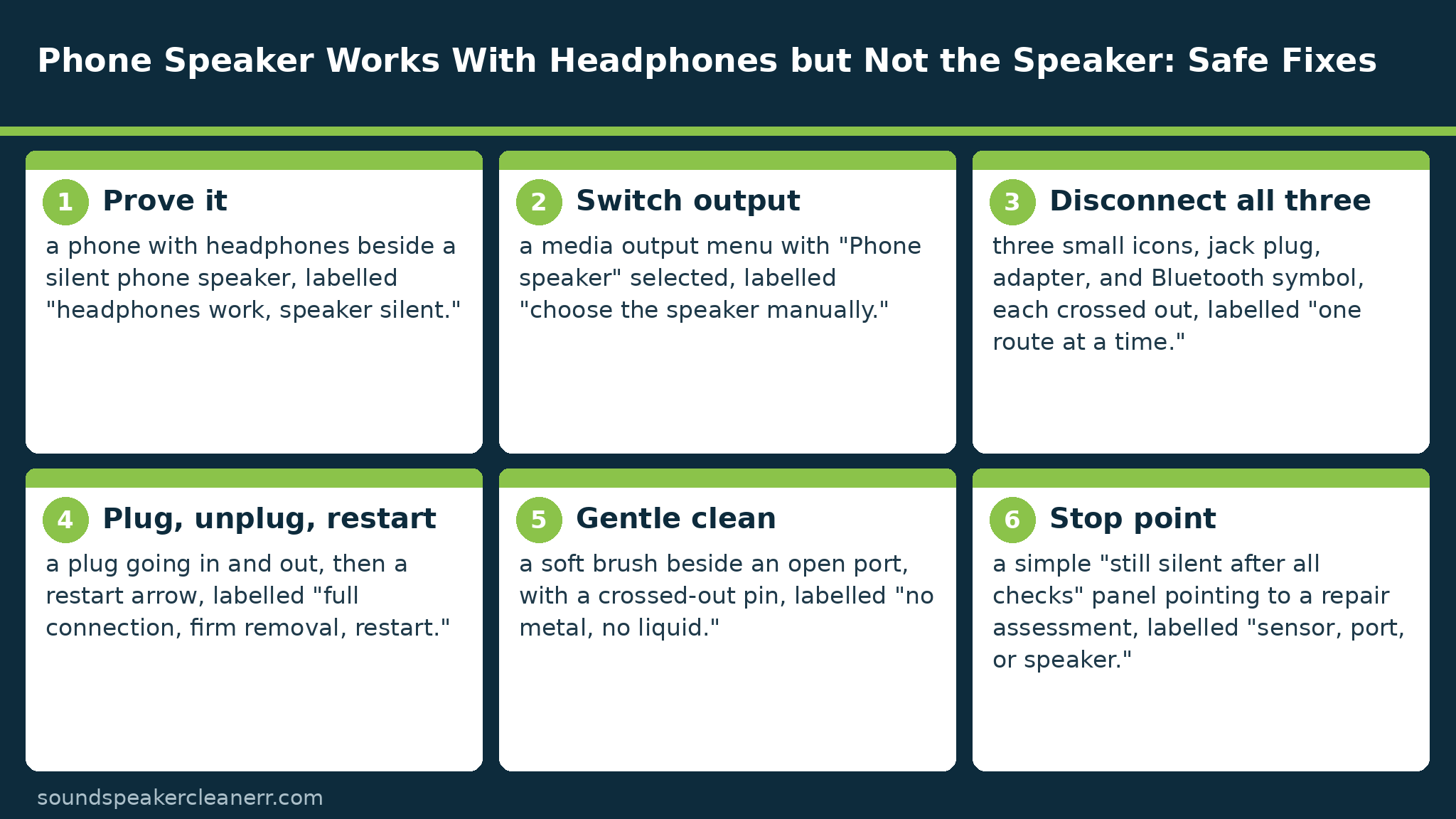
If your phone plays sound through headphones but stays silent through its own speaker, the speaker may not be broken at all. The phone may still believe headphones are connected, or audio may still be routed to another device. This guide works through those causes in a safe order.
That distinction matters because it changes the fix completely. A dead speaker needs repair; a stuck routing choice needs only a switch, a restart, or a gentle clean. The tests below tell them apart before you spend anything, and they use only the phone's own controls plus a soft brush and cloth.
First, prove the speaker works at all
Start by confirming what actually works. Play music through wired or wireless headphones and note that it sounds normal. Then remove the headphones, turn Bluetooth off, and play the same track through the phone speaker at a comfortable volume. If the speaker is silent, note whether the phone still shows a headphone icon, a headphone volume indicator, or an output name that is not "Phone speaker." Any of those is a strong clue that the phone still thinks headphones are connected.
Next, test the other built-in outputs. Play a ringtone, which uses the loudspeaker, and make a test call on speakerphone, which also uses the loudspeaker. If ringtones and speakerphone are silent too, the routing or detection problem is affecting the whole loudspeaker path. If ringtones play but media does not, note that split: it points to a media-routing choice rather than a dead speaker, because the same loudspeaker is involved in both.
Also check the reverse direction that readers often miss: can callers hear you, and does the earpiece work on a normal call? A phone with a routing problem often still handles calls normally through the earpiece once Bluetooth is off. That result further supports routing or detection, rather than a broken loudspeaker.
Step 1: Switch the output manually
Before cleaning or restarting anything, try the manual output switch, because it is the fastest fix and it proves the diagnosis. While audio is playing, open the media output control: on many phones this appears in the notification shade on the media tile, or on the call screen during a call, or in quick settings. Look for the current output name. If it shows headphones, a Bluetooth device, or an adapter, change it to "Phone speaker" and listen.
If sound immediately returns through the speaker, the problem was routing, and the case is closed. If the output already shows "Phone speaker" yet no sound comes out, routing is not the whole story, and detection or the port is the next suspect. Either way, this one test saves a lot of unnecessary cleaning.
Keep Bluetooth off for the rest of the diagnosis. A nearby paired device — earbuds in a case that is not fully closed, a car system, a speaker — can silently recapture audio the moment you switch output back. Turning Bluetooth off removes that variable entirely.
Step 2: Disconnect every headphone route, in order
Work through the three headphone routes one at a time, because each can hold audio hostage in a different way.
Wired headphones and the jack. If your phone has a headphone jack, remove the plug fully and look at the jack in good light. Lint, dust, or a bent case edge pressing near the jack can keep the detection switch engaged. Remove the case before inspecting, because a case can press on the plug or block full removal.
USB-C or Lightning adapter. If you use a wired adapter rather than a built-in jack, the adapter itself can be the stuck route. Remove the adapter completely, not just the headphones from the adapter, and test the speaker. Also inspect the charging port for lint, since the port doubles as the audio connection on these phones, and lint in it can confuse detection. Do not charge the phone while the port is wet, and follow the phone maker's guidance for a wet port.
Bluetooth. With Bluetooth off, also forget or disconnect any device that previously captured calls or media if the route keeps returning when Bluetooth is turned back on. A device that auto-connects on every Bluetooth restart will recreate the problem, and the fix is to stop that auto-connection rather than to keep switching output manually.
After each disconnection, play the same test track through the speaker before moving to the next route. That way you learn which route was holding the audio, instead of changing everything at once and never knowing.
Step 3: Reset detection — plug, unplug, and restart, in this order
If the speaker is still silent with everything disconnected and Bluetooth off, reset the detection itself. This is the step most guides get right in content but wrong in order, so follow it as written.
First, plug a compatible wired headset or adapter in fully, play sound for a few seconds so audio definitely transmits through it, then unplug it firmly and completely in one motion. Repeat that plug-and-unplug cycle two or three times if the first attempt does not work. A fresh, complete connection followed by a clean removal gives the detection switch a clear change to register, where a half-inserted plug does not.
Second, restart the phone, with nothing plugged in and Bluetooth still off. A restart clears temporary audio-routing glitches that can leave the phone believing headphones are still connected after they are gone. After the restart, play the test track through the speaker before reconnecting anything.
Third, if the phone still shows a headphone icon or still plays only through headphones, check for a software update. Audio detection and routing behaviour can change with updates, and a later update may resolve a detection bug. Do not factory-reset the phone at this stage: a factory reset erases data and settings, and it will not fix a lint-blocked jack or a faulty sensor.
Step 4: Clean the port gently — and know what not to do
If detection still fails after plug-unplug and restart, the port itself is the next suspect. Lint and dust in a jack or charging port can hold the detection switch in the "connected" position, even with nothing plugged in. That is a physical cause, and it needs a physical check, done gently.
Remove the case, look into the port in good light, and clean with a dry, soft-bristled brush, a slim dry cotton swab with most of the cotton removed, or short bursts of air from a distance. Brush across the opening rather than pushing deep into it. Do not insert metal objects, pins, needles, or sharp tools into the jack or charging port, and do not use liquids or strong compressed air at close range. Metal can short or bend the detection switch, and liquid can make a detection problem worse, especially if the port is already damp.
If the port got wet recently, let the phone dry fully following the phone maker's guidance before cleaning or charging, and do not use a hair dryer or heat source on the port. Sound played at moderate volume is a test of whether the speaker works, not a guaranteed way to remove water or dust from the port, and it does not repair a damaged sensor.
After cleaning, repeat the plug-unplug cycle once and restart once more, then test the speaker. If sound returns, the cause was port debris, and a regular gentle clean can prevent a repeat.
Step 5: Test safe mode to rule out an app
If the speaker is still silent after disconnection, output switching, plug-unplug, cleaning, and restart, test whether an app is interfering. Safe mode, where available on Android, runs the phone without third-party apps. If the speaker works in safe mode, a third-party audio, routing, or accessibility app is holding the routing, and removing recently installed audio apps one at a time can identify it. If the speaker stays silent in safe mode, a third-party app is not the cause, and the fault is in the phone's own detection, routing, or hardware.
Also check accessibility and hearing settings that control audio routing, using the settings search for "routing" or "audio output." A routing option left on a specific device can make every media session start on headphones, even with nothing connected. Menu names vary by brand and software version, so search rather than following one remembered path.
When to stop and seek repair
Seek a repair assessment if any of these apply: the speaker stays silent after manual output switching, full disconnection, plug-unplug, gentle cleaning, restart, update, and safe mode; the headphone icon remains even with a clean, dry, empty port; the jack or port shows visible damage, corrosion, or a bent internal part; or the speaker is also distorted or quiet when it does work. In those cases the jack sensor, the port, the speaker, or an internal connection may be faulty, and that needs hands-on repair rather than another cleaning pass. Do not open the phone yourself unless you are qualified to do so, and do not keep forcing objects into the port in an attempt to free the sensor.
Keep a short note of what you tested — headphones work, speaker silent, Bluetooth off, output switched, adapter removed, plug-unplug tried, port cleaned, restart done — and share it with the repairer. It already rules out routing and simple detection, which shortens the diagnosis considerably.
FAQ
Why does my phone speaker stay silent after I unplug headphones?
The phone may still believe headphones are connected, so it keeps sending audio to a headphone output that is no longer there. Lint in the jack or port, a Bluetooth route, or a temporary software glitch can all cause that false detection.
How do I know if the phone thinks headphones are still connected?
Look for a headphone icon, a headphone volume indicator, or an output name that is not "Phone speaker" while audio plays. If any of those appears with nothing plugged in, detection or routing is the likely cause.
Should I plug headphones in and out again?
Yes, as a deliberate reset: plug a compatible headset in fully, play sound for a few seconds, then unplug firmly in one motion, and repeat two or three times. Then restart with nothing plugged in and Bluetooth off, and test the speaker.
Can Bluetooth cause this even if I am not using earbuds?
Yes. Earbuds in a case, a car system, or a speaker nearby can recapture audio. Turn Bluetooth off completely during diagnosis, and disconnect or forget a device that keeps auto-connecting.
Is it safe to clean the headphone jack myself?
Gentle cleaning is safe: a dry soft brush, a slim dry cotton swab, or short bursts of air from a distance. Do not insert metal objects, pins, or sharp tools, and do not use liquids in the jack or charging port.
What if the speaker works in safe mode?
Then a third-party app is interfering with routing. Remove recently installed audio, routing, or accessibility apps one at a time and test the speaker after each removal.
When should I seek repair?
If the speaker stays silent after output switching, full disconnection, plug-unplug, gentle cleaning, restart, update, and safe mode, or if the port shows damage or corrosion, seek a repair assessment. The sensor, port, speaker, or connection may be faulty.
Related tools on this site
Related guides on this site
- Phone Speaker Troubleshooting
- How to Clean Phone Speakers
- Clean Dust from Phone Speaker
- Clean Charging Port Lint
- Water in Charging Port
- How to Fix a Bluetooth Speaker With Muffled or No Sound
- How to Fix Bluetooth Audio Delay (Lip Sync Lag)
- How to Test Speakers
- Phone Microphone Not Working
- Speaker Cleaner Apps: Safe Use Without Installing One
- Does Speaker Cleaner Work?
- Fix Speaker Android
- How to Clean iPhone Speakers the Safe Way
Leave a Reply