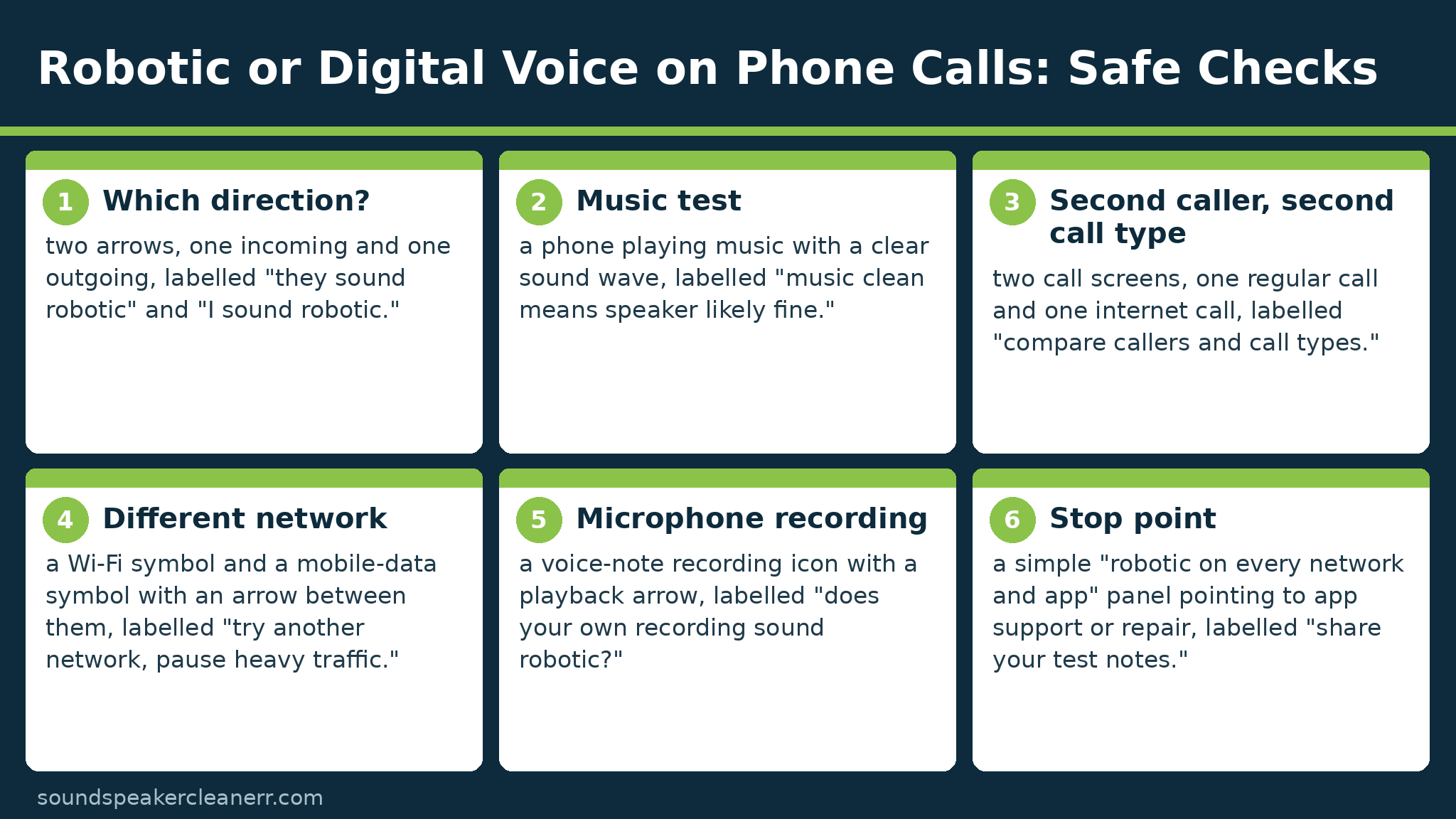
If voices sound robotic, metallic, underwater, or chopped up during phone calls, the speaker is probably not the problem. That digital sound usually means voice data is arriving late, incomplete, or converted badly over the network. This guide helps you find whose side the problem is on, with safe checks in order.
The first distinction to make is direction. "They sound robotic to me" and "I sound robotic to them" are different problems, even though they sound similar in conversation. If they sound robotic to you, the fault is in the incoming path: their microphone, the network between you, or your phone's playback. If you sound robotic to them, the fault is in the outgoing path: your microphone, your network upload, or the call type. Ask the other person directly which direction sounds wrong, and test with a second caller, because that one answer halves the diagnosis.
A second early test is just as important: play music or a video on the same phone. If music sounds normal, the loudspeaker is almost certainly fine, and a robotic call voice points to the call transmission, not to speaker damage. A faulty speaker distorts music too. A network or codec problem distorts only the call.
Describe the sound precisely, because the words narrow the cause
Before changing anything, note exactly what the robotic sound is like. Different descriptions point in different directions, and a precise note helps if you later need support from a calling app or service.
- Chopped or cutting in and out: short gaps in speech, words dropping, sentences breaking apart. This pattern fits voice data arriving incomplete or late, often when a connection is congested or unstable.
- Metallic, digital, or underwater: speech is continuous but sounds synthetic, tinny, or as if spoken through water. This pattern fits heavy compression, a codec conversion, or a mismatch between the calling app and the phone network.
- Slowing down or speeding up: speech stretches or rushes in bursts. This pattern fits a connection that delivers voice data unevenly, so playback speeds up or slows down to catch up.
- Lowered pitch at normal speed: the voice sounds deeper but not slower. This pattern can fit a sample-rate or conversion mismatch, where the calling system and the phone network disagree about how the voice data is encoded.
None of these descriptions alone proves a cause, but they prevent the most common mistake: cleaning the speaker repeatedly for a network problem. If the sound is chopped or underwater on calls only, while music is clean, start with the network and call-type checks below, not with the speaker grille.
Step 1: Prove whose side it is
Call a second person, and if possible use a second calling method as well. Four outcomes are possible, and each points somewhere different.
If every caller sounds robotic to you, the problem is on your side: your network, your phone, or your calling app. If only one caller sounds robotic, the problem is likelier on their side or on the route to them, and no setting on your phone will fix their microphone or connection. If you sound robotic to every caller, the problem is in your outgoing path: your microphone, your upload connection, or your call type. If you sound robotic to only one caller, that caller's playback or route is the likelier cause.
Also ask whether the robotic sound happens on regular phone calls, internet voice calls, or both. A regular phone call and an internet voice call travel differently: one uses the phone network, the other uses your internet connection and an app's voice system. If internet calls sound robotic but regular calls sound normal, the internet connection or the app is the focus. If regular calls sound robotic but internet calls sound normal, the phone network route or the phone's call handling is the focus. That split is the single most useful test in this whole guide, so do it before changing settings.
Step 2: Test a different network
For internet voice calls, the network test is straightforward. Move to a different network if you can — for example, switch from Wi-Fi to mobile data, or from mobile data to Wi-Fi — and make a test call to the same person. If the robotic sound disappears on the second network, the first network was congested, unstable, or interfering with voice traffic, and the phone is not at fault.
While on the first network, also reduce competing traffic for one test call: pause downloads, uploads, video streams, and large backups on your phone and on other devices sharing the same connection, and close extra browser tabs and apps. Voice calls need a steady, timely stream of small data packets, and a congested connection can starve them even when web browsing still feels fast. If the call improves with competing traffic paused, congestion was contributing, and keeping heavy traffic off the connection during calls is a usable fix.
Where a wired connection is available — for example, when calling from a computer rather than a phone — a wired connection is generally more stable than Wi-Fi for voice, because it avoids wireless interference. On a phone, moving closer to the Wi-Fi router, or away from a crowded wireless area, can serve as a simpler version of the same test. Do not change router settings you do not understand; the comparison test above is enough for a home diagnosis, and router configuration is a separate step for someone who manages that network.
Step 3: Restart, update, and free resources
If the network test does not explain the problem, work through the phone itself. Restart the phone and make a test call again. A restart clears temporary audio-processing and network glitches that can leave a call sounding digital even after the network recovers.
Check for a software update for the phone, and for an update to the calling app if the problem is specific to one app. Audio and calling behaviour can change with updates, and an update can also introduce a temporary glitch, so note whether robotic calls began right after an update. That timing points to software rather than sudden hardware failure.
Free system resources before a test call: close resource-heavy apps and unused browser tabs, especially if the robotic sound happens during browser-based calls, where the browser must decode the audio stream in real time. A phone or computer short on resources can struggle to process a live voice stream smoothly, and the result can sound robotic even on a good connection. If the call improves after closing other apps, resources were contributing.
Safe mode, where available on Android, runs the phone without third-party apps. If calls sound normal in safe mode, a third-party app is interfering with call audio, and removing recently installed audio, calling, or accessibility apps one at a time can identify it. If calls stay robotic in safe mode, a third-party app is not the cause.
Step 4: Check the microphone and the earpiece separately
If you sound robotic to callers, the microphone path deserves its own check, because a blocked or faulty microphone can make your voice sound distorted to others even when you sound normal to yourself. Record a voice note in a quiet room and play it back through the phone speaker. If the recording itself sounds robotic, muffled, or chopped, the microphone or its recording path is involved. If the recording sounds normal but live calls sound robotic to the other person, the live network or codec path is the likelier cause, not the microphone.
Clean the microphone opening gently with a dry, soft-bristled brush if it looks blocked, brushing across the opening rather than pushing into it. Do not push pins or sharp objects into the microphone, and do not use liquids on it. The microphone opening is separate from the speaker grille and from the charging port, and cleaning the speaker will not fix a microphone problem.
If callers sound robotic to you, check the earpiece and loudspeaker the same way: play music through each. If music is clean through both, playback hardware is not the cause, and the network or codec path remains the focus. If music is also distorted through one of them, that speaker path needs its own diagnosis, and the robotic call sound may be a symptom of it rather than a separate network problem.
Step 5: Codec and app settings — what a home user can safely try
Calling apps and voice services encode speech using a codec, a method for compressing voice data for transmission. Different codecs use different amounts of bandwidth and suit different connections. If a codec uses more bandwidth than a connection can deliver steadily, or if the app and the phone network disagree about the encoding, the result can sound robotic. That is why the same phone can sound fine on one app and robotic on another.
For a home user, the safe version of this check is a comparison, not a configuration project. Try the same conversation on a different calling app, and try the app's own audio or call-quality settings if it offers a simple option such as a lower-bandwidth or data-saving call mode. If one app sounds robotic and another sounds normal on the same network, the app or its codec choice is the likelier cause, and using the working app, or reporting the problem to the faulty app's support with your test notes, is the sensible step. Do not change advanced codec, server, or router settings you do not understand, and do not install unverified apps that promise to fix call quality. Those can make routing worse and are not needed for this diagnosis.
If the problem happens only on browser-based calls, try a different browser, or the app version of the same service if one exists, and clear only that browser's cached files if the service's own help suggests it. A browser struggling to decode a live audio stream can sound robotic from the start of a call, and a fresh browser session is a simple test of that.
When to stop and seek help
Seek further help — from the calling app or service, or from a repairer — if any of these apply: robotic sound persists on every network, every app, and every caller after restart, update, and safe mode; the recording test shows your own voice is robotic even offline, which points to the microphone or its path; music is also distorted through the same speaker, which points to playback hardware; or the phone was dropped or exposed to significant water and calls have sounded robotic ever since. In those cases the fault may be hardware or a service-side problem, and that needs hands-on assessment or service support rather than another restart. Share your test notes — which direction sounds robotic, regular call or internet call, which networks were tried, and whether recordings sound normal — because those four facts already rule out most guesses.
Do not keep raising volume to compensate for a robotic voice. Volume does not fix a transmission problem, and loud listening at maximum volume can harm hearing without improving intelligibility. Moderate volume, a quiet room, and a stable connection are the safer combination while diagnosing.
FAQ
Why do I sound like a robot on phone calls?
Usually because voice data is arriving late, incomplete, or converted badly over the network, not because your speaker is broken. Ask whether you sound robotic to every caller or only one, and whether it happens on regular calls, internet calls, or both.
Why does the other person sound robotic to me?
That points to the incoming path: their microphone, the network between you, or your phone's playback. If music sounds normal on your phone, playback hardware is unlikely to be the cause.
Is a robotic voice a speaker problem?
Usually not. A faulty speaker distorts music and videos as well as calls. If music is clean but calls sound robotic, the call transmission — network, codec, or app — is the likelier cause.
Does it matter if the call is a regular call or an internet call?
Yes, a great deal. Regular calls and internet voice calls travel differently. If one type sounds normal and the other sounds robotic, the faulty type's network or app is the focus.
Can Wi-Fi congestion cause a robotic voice?
Yes. Voice calls need a steady, timely stream of small data packets. Pause downloads, streams, and backups during a test call, and try a different network, such as mobile data instead of Wi-Fi, to compare.
Can a blocked microphone make me sound robotic?
A blocked microphone can make your voice sound distorted to callers. Record a voice note and play it back: if the recording sounds normal but live calls sound robotic to others, the live network path is likelier than the microphone.
When should I seek help for a robotic voice?
If it persists on every network, every app, and every caller after restart, update, and safe mode, or if your own recordings sound robotic offline, seek app support or a repair assessment, and share your test notes.
Related tools on this site
Related guides on this site
- Phone Microphone Not Working
- Speaker and Microphone Cleaning
- Phone Speaker Troubleshooting
- Phone Speaker Muffled
- Phone Speaker Crackling
- How to Clean Phone Speakers
- Clean Ear Speaker
- How to Fix Bluetooth Audio Delay (Lip Sync Lag)
- How to Fix a Bluetooth Speaker With Muffled or No Sound
- Does Speaker Cleaner Work?
- Speaker Cleaner Apps: Safe Use Without Installing One
- How to Test Speakers
- Fix Speaker Android
- How to Clean iPhone Speakers the Safe Way
Leave a Reply