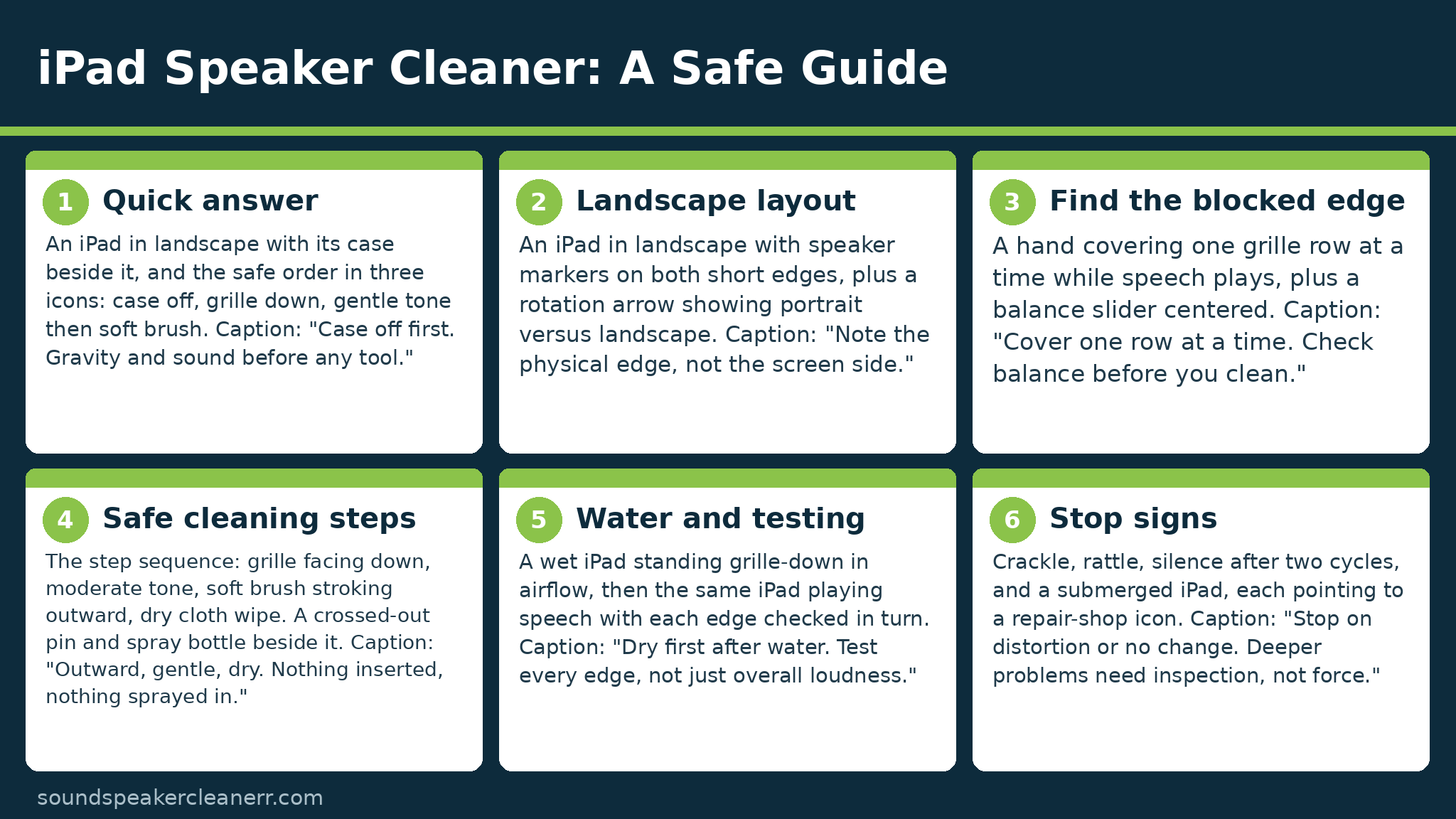
A muffled iPad speaker is usually a blocked grille, a case covering a grille, or an iPadOS settings problem, not a broken speaker. Remove the case, find which landscape edge is quiet, and clean in this order: gravity and a gentle tone first, then a soft dry brush outward along the grille.
Test each side separately in landscape and portrait, keep volume moderate, and stop if the sound crackles, rattles, or gets worse. That order matters on an iPad. Its grilles are long rows of small holes along the short edges, and the mesh behind them is easy to press inward. Pushing a tool into the holes, blasting air straight into them, or scrubbing hard can push debris deeper or damage the mesh. A careful sequence does more, with less risk, than a forceful one.
Where iPad speakers actually are
Hold the iPad in landscape mode, the way most video and games use it. On recent iPads, the speaker grilles sit on the left and right short edges. Some iPads have two speakers, one on each short edge; others have four, with two grilles near each short edge. The exact count and position vary by model, so look at your own iPad rather than assuming a picture online matches it.
That landscape layout explains a common confusion. In portrait mode, the same speakers sit at the top and bottom, so a speaker that sounds quiet on the left in landscape may sound quiet at the bottom in portrait. The speaker did not move; your orientation did. Always note the problem by physical edge, not by screen side, until you have tested in both orientations.
iPad speakers are also different from phone speakers in what they are not. An iPad has no phone earpiece to confuse with a loudspeaker, and its microphone holes are separate small pinholes, usually elsewhere on the edge. Do not clean a microphone hole as if it were a speaker grille, and do not expect a speaker tone to clear a microphone. The charging port is a third, separate opening: keep it out of speaker cleaning entirely, and never insert a brush or tool into it as part of this guide.
Cases deserve special attention on an iPad. A Smart Folio, keyboard case, bumper, or kids' case can cover a grille partly or fully, and a thick case can trap crumbs and dust against the grille even when the iPad looks clean. A keyboard case adds another wrinkle: when the iPad is docked, one edge may sit close to the keyboard hinge, muffling sound in a way that disappears the moment you undock it. Always test with the case off and undocked before you judge the speakers.
Find which speaker is the problem
Start by looking, not cleaning. With the case off and the iPad undocked, look along both short edges in good light. Note every row of grille holes you can see, and note any edge where holes look filled with lint, crumbs, or dust. Do not poke at them yet; this is only a map.
Next, play speech, not music, at a moderate volume. Speech makes a quiet side easier to hear than bass-heavy music. While it plays, cover one grille row at a time with a fingertip and listen. If covering one row changes almost nothing, that row may already be blocked, or that speaker may not be producing sound. If covering a row makes the sound clearly duller, that speaker is working.
Rotate the iPad 180 degrees in landscape and listen again. If the quiet side follows the physical edge of the iPad rather than the left or right of the screen, the problem is that edge's grille or speaker. If the quiet side stays on the same screen side after rotation, check the iPadOS balance setting first, because the sound may be panned to one side in software rather than blocked in hardware. This rotation test takes less than a minute and separates a grille problem from a settings problem. Note which edge is affected and whether the sound is muffled, quiet, crackly, or silent.
Rule out the easy iPadOS causes first
Before any cleaning, check five easy causes. First, the case: play the same speech with the case off and the iPad undocked. If the sound returns, the case was the problem. Clean the case separately, check its grille cutouts, and do not cut or enlarge a case opening yourself unless the maker provides for it.
Second, volume and mute: check the volume buttons, Control Center volume, and any mute or Silent Mode setting, and check volume limits in Screen Time or accessibility settings. A shared family iPad in particular may have a volume limit that makes every speaker sound quiet, which no cleaning will fix.
Third, output route: make sure sound is actually coming from the iPad speakers, not from AirPods, a Bluetooth speaker, or another AirPlay device that has taken over playback. Disconnect Bluetooth audio, check Control Center's audio output, and test again. An iPad that sounds silent is sometimes simply sending sound elsewhere.
Fourth, balance and mono audio: in Settings, check the accessibility audio balance and make sure it is centered, and check whether mono audio is on. An off-center balance can make one side sound dead even when both speakers work. If any of these checks fixes the sound, stop there. Cleaning a working speaker will not improve it.
Fifth, the app itself: test with a second app, such as a different video or voice recording. If only one app sounds quiet, the problem may be that app's own volume or audio setting, not the speakers. A quick app comparison saves a cleaning that was never needed.
Clean an iPad speaker, step by step
Work in this order, and stop as soon as the sound is clear.
- Power off the iPad or at least stop playback, remove the case, undock any keyboard, and wipe the outside with a soft, dry, lint-free cloth.
- Hold the iPad on its edge, or prop it so the blocked grille faces down toward the floor, so gravity helps loose debris fall out.
- Play a gentle cleaning tone at a moderate volume through the iPad's own speakers, not through headphones or Bluetooth speakers, using a dust mode for dust or a water mode only if the problem followed water, for one short cycle, then stop and listen.
- Brush outward along the grille with a clean, dry, soft-bristled brush, using light strokes along the grille and away from the openings, not inward and not in hard circles.
- If using low-tack tape to lift fine particles, press it lightly only on the surface of the grille, lift it straight off, and check that no sticky residue remains.
- Play the same speech again and compare with your earlier note; if clear, stop, if better but still dull, repeat the tone and brush once more, and if unchanged after two careful cycles, move to troubleshooting.
Use compressed air only with great caution, if at all. Maker guidance summarized in Section A warns against it, because it can damage delicate parts or push dirt deeper. If you use it despite that warning, hold the can upright, use short bursts from a distance, and angle air across the grille, never into it. Skipping it entirely is always the safer choice, and most iPad grilles can be cleaned without it.
Do not use liquids on the grille, do not spray cleaner into the speaker, and do not insert pins, needles, toothpicks, cotton swabs, or SIM tools into the holes. An iPad grille is not a vent to be poked clear. Anything inserted can tear the mesh, push debris inward, or damage the driver behind it.
What to do after water or a spill
Water changes the order. If the iPad was splashed, rained on, or had a drink spilled near it, power it off if you can do so safely, remove the case, and do not charge it. Wipe the outside with a soft, dry cloth, stand it on edge with the wet grille facing down in a dry place with airflow, and let it air-dry. Do not use external heat, a hair dryer, or a hot surface to speed drying, and do not put it in rice, which can leave grains and dust near openings.
Only after the outside is dry and the iPad has had drying time should you run a short water tone at a moderate volume, grille facing down, followed by a test.
If the iPad will not turn on, will not charge, shows a liquid warning, or smells unusual, stop. Do not keep testing it. Follow Apple's guidance for liquid exposure and seek repair. No charging-wait hour figure is given in this guide, because none was verified directly on Apple's support site for this draft; follow the maker's current guidance instead.
Test each speaker separately
Testing is what turns cleaning into a result. Play the same speech clip you used at the start, at the same moderate volume, and listen to each edge in turn. Cover grilles one at a time again and compare. A successful clean should make the previously quiet edge sound close to the other edges, not merely louder overall.
Also test with a song with clear vocals, because speech alone can hide a rattle or distortion.
Troubleshooting
Quiet on one side only: Recheck balance, rotate the iPad, and retest with the case off and undocked.
Still muffled after two cycles: The debris may be packed into the mesh, the grille may be damaged, or the driver may be at fault.
Crackling or rattling: Stop cleaning tones at once.
Sound comes and goes: Check for a case pressing on an edge, a Bluetooth or AirPlay device reconnecting and stealing audio, or a keyboard dock connection issue.
No sound at all: Check mute, volume, output route, and balance before assuming damage.
Worse after cleaning: Stop.
What not to do
Do not use a pin, needle, or SIM tool in a speaker grille. Do not use a vacuum cleaner at full suction directly on a grille, which can stress thin mesh. Do not spray cleaning liquid, disinfectant, or water into the speaker. Do not use an abrasive cloth, a scouring pad, or a hard brush. Do not play a cleaning tone at maximum volume for a long session, and never test a cleaning tone through headphones or earbuds at high volume. Do not open the iPad yourself unless you are qualified, and do not follow a phone earpiece guide for an iPad, because the grille layout and speaker count are different.
Also do not chase extreme frequencies.
When to seek repair
Seek repair, or contact Apple or a qualified shop, if the iPad was submerged, will not turn on or charge, stays distorted, rattling, or silent after drying and two careful cleaning cycles, shows swelling, heat, or a damaged grille, or had a sugary or salt-water spill and still sounds wrong after full drying. Bring your note: which edge, which symptom, what you tried, and whether rotation or balance changed anything. That note saves diagnostic time and prevents a shop from repeating a cleaning you already did carefully.
Conclusion
iPad speaker cleaning is mostly diagnosis, then gentle work in the right order: map the landscape grilles, rule out case, balance, and output, then use gravity, a moderate tone, and a soft outward brush. Test each side in both orientations, stop on distortion or no change, and get a speaker that stays muffled checked rather than pushing harder.
FAQ
Why does my iPad speaker sound muffled?
Most often, dust, crumbs, or lint has packed into a landscape grille, or a folio or keyboard case is partly covering it. Less often, the balance is off-center, sound is routed to Bluetooth or AirPlay, or the speaker itself is damaged. Remove the case, check balance and output, then clean the grille gently.
How do I find which iPad speaker is blocked?
Play speech at a moderate volume and cover one grille row at a time. The row whose covering changes almost nothing is the suspect. Rotate the iPad 180 degrees in landscape: if the quiet side follows the physical edge, that edge is the problem; if it follows the screen side, check balance and settings.
Can I use a phone speaker cleaner tone on an iPad?
Yes, with care, if the tone plays through the iPad's own speakers at a moderate volume. An iPad is not a phone, though: it may have two or four speakers, so test each edge separately, and do not assume a phone earpiece method applies. Keep sessions short and stop on distortion.
Is compressed air safe for iPad speakers?
It can be risky. Maker guidance summarized in Section A warns that compressed air could damage delicate parts or push dirt deeper. If used at all, hold the can upright, use short bursts from a distance, and angle air across the grille, not straight into it. Most iPad grilles can be cleaned without it.
Can I clean an iPad speaker with tape?
Lightly, on the surface only. Press low-tack tape gently onto the grille surface and lift it straight off to pick up fine particles. Do not press it into the holes, use heavy pressure, or leave residue behind, because residue in a hole can muffle sound worse than dust.
What should I do if my iPad speaker got wet?
Power it off if safe, remove the case, do not charge it, wipe the outside dry, and stand it grille-down in dry airflow to air-dry. Do not use heat or rice. Only after drying, try a short water tone and test. If it stays muffled, distorted, or silent, seek repair rather than repeating tones.
When should I stop cleaning and seek repair?
Stop if the sound crackles, rattles, or gets worse, if two careful cycles change nothing, if the iPad was submerged or had a sugary or salt-water spill and still sounds wrong after drying, or if it will not turn on or charge. Those signs point beyond surface dirt.
Does an iPad have an earpiece speaker like a phone?
No, not in the phone-call sense. An iPad's speakers are its landscape loudspeakers, and its microphone holes are separate pinholes. Do not clean a microphone hole as if it were a speaker grille, and do not follow a phone earpiece guide for an iPad.
Leave a Reply