If your phone speaker sounds clean at low volume but distorted at high volume, do not assume it is broken yet. Small phone speakers are easily pushed beyond clean sound, and a setting, a loose case, or debris can mimic damage. A short test ladder will tell you which one you are hearing.
The important clue is the volume dependence itself. A speaker that is damaged usually sounds wrong at more than one volume, or sounds wrong on particular sounds even quietly. A speaker that only breaks up when pushed loud may simply be overdriven, or something near it may only vibrate once the speaker moves hard enough. Finding the point where clean sound turns rough, and whether that point moves when you change settings, is the diagnosis.
Run the volume test ladder first
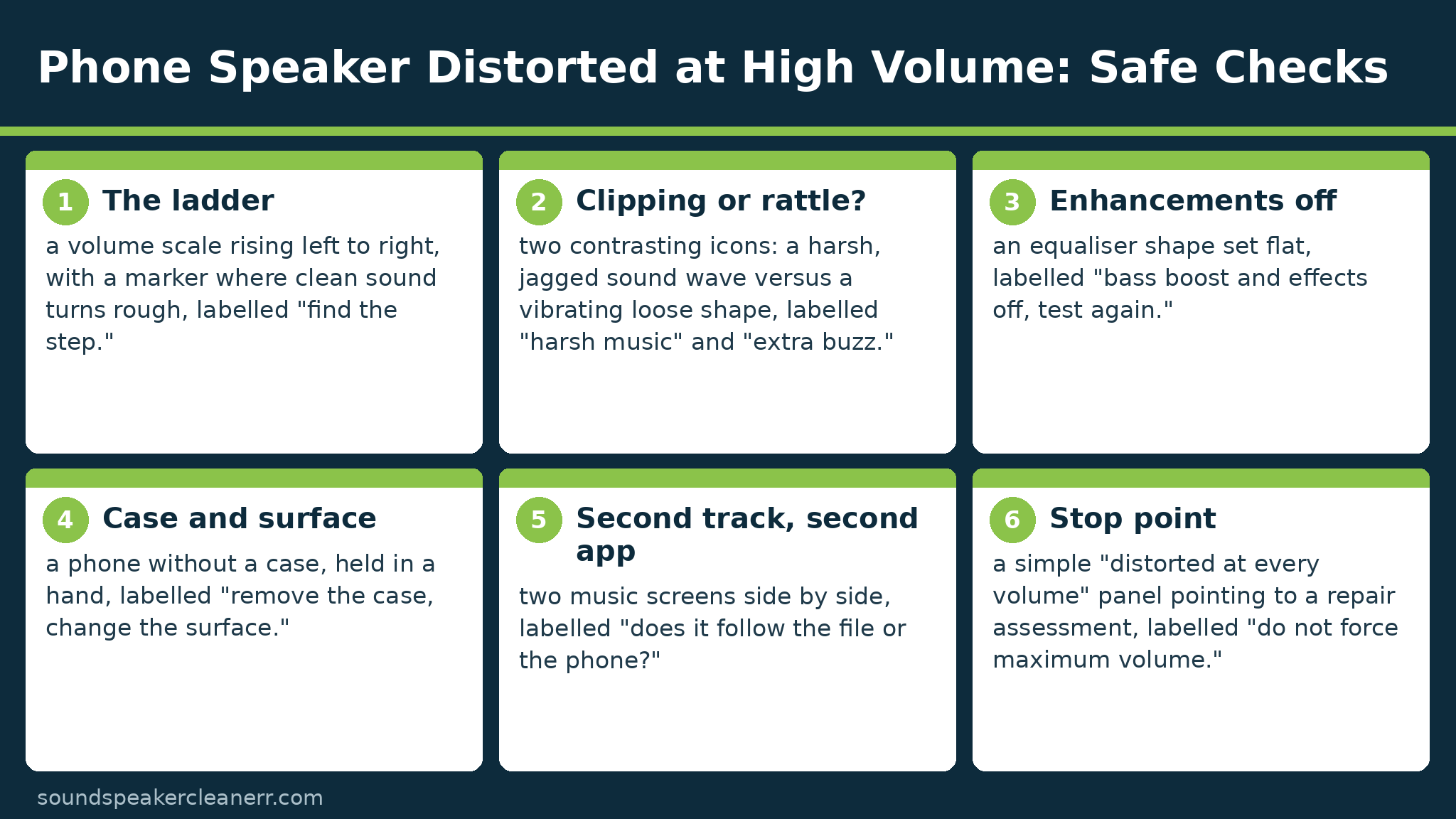
Use one familiar track, one app, and one place, so only volume changes. Pick a track you know well, with clear vocals and some bass, and play it through the phone speaker.
Start low, then raise volume in small steps, pausing at each step to listen. Note the step where the sound first changes: does it become harsh, fuzzy, or crackly on loud notes, while quiet passages stay clean? Or does a buzz or rattle appear that sounds like something vibrating, separate from the music? Write down roughly where that step falls — low, middle, or near maximum — because that note is useful later.
Now repeat the same track at the same steps with the phone in a different position: flat on a table, held in the hand, and on a soft surface. If the buzz changes or disappears with position, a rattle or surface vibration is more likely than a damaged speaker. If the harsh, fuzzy distortion appears at the same volume step in every position, the signal or the speaker itself is the likelier cause.
Finally, play a second, different track and a spoken-word recording at the same high step. If every track distorts at the same step, the cause is in the phone. If only one track distorts, that recording or its streaming quality may be the problem, and the speaker is probably fine.
Tell clipping-like distortion from rattle
These two problems sound different, and they need different fixes, so listen carefully during the ladder.
Clipping-like distortion sounds like the sound itself breaking up: vocals turn harsh or gritty, loud drum hits sound crushed or flattened, and the harshness follows the loud parts of the music. It usually appears gradually as volume rises, and it often improves immediately when you lower volume a step or two. It can also improve when you reduce bass or turn off a sound enhancement, which points to the signal being pushed too hard rather than to a loose part.
Rattle sounds like something extra vibrating alongside the music: a buzz, a tick, or a flutter that does not follow the melody, and that may come and go as the phone vibrates. It often changes when you press gently on the back or edges of the phone, remove the case, or move the phone to a different surface. A rattle at high volume only is common, because the speaker only moves far enough to shake the loose item once volume is high.
Damage is the third possibility, and it behaves differently again: distortion or buzzing that persists even at low volume, distortion on one particular kind of sound at any volume, or a speaker that sounds thin, quiet, and distorted together. If your ladder shows distortion at every step, including low volume, skip ahead to the hardware section rather than spending longer on settings.
Do not try to measure this with numbers at home. You do not need a decibel reading or a frequency figure to make this distinction; what you hear, and whether it moves with settings, position, or case, is enough for a safe home diagnosis.
Step 1: Check equaliser and sound enhancements
Phone audio settings can push a small speaker beyond clean sound long before maximum volume. Bass boost, surround effects, and loudness enhancements all ask the speaker to move further, especially on bass-heavy music. At low volume that extra push is harmless; at high volume it can be the difference between clean and distorted.
Open your phone's sound settings and look for equaliser, sound quality, sound effects, or audio enhancement options. Menu names vary by brand and software version, so use the settings search for "equaliser," "sound effect," or "audio enhancement." Turn off bass boost and any surround or loudness effect, set the equaliser to flat or off, and repeat the test ladder with the same track. If distortion now starts at a higher volume step, or disappears at your normal listening level, the enhancement was contributing, and you have a usable fix: keep the enhancement off for loud listening, or keep volume below the distortion step.
Also check the same idea inside the music or video app itself. Some apps have their own equaliser, loudness, or "enhance audio" option that stacks on top of the phone's settings. Turning both on at once is a common way to overdrive a small speaker without realising it. Test with the app's enhancement off as well, and compare the same track before concluding the speaker is at fault.
Step 2: Check for rattle — case, surface, and debris
If the ladder points to rattle rather than harsh distortion, work through the physical causes in order. First, remove the case and any attached accessory, such as a grip or wallet flap, and repeat the high-volume step. A loose case edge, a cracked case, or a flap can vibrate only when the speaker is loud, and removing it is a free test.
Next, inspect the speaker grille in good light. Dust, sand, or lint in the grille can buzz when the speaker moves hard, even if it does not affect quiet sound much. Clean gently with a dry, soft-bristled brush or a microfiber cloth, brushing across the grille rather than pushing into it. Do not push pins, needles, or other sharp objects into the grille, and do not use liquids on it. If the phone recently got wet, do not charge it while wet, and follow the phone maker's guidance for drying; sound played at moderate volume is a test, not a guaranteed way to remove water or dust, and it does not repair damage.
Also check what the phone is sitting on. A phone on a hollow table, a metal tray, or a loose cover can make a surface buzz that sounds like speaker distortion. Holding the phone in the hand during the test removes the surface from the equation. If the rattle disappears in the hand, the surface, not the speaker, was buzzing.
Step 3: Rule out the app and the file
If distortion follows one app or one track, the phone speaker may be innocent. Streaming quality, a low-quality download, or a corrupted file can sound harsh at high volume because the missing detail becomes obvious when amplified. That harshness is in the recording, not the speaker, and it will follow the file to another device.
Play the same track on a different device, such as another phone or a computer, at a comparable loudness. If it sounds harsh there too, the file or stream is the problem. Inside the original app, try a downloaded version rather than a stream if one is available, try a different track in the same app, and try the same track in a different app. If only one app distorts, clear that app's cache if your phone offers it, check for an app update, and test again. Do not factory-reset the phone for a one-app problem.
Step 4: Rule out software — restart, update, and safe mode
If the ladder, settings, rattle, and app checks do not explain the distortion, software is next. Restart the phone and repeat the ladder with the same track. A restart clears temporary audio-processing glitches that can leave an enhancement stuck on or routing confused.
Check for a software update, and note whether distortion began right after an update. That timing points to software rather than sudden hardware failure. Safe mode, where available on Android, runs the phone without third-party apps; if high-volume sound is clean in safe mode, a third-party audio or enhancement app is interfering, and removing recently installed audio apps one at a time can identify it. If distortion persists in safe mode, a third-party app is not the cause.
As a non-destructive step, resetting all settings (not erasing data) can clear a stuck audio configuration, but it also resets Wi-Fi, Bluetooth, and preferences, so note your settings first if you choose it.
When distortion means repair
Seek a repair assessment if any of these apply: distortion persists at low volume as well as high volume; distortion persists after enhancements are off, the case is removed, the grille is gently cleaned, and a second track and a second app have been tested; the speaker sounds thin and quiet as well as distorted; or the phone was dropped or exposed to significant water and has sounded distorted ever since. In those cases the speaker component or its connection may be damaged, and that needs hands-on repair rather than another settings change. Do not keep playing the speaker at maximum volume to "test" a suspected damaged speaker, and do not open the phone yourself unless you are qualified to do so. For everyday listening, keep volume at or below the step where sound stays clean; moderate volume protects both the speaker and your hearing.
Keep a short note of your ladder result — the track, the step where distortion started, whether enhancements changed it, and whether the case or surface changed it — and share it with the repairer. It already rules out the most common non-hardware causes.
FAQ
Why does my speaker sound fine quietly but distorted loudly?
Small speakers are most easily overdriven at high volume, and enhancements such as bass boost ask the speaker to move further. Distortion that appears only above a certain volume step often points to the signal or a rattle, not immediate hardware failure.
How do I find where distortion starts?
Play one familiar track and raise volume in small steps, pausing to listen at each step. Note the step where harshness or rattle first appears, then repeat with enhancements off and the case removed to see if that step moves.
How can I tell clipping from a rattle?
Clipping-like distortion makes the music itself sound harsh, gritty, or crushed on loud notes, and improves when volume or bass is reduced. A rattle sounds like something extra vibrating alongside the music, and often changes with case, surface, or hand position.
Can an equaliser cause distortion?
Yes. Bass boost, surround effects, and loudness enhancements can push a small speaker beyond clean sound at high volume. Set the equaliser to flat or off and repeat the test to see if distortion starts later.
What if only one song or one app distorts?
Then the recording, stream, or app is the likelier cause. Play the same track on another device, try a different track in the same app, and try the same track in a different app before concluding the speaker is faulty.
Does distortion at high volume always mean a damaged speaker?
No. Damage usually shows at low volume too, or on particular sounds at any volume. Distortion only at high volume, which improves with lower volume or with enhancements off, points more to overdriving, settings, or rattle.
When should I seek repair?
If distortion persists at low volume, or after enhancements are off, the case is removed, the grille is gently cleaned, and a second track and app have been tested, seek a repair assessment. Do not keep testing a suspected damaged speaker at maximum volume.
Related tools on this site
Related guides on this site
- Phone Speaker Crackling
- Phone Speaker Muffled
- Phone Speaker Troubleshooting
- How to Clean Phone Speakers
- Clean Dust from Phone Speaker
- Does Speaker Cleaner Work?
- Speaker Cleaner Apps: Safe Use Without Installing One
- Phone Speaker Volume Low
- How to Test Speakers
- Fix Speaker Android
- Speaker and Microphone Cleaning
- How to Clean iPhone Speakers the Safe Way
Leave a Reply