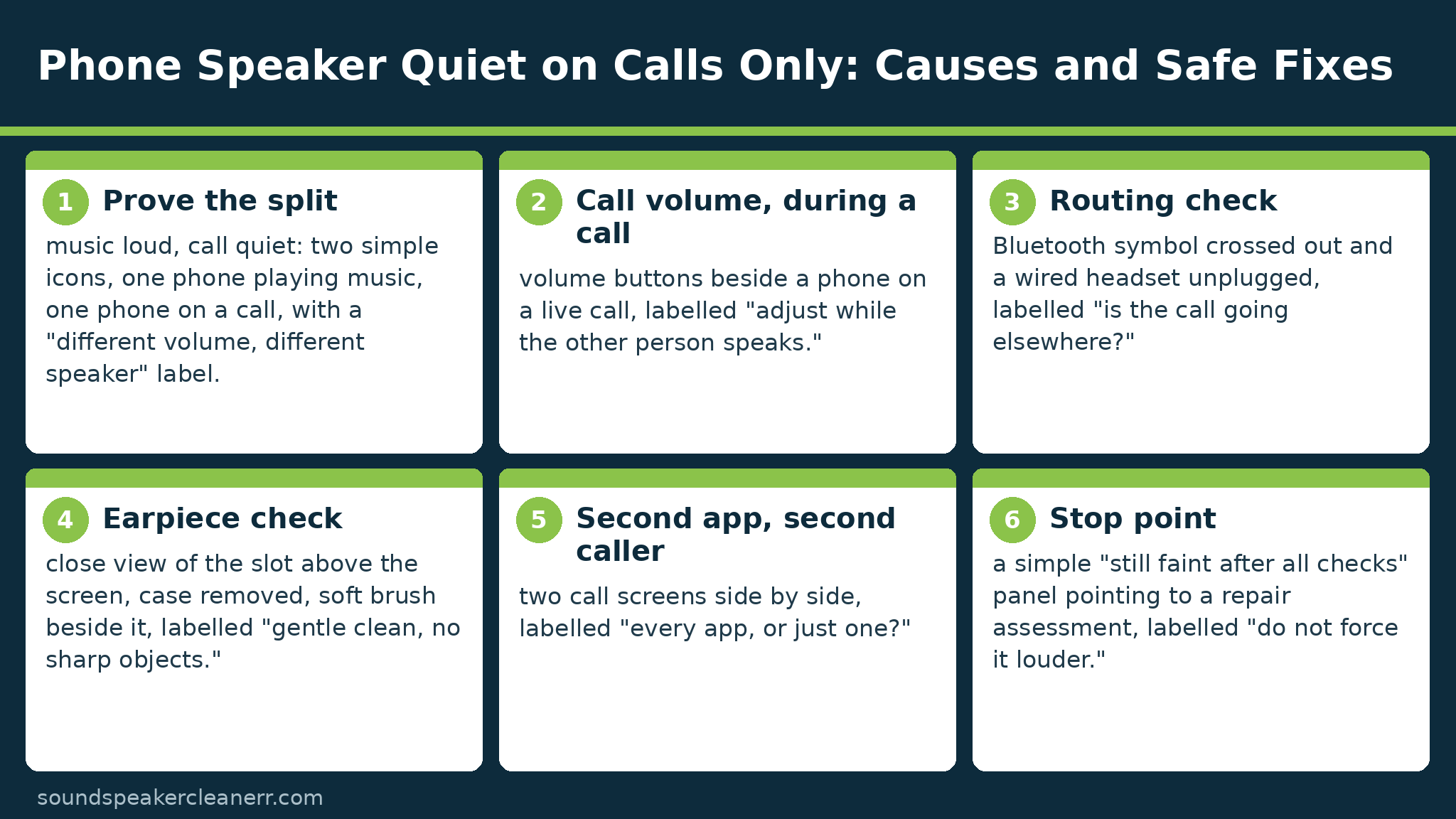
If your calls are quiet but your music is loud, the fault is probably not your whole speaker. Phones keep call volume and media volume separate, and normal calls use the small earpiece while music uses the larger loudspeaker. This guide helps you find which one is responsible, with safe checks in the right order.
That split is the whole diagnosis. A loud song proves the loudspeaker and the media volume stream work. It says nothing about the call volume stream or the earpiece. Once you test those two things separately, most call-only quiet cases narrow to a setting, a routing choice, a blocked earpiece, or one misbehaving app — all of which can be checked at home before anyone talks about repair.
First, prove the split properly
Before changing settings, confirm the pattern with three short tests. They take only a few minutes and prevent a misdiagnosis.
- Media test. Play a song or video through the phone speaker at a comfortable level. If it sounds clear and loud enough, the loudspeaker and media volume are working.
- Call test, earpiece. Call someone who can speak for a few seconds, hold the phone to your ear normally, and listen. Note whether the caller is silent, faint, muffled, or clear but quiet. Faint and muffled are different clues: faint points to volume or routing, muffled points to blockage or moisture.
- Call test, speakerphone. During the same call, switch speakerphone on. If the caller suddenly sounds loud and clear on speakerphone, the pattern is confirmed: media and loudspeaker work, but the normal-call path does not.
Also check the reverse direction: can the other person hear you clearly? If they cannot hear you, that is a microphone problem, not an earpiece problem, and it needs a different set of checks. This article covers "you cannot hear them on a normal call." If the problem is "they cannot hear you," start with the microphone path instead.
Test with a second caller if you can. If every caller is quiet, the fault is in your phone. If only one caller is quiet, the problem may be on their end, their microphone, or their connection, and no phone setting will fix it.
Understand the separate volumes, because that is the usual trap
Most phones have several volume streams, and the volume buttons adjust whichever stream is active at that moment. That is why the buttons can seem to do nothing useful.
- Media volume controls music, videos, and games.
- Call volume controls how loud the other person sounds during a call. It can usually only be changed while a call is active.
- Ring and notification volume controls ringtones and alerts. It does not control call audio.
- Alarm volume is separate again on many phones.
So the classic mistake is turning media volume to maximum while listening to music, then wondering why the next call is still quiet. The call volume was never changed. The fix is simple: make a call, and while the other person is speaking, press volume up repeatedly. Watch for an on-screen indicator that says call, in-call, or voice-call volume, rather than media. If the caller gets louder, the problem was the call volume stream, and the case is closed.
Also check the quiet modes that can sit on top of call volume. Do Not Disturb and silent mode mainly affect ringtones and notifications, but accessibility and hearing settings can change how call audio is processed. On some phones, a noise-cancellation or hearing-aid compatibility option changes earpiece sound during calls. If call audio changed after a settings change or an update, look in accessibility audio settings and try the option the other way, then test a call again. Menu names vary by brand and software version, so use the settings search on your phone for "call audio," "hearing," or "noise cancellation" rather than following one exact path from memory.
Step 1: Rule out routing — is the call going somewhere else?
Routing is the fastest cause to rule out, and it is easy to miss. A phone may send call audio to wireless earbuds in a pocket, a car system, a watch, or a Bluetooth speaker, while media audio still comes from the phone speaker. In that case the call sounds quiet or absent through the earpiece simply because it is not using the earpiece at all.
Turn Bluetooth off completely, disconnect any wired headphones or adapter, and make a test call holding the phone to your ear. During the call, check the audio output control on the call screen: on many phones it shows speaker, earpiece, or a connected device by name. If the output was set to another device, switching it back to the phone should restore normal call sound immediately.
Also check whether a watch, car, or speaker nearby is grabbing the call. If the call sounds fine once Bluetooth is off and those devices are out of range or disconnected, the phone was not faulty — the routing was. Reconnect devices one at a time if you need to find which one captures calls.
Step 2: Check the earpiece itself — blockage, case, and screen protector
If call volume is correct and routing is back to the phone, the earpiece is the next suspect. The earpiece is the thin slot above the screen, much smaller than the loudspeaker, and it blocks easily. Skin oils, dust, pocket lint, and makeup residue can build up across that narrow slot, and a case or screen protector that creeps over the slot can muffle it further.
Remove the case and look closely at the slot in good light. If a screen protector covers part of the slot, that alone can explain faint call audio, and no software fix will help until the slot is clear. Clean gently with a dry, soft-bristled brush or a microfiber cloth, brushing across the slot rather than pushing into it. Do not push pins, needles, toothpicks, or other sharp objects into the earpiece, and do not use liquids or strong compressed air at close range on it. Those can push debris deeper or damage the mesh.
If the phone recently got wet, do not charge it while it is wet, and follow the phone maker's guidance for drying. Sound played at a moderate volume may help you test whether the earpiece is recovering as it dries, but sound is not a guaranteed way to remove water or dust, and it does not repair damage. If call audio stays muffled after the phone is fully dry, blockage or damage, not remaining water, is the likelier explanation.
A useful comparison: if speakerphone is loud but the earpiece is faint even after cleaning and with the case off, the fault is narrowed to the earpiece itself or its connection. That is the point where home checks stop and a repair assessment begins.
Step 3: Test per-app behaviour — is it every call or one app?
Not all calls use the same path. A regular phone call, a messaging-app voice call, and a video call can behave differently, because each app has its own permissions, audio settings, and routing. If regular calls are quiet but a messaging-app call sounds normal, the regular phone app or its settings are the likelier cause, not the earpiece hardware.
Test the same earpiece with two different calling apps. Also check the app's own permissions: a calling app without microphone or phone permission may behave oddly, and a voice-enhancement or noise-reduction option inside one app can make its calls sound quieter than others. Clear the cache of a single misbehaving calling app if your phone offers that option, and check whether the app has an update. Do not factory-reset the phone for a one-app problem.
If every calling app is equally quiet through the earpiece, while media stays loud, the fault is in the phone's call path — volume, routing, blockage, software, or hardware — rather than in one app. That distinction saves a lot of wasted reinstalling.
Step 4: Rule out software — restart, update, and safe mode
If the hardware checks pass, software is next. Restart the phone and test a call again. A restart clears temporary audio-routing glitches that can leave call volume stuck low or send call audio to the wrong output.
Check for a software update, because audio-routing and call-volume behaviour can change with updates, and an update can also introduce a temporary glitch. If quiet calls began right after an update, note that timing: it points to software rather than sudden hardware failure, and a later update or a settings reset may resolve it. As a non-destructive step, resetting all settings (not erasing data) can clear a stuck audio configuration, but it also resets Wi-Fi, Bluetooth, and preferences, so note your settings first if you choose it.
Safe mode, where available on Android, runs the phone without third-party apps. If calls sound normal in safe mode, a third-party app is interfering with call audio, and removing recently installed audio, calling, or accessibility apps one at a time can identify it. If calls stay quiet in safe mode, a third-party app is not the cause.
When to stop and seek repair
Stop home troubleshooting and seek a repair assessment if any of these apply: the earpiece stays silent or very faint after call volume, routing, cleaning, restart, and software checks; call audio is distorted even at low volume; the phone was dropped or exposed to significant water and the earpiece has never worked normally since; or there is visible damage, corrosion, or discolouration around the earpiece. In those cases the earpiece component or its internal connection may be faulty, and that needs hands-on repair rather than another cleaning pass. Do not open the phone yourself unless you are qualified to do so, and do not keep playing loud tones at maximum volume in an attempt to force a damaged earpiece back to life. Moderate volume only, for testing, protects both the speaker and your hearing.
Keep a short note of what you tested — media loud, call quiet, speakerphone loud, Bluetooth off, case off, second caller, second app — and share it with the repairer. It shortens the diagnosis considerably, because it already rules out the loudspeaker, the media stream, and routing.
FAQ
Why are my calls quiet but my music is loud?
Because calls and media use separate volume streams and, for a normal call, a separate speaker. Music uses media volume and the loudspeaker; a normal call uses call volume and the earpiece. Check call volume during a live call first.
How do I turn up call volume if the buttons are already at maximum?
The buttons adjust the active stream. Make a call and press volume up while the other person is speaking, so you adjust call volume rather than media volume. Look for an on-screen call-volume indicator.
Why is the caller loud on speakerphone but quiet on a normal call?
Speakerphone uses the loudspeaker; a normal call uses the earpiece. If speakerphone is loud, the loudspeaker works and the fault is narrowed to the earpiece, its path, call volume, or routing.
Could Bluetooth be making my calls quiet?
Yes. A phone can send call audio to earbuds, a car, or a speaker while media still plays from the phone. Turn Bluetooth off and disconnect wired headphones, then test a call to rule routing out.
Can a case or screen protector make calls quiet?
Yes, if it covers the earpiece slot above the screen. Remove the case, check the slot in good light, and clean it gently with a dry soft brush or microfiber cloth. Do not push sharp objects into the slot.
What if only one app has quiet calls?
Then that app, its permissions, or its own audio settings are the likelier cause, not the earpiece hardware. Test a second calling app, check the app's permissions and updates, and clear only that app's cache if your phone offers it.
When should I seek repair for quiet calls?
If the earpiece stays silent or very faint after call-volume, routing, cleaning, restart, and software checks, or if there is damage or distortion at low volume, seek a repair assessment. The earpiece or its connection may be faulty.
Related tools on this site
Related guides on this site
- Speaker Cleaner Apps: Safe Use Without Installing One
- Does Speaker Cleaner Work?
- How to Clean Phone Speakers
- Clean Ear Speaker
- Phone Speaker Muffled
- Phone Speaker Volume Low
- Phone Speaker Troubleshooting
- Phone Speaker Crackling
- Clean Dust from Phone Speaker
- iPhone Speaker Cleaner: A Safe Guide to Clearer Sound
- Speaker and Microphone Cleaning
- Phone Microphone Not Working
- Fix Speaker Android
- How to Clean iPhone Speakers the Safe Way
- Water in Charging Port
Leave a Reply