Author: Owner

  • Honor Speaker Cleaner: A Safe Guide to Clear Sound

    Honor Speaker Cleaner: A Safe Guide to Clear Sound

    Honor phones follow the same safe speaker approach as other Android phones, with Honor’s own order: wipe gently with a soft cloth, wait for a small splash to evaporate, rule out Bluetooth and apps with Safe Mode, and leave a factory reset until last.

    This guide groups Honor Magic, Honor number-series, Honor X-series, and Honor foldable models together, because their speakers fail for the same reasons even though their exact layouts and MagicOS menus differ.

    Who this guide is for

    This guide is for anyone whose Honor phone sounds muffled, quiet, crackly, or silent, whether after dust, a small splash, a new app, or a software update. It does not replace Honor’s instructions for your exact model. If a menu name below differs on your phone, search your Settings app for the setting name, or check Honor’s support pages for your model. Menu names vary by MagicOS version.

    It is not a repair manual. If your phone was fully submerged, will not charge, shows a liquid warning, or smells of burning, follow Honor’s guidance and seek authorized service instead of repeating cleaning tones.

    The Honor speakers and microphones, in plain terms

    An Honor phone normally has a loudspeaker, usually along the bottom edge, and a smaller earpiece at the top for normal calls. Many Honor models use both together for stereo media sound. It also has more than one microphone: one near the bottom for calls, and others used for noise cancellation and video. Those parts fail differently, and testing them separately is the fastest way to avoid a wrong fix.

    Music that sounds muffled points to the loudspeaker. Callers who sound quiet while speakerphone sounds fine point to the earpiece. Callers who cannot hear you while you hear them fine point to a microphone. A cable that will not click in, or charging that only works at an angle, points to the charging port, which sound does not clean. Keep those four parts separate before you clean anything.

    Diagnose first: test each part separately

    Do these tests in a quiet room, with no Bluetooth device connected and the case removed, so a case or film cannot hide the result.

    Play music or a video at a moderate volume and note whether it is muffled, crackly, quiet, or silent. Then use the Speaker Test tool on this site to check for distortion or dropouts. Make a normal call without speakerphone and listen through the earpiece, then switch the same call to speakerphone and listen through the loudspeaker. Record a short voice note and play it back to test the microphone. If only one test fails, you have narrowed the problem to that part.

    Honor’s earpiece guidance adds one check worth doing early: look for foreign objects in the earpiece outlet at the top of the phone, and clean it with a dry, soft brush. Also test where your signal is good, because Honor notes that poor signal or network quality can affect call sound. If calls sound bad in one place but fine elsewhere, signal — not the speaker — may be the cause.

    Check the MagicOS settings that mimic a broken speaker

    Honor’s support steps start with the simplest causes, and this guide follows that order. First, remove any case, screen protector, or film that covers a speaker or microphone opening, and test again. Honor specifically advises replacing a non-original protector or case with an officially compatible one at an authorized service center if it may be blocking sound, and a poorly placed protector is one of the most common causes of distorted call sound.

    Next, check volumes separately. In-call volume can only be adjusted during a call, using the side volume keys, while media volume is adjusted during music or video. Some Honor models also adjust call volume automatically in quiet environments; Honor’s guidance says pressing Volume up during a call can override that adjustment. Open Settings, then Sounds & vibration, and check that sound mode is set to Sound rather than Silent or Vibration, and that Do Not Disturb is not scheduled or accidentally on. Turn Bluetooth off temporarily, because sound may be routing to earbuds, a car system, or a Bluetooth speaker instead of the phone.

    Restart the phone and test again. A restart clears temporary software glitches that affect audio. If sound fails in only one app, check that app’s permissions and mute controls before changing phone-wide settings, and test with a second app and a locally saved file so a streaming problem does not confuse the result. Also check for a software update in Settings, then System & updates, since Honor releases audio-related fixes in updates; menu names vary by MagicOS version.

    Clean an Honor speaker safely

    Dry cleaning only, and nothing inserted into any opening. Honor’s own guidance is to use a dedicated cleaning cloth, or a clean, soft cotton towel, and to wipe the speaker holes gently to avoid damaging the speakers. Follow that exactly: wipe the outside of the grille with a dry, lint-free cloth, then use a soft, dry brush with light outward strokes. For the earpiece, use the same light strokes across its outlet and remove any visible foreign objects first. Do not press a brush into any opening, and never use a pin, needle, or toothpick. For a microphone hole, wipe around the opening and brush lightly outward; do not insert anything, blow hard into it, or use liquid, because a microphone membrane is delicate.

    If the speaker still sounds muffled after dry cleaning, try a short browser tone at moderate volume, with the speaker facing down, using this site’s speaker cleaning tool. Play one short cycle, then test with music. Repeat only once or twice more if the sound is clean and improving. Sound may help with light water or loose dust near a speaker opening. It is not a guarantee, and it does not repair a torn, corroded, or electrically damaged speaker. Do not use canned compressed air: Honor’s guidance emphasizes gentle wiping to avoid damage, and high-pressure air at close range can push debris deeper or damage a mesh. If packed dirt does not shift with brushing, stop; that is a service-center job.

    If an Honor phone got wet

    Water changes the order. Do not start by playing loud tones or plugging in a charger. Honor’s guidance for a small splash into the speaker holes is to wait some hours until the liquid has evaporated, then check whether the issue is resolved. Remove the case, wipe the outside dry, and hold the phone with the speaker and port openings facing down while it dries. Do not put the phone in rice, and do not charge while any liquid warning is shown.

    Only after drying, and only if there is no liquid warning, test the loudspeaker at moderate volume with a short tone. If sound is still muffled after drying, or the phone was fully submerged or exposed to salt or soapy water, seek authorized service. No specific charging-wait hour figure is given here, because guidance varies by model; follow Honor’s instructions for your exact phone.

    Use Safe Mode to test for an app problem

    Honor’s Safe Mode guidance is that Safe Mode disables all downloaded apps and loads only the original software, so if the problem does not appear in Safe Mode, a downloaded app is the cause and should be uninstalled. Enter Safe Mode through your phone’s power menu options — the exact gesture varies by MagicOS version, so use the Safe Mode prompt your phone offers — then play music and make a test call. If the speaker works normally in Safe Mode but fails in normal mode, restart normally, then uninstall the most recently installed or updated audio-related apps one at a time, testing after each removal. If the speaker still fails in Safe Mode, the cause is more likely a setting, blockage, water, or hardware.

    If Safe Mode does not identify an app, Honor’s final option is a factory reset after backing up all personal data, because a reset removes data and settings. Do not start with a factory reset. A reset will not fix a blocked grille, water damage, or a damaged speaker.

    Troubleshooting

    Still muffled after a splash: dry longer, speaker facing down, then try one more short tone. Do not charge while a liquid warning shows. Crackling or rattling: stop the tone. Crackling at moderate volume can mean debris, distortion, or damage. Do not raise the volume to push through it. Callers sound quiet, speakerphone sounds fine: check the earpiece for foreign objects or a covering case or film, adjust in-call volume during a call, and test where signal is good. Callers cannot hear you: check microphone permissions, a case covering a mic hole, and Bluetooth routing, then test with a voice recording. Sound low but clear: check media volume, Sounds & vibration settings, and whether a case blocks the grille. Works in Safe Mode only: uninstall recently added audio apps one at a time. Tone plays but nothing changes: that suggests packed debris, a setting, deeper water, or damage, not a need for a higher frequency.

    When to seek repair

    Seek an Honor authorized service center if sound stays distorted after gentle cleaning and drying; a speaker stays silent in Safe Mode; the phone was fully submerged or exposed to salt or soapy water; or you see corrosion, swelling, a cracked screen near a speaker, or a liquid warning that will not clear. Honor’s guidance asks you to back up your data and bring proof of purchase. Bring a clear description: when it started, whether water or dust was involved, what you already tried, and what Safe Mode showed.

    Conclusion

    For an Honor phone, the safe order is: remove the case and films, test loudspeaker, earpiece, and microphone separately, clean only with a dry cloth and a soft brush, check Sound mode, Do Not Disturb, and Bluetooth, restart, wait for a small splash to evaporate before any tone, use Safe Mode to rule out an app, and leave a factory reset until last. That order uses Honor’s own guidance first, and it avoids the two most common mistakes: cleaning the wrong part, and playing louder tones at a wet or damaged phone.

    FAQ

    Does Honor have a built-in speaker cleaner tone?

    No built-in cleaning tone is claimed here. Honor’s own guidance covers gentle cloth cleaning, waiting for a small splash to evaporate, Bluetooth and Safe Mode checks, and authorized service. A browser tool on this site gives the short tone test without installing an app.

    How do I clean an Honor speaker safely?

    Use a dedicated cleaning cloth, or a clean, soft cotton towel, and wipe the speaker holes gently. A soft, dry brush with light outward strokes can follow. Do not insert anything, use liquid, or use canned compressed air.

    My Honor phone got splashed. How long should I wait?

    Honor’s guidance for a small splash into the speaker holes is to wait some hours until the liquid has evaporated, then check again. Do not charge while a liquid warning shows, and seek service if the phone was fully submerged.

    Why do callers sound quiet but music sounds fine?

    Music uses the loudspeaker, while a normal call uses the earpiece. Check the earpiece for foreign objects or a covering case or film, adjust in-call volume during a call, and test where signal is good, since poor signal can affect call sound.

    What does Safe Mode prove on an Honor phone?

    If sound works in Safe Mode but fails normally, a downloaded app is the likely cause. If sound still fails in Safe Mode, the cause is more likely a setting, blockage, water, or hardware.

    Can a 50,000 Hz tone clean an Honor speaker better?

    No. A typical phone speaker cannot reliably reproduce 50,000 Hz, and a high-frequency label does not make a tone stronger. Use an audible, moderate-volume tone, and judge by a careful test afterwards.

    Should I factory reset an Honor phone for a speaker problem?

    Only as a last step, after backing up your data. Honor lists a factory reset as the final option, and it will not fix a blocked grille, water damage, or a damaged speaker.

    Does speaker cleaner really work?

    It can help in limited cases: light water or loose dust near a speaker opening. It is not a repair guarantee, it does not reliably remove embedded debris, and it does not fix a microphone or a charging port.

    Related tools on this site

    Related tools:

    Related guides:

  • Huawei Speaker Cleaner: A Safe Guide to Clear Sound

    Huawei Speaker Cleaner: A Safe Guide to Clear Sound

    Huawei phones running EMUI or HarmonyOS share the same safe speaker approach as other Android phones, but they add two Huawei-specific checks worth using before installing anything: the dust filter inside the speaker holes, and the balance valve, the small air hole whose blockage can change speaker sound. This guide groups P, Mate, Nova and Y-series models together, because their speakers fail for the same reasons even though their exact layouts and software menus differ by version.

    Who this guide is for

    This guide is for anyone whose Huawei phone sounds muffled, quiet, crackly, one-sided or silent, whether after water, dust, a new app, or a software update. It pays special attention to phones used for a long time without cleaning, because Huawei’s own guidance notes that a filter blocked by water, beverage, oil or dust over time is a common cause of low volume. It does not replace Huawei’s instructions for your exact model. If a menu name below differs on your phone, search your Settings app for the setting name, or check Huawei’s support pages for your model.

    It is not a repair manual. If your phone was fully submerged, shows a liquid warning, will not charge, or smells of burning, follow Huawei’s guidance and seek repair instead of repeating cleaning tones.

    The Huawei speakers and microphones, in plain terms

    A Huawei phone normally has a loudspeaker, usually at the bottom edge, and a smaller receiver at the top for normal calls. Many Huawei models use both together for stereo media sound. Inside the speaker holes sits a dust filter, a fine mesh that keeps debris out but can itself become blocked. There is also a balance valve, a small air hole, and a rear microphone, both of which must stay unblocked for normal sound. It also has more than one microphone: one near the bottom for calls, and others used for noise cancellation and video. Those parts fail differently, and testing them separately is the fastest way to avoid a wrong fix.

    Music that sounds muffled points to the loudspeaker or its dust filter. Callers who sound quiet while speakerphone sounds fine point to the receiver. Callers who cannot hear you while you hear them fine point to a microphone. Sound that is one-sided points first to the Balance setting, not to a broken speaker. A cable that will not click in, or charging that only works at an angle, points to the charging port, which sound does not clean. Keep those parts separate before you clean anything.

    Diagnose first: test each part separately

    Do these tests in a quiet room, with no Bluetooth device connected and the case removed, so a case or lens film cannot hide the result.

    Play music or a video at a moderate volume and note whether it is muffled, crackly, quiet, one-sided or silent. Then use the Speaker Test tool on this site to check for distortion or dropouts. Make a normal call without speakerphone and listen through the receiver, then switch the same call to speakerphone and listen through the loudspeaker. Record a short voice note and play it back to test the microphone. If only one test fails, you have narrowed the problem to that part.

    Huawei’s Smart Diagnosis adds a second, useful check. Open the My HUAWEI app on the home screen, log in to your HUAWEI ID, go to Support, then Smart Diagnosis, then Microphone, and test the receiver and speaker as prompted. On some versions, the path is Support, then Services, then Troubleshooting, then TEST NOW or START, which runs a smart diagnosis and offers solutions. A diagnostics pass does not prove the speaker is perfect, and a diagnostics fail does not by itself prove hardware damage, but a clear difference between the receiver test, the speaker test and the microphone test helps you describe the problem accurately, whether you fix it yourself or take it to a service center. If Smart Diagnosis reports an error, Huawei’s guidance is to back up your data and take the device and proof of purchase to an authorized Huawei Customer Service Center.

    Check the Huawei settings that mimic a broken speaker

    Huawei’s support steps start with blockage, and this guide follows that order. First, check that the device is covered by a matching protective case, not a mismatched or non-standard case that blocks speaker holes. Remove the case, and check for lens film or other foreign objects blocking the balance valve and rear microphone. Test again with the case off.

    Next, check the Balance setting, which is easy to overlook. Go to Settings and search for “balance” to check whether Balance is adjusted to the left or right audio channel. If so, slide the Balance bar to the middle and try again. One-sided sound after this check points to a different cause than a balance shift.

    Then check volumes separately. Media, ringtone and alarm volumes are separate controls, and in-call volume can only be adjusted during a call, using the side volume keys. Turn Bluetooth off temporarily, because sound may be routing to earbuds, a car system or a Bluetooth speaker instead of the phone. Check Do Not Disturb as well: it can silence calls and notifications even though music still plays.

    Restart the phone and test again. Huawei’s guidance after a clean Smart Diagnosis result is to power off and restart, then try another sound source. A restart clears temporary software glitches that affect audio. If sound fails in only one app, check that app’s permissions and mute controls before changing phone-wide settings, and test with a second app and a locally saved file so a streaming problem does not confuse the result. Then check for a software update under Settings, then System, then Software update.

    Clean a Huawei speaker safely

    Dry cleaning only, and nothing inserted into any opening. Remove the case, wipe the outside of the grille with a dry, lint-free cloth, and use a dry soft-bristled brush or toothbrush to gently clean the dust filter through the speaker holes at the bottom of the device. Huawei’s own guidance uses exactly that dry brush for a filter blocked by dirt, dust or liquid. Use light outward strokes. For the receiver, use the same light strokes across its slot. Do not press a brush into any slot and never use a pin, needle or toothpick. For a microphone hole, including the rear microphone, wipe around the opening and brush lightly outward; do not insert anything, blow hard into it, or use liquid, because a microphone membrane is delicate.

    If the speaker still sounds muffled after dry cleaning, try a short browser tone at moderate volume, with the speaker facing down, using this site’s speaker cleaning tool or the Android Water Eject tool. Play one short cycle, then test with music. Repeat only once or twice more if the sound is clean and improving. Sound may help with light water or loose dust near a speaker opening. It is not a guarantee, and it does not repair a torn, corroded or electrically damaged speaker. For a thorough cleaning beyond gentle brushing, Huawei’s guidance is to take the device to an authorized Huawei Customer Service Center rather than opening the phone.

    Do not use high-pressure air at close range, and do not use a brush dipped in alcohol, even though one Huawei support page suggests it. Liquid in a speaker opening is a risk this guide does not take, and a dry brush is the safe method used across all brand guides in this series. If packed dirt does not shift with dry brushing, stop; that is a service-center job.

    If a Huawei phone gets wet

    Water changes the order. Do not start by playing loud tones or plugging in a charger. Remove the case, wipe the outside dry, and hold the phone with the speaker and port openings facing down. Power it off if you suspect liquid inside, and let it air-dry in a ventilated place. If the phone shows a liquid warning, do not charge it until that warning clears and Huawei’s guidance allows charging. Do not put the phone in rice.

    Only after drying, and only if there is no liquid warning, test the loudspeaker at moderate volume with a short tone. If sound is still muffled after drying, or the phone was fully submerged or exposed to salt, soapy water or a beverage, seek professional guidance. No specific charging-wait hour figure is given here, because guidance varies by model; follow Huawei’s instructions for your exact phone. No water-resistance rating is claimed for any model here, so do not assume a wet phone is safe to charge because of a rating you have not verified for that exact model.

    Use Safe Mode to test for an app problem

    Safe Mode runs only pre-installed apps. The usual Android method is to press and hold the power button, then touch and hold Power off until a Safe Mode prompt appears, then tap Safe Mode. Menu wording varies by EMUI and HarmonyOS version, so use Huawei’s instructions if this path differs on your phone.

    In Safe Mode, play music and make a test call. If the speaker works normally in Safe Mode but fails in normal mode, a downloaded app is the likely cause. Restart normally, then uninstall the most recently installed or updated audio-related apps one at a time, testing after each removal. If the speaker still fails in Safe Mode, the cause is more likely a setting, blockage, water or hardware.

    If Safe Mode does not identify an app, resetting all settings is a later step that keeps your data while resetting settings, and a factory reset is a last resort after backup. Do not start with a factory reset. A reset will not fix a blocked dust filter, water damage or a damaged speaker.

    Troubleshooting

    Still muffled after water: air-dry longer, openings facing down, then try one more short tone. Do not charge while a liquid warning shows. Crackling or rattling: stop the tone. Crackling at moderate volume can mean debris, distortion or damage. Do not raise the volume to push through it. Sound one-sided: check the Balance setting first and slide it to the middle, then check for a blocked grille or balance valve. Callers sound quiet, speakerphone sounds fine: check the receiver, in-call volume during a call, and any case or film covering the receiver. Callers cannot hear you: check microphone permissions, a case covering a mic hole, the rear microphone, and Bluetooth routing, then test with a voice recording. Sound low but clear: check media volume, Balance, and whether the dust filter or balance valve is blocked. Works in Safe Mode only: uninstall recently added audio apps one at a time. Tone plays but nothing changes: that suggests a packed filter, a setting, deeper water or damage, not a need for a higher frequency.

    When to seek repair

    Seek Huawei service or a qualified repair shop if sound stays distorted after gentle cleaning and drying; Smart Diagnosis reports an error; a speaker stays silent in Safe Mode and after settings checks; the phone was fully submerged or exposed to salt, soapy water or a beverage; or you see corrosion, swelling, a cracked screen near a speaker, or a liquid warning that will not clear. Back up your data and take the device and proof of purchase to an authorized Huawei Customer Service Center, as Huawei’s guidance directs. Bring a clear description: when it started, whether water, beverage, oil or dust was involved, what Smart Diagnosis showed, and what you already tried.

    Conclusion

    For a Huawei phone, the safe order is: remove the case and films, check the dust filter, balance valve and rear microphone for blockage, test loudspeaker, receiver and microphone separately, run Smart Diagnosis, check Balance and separate volumes, turn Bluetooth off, restart, clean only the outside of the grille with a dry brush, try a short moderate-volume tone after drying, use Safe Mode to rule out an app, and stop on distortion or no change. That order uses Huawei’s own diagnostic and filter checks first, and it avoids the two most common mistakes: cleaning the wrong part, and assuming a one-sided or muffled sound is a broken speaker when a blocked filter or a shifted Balance setting is the cause.

    FAQ

    Does Huawei have a built-in speaker cleaner?

    No official Huawei cleaner entry was found in the research for this guide. Huawei’s own tool here is Smart Diagnosis in the Support / My HUAWEI app, which tests the receiver and speaker rather than cleaning them. Use a browser tool for the short tone test.

    How do I run a Huawei speaker test?

    Open the My HUAWEI app, log in to your HUAWEI ID, go to Support, then Smart Diagnosis, then Microphone, and test the receiver and speaker as prompted. On some versions, the path is Support, then Services, then Troubleshooting, then TEST NOW or START. Also test with music, calls and a voice recording.

    What is the dust filter, and how do I clean it?

    The dust filter is the fine mesh inside the speaker holes. If it is blocked by dirt, dust or liquid, Huawei’s guidance is to use a dry soft-bristled brush or toothbrush to gently clean the speaker holes at the bottom of the device. Do not insert anything, and do not use liquid.

    Why is sound coming from only one side?

    Check the Balance setting first. Go to Settings, search for “balance”, and slide the Balance bar to the middle if it is adjusted to one channel. Then check for a blocked grille or balance valve.

    What is the balance valve?

    The balance valve is a small air hole on the phone. Huawei’s guidance is to make sure it and the rear microphone are not blocked by a case, lens film or foreign objects, because a blockage there can change speaker sound.

    Can a 50,000 Hz tone clean a Huawei speaker better?

    No. A typical phone speaker cannot reliably reproduce 50,000 Hz, and a high-frequency label does not make a tone stronger. Use an audible, moderate-volume tone or sweep, and judge by a careful test afterwards.

    My Huawei phone got wet. Should I play a cleaning tone right away?

    No. Remove the case, wipe the outside dry, hold openings facing down, and let the phone air-dry. Do not charge while a liquid warning is shown. Only after drying, and with no warning, test with a short browser tone.

    Does speaker cleaner really work?

    It can help in limited cases: light water or loose dust near a speaker opening. It is not a repair guarantee, it does not reliably remove embedded debris, and it does not fix a microphone or a charging port.

    Related tools on this site

    Related tools:

    Related guides:

  • Motorola Speaker Cleaner: A Safe Guide to Clear Sound

    Motorola Speaker Cleaner: A Safe Guide to Clear Sound

    Motorola phones run a near-stock version of Android, which makes their speaker troubleshooting simpler than on heavily customized phones: there are fewer extra sound layers to untangle, and the brand-specific tools are mainly the Device Help diagnostics and a button-based Safe Mode. This guide groups Moto G, Moto E and Edge models together, because their speakers fail for the same reasons even though their exact layouts and Android versions differ.

    Who this guide is for

    This guide is for anyone whose Motorola phone sounds muffled, quiet, crackly or silent, whether after water, dust, a new app, or a software update. It pays special attention to budget Moto G and Moto E phones, where a single bottom speaker or a slim grille is easier to block with pocket lint. It does not replace Motorola’s instructions for your exact model. If a menu name below differs on your phone, search your Settings app for the setting name, or check Motorola’s support pages for your model.

    It is not a repair manual. If your phone was fully submerged, shows a liquid warning, will not charge, or smells of burning, follow Motorola’s guidance and seek repair instead of repeating cleaning tones.

    The Motorola speakers and microphones, in plain terms

    A Motorola phone normally has a loudspeaker, usually at the bottom edge, and a smaller earpiece at the top for normal calls. Many Motorola models use both together for stereo media sound, and the earpiece grille on some models is slim, so it is easy to miss a blockage there. It also has more than one microphone: one near the bottom for calls, and others used for noise cancellation and video. Those parts fail differently, and testing them separately is the fastest way to avoid a wrong fix.

    Music that sounds muffled points to the loudspeaker. Callers who sound quiet while speakerphone sounds fine point to the earpiece. Callers who cannot hear you while you hear them fine point to a microphone. A cable that will not click in, or charging that only works at an angle, points to the charging port, which sound does not clean. Keep those four parts separate before you clean anything.

    Diagnose first: test each part separately

    Do these tests in a quiet room, with no Bluetooth device connected and the case removed, so a case or screen protector covering the earpiece grille cannot hide the result.

    Play music or a video at a moderate volume and note whether it is muffled, crackly, quiet or silent. Then use the Speaker Test tool on this site to check for distortion or dropouts. Make a normal call without speakerphone and listen through the earpiece, then switch the same call to speakerphone and listen through the loudspeaker. Record a short voice note and play it back to test the microphone. If only one test fails, you have narrowed the problem to that part.

    Motorola’s Device Help diagnostics add a second, useful check. Open the Device Help app, called Device Care on some devices, go to Device diagnosis, then Hardware test, then Full test. That test reports the functional status of hardware including the microphone and speakers. Run it in Safe Mode if possible, to confirm an app is not causing the issue. A diagnostics pass does not prove the speaker is perfect, and a diagnostics fail does not by itself prove hardware damage, but a clear difference between the loudspeaker test, the earpiece test and the microphone test helps you describe the problem accurately, whether you fix it yourself or take it to a service center.

    Check the near-stock Android settings that mimic a broken speaker

    Start with the simplest causes. Remove any case, headphones or USB-C audio adapter, and any screen protector covering the earpiece grille, then test again. A phone can also get stuck thinking headphones are still connected, which mutes the speakers, so removing adapters is a real diagnostic step, not just tidiness.

    Next, check volumes separately. While media is playing, press Volume up so you change media volume, not ringer volume. Turn off Silent mode and Do Not Disturb in Quick Settings, because they can silence calls and notifications even though music still plays. Turn Bluetooth off temporarily, because sound may be routing to earbuds, a car system or a Bluetooth speaker instead of the phone.

    Restart the phone and test again. A restart clears temporary software glitches that affect audio. If the phone is frozen or a normal restart does not help, force-restart by pressing and holding Volume down and Power together until the Motorola logo appears, then releasing. If sound fails in only one app, check that app’s permissions and mute controls before changing phone-wide settings, and test with a second app and a locally saved file so a streaming problem does not confuse the result. Then check for a software update under Settings, then System, then System updates, because Motorola frequently releases updates that fix audio-related bugs.

    Clean a Motorola speaker safely

    Dry cleaning only, and nothing inserted into any opening. Remove the case, wipe the outside of the grille with a dry, lint-free cloth, and use a soft, clean, dry toothbrush to gently brush the grilles. Use a flashlight from another phone to spot blockages in the slim bottom grille and the top earpiece. Do not press a brush into any slot and never use a pin, paperclip or toothpick, because the speaker components behind the grille are delicate. For a microphone hole, wipe around the opening and brush lightly outward; do not insert anything, blow hard into it, or use liquid, because a microphone membrane is delicate.

    If the speaker still sounds muffled after dry cleaning, try a short browser tone at moderate volume, with the speaker facing down, using this site’s speaker cleaning tool or the Android Water Eject tool. Play one short cycle, then test with music. Repeat only once or twice more if the sound is clean and improving. Sound may help with light water or loose dust near a speaker opening. It is not a guarantee, and it does not repair a torn, corroded or electrically damaged speaker.

    Do not use canned compressed air as a first step, even though some third-party guides suggest short upright bursts. High-pressure air at close range can push debris deeper or push moisture into the phone. If packed dirt does not shift with brushing, stop; that is a repair-shop job.

    If a Motorola phone gets wet

    Water changes the order. Do not start by playing loud tones or plugging in a charger. Remove the case, wipe the outside dry, and hold the phone with the speaker and port openings facing down. Power it off if you suspect liquid inside, and let it air-dry in a ventilated place. If the phone shows a liquid warning, do not charge it until that warning clears and Motorola’s guidance allows charging. Do not put the phone in rice.

    Only after drying, and only if there is no liquid warning, test the loudspeaker at moderate volume with a short tone. If sound is still muffled after drying, or the phone was fully submerged or exposed to salt or soapy water, seek professional guidance. No specific charging-wait hour figure is given here, because guidance varies by model; follow Motorola’s instructions for your exact phone.

    Use Safe Mode to test for an app problem

    Safe Mode is a diagnostic state that only runs system apps, so it isolates whether a third-party app is causing the problem. On Motorola Edge and Moto G models, the button method is: with the device powered off, press and hold Power until the logo appears, then release; when the device vibrates, a few seconds after the logo appears, press and hold Volume down until Safe mode appears in the lower left of the screen, then release. If pressed too soon, the device will not boot into Safe Mode, so timing matters. An alternate method is available if the device is powered on and responsive, using the power menu. Restart the device to exit Safe Mode.

    In Safe Mode, play music and make a test call. If the speaker works normally in Safe Mode but fails in normal mode, a downloaded app is the likely cause. Restart normally, then uninstall the most recently installed or updated audio-related apps one at a time, testing after each removal. If the speaker still fails in Safe Mode, the cause is more likely a setting, blockage, water or hardware.

    If Safe Mode does not identify an app, resetting all settings is a later step that keeps your data while resetting settings, and a factory reset is a last resort after backup. Do not start with a factory reset. A reset will not fix a blocked grille, water damage or a damaged speaker.

    Troubleshooting

    Still muffled after water: air-dry longer, openings facing down, then try one more short tone. Do not charge while a liquid warning shows. Crackling or rattling: stop the tone. Crackling at moderate volume can mean debris, distortion or damage. Do not raise the volume to push through it. Callers sound quiet, speakerphone sounds fine: check the earpiece grille, in-call volume during a call, and any screen protector covering the earpiece. Callers cannot hear you: check microphone permissions, a case covering a mic hole, and Bluetooth routing, then test with a voice recording. Sound low but clear: check media volume while media plays, Silent mode, Do Not Disturb, and whether a case blocks the grille. Works in Safe Mode only: uninstall recently added audio apps one at a time. Tone plays but nothing changes: that suggests packed debris, a setting, deeper water or damage, not a need for a higher frequency.

    When to seek repair

    Seek Motorola service or a qualified repair shop if sound stays distorted after gentle cleaning and drying; a speaker stays silent in Safe Mode and after settings checks; the phone was fully submerged or exposed to salt or soapy water; or you see corrosion, swelling, a cracked screen near a speaker, or a liquid warning that will not clear. Back up your data before servicing. Bring a clear description: when it started, whether water or dust was involved, what Device Help diagnostics showed, and what you already tried.

    Conclusion

    For a Motorola phone, the safe order is: remove the case, adapters and covering films, test loudspeaker, earpiece and microphone separately, run Device Help diagnostics, check media volume, Silent mode, Do Not Disturb and Bluetooth, restart or force-restart, clean only the outside of the grille, try a short moderate-volume tone after drying, use Safe Mode to rule out an app, and stop on distortion or no change. Near-stock Android means fewer settings to untangle, but the diagnostic order still matters: test first, clean gently, and let Safe Mode and diagnostics tell you whether the fault is an app, a setting, a blockage, or hardware.

    FAQ

    Does Motorola have a built-in speaker cleaner?

    No official Motorola cleaner entry was found in the research for this guide. Use a browser tool on this site for the short tone test, after dry brushing and settings checks.

    How do I run a Motorola speaker test?

    Open the Device Help app, called Device Care on some devices, go to Device diagnosis, then Hardware test, then Full test. Also test with music, a normal call, a speakerphone call, and a voice-note recording, because each test covers a different part.

    How do I enter Safe Mode on a Motorola phone?

    With the device powered off, press and hold Power until the logo appears, then press and hold Volume down until Safe mode appears in the lower left of the screen, then release. Restart to exit. Timing varies by model, so use Motorola’s instructions if this path differs.

    Why do callers sound quiet but music sounds fine?

    Music uses the loudspeaker, while a normal call uses the earpiece. Check the slim earpiece grille for blockage or a covering screen protector, adjust in-call volume during a call, turn Bluetooth off, and test the earpiece separately from the loudspeaker.

    Can a 50,000 Hz tone clean a Motorola speaker better?

    No. A typical phone speaker cannot reliably reproduce 50,000 Hz, and a high-frequency label does not make a tone stronger. Use an audible, moderate-volume tone or sweep, and judge by a careful test afterwards.

    My Motorola phone got wet. Should I play a cleaning tone right away?

    No. Remove the case, wipe the outside dry, hold openings facing down, and let the phone air-dry. Do not charge while a liquid warning is shown. Only after drying, and with no warning, test with a short browser tone.

    Does speaker cleaner really work?

    It can help in limited cases: light water or loose dust near a speaker opening. It is not a repair guarantee, it does not reliably remove embedded debris, and it does not fix a microphone or a charging port.

    Should I factory reset a Motorola phone for a muffled speaker?

    No, not first. Try dry cleaning, media volume, Bluetooth off, restart, Device Help diagnostics, and Safe Mode first. A factory reset will not fix a blocked grille, water damage or a damaged speaker.

    Related tools on this site

    Related tools:

    Related guides:

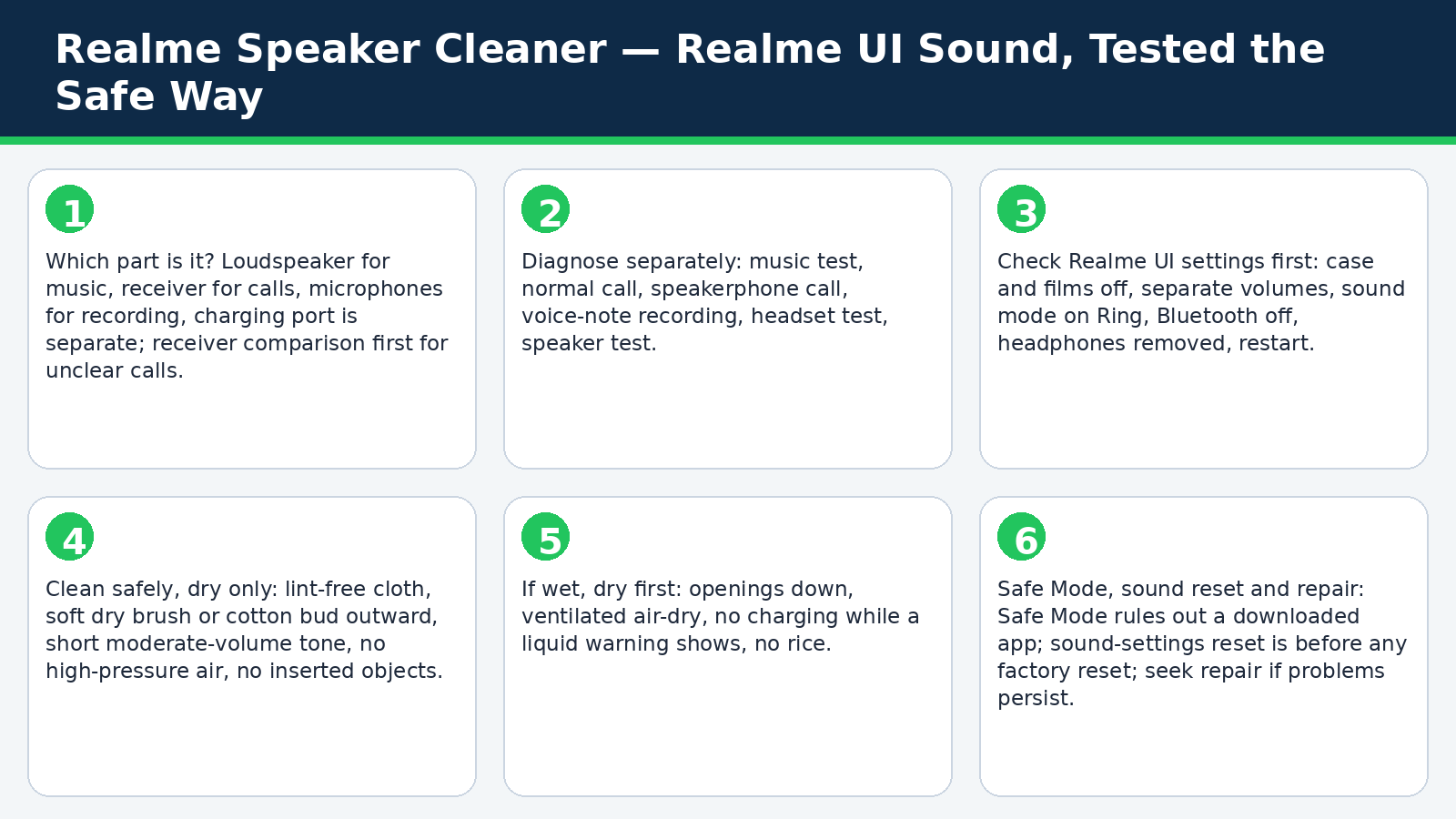
  • Realme Speaker Cleaner: A Safe Guide to Clear Sound

    Realme Speaker Cleaner: A Safe Guide to Clear Sound

    Realme phones running Realme UI share the same safe speaker approach as other Android phones, but they add two Realme UI-specific steps worth using before installing anything: the receiver-first check for unclear calls, and a sound-only settings reset that does not erase personal data. This guide groups GT, Number, Narzo and C-series models together, because their speakers fail for the same reasons even though their exact layouts and Realme UI menus differ by version.

    Who this guide is for

    This guide is for anyone whose Realme phone sounds muffled, quiet, crackly or silent, whether after water, dust, a new app, or a software update. It pays special attention to budget C-series and Narzo phones, where a single bottom speaker and a small receiver slot are easier to block with pocket lint. It does not replace Realme’s instructions for your exact model. If a menu name below differs on your phone, search your Settings app for the setting name, or check Realme’s support pages for your model.

    It is not a repair manual. If your phone was fully submerged, shows a liquid warning, will not charge, or smells of burning, follow Realme’s guidance and seek repair instead of repeating cleaning tones.

    The Realme speakers and microphones, in plain terms

    A Realme phone normally has a loudspeaker, usually at the bottom edge, and a smaller receiver at the top for normal calls. Many Realme models use both together for stereo media sound. It also has more than one microphone: one near the bottom for calls, and others used for noise cancellation and video. Those parts fail differently, and testing them separately is the fastest way to avoid a wrong fix.

    Music that sounds muffled points to the loudspeaker. Callers who sound quiet while speakerphone sounds fine point to the receiver. Callers who cannot hear you while you hear them fine point to a microphone. A cable that will not click in, or charging that only works at an angle, points to the charging port, which sound does not clean. Keep those four parts separate before you clean anything.

    Diagnose first: test each part separately, receiver first for calls

    Do these tests in a quiet room, with no Bluetooth device connected and the case removed, so a case or film cannot hide the result.

    Play music or a video at a moderate volume and note whether it is muffled, crackly, quiet or silent. Then use the Speaker Test tool on this site to check for distortion or dropouts. Make a normal call without speakerphone and listen through the receiver, then switch the same call to speakerphone and listen through the loudspeaker. Realme’s own troubleshooting makes this receiver comparison the key call test: if voice sounds normal on speaker but unclear on a normal call, check the receiver instead of the loudspeaker. Record a short voice note and play it back to test the microphone. If only one test fails, you have narrowed the problem to that part.

    Also test with a headset. If calls work fine through a headset but not through the speaker or microphone, that points toward hardware rather than a setting, and it is useful information for a service center. Test with a second app and a locally saved file as well, so a streaming problem does not confuse the result.

    Check the Realme UI settings that mimic a broken speaker

    First, remove any case or screen protector that might block the receiver or loudspeaker, and test again. Realme’s support steps list this removal before deeper checks, and a poorly placed protector is one of the most common causes of distorted call sound.

    Next, check volumes separately. Go to Settings, then Sound and vibration, and adjust media, ringtone and alarm volumes individually, making sure none is all the way down. Confirm sound mode at the top is set to Ring, not Silent or Vibrate. In-call volume can only be adjusted during a call, using the side volume keys, while media volume is adjusted during music or video. Turn Bluetooth off temporarily, because sound may be routing to earbuds, a car system or a Bluetooth speaker instead of the phone. Physically remove any headphones from the USB-C port as well, because a dirty or loose connection can trick the phone into thinking headphones are still plugged in, which mutes the speakers.

    Restart the phone and test again. A restart clears temporary software glitches that affect audio. If sound fails in only one app, check that app’s permissions and mute controls before changing phone-wide settings. Then check for a system update under About device and Realme UI version, because an update can fix audio behavior that appeared after a previous update.

    Clean a Realme speaker safely

    Dry cleaning only, and nothing inserted into any opening. Remove the case, wipe the outside of the grille with a dry, lint-free cloth, and use a soft, dry brush with light outward strokes. For the receiver, Realme’s own guidance is to clean it with a clean, soft-bristled brush or cotton bud if it is blocked or dirty. Do not press a brush into the slot and never use a pin, needle or toothpick. For a microphone hole, wipe around the opening and brush lightly outward; do not insert anything, blow hard into it, or use liquid, because a microphone membrane is delicate.

    If the speaker still sounds muffled after dry cleaning, try a short browser tone at moderate volume, with the speaker facing down, using this site’s speaker cleaning tool or the Android Water Eject tool. Play one short cycle, then test with music. Repeat only once or twice more if the sound is clean and improving. Sound may help with light water or loose dust near a speaker opening. It is not a guarantee, and it does not repair a torn, corroded or electrically damaged speaker.

    Do not use high-pressure air at close range. If packed dirt does not shift with brushing, stop; that is a repair-shop job.

    If a Realme phone gets wet

    Water changes the order. Do not start by playing loud tones or plugging in a charger. Remove the case, wipe the outside dry, and hold the phone with the speaker and port openings facing down. Power it off if you suspect liquid inside, and let it air-dry in a ventilated place. If the phone shows a liquid warning, do not charge it until that warning clears and Realme’s guidance allows charging. Do not put the phone in rice.

    Only after drying, and only if there is no liquid warning, test the loudspeaker at moderate volume with a short tone. If sound is still muffled after drying, or the phone was fully submerged or exposed to salt or soapy water, seek professional guidance. No specific charging-wait hour figure is given here, because guidance varies by model; follow Realme’s instructions for your exact phone.

    Use Safe Mode and the sound-settings reset

    Safe Mode runs only pre-installed apps. On Realme phones, press and hold the power button until the power menu appears, then long-press Power off until a Safe Mode prompt appears, then tap to confirm. Menu wording varies by Realme UI version, so use Realme’s instructions if this path differs on your phone.

    In Safe Mode, play music and make a test call. If the speaker works normally in Safe Mode but fails in normal mode, a downloaded app is the likely cause. Restart normally, then uninstall the most recently installed or updated audio-related apps one at a time, testing after each removal. If the speaker still fails in Safe Mode, the cause is more likely a setting, blockage, water or hardware.

    If Safe Mode does not identify an app, Realme UI offers a narrower reset before a factory reset: go to Settings, then System, then Reset options, and choose Reset sound, vibration, and accessibility settings. This reverts ringtones, volume levels and vibration settings to factory defaults without touching personal data, which often clears a misconfiguration. A full factory reset is a last resort after backup, and it will not fix a blocked grille, water damage or a damaged speaker.

    Troubleshooting

    Still muffled after water: air-dry longer, openings facing down, then try one more short tone. Do not charge while a liquid warning shows. Crackling or rattling: stop the tone. Crackling at moderate volume can mean debris, distortion or damage. Do not raise the volume to push through it. Callers sound quiet, speakerphone sounds fine: check the receiver first, clean it with a soft brush or cotton bud, remove any covering case or film, and check in-call volume during a call. Callers cannot hear you: check microphone permissions, a case covering a mic hole, and Bluetooth routing, then test with a voice recording. Sound low but clear: check media volume, Sound and vibration settings, sound mode, and whether a case blocks the grille. Works in Safe Mode only: uninstall recently added audio apps one at a time. Tone plays but nothing changes: that suggests packed debris, a setting, deeper water or damage, not a need for a higher frequency.

    When to seek repair

    Seek Realme service or a qualified repair shop if sound stays distorted after gentle cleaning and drying; a speaker stays silent in Safe Mode and after the sound-settings reset; the phone was fully submerged or exposed to salt or soapy water; or you see corrosion, swelling, a cracked screen near a speaker, or a liquid warning that will not clear. Bring a clear description: when it started, whether water or dust was involved, whether the receiver or loudspeaker failed, and what you already tried.

    Conclusion

    For a Realme phone, the safe order is: remove the case and films, test loudspeaker, receiver and microphone separately with the receiver comparison first for calls, check separate volumes and sound mode, turn Bluetooth off, restart, clean only the outside of the grille, try a short moderate-volume tone after drying, use Safe Mode to rule out an app, try the sound-settings reset before any factory reset, and stop on distortion or no change. That order uses Realme UI’s own tools first, and it avoids the two most common mistakes: cleaning the wrong part, and erasing a phone to fix a blocked grille.

    FAQ

    Does Realme UI have a built-in speaker cleaner?

    No official Realme cleaner entry was found in the research for this guide. Use a browser tool on this site for the short tone test, after dry brushing and settings checks.

    Why do callers sound quiet but speakerphone sounds fine?

    That is the receiver test Realme itself uses. If voice sounds normal on speaker, check the receiver: remove any covering case or film, clean it with a clean, soft-bristled brush or cotton bud, and check in-call volume during a call.

    How do I reset only sound settings on a Realme phone?

    Go to Settings, then System, then Reset options, and choose Reset sound, vibration, and accessibility settings. This reverts ringtones, volume levels and vibration settings to factory defaults without touching personal data. Menu names vary by Realme UI version.

    Why is my Realme phone silent even though media volume is up?

    Check sound mode at the top of Sound and vibration: it must be set to Ring, not Silent or Vibrate. Also turn Bluetooth off and remove any headphones from the USB-C port, because a loose connection can mute the speakers.

    Can a 50,000 Hz tone clean a Realme speaker better?

    No. A typical phone speaker cannot reliably reproduce 50,000 Hz, and a high-frequency label does not make a tone stronger. Use an audible, moderate-volume tone or sweep, and judge by a careful test afterwards.

    My Realme phone got wet. Should I play a cleaning tone right away?

    No. Remove the case, wipe the outside dry, hold openings facing down, and let the phone air-dry. Do not charge while a liquid warning is shown. Only after drying, and with no warning, test with a short browser tone.

    Does speaker cleaner really work?

    It can help in limited cases: light water or loose dust near a speaker opening. It is not a repair guarantee, it does not reliably remove embedded debris, and it does not fix a microphone or a charging port.

    Should I factory reset a Realme phone for a muffled speaker?

    No, not first. Try dry cleaning, separate volumes, Bluetooth off, restart, Safe Mode, and the sound-settings reset first. A factory reset will not fix a blocked grille, water damage or a damaged speaker.

    Related tools on this site

    Related tools:

    Related guides:

  • Vivo Speaker Cleaner: A Safe Guide to Clearer Sound

    Vivo Speaker Cleaner: A Safe Guide to Clearer Sound

    Vivo phones running Funtouch OS do not, on the evidence found here, include a documented built-in sound-based speaker cleaner, so the honest starting point is different from brands that do: use a short browser tone, set the right volume, and test each part separately before assuming the speaker is broken. This guide groups X, V, Y and T-series models together, because their speakers fail for the same reasons even though their exact layouts and Funtouch OS menus differ by version.

    Who this guide is for

    This guide is for anyone whose Vivo phone sounds muffled, quiet, crackly or silent, whether after water, dust, a new app, or a software update. It pays special attention to budget Y and T-series phones, which often have a single bottom speaker with no second speaker to compare against. It does not replace Vivo’s instructions for your exact model. If a menu name below differs on your phone, search your Settings app for the setting name, or check Vivo’s support pages for your model.

    It is not a repair manual. If your phone was fully submerged, shows a liquid warning, will not charge, or smells of burning, follow Vivo’s guidance and seek repair instead of repeating cleaning tones.

    The Vivo speakers and microphones, in plain terms

    A Vivo phone normally has a main loudspeaker on the bottom edge, beside the charging port, and a smaller earpiece in the slot above the display for normal calls. On stereo models, that earpiece also acts as a second speaker for media. On many budget Y-series models, there is only the single bottom speaker. It also has more than one microphone: one near the bottom for calls, and others used for noise cancellation and video. Those parts fail differently, and testing them separately is the fastest way to avoid a wrong fix.

    Music that sounds muffled points to the loudspeaker. Callers who sound quiet while speakerphone sounds fine point to the earpiece. Callers who cannot hear you while you hear them fine point to a microphone. A cable that will not click in, or charging that only works at an angle, points to the charging port, which sound does not clean. Keep those four parts separate before you clean anything. On a single-speaker phone, muffling hits everything at once, which makes the problem look worse than it is, but the method does not change.

    Diagnose first: test each part separately

    Do these tests in a quiet room, with no Bluetooth device connected and the case removed, so a case cannot hide the result.

    Play music or a video at a moderate volume and note whether it is muffled, crackly, quiet or silent. Then use the Speaker Test tool on this site to check for distortion or dropouts. Make a normal call without speakerphone and listen through the earpiece, then switch the same call to speakerphone and listen through the loudspeaker. Record a short voice note and play it back to test the microphone. If only one test fails, you have narrowed the problem to that part.

    If speakerphone fails during calls but media plays normally, that points to call routing or the Phone app rather than the loudspeaker itself. Try restarting, checking Phone app permissions, and clearing the Phone app cache, then restarting again, before assuming hardware damage. Test with a second app and a locally saved file as well, so a streaming problem does not confuse the result.

    Check the Funtouch OS settings that mimic a broken speaker

    Start with the volume rule that matters most on Vivo phones: media volume, not ringtone volume, controls a cleaning tone and media playback. While music or video is playing, press Volume up and check the media slider. A phone can have a loud ringtone and still play media quietly, because those volumes are separate controls.

    Next, open Settings, then Sound and vibration, and turn off audio effects for a test. An audio effect can reduce the low frequencies a cleaning sweep relies on, and it can also change how music sounds, which mimics a speaker fault. Turn Bluetooth off temporarily, because sound may be routing to earbuds, a car system or a Bluetooth speaker instead of the phone. Check Do Not Disturb and Silent mode as well: they can silence calls and notifications even though music still plays.

    Remove any case that covers the bottom speaker, and check for a screen protector or film covering the earpiece. Restart the phone and test again. A restart clears temporary software glitches that affect audio. Then check for a system update under System update, because a software bug can cause speakerphone or routing problems that an update fixes.

    Clean a Vivo speaker safely

    Dry cleaning only, and nothing inserted into any opening. Remove the case, wipe the outside of the grille with a dry, lint-free cloth, and use a soft, dry brush with light outward strokes. For the earpiece, use the same light strokes across its slot. Do not press a brush into the slot and never use a pin, needle or toothpick. For a microphone hole, wipe around the opening and brush lightly outward; do not insert anything, blow hard into it, or use liquid, because a microphone membrane is delicate.

    If the speaker still sounds muffled after dry cleaning, try a short browser tone at moderate volume, with the bottom edge facing down, using this site’s speaker cleaning tool or the Android Water Eject tool. Set media volume up first, turn audio effects off, and play one short cycle, then test with music. Repeat only once or twice more if the sound is clean and improving. Sound may help with light water or loose dust near a speaker opening. It is not a guarantee, and it does not repair a torn, corroded or electrically damaged speaker.

    Do not use high-pressure air at close range, and do not install a random cleaner app just because a Vivo-specific built-in cleaner cannot be found. A browser tool gives the same short test without permissions or payment. If packed dirt does not shift with brushing, stop; that is a repair-shop job.

    If a Vivo phone gets wet

    Water changes the order. Do not start by playing loud tones or plugging in a charger. Remove the case, wipe the outside dry, and hold the phone with the speaker and port openings facing down. Power it off if you suspect liquid inside, and let it air-dry in a ventilated place. If the phone shows a liquid warning, do not charge it until that warning clears and Vivo’s guidance allows charging. Do not put the phone in rice.

    Only after drying, and only if there is no liquid warning, test the loudspeaker at moderate volume with a short tone. If sound is still muffled after drying, or the phone was fully submerged or exposed to salt or soapy water, seek professional guidance. No specific charging-wait hour figure is given here, because guidance varies by model; follow Vivo’s instructions for your exact phone.

    Use Safe Mode to test for an app problem

    Safe Mode runs only pre-installed apps. The usual Android method is to press and hold the power button, then touch and hold Power off until a Safe Mode prompt appears, then tap Safe Mode. Menu wording varies by Funtouch OS version, so use Vivo’s instructions if this path differs on your phone.

    In Safe Mode, play music and make a test call. If the speaker works normally in Safe Mode but fails in normal mode, a downloaded app is the likely cause. Restart normally, then uninstall the most recently installed or updated audio-related apps one at a time, testing after each removal. If the speaker still fails in Safe Mode, the cause is more likely a setting, blockage, water or hardware.

    If Safe Mode does not identify an app, resetting all settings is a later step that keeps your data while resetting settings, and a factory reset is a last resort after backup. Do not start with a factory reset. A reset will not fix a blocked grille, water damage or a damaged speaker.

    Troubleshooting

    Still muffled after water: air-dry longer, openings facing down, then try one more short tone. Do not charge while a liquid warning shows. Crackling or rattling: stop the tone. Crackling at moderate volume can mean debris, distortion or damage. Do not raise the volume to push through it. Callers sound quiet, speakerphone sounds fine: check the earpiece, in-call volume during a call, and any case or film covering the earpiece. Speakerphone fails but media plays: check call volume during a call, Phone app permissions, Phone app cache, Bluetooth routing, and restart. Callers cannot hear you: check microphone permissions, a case covering a mic hole, and Bluetooth routing, then test with a voice recording. Sound low but clear: check media volume specifically, Sound and vibration settings, audio effects, and whether a case blocks the grille. Works in Safe Mode only: uninstall recently added audio apps one at a time. Tone plays but nothing changes: that suggests packed debris, a setting, deeper water or damage, not a need for a higher frequency.

    When to seek repair

    Seek Vivo service or a qualified repair shop if sound stays distorted after gentle cleaning and drying; a speaker stays silent in Safe Mode and after settings checks; the phone was fully submerged or exposed to salt or soapy water; or you see corrosion, swelling, a cracked screen near a speaker, or a liquid warning that will not clear. Bring a clear description: when it started, whether water or dust was involved, which tests failed, and what you already tried.

    Conclusion

    For a Vivo phone, the safe order is: remove the case, test loudspeaker, earpiece and microphone separately, set media volume rather than ringtone volume, turn audio effects and Bluetooth off for a test, restart, clean only the outside of the grille, try a short moderate-volume browser tone after drying, use Safe Mode to rule out an app, and stop on distortion or no change. A Vivo phone without a built-in cleaner is not at a disadvantage: the same short, careful test tells you just as much, and a single bottom speaker only means you should test it more carefully, not clean it more aggressively.

    FAQ

    Does Vivo have a built-in speaker cleaner?

    No documented built-in sound-based speaker cleaner was found for Vivo phones in the research for this guide. One third-party guide reports a “Speaker Cleanup” option on some phones, but that is unverified here. Use a browser tool instead.

    Why does my Vivo cleaning tone sound quiet?

    Check media volume, not ringtone volume. Play music or video, press Volume up, and check the media slider. Also turn audio effects off in Sound and vibration and turn Bluetooth off, so the tone plays through the phone speaker.

    My Vivo Y-series phone has only one speaker. Does that change testing?

    Yes, a single bottom speaker has no second speaker to compare against, and muffling hits everything at once. Test with the case removed, with two different apps, and with a normal call and a speakerphone call, so a single-speaker blockage is not mistaken for a wider fault.

    Why does speakerphone fail but music plays fine?

    That usually points to call routing or the Phone app, not the loudspeaker. Check call volume during a call, Phone app permissions, Phone app cache, Bluetooth routing, and restart before assuming hardware damage.

    Can a 50,000 Hz tone clean a Vivo speaker better?

    No. A typical phone speaker cannot reliably reproduce 50,000 Hz, and a high-frequency label does not make a tone stronger. Use an audible, moderate-volume tone or sweep, and judge by a careful test afterwards.

    My Vivo phone got wet. Should I play a cleaning tone right away?

    No. Remove the case, wipe the outside dry, hold openings facing down, and let the phone air-dry. Do not charge while a liquid warning is shown. Only after drying, and with no warning, test with a short browser tone.

    Does speaker cleaner really work?

    It can help in limited cases: light water or loose dust near a speaker opening. It is not a repair guarantee, it does not reliably remove embedded debris, and it does not fix a microphone or a charging port.

    Should I install an app if Vivo has no built-in cleaner?

    Not as a first step. A browser tool gives the same short test without installing, paying, or granting permissions. Only consider an app after that test, and judge it by permissions, privacy, volume safety and honest claims.

    Related tools on this site

    Related tools:

    Related guides:

  • Oppo Speaker Cleaner: A Safe Guide to Clearer Sound

    Oppo Speaker Cleaner: A Safe Guide to Clearer Sound

    Oppo phones running ColorOS share the same safe speaker approach as other Android phones, but they add two ColorOS-specific steps worth using before installing anything: separate volume controls in Sound and Vibration, and the built-in Routine check or Diagnostics that test the speaker, receiver and microphone. This guide groups Find, Reno and A-series models together, because their speakers fail for the same reasons even though their exact layouts and ColorOS menus differ by version.

    Who this guide is for

    This guide is for anyone whose Oppo phone sounds muffled, quiet, crackly or silent, whether after water, dust, a new app, or a software update. It does not replace Oppo’s instructions for your exact model. If a menu name below differs on your phone, search your Settings app for the setting name, or check Oppo’s support pages for your model.

    It is not a repair manual. If your phone was fully submerged, shows a liquid warning, will not charge, or smells of burning, follow Oppo’s guidance and seek repair instead of repeating cleaning tones.

    The Oppo speakers and microphones, in plain terms

    An Oppo phone normally has a loudspeaker, usually at the bottom edge, and a smaller receiver at the top for normal calls. Many Oppo models use both together for stereo media sound. It also has more than one microphone: one near the bottom for calls, and others used for noise cancellation and video. Those parts fail differently, and testing them separately is the fastest way to avoid a wrong fix.

    Music that sounds muffled points to the loudspeaker. Callers who sound quiet while speakerphone sounds fine point to the receiver. Callers who cannot hear you while you hear them fine point to a microphone. A cable that will not click in, or charging that only works at an angle, points to the charging port, which sound does not clean. Keep those four parts separate before you clean anything.

    Diagnose first: test each part separately

    Do these tests in a quiet room, with no Bluetooth device connected and the case removed, so a case or film cannot hide the result.

    Play music or a video at a moderate volume and note whether it is muffled, crackly, quiet or silent. Then use the Speaker Test tool on this site to check for distortion or dropouts. Make a normal call without speakerphone and listen through the receiver, then switch the same call to speakerphone and listen through the loudspeaker, exactly as Oppo’s own troubleshooting order suggests. Record a short voice note and play it back to test the microphone. If only one test fails, you have narrowed the problem to that part.

    Oppo’s diagnostics add a second, useful check. Use Common Problem / Routine check or Diagnostics on your phone, where available, and run the audio checks offered there for speaker, receiver and microphone. A diagnostics pass does not prove the speaker is perfect, and a diagnostics fail does not by itself prove hardware damage, but a clear difference between the loudspeaker test, the receiver test and the microphone test helps you describe the problem accurately, whether you fix it yourself or take it to a service center.

    Check the ColorOS settings that mimic a broken speaker

    Oppo’s support steps start with the simplest causes, and this guide follows that order. First, remove any case, screen protector or film that covers a speaker or receiver opening, and test again. A poorly placed protector is one of the most common causes of distorted call sound, and it costs nothing to rule out.

    Next, check volumes separately. In ColorOS 5.0 and above, go to Settings, then Sound and Vibration, then Volume, where ringer, media and alarm volumes are set separately. In-call volume can only be adjusted during a call, using the side volume keys, while media volume is adjusted during music or video. Turn Bluetooth off temporarily, because sound may be routing to earbuds, a car system or a Bluetooth speaker instead of the phone. Check Do Not Disturb as well: it can silence calls and notifications even though music still plays.

    Restart the phone and test again. A restart clears temporary software glitches that affect audio. If sound fails in only one app, check that app’s permissions and mute controls before changing phone-wide settings, and test with a second app and a locally saved file so a streaming problem does not confuse the result. Also check for a system update, because an update can fix audio behavior that appeared after a previous update.

    Clean an Oppo speaker safely

    Dry cleaning only, and nothing inserted into any opening. Wipe the outside of the grille with a dry, lint-free cloth, then use a soft, dry brush with light outward strokes. For the receiver, Oppo’s own guidance is to gently brush the receiver hole with a clean, soft-bristled brush if its mesh looks clogged. Do not press a brush into the slot and never use a pin, needle or toothpick. For a microphone hole, wipe around the opening and brush lightly outward; do not insert anything, blow hard into it, or use liquid, because a microphone membrane is delicate.

    If the speaker still sounds muffled after dry cleaning, try a short browser tone at moderate volume, with the speaker facing down, using this site’s speaker cleaning tool or the Android Water Eject tool. If your ColorOS build has a speaker-cleaning entry, run that first, then use the browser tool only if sound is still muffled. Play one short cycle, then test with music. Repeat only once or twice more if the sound is clean and improving. Sound may help with light water or loose dust near a speaker opening. It is not a guarantee, and it does not repair a torn, corroded or electrically damaged speaker.

    Do not use canned compressed air for drying or cleaning, even though some third-party guides suggest short bursts. High-pressure air at close range can push debris deeper or damage a mesh. If packed dirt does not shift with brushing, stop; that is a repair-shop job.

    If an Oppo phone gets wet

    Water changes the order. Do not start by playing loud tones or plugging in a charger. Remove the case, wipe the outside dry, and hold the phone with the speaker and port openings facing down. Power it off if you suspect liquid inside, and let it air-dry in a ventilated place. If the phone shows a liquid warning, do not charge it until that warning clears and Oppo’s guidance allows charging. Do not put the phone in rice.

    Only after drying, and only if there is no liquid warning, test the loudspeaker at moderate volume with a short tone. If sound is still muffled after drying, or the phone was fully submerged or exposed to salt or soapy water, seek professional guidance. No specific charging-wait hour figure is given here, because guidance varies by model; follow Oppo’s instructions for your exact phone.

    Use Safe Mode to test for an app problem

    Safe Mode runs only pre-installed apps. On many Oppo phones, press and hold the power button until the power menu appears, select Power off, then immediately press and hold Volume down while the phone shuts down, and keep holding it until Safe Mode appears on screen. Menu wording and timing vary by ColorOS version, so use Oppo’s instructions if this path differs on your phone.

    In Safe Mode, play music and make a test call. If the speaker works normally in Safe Mode but fails in normal mode, a downloaded app is the likely cause. Restart normally, then uninstall the most recently installed or updated audio-related apps one at a time, testing after each removal. If the speaker still fails in Safe Mode, the cause is more likely a setting, blockage, water or hardware.

    If Safe Mode does not identify an app, Oppo’s later steps include a factory reset only after backing up your data. Do not start with a factory reset. A reset will not fix a blocked grille, water damage or a damaged speaker.

    Troubleshooting

    Still muffled after water: air-dry longer, openings facing down, then try one more short tone. Do not charge while a liquid warning shows. Crackling or rattling: stop the tone. Crackling at moderate volume can mean debris, distortion or damage. Do not raise the volume to push through it. Callers sound quiet, speakerphone sounds fine: check the receiver, in-call volume during a call, and any case or film covering the receiver. Callers cannot hear you: check microphone permissions, a case covering a mic hole, and Bluetooth routing, then test with a voice recording. Sound low but clear: check media volume, Sound and Vibration settings, and whether a case blocks the grille. Works in Safe Mode only: uninstall recently added audio apps one at a time. Tone plays but nothing changes: that suggests packed debris, a setting, deeper water or damage, not a need for a higher frequency.

    When to seek repair

    Seek Oppo service or a qualified repair shop if sound stays distorted after gentle cleaning and drying; a speaker stays silent in Safe Mode and after settings checks; the phone was fully submerged or exposed to salt or soapy water; or you see corrosion, swelling, a cracked screen near a speaker, or a liquid warning that will not clear. Bring a clear description: when it started, whether water or dust was involved, what diagnostics showed, and what you already tried.

    Conclusion

    For an Oppo phone, the safe order is: remove the case and films, test loudspeaker, receiver and microphone separately, run Routine check or Diagnostics, check separate volumes, Bluetooth and Do Not Disturb, restart, clean only the outside of the grille, try a short moderate-volume tone after drying, use Safe Mode to rule out an app, and stop on distortion or no change. That order uses ColorOS’s own tools first, and it avoids the two most common mistakes: cleaning the wrong part, and playing louder tones at a wet or damaged phone.

    FAQ

    Does ColorOS have a built-in speaker cleaner?

    Some ColorOS builds include a speaker-cleaning or moisture-removal entry under Sound and vibration or inside diagnostics, but it is not present on every model or version. If you cannot find it, use a browser tool on this site instead.

    How do I run an Oppo speaker test?

    Use Common Problem / Routine check or Diagnostics on your phone, where available, and run the speaker, receiver and microphone checks offered there. Also test with music, a normal call, a speakerphone call, and a voice-note recording, because each test covers a different part.

    Why do callers sound quiet but music sounds fine?

    Music uses the loudspeaker, while a normal call uses the receiver. Check the receiver for a covering case or film, gently brush its mesh if it looks clogged, adjust in-call volume during a call, turn Bluetooth off, and test the receiver separately from the loudspeaker.

    Should I use compressed air on an Oppo speaker?

    No, not as a first step in this guide. Use a dry, lint-free cloth and a soft, dry brush with light outward strokes. High-pressure air at close range can push debris deeper, and packed dirt that does not shift with brushing is a repair-shop job.

    My Oppo phone got wet. Can I charge it right away?

    No, not while a liquid warning is shown. Wipe the outside dry, hold openings facing down, and let the phone air-dry. Follow Oppo’s wet-phone guidance for your model before charging or calling.

    What does Safe Mode prove on an Oppo phone?

    If sound works in Safe Mode but fails normally, a downloaded app is the likely cause. If sound still fails in Safe Mode, the cause is more likely a setting, blockage, water or hardware, and deeper settings or repair steps are needed.

    Can a 50,000 Hz tone clean an Oppo speaker better?

    No. A typical phone speaker cannot reliably reproduce 50,000 Hz, and a high-frequency label does not make a tone stronger. Use an audible, moderate-volume tone or sweep, and judge by a careful test afterwards.

    Does speaker cleaner really work?

    It can help in limited cases: light water or loose dust near a speaker opening. It is not a repair guarantee, it does not reliably remove embedded debris, and it does not fix a microphone or a charging port.

    Related tools on this site

    Related tools:

    Related guides:

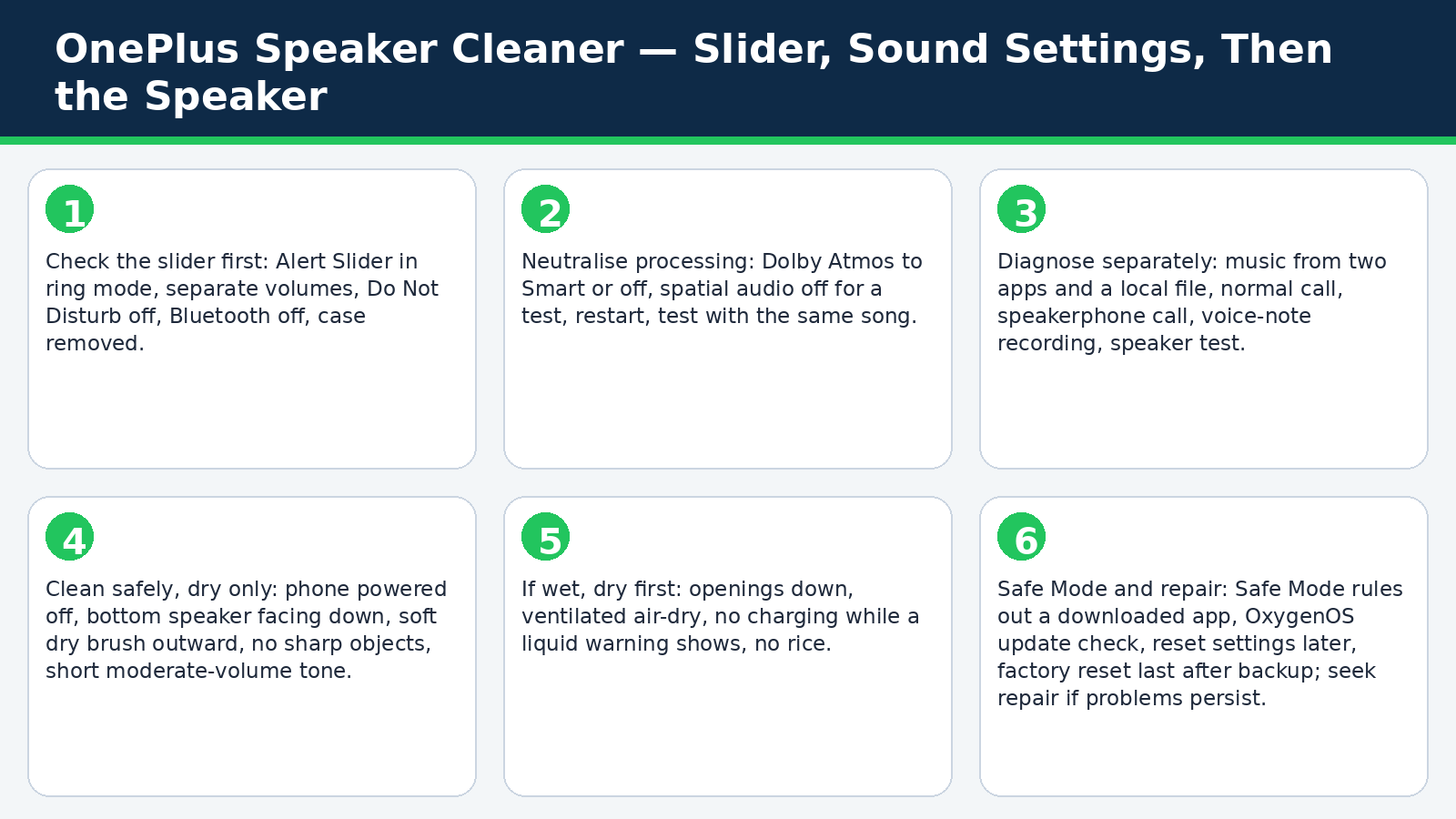
  • OnePlus Speaker Cleaner: A Safe Guide to Clear Sound

    OnePlus Speaker Cleaner: A Safe Guide to Clear Sound

    OnePlus phones are easy to misdiagnose, because two OnePlus features can make a working speaker seem broken: the Alert Slider on many models, which can silence ringtones at a glance, and Dolby Atmos and spatial audio processing, which can make sound distorted even when the speaker itself is healthy. Add a bottom speaker grille that easily collects pocket lint, and you have three settings or debris checks to make before you assume hardware damage. This guide groups OnePlus models together, from older Nord and numbered models to the newest flagships, and notes where a feature may differ by model.

    Who this guide is for

    This guide is for anyone whose OnePlus phone sounds muffled, quiet, crackly, buzzing or silent, whether after water, dust, a new app, or an OxygenOS update. It covers OxygenOS phones together, and notes where a menu name may differ by version. If a path below does not match your phone, search your Settings app for the setting name, or check OnePlus support pages for your model.

    It is not a repair manual. If your phone was fully submerged, shows a liquid warning, will not charge, or smells of burning, follow OnePlus guidance and seek repair instead of repeating cleaning tones.

    Check the Alert Slider and volumes first

    On many OnePlus phones, a physical Alert Slider on the side switches between ring, vibrate and silent modes. If it sits in vibrate or silent mode, ringtones and notifications will stay silent even though music still plays, and the phone will look as if its speaker has failed. Check the slider first, move it to ring mode, and test with a ringtone or notification sound before changing any other setting.

    Volumes are also separate. Media volume, ring volume, notification volume, alarm volume and in-call volume are different controls. Press a volume button during music to adjust media volume, and during a call to adjust in-call volume. Open Settings, then Sound and vibration, and check that media volume is up. Check Do Not Disturb as well: it can silence calls and notifications even though music still plays, and it can be enabled by a schedule without you noticing.

    Turn Bluetooth off temporarily, because sound may be routing to earbuds, a car system or a Bluetooth speaker instead of the phone. Remove the case and test again, because a case with a poor speaker cutout can hide the bottom grille, and a thumb or finger covering the grille during playback can make sound barely audible.

    Check Dolby Atmos and spatial audio before assuming damage

    Aggressive equaliser settings or audio processing can cause poor frequency handling and digital distortion that mimics a blown speaker, so check processing before you clean or replace anything.

    Open Settings, then Sound and vibration, then Dolby Atmos, and note the current profile. If it is set to a specific profile such as Movie or Music, switch it to Smart or disable it temporarily and test again. Check spatial audio settings as well, and toggle simulated surround sound off temporarily, because it can sometimes clip certain audio tracks. Restart the phone after changing these settings and test with the same song or video, so you compare like with like.

    If distortion disappears with a neutral profile, the speaker was not necessarily damaged; the processing was the problem. You can keep the neutral profile, or re-enable a profile and test again to confirm which setting caused the distortion. If distortion stays with a neutral profile at a moderate volume, move to cleaning and hardware checks below.

    Diagnose first: test each part separately

    Do these tests in a quiet room, with no Bluetooth device connected, the Alert Slider in ring mode, and the case removed.

    Play music or a video at a moderate volume and note whether it is muffled, crackly, buzzing, quiet or silent, and whether it fails in every app or only one. Test with two apps and, if possible, a locally saved file, so a streaming problem does not confuse the result. Make a normal call without speakerphone and listen through the earpiece, then switch the same call to speakerphone and listen through the loudspeaker, adjusting call volume during the call. Record a short voice note and play it back to test the microphone. If only one test fails, you have narrowed the problem to that part.

    Then use the Speaker Test tool on this site to check for distortion or dropouts. If a test tone itself sounds distorted at a moderate volume, that points to a speaker problem rather than a simple blockage, and cleaning tones should stop. If sound works in one app but not another, check that app’s mute and playback controls, and clear the Phone app cache only for call problems, as a later step: Settings, then Apps, then Phone, then Storage and cache, then Clear cache, followed by a restart and a retest.

    Clean a OnePlus speaker safely

    Dry cleaning only, and nothing inserted into any opening. Power the phone off first for grille cleaning, so you are not playing sound while brushing. Hold the phone with the bottom speaker facing down, so gravity helps, and use a clean, dry, soft-bristled brush with a sweeping motion to flick debris outward. Do not press inward, and never use a pin, needle or toothpick. Sharp objects can puncture the waterproof mesh and the speaker membrane behind it, causing permanent damage that no tone can fix.

    The bottom speaker on OnePlus phones easily attracts pocket lint, sand and, because of its magnets, microscopic metallic particles. When audio plays, particles bouncing against the mesh can produce an audible rattle or buzz, which is why a gentle outward brush sometimes fixes buzzing that looks like a hardware fault. For the earpiece, use the same light strokes across its slot. For a microphone hole, wipe around the opening and brush lightly outward; do not insert anything, blow hard into it, or use liquid.

    If the speaker still sounds muffled after dry cleaning, try a short browser tone at moderate volume, with the speaker facing down, using this site’s speaker cleaning tool or the Android Water Eject tool. Play one short cycle, then test with music. Repeat only once or twice more if the sound is clean and improving. Sound may help with light water or loose dust near a speaker opening. It is not a guarantee, and it does not repair a torn, corroded or electrically damaged speaker. Do not use high-pressure air at close range, and if packed dirt does not shift with brushing, stop; that is a repair-shop job.

    If a OnePlus phone gets wet

    Water changes the order. Do not start by playing loud tones or plugging in a charger. Remove the case, wipe the outside dry with a lint-free cloth, and hold the phone with the speaker and port openings facing down. Power it off if you suspect liquid inside, and let it air-dry in a ventilated place. If your phone shows a liquid warning, do not charge it until that warning clears and OnePlus guidance allows charging. Do not put the phone in rice.

    Only after drying, and only if there is no liquid warning, test the loudspeaker at moderate volume with a short tone. If sound is still muffled after drying, or the phone was fully submerged or exposed to salt or soapy water, seek professional guidance. No specific charging-wait hour figure is given here, because guidance varies by model; follow OnePlus instructions for your exact phone.

    Use Safe Mode and updates to test for an app or software problem

    OnePlus Safe Mode runs only pre-installed apps. The usual method is to press and hold the power button, then touch and hold Power off until a Safe Mode prompt appears, then tap Safe Mode. Menu wording varies by OxygenOS version, so use OnePlus instructions if this path differs.

    In Safe Mode, play music and make a test call. If the speaker works normally in Safe Mode but fails in normal mode, a downloaded app is the likely cause. Restart normally, then uninstall the most recently installed or updated audio-related apps one at a time, testing after each removal. If the speaker still fails in Safe Mode, the cause is more likely a setting, processing, blockage, water or hardware.

    Check for OxygenOS updates as well. Audio glitches can sometimes be fixed in a system update, so go to Settings, then About device, then OxygenOS version, and check for updates while connected to Wi-Fi with a good charge. Do not treat an update as a cleaning method, and do not start with a factory reset. Reset all settings is a later step that does not delete data, and a factory reset is a last step after backing up your data; neither will fix a blocked grille, water damage or a damaged speaker.

    Troubleshooting

    No ringtones, music works: check the Alert Slider, Do Not Disturb, and ring volume separately from media volume. Distorted or buzzing: switch Dolby Atmos to Smart or off temporarily, disable spatial audio temporarily, restart, then brush the bottom grille outward with the phone powered off. Speakerphone fails, normal call works: check call volume during a speakerphone call, turn Bluetooth off, clear the Phone app cache, and test with another app. Sound fails in one app only: check that app’s mute controls, and test with a second app and a locally saved file. Still muffled after water: air-dry longer, openings facing down, then try one more short tone. Do not charge while a liquid warning shows. Crackling or rattling: stop the tone. Crackling at moderate volume can mean debris, distortion or damage. Works in Safe Mode only: uninstall recently added audio apps one at a time. Tone plays but nothing changes: that suggests packed debris, a setting, deeper water or damage, not a need for a higher frequency.

    When to seek repair

    Seek OnePlus service or a qualified repair shop if sound stays distorted after neutral audio settings, gentle cleaning and drying; a speaker stays silent in Safe Mode and after settings checks; the phone was fully submerged or exposed to salt or soapy water; or you see corrosion, swelling, a cracked screen near a speaker, or a liquid warning that will not clear. Bring a clear description: when it started, whether water or dust was involved, which audio profile was active, and what you already tried. If the phone is still in warranty, check warranty terms before opening it or using an unauthorised repair.

    Conclusion

    For OnePlus, the safe order is: check the Alert Slider, separate volumes and Do Not Disturb, switch Dolby Atmos to a neutral profile temporarily, test loudspeaker, earpiece, speakerphone and microphone separately, clean only the outside of the grille with the phone powered off, try a short moderate-volume tone after drying, use Safe Mode to rule out an app, check for OxygenOS updates, and stop on distortion or no change. That order catches the OnePlus-specific causes first, and it avoids the two most expensive mistakes: replacing a speaker that was only muted by a slider or distorted by processing, and puncturing a mesh with a sharp object.

    FAQ

    Why is my OnePlus phone silent for calls but fine for music?

    Check the Alert Slider, Do Not Disturb, and ring volume separately from media volume. Music uses media volume, while ringtones and notifications use different controls, and a slider in silent mode silences them even though the speaker works.

    Can Dolby Atmos make a OnePlus speaker sound broken?

    Yes, it can cause digital distortion that mimics a blown speaker. Switch Dolby Atmos to Smart or off temporarily, disable spatial audio temporarily, restart, and test with the same song before assuming hardware damage.

    How do I clean a OnePlus speaker grille safely?

    Power the phone off, hold it with the bottom speaker facing down, and use a clean, dry, soft-bristled brush with a sweeping motion outward. Never insert a pin, needle or toothpick, because sharp objects can puncture the waterproof mesh and speaker membrane.

    Why does speakerphone fail but a normal call works?

    Speakerphone uses the loudspeaker path, while a normal call uses the earpiece path. Check call volume during a speakerphone call, turn Bluetooth off, clear the Phone app cache, and test with another app to separate a call problem from a speaker problem.

    Can a 50,000 Hz tone clean a OnePlus speaker better?

    No. A typical phone speaker cannot reliably reproduce 50,000 Hz, and a high-frequency label does not make a tone stronger. Use an audible, moderate-volume tone or sweep, and judge by a careful test afterwards.

    My OnePlus phone got wet. Should I play a cleaning tone right away?

    No. Remove the case, wipe the outside dry, hold openings facing down, and let the phone air-dry. Do not charge while a liquid warning is shown. Only after drying, and with no warning, test with a short tone at moderate volume.

    Does speaker cleaner really work?

    It can help in limited cases: light water or loose dust near a speaker opening. It is not a repair guarantee, it does not reliably remove embedded debris, and it does not fix a microphone or a charging port.

    Should I factory reset my OnePlus phone for a speaker problem?

    No, not as a first step. Check the slider, volumes, audio processing, cleaning, drying, Safe Mode and updates first. Reset all settings is later, and a factory reset is last, after backing up your data, and neither fixes a blocked grille or damaged speaker.

    Related tools on this site

    Related tools:

    Related guides:

  • Google Pixel Speaker Cleaner: A Safe Pixel Sound Guide

    Google Pixel Speaker Cleaner: A Safe Pixel Sound Guide

    Pixel phones are the cleanest Android phones to troubleshoot, because their settings menus are close to stock Android, but they still confuse owners in one specific way: a Pixel does not use its speakers the same way for a call, for speakerphone, and for music. Once you understand that routing, most broken speaker reports turn into a settings, routing, or blockage check. This guide groups Pixel models together, from older Pixels to the newest models, and notes where a model differs.

    Who this guide is for

    This guide is for anyone whose Pixel sounds muffled, quiet, crackly, distorted or silent, whether after water, dust, a new app, or a software update. It covers Pixel phones only, not Google smart speakers or tablets. If a menu name below differs on your Pixel, search your Settings app for the setting name, or check Google’s Pixel support pages for your model.

    It is not a repair manual. If your phone was fully submerged, shows a liquid or debris message, will not charge, or smells of burning, follow Google’s guidance and seek repair instead of repeating cleaning tones.

    How Pixel sound routing works, and why it misleads tests

    On Pixel phones, the top speaker handles ear-level calls, while the bottom speaker joins in for speakerphone and media playback. During music, the bottom speaker is normally louder than the top one. That means three common mistakes are easy to make: judging the bottom speaker from a normal ear call, judging the top speaker from music alone, and expecting both speakers to sound equally loud in every mode.

    Test each mode separately. A normal call held to your ear tests the top speaker and the earpiece path. A speakerphone call tests the loudspeaker path. Music or video tests media playback through both speakers together. If only one mode fails, you have narrowed the problem to that path, and you should not clean or replace a speaker that was never tested.

    Pixel microphones are also routed by task: different microphones are used for calls, video, and noise cancellation, so a recording test does not prove the call microphone is working, and a call test does not prove the recording microphone is working. Test both, and keep the microphone separate from the speaker in your diagnosis.

    Diagnose first: test each part separately

    Do these tests in a quiet room, with no Bluetooth device or USB-C audio accessory connected, and with the case removed.

    Open Settings, then Sound and vibration, and raise Media volume to a comfortable level, not maximum. Ring and alarm volumes are separate controls and do not prove media sound works. Play two or three songs or videos from different apps, and include a locally saved video if possible, so a poor streaming connection does not confuse the test. Note whether sound is muffled, crackly, quiet, distorted or silent, and whether it fails in every app or only one.

    Make a call and hold the phone normally to your ear, then enable Speaker and compare. Adjust call volume during the call, because call volume is separate from media volume. Record a short voice note and play it back to test the microphone. Check Settings, then Accessibility, then Audio adjustment, then Audio balance: if balance is off-centre, note its original position, centre it briefly for comparison, and restore any adjustment you need afterwards.

    Then use the Speaker Test tool on this site to check for distortion or dropouts. If a test tone itself sounds distorted at a moderate volume, that points to a speaker problem rather than a simple blockage, and cleaning tones should stop.

    Check the Pixel settings that route sound away

    Google’s troubleshooting steps start with connection and feature checks, and this guide follows that order. First, check whether sound is playing through an accessory. If headphones, earbuds, a Bluetooth speaker, or a USB-C adapter is connected, sound plays through that accessory, not the phone speaker. Disconnect Bluetooth accessories and unplug USB-C audio accessories, then test again. On Pixel models with a 3.5 mm jack, check that no adapter or headphone is still attached.

    Check Do Not Disturb and other silencing features. Do Not Disturb can silence calls and notifications even though music still plays, so a no sound report that only affects calls and alerts may be a setting, not a speaker fault. Check app-specific mute controls too: if sound fails in only one app, check that app’s mute and playback controls before changing phone-wide settings.

    Check your data connection for streaming tests. Google’s guidance lists connection strength as a first check for unclear or low-volume sound, because a weak connection can make streamed music sound poor on a healthy speaker. That is why a locally saved file is part of the test above.

    Restart the phone and test again. A restart clears temporary software glitches, and Google lists restart and test as a core step before advanced troubleshooting. Check for system updates as well, because audio bugs are sometimes fixed in updates, but do not treat an update as a cleaning method.

    Clean a Pixel speaker safely

    Dry cleaning only, and nothing inserted into any opening. Remove the case, wipe the outside of the grille with a dry, lint-free cloth, and use a soft, dry brush with light outward strokes. For the earpiece, use the same light strokes across its slot. Do not press a brush into the slot and never use a pin, needle or toothpick. For a microphone hole, wipe around the opening and brush lightly outward; do not insert anything, blow hard into it, or use liquid.

    If the speaker still sounds muffled after dry cleaning, try a short browser tone at moderate volume, with the speaker facing down, using this site’s speaker cleaning tool or the Android Water Eject tool. Play one short cycle, then test with music. Repeat only once or twice more if the sound is clean and improving. Sound may help with light water or loose dust near a speaker opening. It is not a guarantee, and it does not repair a torn, corroded or electrically damaged speaker. Do not use high-pressure air at close range, and if packed dirt does not shift with brushing, stop; that is a repair-shop job.

    If a Pixel gets wet

    Water changes the order. Do not start by playing loud tones or plugging in a charger. Remove the case, wipe the outside dry with a lint-free cloth, and hold the phone with the speaker and port openings facing down. Power it off if you suspect liquid inside, and let it air-dry in a ventilated place. Google’s guidance specifically tells Pixel owners to check for a Liquid or debris in USB port message; do not charge while that message is shown, and follow Google’s wet-phone guidance for your model before charging or calling. Do not put the phone in rice.

    Only after drying, and only if there is no liquid or debris message, test the loudspeaker at moderate volume with a short tone. If sound is still muffled after drying, or the phone was fully submerged or exposed to salt or soapy water, seek professional guidance. No specific charging-wait hour figure is given here, because guidance varies by model; follow Google’s instructions for your exact Pixel.

    Use Safe Mode to test for an app problem

    Pixel Safe Mode runs only pre-installed apps. The usual method is to press and hold the power button, then touch and hold Power off until a Safe Mode prompt appears, then tap Safe Mode. Menu wording varies by Android version, so use Google’s instructions if this path differs.

    In Safe Mode, play music and make a test call. If the speaker works normally in Safe Mode but fails in normal mode, a downloaded app is the likely cause. Restart normally, then uninstall the most recently installed or updated audio-related apps one at a time, testing after each removal. If the speaker still fails in Safe Mode, the cause is more likely a setting, routing, blockage, water or hardware.

    Troubleshooting

    Only one mode fails: test that mode again separately. A normal-call failure points to the top speaker or call path; a speakerphone or music failure points to the loudspeaker path; a recording failure points to a microphone. Sound fails in one app only: check that app’s mute and playback controls, and test with a second app and a locally saved file. No sound at all: disconnect Bluetooth and USB-C accessories, check media volume separately from ring volume, check Do Not Disturb, and restart. Still muffled after water: air-dry longer, openings facing down, then try one more short tone. Do not charge while a liquid or debris message shows. Crackling or distortion: stop the tone. Distortion at moderate volume after drying may mean damage, not dirt. Works in Safe Mode only: uninstall recently added audio apps one at a time. Tone plays but nothing changes: that suggests packed debris, a setting, deeper water or damage, not a need for a higher frequency.

    When to seek repair

    Seek Google support or a qualified repair shop if sound stays distorted after gentle cleaning and drying; a speaker stays silent in Safe Mode and after settings checks; the phone was fully submerged or exposed to salt or soapy water; or you see corrosion, swelling, a cracked screen near a speaker, or a liquid or debris message that will not clear. Treat a factory reset as advanced troubleshooting only, after backing up your data, and only after the steps above; a reset will not fix a blocked grille, water damage or a damaged speaker.

    Conclusion

    For a Pixel, the safe order is: understand call, speakerphone and music routing, test each mode separately, disconnect accessories, check separate volumes and Do Not Disturb, restart, clean only the outside of the grille, try a short moderate-volume tone after drying, use Safe Mode to rule out an app, and stop on distortion or no change. That order avoids the Pixel-specific trap of judging the wrong speaker from the wrong test, and it keeps a wet or damaged phone away from louder tones and repeated app installs.

    FAQ

    Why does my Pixel sound fine on speakerphone but quiet on a normal call?

    A normal call uses the top speaker and earpiece path, while speakerphone uses the loudspeaker path. Test both modes separately, check in-call volume during a call, and check whether a case or film covers the earpiece.

    Is the bottom Pixel speaker supposed to be louder than the top one?

    During music, yes, the bottom speaker is normally louder than the top one. Equal loudness is not the test for a healthy speaker. Judge each speaker in the mode that actually uses it.

    How do I test a Pixel speaker properly?

    Use music from two apps and a locally saved file, a normal call, a speakerphone call, and a voice-note recording, with no Bluetooth or USB-C accessory connected. Then use a speaker test tool to check for distortion or dropouts at moderate volume.

    My Pixel shows a liquid or debris message. What should I do?

    Do not charge the phone while that message is shown. Remove the case, wipe the outside dry, hold openings facing down, let the phone air-dry, and follow Google’s wet-phone guidance for your model before charging or calling.

    Does Safe Mode help with Pixel speaker problems?

    Yes. If sound works in Safe Mode but fails normally, a downloaded app is the likely cause. If sound still fails in Safe Mode, the cause is more likely a setting, routing, blockage, water or hardware problem.

    Can a 50,000 Hz tone clean a Pixel speaker better?

    No. A typical phone speaker cannot reliably reproduce 50,000 Hz, and a high-frequency label does not make a tone stronger. Use an audible, moderate-volume tone or sweep, and judge by a careful test afterwards.

    Should I factory reset my Pixel for a speaker problem?

    Only as advanced troubleshooting, after settings, routing, cleaning, drying and Safe Mode checks, and only after backing up your data. A reset will not fix a blocked grille, water damage or a damaged speaker.

    Does speaker cleaner really work?

    It can help in limited cases: light water or loose dust near a speaker opening. It is not a repair guarantee, it does not reliably remove embedded debris, and it does not fix a microphone or a charging port.

    Related tools on this site

    Related tools:

    Related guides:

  • Xiaomi Speaker Cleaner: A Safe Guide to Clear Sound

    Xiaomi Speaker Cleaner: A Safe Guide to Clear Sound

    Xiaomi, Redmi and POCO phones have one advantage most other Android phones do not: on some models, a built-in Clear Speaker option can play a cleaning tone without installing anything. That advantage also creates confusion, because the option is not on every model, its menu name changes between MIUI and HyperOS, and a built-in tone is still only a limited test, not a repair. This guide groups Xiaomi, Redmi and POCO models together, explains Clear Speaker honestly, and covers the settings and wet-phone steps that apply whether or not your phone has it.

    Who this guide is for

    This guide is for anyone whose Xiaomi, Redmi or POCO phone sounds muffled, quiet, crackly or distorted, whether after water, dust, a new app, or a software update. It covers MIUI and HyperOS phones together, and notes where a menu name may differ by version or region. If a path below does not match your phone, search your Settings app for the setting name, or check Xiaomi’s support pages for your model.

    It is not a repair manual. If your phone was fully submerged, shows a liquid warning, will not charge, or smells of burning, follow Xiaomi’s guidance and seek repair instead of repeating cleaning tones.

    Does my phone have Clear Speaker?

    On phones that include it, Clear Speaker is usually found in Settings, then Additional settings, then Clear Speaker. Enabling it plays audio for about 30 seconds, and Xiaomi’s guidance reported in third-party guides is to use it two to five times while gently shaking the device with the speaker pointing down, so gravity and vibration work together. On dual-speaker models, the tone typically works on both the main speaker and the earpiece.

    Clear Speaker is not available on all Xiaomi phones. It is reported most often on many POCO phones and on some higher-end and mid-range Xiaomi phones with recent MIUI versions, and its availability can change with updates to HyperOS. If you search Settings for “Clear Speaker” or “Clean speaker” and find nothing, your phone does not have it, and that is not a fault. Do not install a random app just to replace it; use the browser tool below instead, which gives the same short test without permissions or payment.

    Even on phones that do have Clear Speaker, treat it as a test, not a guarantee. One or two repetitions are enough to judge whether sound improves. If sound is clean and improving, stop. If nothing changes after a few repetitions and a retest, further repetitions are unlikely to help, and the cause is more likely packed debris, a setting, deeper water or damage.

    Diagnose first: test each part separately

    Do these tests in a quiet room, with no Bluetooth device connected and the case removed.

    Play music or a video at a moderate volume and note whether it is muffled, crackly, quiet or distorted, and whether it fails in every app or only one. Test with two apps and, if possible, a locally saved file, so a streaming problem does not confuse the result. Make a normal call without speakerphone and listen through the earpiece, then switch the same call to speakerphone and listen through the loudspeaker. Record a short voice note and play it back to test the microphone. If only one test fails, you have narrowed the problem to that part.

    Then use the Speaker Test tool on this site to check for distortion or dropouts. Pay attention to the split that matters on Xiaomi phones: distortion at low volume points differently from distortion only at maximum volume, and a one-sided stereo imbalance should be checked in sound-effects or balance settings before assuming hardware damage. If a test tone itself sounds distorted at a moderate volume, that points to a speaker problem rather than a simple blockage, and cleaning tones should stop.

    Check the Xiaomi settings that change speaker sound

    Xiaomi’s sound settings can change speaker behaviour more than owners expect, so check them before cleaning.

    Open Settings, then Sound and vibration, and check that media volume is up. Media, ring, notification and alarm volumes are separate controls, and adjusting one does not fix another. Check Do Not Disturb as well: it can silence calls and notifications even though music still plays. Turn Bluetooth off temporarily, because sound may be routing to earbuds, a car system or a Bluetooth speaker instead of the phone.

    Next, check sound effects. Xiaomi phones often include sound enhancement, equaliser, or Dolby-style options under Sound and vibration, then Sound effects or a similarly named menu. If sound is distorted, try disabling sound enhancements and any equaliser temporarily and test again. An aggressive enhancement can cause digital distortion that mimics a blown speaker, and turning it off is a free, reversible test. Restore any enhancement you prefer afterwards.

    Check app-specific controls too. Some apps have their own mute button, and a video that is itself muted will stay silent on a healthy speaker. If sound fails in only one app, check that app’s permissions and settings before changing phone-wide settings. On budget Redmi models with a single bottom speaker, also check that your hand or a case is not covering the speaker during playback, because a single speaker is easier to block accidentally than a stereo pair.

    Clean a Xiaomi speaker safely

    Dry cleaning only, and nothing inserted into any opening. Remove the case, wipe the outside of the grille with a dry, lint-free cloth, and use a soft, dry brush with light outward strokes. For the earpiece, use the same light strokes across its slot. Do not press a brush into the slot and never use a pin, needle or toothpick. For a microphone hole, wipe around the opening and brush lightly outward; do not insert anything, blow hard into it, or use liquid.

    If the speaker still sounds muffled after dry cleaning, use Clear Speaker if your phone has it, or a short browser tone at moderate volume, with the speaker facing down, using this site’s speaker cleaning tool or the Android Water Eject tool. Play one short cycle, then test with music. Repeat only a few times if the sound is clean and improving. Sound may help with light water or loose dust near a speaker opening. It is not a guarantee, and it does not repair a torn, corroded or electrically damaged speaker. Do not use high-pressure air at close range, and if packed dirt does not shift with brushing, stop; that is a repair-shop job.

    If a Xiaomi phone gets wet

    Water changes the order. Do not start by playing Clear Speaker or a browser tone, and do not plug in a charger. Remove the case, wipe the outside dry with a lint-free cloth, and hold the phone with the speaker and port openings facing down. Power it off if you suspect liquid inside, and let it air-dry in a ventilated place. If your phone shows a liquid warning, do not charge it until that warning clears and Xiaomi’s guidance allows charging. Do not put the phone in rice.

    Only after drying, and only if there is no liquid warning, test the loudspeaker at moderate volume with Clear Speaker or a short browser tone. If sound is still muffled after drying, or the phone was fully submerged or exposed to salt or soapy water, seek professional guidance. No specific charging-wait hour figure is given here, because guidance varies by model; follow Xiaomi’s instructions for your exact phone.

    Use Safe Mode to test for an app problem

    Xiaomi Safe Mode runs only pre-installed apps. The usual method is to press and hold the power button, then touch and hold Power off until a Safe Mode prompt appears, then tap Safe Mode. Menu wording varies by MIUI and HyperOS version, so use Xiaomi’s instructions if this path differs.

    In Safe Mode, play music and make a test call. If the speaker works normally in Safe Mode but fails in normal mode, a downloaded app is the likely cause. Restart normally, then uninstall the most recently installed or updated audio-related apps one at a time, testing after each removal. If the speaker still fails in Safe Mode, the cause is more likely a setting, blockage, water or hardware.

    Troubleshooting

    Clear Speaker is missing: your model or software version may not include it. Use the browser tool instead; do not install a random app to replace it. Sound distorted only at maximum volume: try disabling sound enhancements and the equaliser temporarily, and test at a moderate volume. Distortion only at maximum volume does not by itself prove damage. One side of stereo louder: check sound-effects and balance settings, and test with the phone in landscape so both speakers are unobstructed. Still muffled after water: air-dry longer, openings facing down, then try one more short tone. Do not charge while a liquid warning shows. Crackling or rattling: stop the tone. Crackling at moderate volume can mean debris, distortion or damage. Works in Safe Mode only: uninstall recently added audio apps one at a time. Tone plays but nothing changes: that suggests packed debris, a setting, deeper water or damage, not a need for a higher frequency.

    When to seek repair

    Seek Xiaomi service or a qualified repair shop if sound stays distorted after gentle cleaning and drying; a speaker stays silent in Safe Mode and after settings checks; the phone was fully submerged or exposed to salt or soapy water; or you see corrosion, swelling, a cracked screen near a speaker, or a liquid warning that will not clear. Treat a factory reset as a last step, after backing up your data; a reset will not fix a blocked grille, water damage or a damaged speaker.

    Conclusion

    For Xiaomi, Redmi and POCO phones, the safe order is: test each part separately, check separate volumes, Bluetooth, Do Not Disturb and sound effects, restart, clean only the outside of the grille, use Clear Speaker if your phone has it or a short browser tone if it does not, use Safe Mode to rule out an app, and stop on distortion or no change. Clear Speaker is a convenience, not a repair, and a phone without it is not at a disadvantage: the same short, moderate-volume test, done carefully, tells you just as much.

    FAQ

    Where is Clear Speaker on a Xiaomi phone?

    On phones that include it, it is usually in Settings, then Additional settings, then Clear Speaker. It is not available on every Xiaomi, Redmi or POCO phone. If you cannot find it, use a browser tool instead.

    How many times should I use Clear Speaker?

    Use it a few times at most, with the speaker pointing down, and test with music after each run. If sound is clean and improving, stop. If nothing changes after a few repetitions, further repetitions are unlikely to help.

    Why does my Xiaomi speaker sound distorted only at maximum volume?

    Sound enhancements or an equaliser can cause digital distortion at high volume. Try disabling sound enhancements temporarily and testing at a moderate volume before assuming hardware damage.

    My Redmi phone has only one speaker. Does that change testing?

    Yes, a single bottom speaker is easier to block with a hand or case, and it has no second speaker to compare against. Test with the case removed, both speakers unobstructed where applicable, and with two different apps.

    Can a 50,000 Hz tone clean a Xiaomi speaker better?

    No. A typical phone speaker cannot reliably reproduce 50,000 Hz, and a high-frequency label does not make a tone stronger. Use an audible, moderate-volume tone or sweep, and judge by a careful test afterwards.

    My Xiaomi phone got wet. Should I use Clear Speaker right away?

    No. Remove the case, wipe the outside dry, hold openings facing down, and let the phone air-dry. Do not charge while a liquid warning is shown. Only after drying, and with no warning, test with Clear Speaker or a short browser tone.

    Does speaker cleaner really work?

    It can help in limited cases: light water or loose dust near a speaker opening. It is not a repair guarantee, it does not reliably remove embedded debris, and it does not fix a microphone or a charging port.

    Should I install an app if Clear Speaker is missing?

    Not as a first step. A browser tool gives the same short test without installing, paying, or granting permissions. Only consider an app after that test, and judge it by permissions, privacy, volume safety and honest claims.

    Related tools on this site

    Related tools:

    Related guides:

  • Samsung Speaker Cleaner: A Safe Galaxy Sound Guide

    Samsung Speaker Cleaner: A Safe Galaxy Sound Guide

    Samsung Galaxy phones share the same safe speaker approach as other Android phones, but they add two Samsung-specific tools that are worth using before you install anything: the diagnostics in the Samsung Members app, and Samsung’s own step order for calls, Safe Mode and wet phones. This guide groups Galaxy S, Galaxy A and Galaxy M models together, because their speakers fail for the same reasons even though their exact layouts and One UI menus differ.

    Who this guide is for

    This guide is for anyone whose Galaxy phone sounds muffled, quiet, crackly or silent, whether after water, dust, a new app, or a software update. It does not replace Samsung’s instructions for your exact model. If a menu name below differs on your phone, search your Settings app for the setting name, or check Samsung’s support pages for your model.

    It is not a repair manual. If your phone was fully submerged, shows a liquid warning, will not charge, or smells of burning, follow Samsung’s guidance and seek repair instead of repeating cleaning tones.

    The Galaxy speakers and microphones, in plain terms

    A Galaxy phone normally has a loudspeaker, usually at the bottom edge, and a smaller earpiece at the top for normal calls. Many Galaxy models use both together for stereo media sound. It also has more than one microphone: one near the bottom for calls, and others used for noise cancellation and video. Those parts fail differently, and testing them separately is the fastest way to avoid a wrong fix.

    Music that sounds muffled points to the loudspeaker. Callers who sound quiet while speakerphone sounds fine point to the earpiece. Callers who cannot hear you while you hear them fine point to a microphone. A cable that will not click in, or charging that only works at an angle, points to the charging port, which sound does not clean. Keep those four parts separate before you clean anything.

    Diagnose first: test each part separately

    Do these tests in a quiet room, with no Bluetooth device connected and the case removed, so a case or film cannot hide the result.

    Play music or a video at a moderate volume and note whether it is muffled, crackly, quiet or silent. Then use the Speaker Test tool on this site to check for distortion or dropouts. Make a normal call without speakerphone and listen through the earpiece, then switch the same call to speakerphone and listen through the loudspeaker. Record a short voice note and play it back to test the microphone. If only one test fails, you have narrowed the problem to that part.

    Samsung Members adds a second, useful check. Open Samsung Members, go to Support, then Phone diagnostics, and run the speaker and microphone tests offered there. A diagnostics pass does not prove the speaker is perfect, and a diagnostics fail does not by itself prove hardware damage, but a clear difference between the loudspeaker test, the earpiece test and the microphone test helps you describe the problem accurately, whether you fix it yourself or take it to a service centre.

    Check the Samsung settings that mimic a broken speaker

    Samsung’s support steps start with the simplest causes, and this guide follows that order. First, remove any case, screen protector or film that covers a speaker or microphone opening, and test again. A poorly placed protector is one of the most common causes of distorted call sound, and it costs nothing to rule out.

    Next, check volumes separately. In-call volume can only be adjusted during a call, using the side volume keys, while media volume is adjusted during music or video. Open Settings, then Sound and vibration, then Volume, and check that media volume is up. Turn Bluetooth off temporarily, because sound may be routing to earbuds, a car system or a Bluetooth speaker instead of the phone. Check Do Not Disturb as well: it can silence calls and notifications even though music still plays.

    Restart the phone and test again. A restart clears temporary software glitches that affect audio, and Samsung lists it before deeper steps for a reason. If sound fails in only one app, check that app’s permissions and mute controls before changing phone-wide settings, and test with a second app and a locally saved file so a streaming problem does not confuse the result.

    Clean a Galaxy speaker safely

    Dry cleaning only, and nothing inserted into any opening. Wipe the outside of the grille with a dry, lint-free cloth, then use a soft, dry brush with light outward strokes. For the earpiece, use the same light strokes across its slot. Do not press a brush into the slot and never use a pin, needle or toothpick. For a microphone hole, wipe around the opening and brush lightly outward; do not insert anything, blow hard into it, or use liquid, because a microphone membrane is delicate.

    If the speaker still sounds muffled after dry cleaning, try a short browser tone at moderate volume, with the speaker facing down, using this site’s speaker cleaning tool or the Android Water Eject tool. Play one short cycle, then test with music. Repeat only once or twice more if the sound is clean and improving. Sound may help with light water or loose dust near a speaker opening. It is not a guarantee, and it does not repair a torn, corroded or electrically damaged speaker.

    Do not use canned compressed air for drying or cleaning, even though some community posts suggest it. Samsung’s own guidance warns against cans of compressed air, and high-pressure air at close range can push debris deeper or damage a mesh. If packed dirt does not shift with brushing, stop; that is a repair-shop job.

    If a Galaxy phone got wet

    Water changes the order. Do not start by playing loud tones or plugging in a charger. Remove the case, wipe the outside dry, and hold the phone with the speaker and port openings facing down. Samsung’s guidance for a wet phone is to pat the earpiece, primary microphone, external speaker and USB port with a clean, soft cloth, and to let the phone air-dry before calling. If the phone got wet with salt water, Samsung’s guidance is to wash with fresh water and then dry thoroughly, because salt can block the microphone, earpiece or speaker; follow Samsung’s full wet-phone instructions for your model rather than improvising.

    Do not charge while a liquid warning is shown, and do not put the phone in rice. Only after drying, and only if there is no liquid warning, test the loudspeaker at moderate volume with a short tone. If sound is still muffled after drying, or the phone was fully submerged or exposed to salt or soapy water, seek professional guidance. No specific charging-wait hour figure is given here, because guidance varies by model; follow Samsung’s instructions for your exact phone.

    Use Safe Mode to test for an app problem

    Samsung’s Safe Mode steps are: swipe down to open Quick Settings, tap the power icon, touch and hold Power off until the Safe Mode prompt appears, then tap Safe Mode. In Safe Mode, only pre-installed apps run. Play music and make a test call. If the speaker works normally in Safe Mode but fails in normal mode, a downloaded app is the likely cause. Restart normally, then uninstall the most recently installed or updated audio-related apps one at a time, testing after each removal. If the speaker still fails in Safe Mode, the cause is more likely a setting, blockage, water or hardware.

    If Safe Mode does not identify an app, Samsung’s later steps include resetting all settings, which resets network, accessibility and other settings while keeping your data, and, as a last resort, a factory reset after backing up your data. Do not start with a factory reset. A reset will not fix a blocked grille, water damage or a damaged speaker.

    Troubleshooting

    Still muffled after water: air-dry longer, speaker facing down, then try one more short tone. Do not charge while a liquid warning shows. Crackling or rattling: stop the tone. Crackling at moderate volume can mean debris, distortion or damage. Do not raise the volume to push through it. Callers sound quiet, speakerphone sounds fine: check the earpiece, in-call volume during a call, and any case or film covering the earpiece. Callers cannot hear you: check microphone permissions, a case covering a mic hole, and Bluetooth routing, then test with Voice Recorder. Sound low but clear: check media volume, Sound and vibration settings, and whether a case blocks the grille. Works in Safe Mode only: uninstall recently added audio apps one at a time. Tone plays but nothing changes: that suggests packed debris, a setting, deeper water or damage, not a need for a higher frequency.

    When to seek repair

    Seek Samsung service or a qualified repair shop if sound stays distorted after gentle cleaning and drying; a speaker stays silent in Safe Mode and after resetting settings; the phone was fully submerged or exposed to salt or soapy water; or you see corrosion, swelling, a cracked screen near a speaker, or a liquid warning that will not clear. Bring a clear description: when it started, whether water or dust was involved, what diagnostics showed, and what you already tried.

    Conclusion

    For a Galaxy phone, the safe order is: remove the case and films, test loudspeaker, earpiece and microphone separately, run Samsung Members diagnostics, check separate volumes, Bluetooth and Do Not Disturb, restart, clean only the outside of the grille, try a short moderate-volume tone after drying, use Safe Mode to rule out an app, and stop on distortion or no change. That order uses Samsung’s own tools first, and it avoids the two most common mistakes: cleaning the wrong part, and playing louder tones at a wet or damaged phone.

    FAQ

    Does Samsung have a built-in speaker cleaner tone?

    No built-in cleaning tone is claimed here. Samsung’s own tools are diagnostics in Samsung Members and its support troubleshooting steps. A browser tool on this site gives the short tone test without installing an app.

    How do I run a Samsung speaker test?

    Open Samsung Members, go to Support, then Phone diagnostics, and run the speaker and microphone tests offered there. Also test with music, a normal call, a speakerphone call, and a voice-note recording, because each test covers a different part.

    Why do callers sound quiet but music sounds fine?

    Music uses the loudspeaker, while a normal call uses the earpiece. Check the earpiece for a covering case or film, adjust in-call volume during a call, turn Bluetooth off, and test the earpiece separately from the loudspeaker.

    Should I use compressed air on a Galaxy speaker?

    No. Samsung’s guidance warns against cans of compressed air for drying and cleaning. Use a dry, lint-free cloth and a soft, dry brush with light outward strokes, and stop if packed dirt does not shift.

    My Galaxy phone got wet. Can I charge it right away?

    No, not while a liquid warning is shown. Pat the openings with a clean, soft cloth, let the phone air-dry, and follow Samsung’s wet-phone guidance for your model before charging or calling.

    What does Safe Mode prove on a Samsung phone?

    If sound works in Safe Mode but fails normally, a downloaded app is the likely cause. If sound still fails in Safe Mode, the cause is more likely a setting, blockage, water or hardware, and deeper settings or repair steps are needed.

    Can a 50,000 Hz tone clean a Galaxy speaker better?

    No. A typical phone speaker cannot reliably reproduce 50,000 Hz, and a high-frequency label does not make a tone stronger. Use an audible, moderate-volume tone or sweep, and judge by a careful test afterwards.

    Does speaker cleaner really work?

    It can help in limited cases: light water or loose dust near a speaker opening. It is not a repair guarantee, it does not reliably remove embedded debris, and it does not fix a microphone or a charging port.

    Related tools on this site

    Related tools:

    Related guides: