Author: Owner

  • Android Speaker Cleaner: A Safe Guide for Every Phone

    Android Speaker Cleaner: A Safe Guide for Every Phone

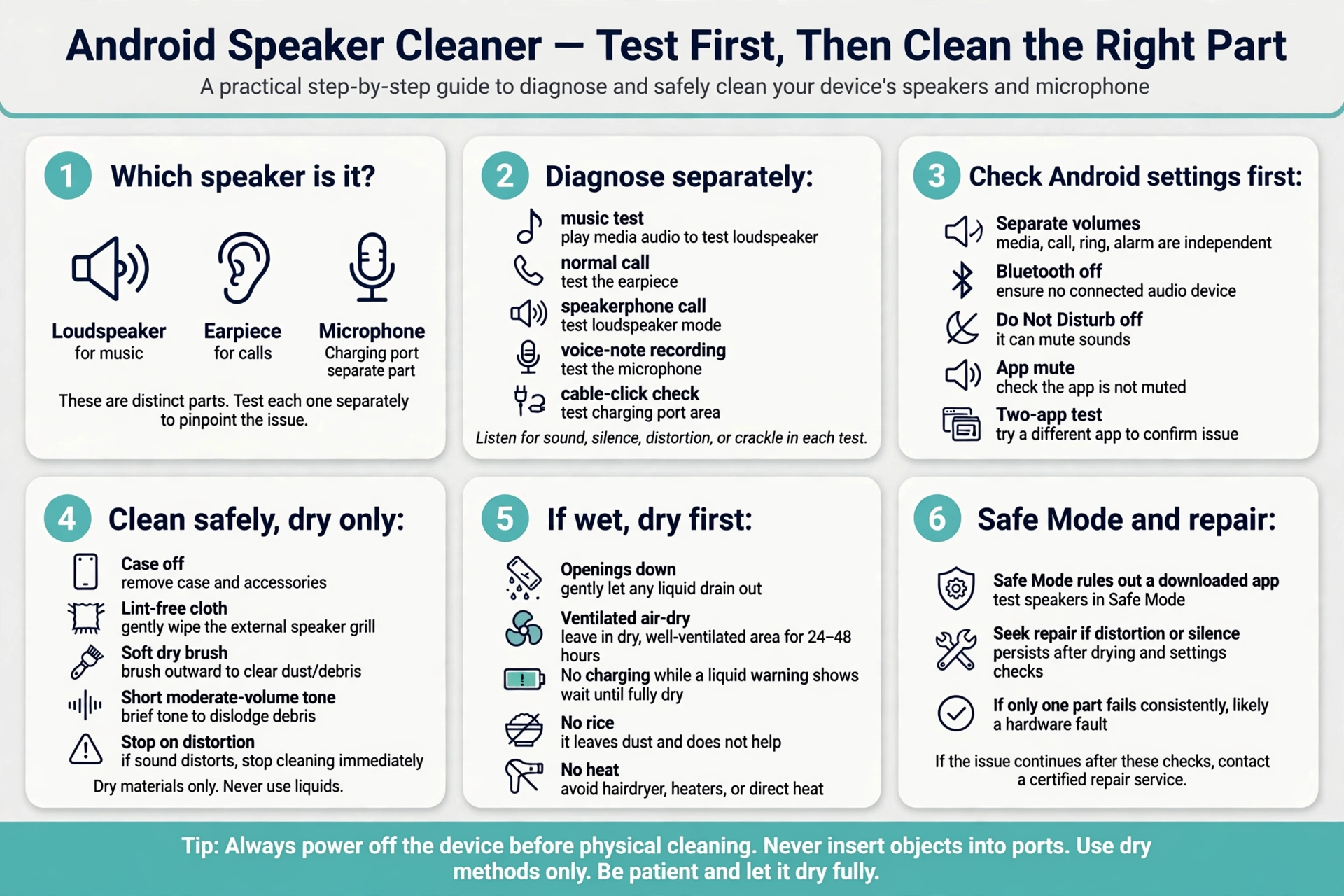
    Android phones do not share one speaker layout, one settings menu, or one built-in cleaning feature, but they do share the same safe approach: test each speaker separately, check the Android settings that can silently route or mute sound, clean only the outside of the grille, try a short browser tone at moderate volume, and stop if distortion persists. This guide covers Samsung, Pixel, Xiaomi, OnePlus, Motorola and other Android phones together, and notes where a brand differs.

    Who this guide is for

    This guide is for anyone whose Android phone sounds muffled, quiet, crackly or silent, whether after water, dust, a new app, or a software update. It is written in general terms because menu names vary by brand and Android version. If a path below does not match your phone exactly, use the search box inside your Settings app for the setting name given.

    It is not a repair manual. If your phone was fully submerged, shows a liquid or debris warning, will not charge, or smells of burning, follow your phone maker’s guidance and seek repair instead of repeating cleaning tones.

    The two Android speakers, and why they fail differently

    Most Android phones have a loudspeaker, usually at the bottom edge, and a smaller earpiece at the top used for normal calls. Many newer phones use both together as stereo speakers for media. That matters for diagnosis: a phone can play music through the loudspeaker while callers still sound quiet through the earpiece, and the reverse is also possible.

    The loudspeaker fails most often from water at the grille, pocket lint, or a case covering its holes. The earpiece fails most often from skin oil, makeup, or a screen protector covering its narrow slot. The microphone is a third part, not a speaker: sound cannot push water out of a microphone, and a charging port is a fourth part that sound does not clean at all. Keep those parts separate in your head before you start, or you will test the wrong part and draw the wrong conclusion.

    Diagnose first: test each part separately

    Do these tests in a quiet room, with no Bluetooth device connected.

    First, play music or a video at a moderate volume. Note whether it is muffled, crackly, quiet, or silent, and whether both speakers seem to play or only one side. Then use the Speaker Test tool on this site to check for distortion or dropouts. Next, make a normal call without speakerphone and listen through the earpiece, then switch the same call to speakerphone and listen through the loudspeaker. If only one mode fails, you have narrowed the problem to that speaker.

    Then test the microphone by recording a short voice note and playing it back. If callers cannot hear you but you hear them fine, suspect the microphone, not the speaker. Finally, check the charging port only by looking in good light and checking whether a cable clicks fully into place; do not insert anything into it yet.

    If more than one test fails, work through the parts one at a time, starting with your main symptom. Clean, retest, and only then move to the next part.

    Check the Android settings that silently mute sound

    On Android, several settings can make a working speaker seem broken, and they should be checked before any cleaning.

    Volumes are separate. Media volume, ring volume, notification volume, alarm volume and in-call volume are different controls. Press a volume button during music to adjust media volume, and during a call to adjust in-call volume; adjusting one does not fix the other. Open Settings, then Sound and vibration or a similarly named menu, and check that media volume is up and that no volume is muted.

    Bluetooth routing is the next check. If earbuds, a car system, or a Bluetooth speaker is connected, sound may play there instead of through the phone. Turn Bluetooth off temporarily and test again. Also check Do Not Disturb: it can silence calls and notifications even though music still plays, so a “no sound” report that only affects calls and alerts may be Do Not Disturb, not a speaker fault.

    Check app-specific controls too. Some apps have their own mute button, and a video that is itself muted will stay silent on a healthy speaker. Test with two different apps and, if possible, a locally saved file, so a streaming problem does not confuse the test. If sound fails in only one app, check that app’s permissions and settings before changing phone-wide settings.

    Clean the loudspeaker and earpiece safely

    Dry cleaning only, and nothing inserted into any opening. Remove the case, wipe the outside of the grille with a dry, lint-free cloth, and use a soft, dry brush with light outward strokes. The goal is to lift surface dust, not to force it through the mesh. For the earpiece, use the same light strokes across its slot; do not press a brush into it and never use a pin, needle, or toothpick.

    If the speaker still sounds muffled after dry cleaning, you can try a short browser tone at moderate volume, with the speaker facing down, using this site’s speaker cleaning tool or the Android Water Eject tool. Play one short cycle, then test with music. Repeat only once or twice more if the sound is clean and improving. Sound may help with light water or loose dust near a speaker opening. It is not a guarantee, and it does not repair a torn, corroded, or electrically damaged speaker.

    Do not pour water into the grille, use high-pressure air at close range, or use liquid cleaners inside the speaker. If packed dirt does not shift with brushing, stop; that is a repair-shop job. Note that some third-party guides suggest canned compressed air, but maker guidance for drying and cleaning warns against it, and this guide does not use it.

    If the phone got wet

    Water changes the order. Do not start by playing loud tones or plugging in a charger. Remove the case, wipe the outside dry with a lint-free cloth, and hold the phone with the speaker and port openings facing down. Power it off if you suspect liquid inside, and let it air-dry in a ventilated place. If your phone shows a liquid or debris warning for its USB port, do not charge it until that warning clears and your maker’s guidance allows charging. Do not put the phone in rice: makers advise against rice because starch and dust can get inside the phone.

    Only after drying, and only if there is no liquid warning, test the loudspeaker at moderate volume with a short tone. If sound is still muffled after drying, or the phone was fully submerged or exposed to salt or soapy water, seek professional guidance. No specific charging-wait hour figure is given here, because wait guidance varies by maker and model; follow the guidance for your exact phone.

    Use Safe Mode to test for an app problem

    Safe Mode is Android’s most useful speaker test, and it is often skipped. In Safe Mode, only pre-installed apps run, so a downloaded app cannot interfere with sound. The usual method is to press and hold the power button, then touch and hold Power off until a Safe Mode prompt appears, then tap Safe Mode. Menu wording varies by brand, so use your maker’s instructions if this path differs.

    In Safe Mode, play music and make a test call. If the speaker works normally in Safe Mode but fails in normal mode, a downloaded app is the likely cause. Restart normally, then uninstall the most recently installed or updated audio-related apps one at a time, testing after each removal. If the speaker still fails in Safe Mode, the cause is more likely a setting, blockage, water, or hardware, not a downloaded app.

    Brand differences worth knowing

    Samsung phones add a diagnostics option in the Samsung Members app, where speaker and microphone tests can be run, and Samsung’s own support steps emphasise removing cases and films, restarting, and Safe Mode. Pixel phones use a cleaner Android settings layout, with Sound and vibration and Connected devices menus, and Google’s support steps emphasise restarting, checking hardware, and watching for a liquid or debris message. Xiaomi, Redmi and POCO phones may include a built-in Clear Speaker option in Settings, then Additional settings, on some models and software versions; it is not present on every model, and if you cannot find it, the browser tool is the equivalent test. OnePlus phones add an Alert Slider on many models that can silence ringtones, and Dolby Atmos or spatial audio settings that can change how sound is processed; if sound is distorted, try a neutral audio profile temporarily before assuming hardware damage.

    Do not treat any of these brand options as a guarantee. A built-in tone, a diagnostics test, or a sound enhancement is a check, not a repair, and maker guidance for a wet device always comes before an app or built-in tone.

    Troubleshooting

    Still muffled after water: air-dry longer, speaker facing down, then try one more short tone. If a liquid warning is showing, do not charge until it clears.

    Crackling or rattling: stop the tone. Crackling at moderate volume can mean debris, distortion, or damage. Do not raise the volume to push through it.

    No sound from one speaker: test loudspeaker and earpiece separately, check Bluetooth and Do Not Disturb, and restart. A silent earpiece during calls but normal music points to the earpiece or call settings, not the loudspeaker.

    Sound low but clear: check media volume, accessibility audio balance if your phone offers it, and whether a case blocks the grille. Low but clear sound may not need a cleaning tone at all.

    Works in Safe Mode only: uninstall recently added audio apps one at a time, testing after each.

    Tone plays but nothing changes: that is a useful result, not a reason to try an extreme frequency. It suggests packed debris, a setting, deeper water, or damage.

    When to seek repair

    Seek professional repair if sound stays distorted after gentle cleaning and drying; a speaker stays silent in Safe Mode and after a settings reset; the phone was fully submerged or exposed to salt or soapy water; or you see corrosion, swelling, a cracked screen near a speaker, or a liquid warning that will not clear. Do not open the phone yourself unless qualified. Back up your data before any factory reset, and treat a factory reset as a last step, not a first test.

    Conclusion

    For Android, the safe order is: test each speaker separately, check separate volumes, Bluetooth, Do Not Disturb and app controls, clean only the outside of the grille, try a short moderate-volume tone, use Safe Mode to rule out an app, and stop on distortion or no change. Brand menus differ, but that order does not. When those steps do not help, repair is the next step, not a louder tone or another app.

    FAQ

    Can I clean an Android speaker with sound?

    Yes, as a limited test. A short browser tone at moderate volume may help with light water or loose dust near a speaker opening. It cannot guarantee a result, repair damage, clean a microphone, or clean a charging port.

    Why does my Android speaker work for music but not calls?

    Music uses the loudspeaker, while a normal call uses the earpiece. Test both modes separately. If only calls fail, check the earpiece, in-call volume, Bluetooth routing, and whether a case or screen protector covers the earpiece.

    What is Safe Mode, and how does it help?

    Safe Mode runs only pre-installed apps. If the speaker works in Safe Mode but fails normally, a downloaded app is the likely cause. Uninstall recently added audio apps one at a time, testing after each removal.

    Does every Android phone have a built-in speaker cleaner?

    No. Some Xiaomi models include a Clear Speaker option, Samsung offers diagnostics in Samsung Members, and other brands offer neither. If your phone has no built-in option, a browser tool gives the same short test without installing anything.

    Can a 50,000 Hz tone clean my Android speaker better?

    No. A typical phone speaker cannot reliably reproduce 50,000 Hz, and a high-frequency label does not make a tone stronger. Use an audible, moderate-volume tone or sweep, and judge by a careful test afterwards.

    My phone got wet. Should I play a cleaning tone right away?

    No. Remove the case, wipe the outside dry, hold openings facing down, and let the phone air-dry. Do not charge while a liquid or debris warning is shown. Only after drying, and with no warning, test with a short tone at moderate volume.

    When should I reset my Android phone?

    Only as a late step, after settings, Bluetooth, Safe Mode, cleaning and drying checks. Back up your data first. A reset will not fix a blocked grille, water damage, or a damaged speaker.

    Does speaker cleaner really work?

    It can help in limited cases: light water or loose dust near a speaker opening. It is not a repair guarantee, it does not reliably remove embedded debris, and it does not fix a microphone or a charging port.

    Related tools on this site

    Related tools:

    Related guides:

  • iPhone Speaker Cleaner: A Safe Guide to Clearer Sound

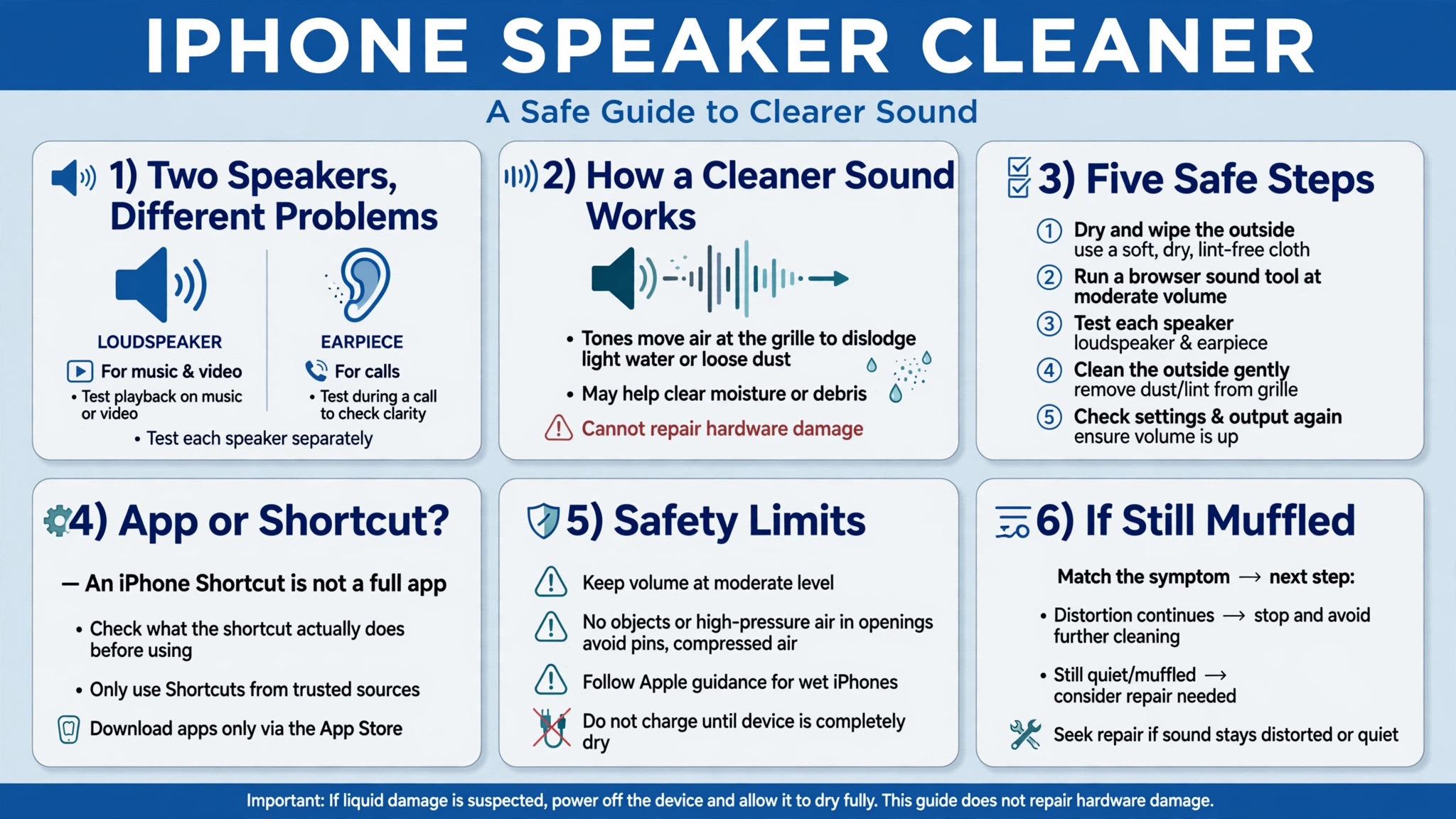
    iPhone Speaker Cleaner: A Safe Guide to Clearer Sound

    An iPhone speaker cleaner is a browser sound tool that plays tones meant to help with light water or loose dust near the speaker opening. It may help when sound is muffled after a splash, but it cannot repair damage, remove packed dirt, or guarantee that water will come out.

    That limit matters. Many iPhone speaker problems look alike, but they do not all have the same fix. A quiet call, a muffled song, and a crackling speaker can come from water, dust, a blocked opening, a wrong audio output, or a damaged speaker. This guide helps you tell those cases apart, try the safe steps in order, and know when to stop.

    Who this guide is for

    This guide is for iPhone owners whose sound has changed and who want a safe first response. It covers the general iPhone case. It does not cover one specific model in detail, and it does not replace Apple’s guidance for your model. If your phone was fully submerged, shows a liquid warning, or will not charge, follow the manufacturer’s guidance for a wet device first and skip straight to the safety and repair sections below.

    The two iPhone speakers are not the same problem

    An iPhone has more than one sound opening, and the fix depends on which one is affected.

    The loudspeaker is the speaker you hear when you play music, watch a video, or use speakerphone. The earpiece is the small speaker you hold to your ear during a regular call. They serve different jobs, so a problem in one does not always mean a problem in the other. Test them separately. Play music to check the loudspeaker, then make or receive a call without speakerphone to check the earpiece.

    Two other openings are often confused with speakers. The microphone picks up your voice; sound cannot push water out of a microphone the way a moving speaker cone can move air. The charging port is a separate opening. Do not insert objects, liquid, or high-pressure air into any of these openings. If the microphone sounds muffled or the charging port is wet, air-drying and manufacturer guidance matter more than a cleaning tone.

    Before you start

    You do not need to install anything to try the browser tool on this site. Before you run a tone, do these quick checks:

    1. Check where the sound is going. Make sure audio is playing through the iPhone speaker, not through headphones, earbuds, a Bluetooth speaker, or another device. A quiet iPhone speaker is sometimes just the wrong output.
    2. Check volume and mute. Turn the volume up to a moderate level and make sure sound is not muted. Do not start at maximum volume.
    3. Remove the case if it covers a speaker opening. A thick or wet case can muffle sound on its own. Wipe the outside of the phone with a soft, dry, lint-free cloth.
    4. Do not charge a wet phone. If the phone shows a liquid warning, or if you suspect liquid is still inside, do not plug it in. Let it air-dry and follow the manufacturer’s guidance.
    5. Stop if you hear harsh distortion. A cleaning tone should not be painful or produce a harsh rattle that does not go away. If it does, stop, lower the volume, and move to the troubleshooting section.

    These checks take a minute and prevent the most common mistake: running a cleaning tone for a problem that was never about water or dust.

    How a speaker cleaner sound works, and where it stops

    A speaker makes sound by moving a thin cone back and forth. Low tones move that cone farther than high tones, and that movement can push air — and, in some light cases, water droplets near the opening — toward the grille. That is why this site’s homepage tool uses a steady 165 Hz tone for water: it is a low, audible tone that moves the speaker cone a lot. Apple does not offer a built-in water-eject button on iPhone; the tones feature Apple documents is Water Lock on Apple Watch (September 17, 2026).

    Dust needs a different idea. Fast sweeps across a range of frequencies shake the mesh at many frequencies, which can loosen particles sitting in different spots. That is why the homepage offers separate modes for water, dust, deep cleaning, earpiece, and vibration, rather than one sound for everything.

    There are clear limits: sound may help with light water at the speaker opening and loose dust. It is not a repair. Sound does not reliably remove embedded debris packed into the mesh. That needs gentle external cleaning, and sometimes repair. Sound cannot fix a torn, corroded, or electrically damaged speaker. There is no single frequency that cleans every speaker. Audible range and hardware vary, and very high frequencies are not a reliable cleaning shortcut. This guide does not claim that a phone speaker can accurately reproduce extremely high frequencies, and it does not recommend them. Water resistance, where a model has it, does not mean a wet phone is safe to charge or to clean aggressively. Resistance can change over time, and liquid inside the phone is a different problem from a few drops at the opening.

    Keep those limits in mind before you expect a tone to fix a serious problem.

    Step by step: clean an iPhone speaker safely

    Follow the steps in order. Do not skip the drying and testing steps.

    1. Dry and wipe the outside

    If the phone got wet, take it out of the water, remove the case, and wipe it with a soft, lint-free cloth. Hold it so any visible water can drain away from the openings, and let it air-dry for a while. Do not use heat, do not put it in rice, and do not insert anything into the speaker, microphone, or charging port. Rice and heat can add dust or damage, and they do not replace drying time.

    If the phone is only dusty, start with a dry wipe. Do not add liquid cleaner to the speaker opening.

    2. Run the browser sound tool at moderate volume

    Open the free browser tool on this site. No app download is needed. Choose the mode that matches your problem: iPhone water eject for a splash, dust cleaning for lint, earpiece cleaning for quiet calls, or deep clean if you have tried a single mode and still have a light problem.

    Start at a moderate volume. The homepage tool runs a cycle of about 60 seconds. Let one cycle finish, then play music or make a short test call. Repeat for two or three cycles if the sound is improving and there is no distortion. Do not run the tone over and over at maximum volume in the hope that more volume will force a result. More volume does not make a damaged speaker work, and it can make distortion worse.

    3. Test each speaker separately

    After each cycle, test the loudspeaker with music and the earpiece with a call (speaker test). Note which one improved, which one stayed the same, and whether the problem changed from muffled to crackly or from quiet to distorted. That note helps you decide the next step, and it helps a repair shop if you later need one.

    4. Clean the outside gently for dust and lint

    If dust or lint is the problem, sound alone may not be enough. Use only safe external cleaning. Apple’s iPhone cleaning guidance (October 22, 2026) is to unplug cables, turn the phone off, and avoid moisture in openings and compressed air: wipe the grille area gently with a soft, dry, lint-free cloth. Use a soft, dry brush lightly across the surface if lint is sitting on the outside. Do not press hard and do not push debris further in. Stop if the mesh looks packed, sticky, or damaged.

    Do not use sharp objects, pins, toothpicks, or metal tools to clear the grille. Do not pour liquid into the opening, do not use high-pressure air, and do not use harsh cleaners. Those methods can push dirt deeper, damage the mesh, or push liquid inside.

    5. Check the simple settings and output again

    After cleaning, check again that the volume is up, sound is not muted, and audio is coming from the iPhone speaker you intend to test. If you were connected to Bluetooth or headphones earlier, disconnect them for the test. If the problem appears only on calls, check the earpiece separately. If it appears only with music, check the loudspeaker separately.

    Troubleshooting: match the symptom to the next step

    SymptomCheckNext step
    Muffled after rain or a spillIs liquid still present? Is charging safe?Air-dry, then run the water mode for one cycle at moderate volume and test.
    Quiet calls, but music sounds normalEarpiece, not loudspeakerUse the earpiece mode, test with a call, and clean the outside gently.
    Music quiet, but calls sound normalLoudspeaker, not earpieceUse the water or dust mode as appropriate, then test with music.
    Crackling or distortionVolume too high, debris, or damageLower the volume, stop the tone if distortion stays, and do not force more cycles.
    Low volume everywhereOutput, mute, case, or blockageCheck output and case, wipe the outside, test each speaker, then consider repair.
    Dust or lint visible at the openingPacked debrisGentle external cleaning only. Do not insert tools.
    Sound still bad after drying and a few cyclesDeeper water, packed dirt, or damageStop cleaning tones. Let the phone dry longer and seek repair advice.

    This table is a starting point, not a diagnosis. If two or more symptoms point to damage, or if the problem gets worse, stop and seek repair.

    Do you need an iPhone speaker cleaner app?

    No. The browser tool on this site runs without installing anything, and your audio does not need to leave your device to use it. That is a practical advantage: you avoid giving an app permissions it does not need.

    If you still consider an app, check it the way you would check any app. Look at who makes it, what permissions it asks for, whether it needs an account, and what it does with your data. Do not install an app that promises to repair water damage, remove all dust with certainty, or play frequencies your phone cannot reproduce reliably. Those promises are not supported by the limits explained above.

    This guide does not recommend a specific app and does not list app prices, because prices and app features change and were not verified for this draft.

    Safety limits to remember

    Sound is a light cleaning aid, not a repair tool. Use moderate volume. Stop if you hear distortion or discomfort. Do not insert objects or liquid into the speaker, microphone, or charging port. Do not use high-pressure air or harsh cleaners on the grille. Do not charge a phone that may still have liquid inside. Follow Apple’s guidance for a wet device before you try anything else. If that guidance conflicts with a general tip in this article, follow the manufacturer’s guidance. If the phone was fully submerged, keep it off where possible, let it dry, and get repair advice rather than running repeated cleaning cycles.

    When to seek repair

    Seek repair advice if any of these apply: sound stays muffled, crackly, or quiet after drying and a few gentle cycles. The phone shows a liquid warning, will not charge, or has visible damage. The speaker distorts even at normal volume. The mesh is packed, sticky, or damaged, or debris cannot be removed from the outside. The problem started after a drop, a deep soak, or exposure to salt water, soap, or another liquid that is not clean water.

    A repair shop can check for internal moisture, corrosion, or speaker damage that no tone can fix. Bring a short note about what happened, which speaker is affected, and what you already tried. That saves time and avoids repeated cleaning that could make things worse.

    Conclusion

    An iPhone speaker cleaner can be a useful first step for light water or loose dust, when it is used at moderate volume and paired with drying, gentle external cleaning, and a separate test of the loudspeaker and earpiece. It cannot repair damage, remove packed debris, or guarantee that water will come out.

    Start with the simple checks, run one or two cycles, test, and stop if the sound does not improve or gets worse. For a wet device, manufacturer guidance comes first. For a damaged or persistently bad speaker, repair is the safer next step.

    FAQ

    Does an iPhone speaker cleaner really work?

    It may help with light water at the speaker opening or loose dust, but it is not a repair guarantee. If sound stays muffled after drying and a few cycles, the problem may be deeper water, packed dirt, or damage.

    Can a speaker cleaner remove dust from an iPhone?

    Sound may loosen loose dust, but it does not reliably remove embedded debris. For dust, combine a sound cycle with gentle external cleaning using a soft, dry cloth or brush, and do not insert tools into the grille.

    What frequency cleans iPhone speakers?

    There is no single best frequency for every phone. This site’s homepage uses a 165 Hz tone for water because low tones move the speaker cone more. Audible range and hardware vary, so very high frequencies should not be treated as a stronger or more reliable cleaner.

    Can I use maximum volume for cleaning?

    No. Start at a moderate volume and stop if you hear distortion or discomfort. Maximum volume does not guarantee a better result and can make distortion worse.

    Can sound repair water damage?

    No. Sound cannot repair corrosion, a torn speaker, or electrical damage. If liquid ingress is suspected, stop using the device as advised by the manufacturer, let it dry, and seek repair advice.

    How do I clean an iPhone earpiece safely?

    Test the earpiece with a regular call, not speakerphone. Use the earpiece mode at moderate volume, wipe the outside gently with a soft, dry cloth, and do not insert objects or liquid into the earpiece opening.

    Do I need a speaker cleaner app for iPhone?

    No. A browser tool works without installing an app. If you consider an app, check its maker, permissions, privacy practices, and audio levels first, and do not trust promises of guaranteed water removal or damage repair.

    Related tools on this site

    Related tools:

    Related guides:

  • Best Speaker Cleaner Apps: How to Judge One Safely

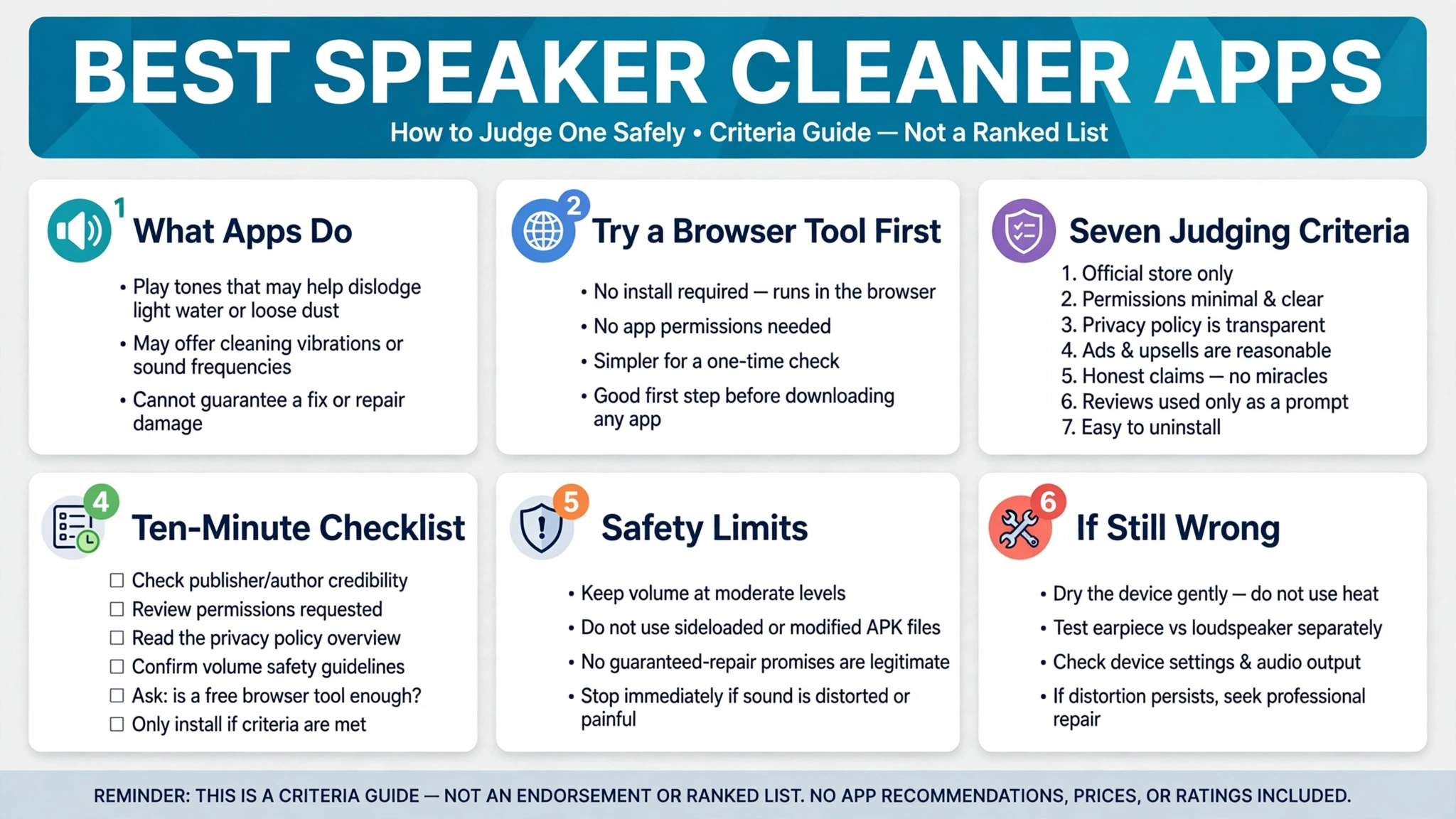
    Best Speaker Cleaner Apps: How to Judge One Safely

    There is no verified “best” speaker cleaner app to name here, because no app was tested for this article. A web search on 2026-10-28 found comparison pages that frame the choice as browser tools versus Android apps versus iOS Shortcuts, and Google Play listings with strong, sometimes contradictory marketing claims — not an independent, tested ranking. The safest choice is usually the option that does the least harm: few permissions, clear privacy terms, moderate volume, honest audio claims, and no pressure to pay before you know whether sound helps at all. For many readers, a free browser tool is enough to try first.

    Who This Guide Is For

    This guide is for anyone whose phone speaker sounds muffled, quiet, or crackly after water, dust, or lint, and who is wondering whether to install an app to fix it. It is also for readers who have already seen app-store lists and reviews and are unsure which claims to trust.

    It is not a repair manual for a broken speaker. If your phone was fully submerged, shows a liquid warning, will not charge, or smells of burning, stop and follow the manufacturer’s guidance for your model. Sound cannot repair corrosion, a torn speaker, or electrical damage.

    What a Speaker Cleaner App Actually Does — and Does Not Do

    A speaker cleaner app, and a browser tool like the one on this site, plays tones that move the speaker cone. That movement can, in some cases, help push loose water droplets or loose dust near the speaker opening outward. That is the limited, realistic use.

    It does not reliably remove dust that is packed into the mesh. It does not clean inside the phone. It does not fix a speaker that is damaged, and it does not dry a phone that is wet inside. Physical cleaning, air-drying, and, when needed, professional repair are separate steps, not steps an app can replace.

    Understanding that limit changes how you judge an app. An app that promises to “fix any speaker,” “remove all water,” or “repair water damage” is making a claim this guide does not support. Prefer an app or tool that states its limits clearly.

    Try a Browser Tool Before You Install Anything

    Before you give an app access to your phone, try a browser-based tool first. A browser tool runs in your web browser, so you do not need to install software, create an account, or grant app permissions to test whether tones help.

    On this site, the homepage tool offers separate modes for water, dust, and earpiece cleaning, and separate tool pages cover water eject, dust cleaning, ear-speaker cleaning, and speaker testing. Try one short cycle at moderate volume, with the speaker facing down, then play music to check whether the sound changed. If nothing changes after a few careful cycles, installing more apps is unlikely to change the result.

    A browser tool also avoids install risks such as background access, ads, subscriptions, and data collection.

    How to Judge an App: Seven Criteria

    Use these seven criteria in order. If an app fails the first three, the rest do not rescue it.

    1. Does it match your actual problem?

    Start with the problem, not the app name. A muffled loudspeaker after a spill is different from a quiet earpiece during calls, and both are different from a microphone that does not pick up your voice.

    Loudspeaker: the main speaker at the bottom or side of the phone. This is the speaker most cleaning tones target. Earpiece: the small speaker at the top used for calls. It needs gentler tones and different settings, and it is easy to confuse with a loudspeaker problem. Microphone: sound does not push water out of a microphone the way it can move a speaker cone. An app that claims to “clean” a microphone with sound alone should be treated with skepticism. Charging port: a tone does not clean a charging port. Do not insert objects or liquids into a port to “help” an app work.

    If an app does not let you choose the right speaker, or it treats every problem with the same loud tone, that is a weak sign.

    2. Permissions and privacy: what does it ask for, and why?

    This is often the most important check, and it takes less than a minute on the store listing.

    A simple tone player should not need your contacts, photos, location, messages, or full device access. Be cautious if an app asks for permissions that have nothing to do with playing sound, running in the background without a clear reason, or accessing files you did not choose to share.

    Read the privacy policy, or at least the store listing’s data summary, before installing. Look for what data is collected, whether it is shared, and whether you can delete it. If the policy is missing, vague, or hard to find, treat that as a reason to skip the app and use a browser tool instead.

    Also check whether the app works without an account. An account is not needed to play a cleaning tone, and requiring one adds privacy risk without adding cleaning value.

    3. Audio safety: volume, frequency, and honest claims

    Audio safety is where many listings overpromise. Use these checks:

    Volume: start at a moderate level and increase only if the sound is clean. Do not start at maximum volume, and stop if you hear harsh rattling, distortion, or discomfort. A tool that tells you to “always use maximum volume” is not giving safe advice.

    Frequency: there is no single universal frequency that cleans every speaker. Audible tones in the normal range your speaker already plays are the realistic option. Be skeptical of claims about very high, inaudible frequencies. A typical phone speaker cannot reliably reproduce tones at 30,000, 50,000, or 100,000 Hz, and an app that presents those numbers as a cleaning advantage is misleading you about what your hardware can do.

    Duration: short cycles with a test in between are safer than long, continuous playback at high volume. If an app encourages endless playback, close it and rethink.

    Hearing safety: do not hold the phone to your ear while a cleaning tone plays, and keep the phone away from children and pets during loud playback.

    An honest app states its tone range, warns about volume, and tells you to stop if distortion continues. A dishonest one hides behind “secret frequencies” and guarantees.

    4. Price, ads, and subscriptions: what will it actually cost?

    Price and review keywords appear often in searches for this topic, but this article gives no price for any app, because no price was verified for publication. App prices change, free trials convert to paid plans, and a price in one country does not apply in another.

    Before you install, check on the current store listing, not in a search snippet: is it free, paid once, or subscription-based? Do ads interrupt cleaning? Does a “free” version limit cycles or modes until you pay? Can you cancel easily?

    A paid app is not automatically better, and a free app is not automatically safe. The question is whether the cost is clear before you install, and whether a free browser tool gives you the same short test without paying first.

    5. Reviews: how to read them without trusting stars alone

    Star ratings alone are a weak signal. Reviews can be old, incentivized, written for a different version of the app, or focused on problems that have nothing to do with cleaning, such as ads or billing.

    When you read reviews, look for patterns, not single comments: do recent reviews mention the same problem, such as unexpected charges, crashes, or permissions? Do reviews describe a specific result, such as “muffled sound after rain improved after two cycles,” or only vague praise? Do negative reviews mention distortion, overheating, or a speaker that sounded worse afterward? Take those seriously. Are reviews for your device and operating system, or for a different phone?

    If the most recent reviews are mostly about billing and ads, that tells you more about the app’s business model than about its tones. If there are almost no recent reviews, do not treat an old average as current evidence.

    6. Device and operating-system fit

    An app that works well on one phone may behave differently on another. Check whether the listing names your operating system and, ideally, your device type.

    iPhone and Android handle audio, background playback, and vibration differently. Vibration-based modes, for example, may work in some Android browsers or apps and not in others. An app that promises the same vibration result on every device is overstating what it can control.

    For an earpiece problem, check whether the app has a separate earpiece mode. Using a loudspeaker tone at full volume for an earpiece issue is not a substitute for the right mode, and it can be unpleasant and unhelpful.

    7. Updates, support, and manufacturer guidance

    Prefer an app with a recent update history and a way to contact the developer. An app that has not been updated for a long time may not match current Android or iOS audio behavior.

    More importantly, manufacturer guidance comes first for a wet device. Apple, Samsung, Google, and other makers publish their own advice for liquid exposure, drying, and charging. If an app’s advice conflicts with that guidance — for example, by telling you to charge a phone that shows a liquid warning, or to use rice, compressed air, or a sharp object in the grille — follow the manufacturer, not the app.

    A Ten-Minute Checklist Before You Install

    Work through this checklist in order. You can stop at any step if the answer is no.

    1. Name the problem: loudspeaker, earpiece, microphone, or charging port?
    2. Try the browser tool first for one short cycle at moderate volume.
    3. Test the speaker with music or a call. Did the sound change?
    4. If you still want an app, read the store listing for permissions and data collection.
    5. Check price, ads, and subscription terms on the current listing.
    6. Read recent reviews for patterns about billing, crashes, and distortion.
    7. Check device and operating-system fit for your phone.
    8. Install only if the app passes the checks above. Test it once, then decide whether to keep it.
    9. If the sound does not improve, stop installing more apps. Try gentle physical cleaning and air-drying, then seek repair if needed.
    10. Uninstall any app you do not keep. Do not leave unused audio apps with broad permissions on your phone.

    This checklist is the comparison. It does not require a ranked list, and it works even when rankings and prices change.

    If the Speaker Still Sounds Wrong

    Troubleshooting after a cleaning attempt is about narrowing the cause, not turning the volume up further.

    Still muffled after water: let the phone air-dry with the speaker facing down. Do not charge it if it shows a liquid warning. Try a speaker test to check left and right channels separately, and compare the loudspeaker with the earpiece.

    Crackling or distortion: stop playback. Distortion that continues at normal volume after drying may mean damage, not dirt. Do not keep running loud tones to “push through” it.

    Low volume: check volume settings, Do Not Disturb, Bluetooth connections, and whether sound is routing to headphones or another device. A cleaning app cannot fix a routing or settings problem.

    Earpiece quiet during calls: check call volume, accessibility settings, and whether the earpiece grille is blocked. Clean the outside gently with a soft, dry brush. Do not insert objects or liquid into the earpiece.

    Microphone problems: air-dry the phone, check that no case blocks the microphone hole, and test with a voice recording. Sound-based cleaning is not a microphone repair.

    If the problem persists after drying, settings checks, and gentle external cleaning, seek professional repair. Bring a clear description: when it started, whether water or dust was involved, and what you already tried.

    Safety Limits to Remember

    Sound tools help only with light water and loose dust near the speaker opening. They do not guarantee results, and they do not repair damage.

    Do not use excessive volume, high-pressure air, or liquid cleaners inside the speaker. Do not insert pins, needles, or sharp tools into the grille, earpiece, microphone, or charging port. Do not open the phone unless you are qualified to do so. For a wet device, prioritize the manufacturer’s safety instructions over any app’s marketing.

    Conclusion

    The best speaker cleaner app, if you need one at all, is honest about its limits, asks for little access, charges transparently, and lets you test it safely. In many cases, that test needs no install: a browser tool, a short cycle at moderate volume, and a simple speaker test will tell you whether sound helps.

    Use the checklist above, read the current store listing before you install, and stop when the evidence stops improving.

    FAQ

    Is a speaker cleaner app safe?

    It can be, if it asks for few permissions, explains its data use, uses moderate volume, and states its limits. An app is less safe if it requests unrelated access, hides its privacy terms, pushes maximum volume, or promises to repair damage. When in doubt, use a browser tool instead of installing.

    Does a speaker cleaner really work?

    Sometimes, for light problems. A tone can help move loose water or loose dust near the speaker opening. It cannot guarantee a result, and it cannot fix a torn, corroded, or electrically damaged speaker.

    Can sound remove dust from a speaker?

    Sound may loosen dust that sits loosely near the grille, but it does not reliably remove dust that is packed into the mesh. Gentle external cleaning with a soft, dry brush and air-drying are often needed as well. Do not insert objects into the grille.

    What frequency cleans speakers?

    There is no universal best frequency. Hardware, speaker size, and the type of blockage all vary, and audible-range tones are the realistic option. Be skeptical of any app that presents a single secret frequency, especially a very high one, as the answer for every phone.

    Is a 50,000 Hz speaker cleaner real?

    A typical phone speaker cannot reliably reproduce 50,000 Hz. An app may label a tone that way, but that label does not mean your speaker is actually producing that frequency accurately, and it does not make the tone more effective. Judge an app by its audible behavior and safety warnings, not by extreme numbers.

    Can I use maximum volume?

    No, not as a starting point. Start at a moderate level, increase only if the sound stays clean, and stop if you hear distortion or discomfort. Maximum volume does not make cleaning more reliable, and it increases the risk to your hearing and speaker.

    Can sound repair water damage?

    No. Sound cannot repair liquid damage inside a phone. If liquid ingress is suspected, stop using the device as directed by the manufacturer, let it dry, and do not charge it if it shows a liquid warning. Seek professional repair if the problem continues.

    Do I need to buy a speaker cleaner app?

    Not necessarily. Many readers can test whether tones help by using a free browser tool first, without installing or paying. Only consider a paid app after that test, and only if its current store listing makes its price, subscription terms, and permissions clear.

    Related tools on this site

    Related tools:

    Related guides:

  • Speaker and Microphone Cleaning: Fix Muffled Calls

    Speaker and Microphone Cleaning: Fix Muffled Calls

    If callers cannot hear you, music sounds muffled, or your phone charges unreliably, do not clean everything the same way. Your phone has four parts that fail for different reasons: the loudspeaker, earpiece, microphone, and charging port. This guide helps you find which part is at fault, test it, and clean it safely.

    Why speaker and microphone cleaning is not one job

    A loudspeaker plays sound by moving a cone back and forth. That movement can help shift loose water or dust near the speaker opening, which is why a cleaning tone can sometimes help a muffled loudspeaker. A microphone works in the opposite direction: it listens. It does not move like a speaker, so playing a sound cannot push water or dust out of it. A charging port does not play or record sound at all; it fails when lint packs into the opening or liquid causes corrosion.

    Treating all four parts as if one “mic speaker cleaner sound” fixed them all is the most common mistake in this topic. It wastes time, and it can lead people to keep playing loud tones at a wet or damaged phone instead of drying it and following manufacturer guidance.

    Who this guide is for

    This guide is for anyone whose phone sounds muffled on calls, sounds quiet on speakerphone, records quiet or distorted voice notes, or charges only when the cable is held at an angle. It covers iPhone and Android in general terms and does not replace your manufacturer’s instructions for your exact model. If your phone was fully submerged, shows a liquid warning, or has visible damage, skip to the wet-phone section.

    What you need before you start

    You need a soft, dry, lint-free cloth, a soft-bristled brush, good light, and a quiet room for testing. Do not use liquid cleaners, canned compressed air, pins, needles, toothpicks, or metal tools. They can puncture a mesh, push lint deeper, scratch contacts, or damage a microphone membrane.

    Keep the volume moderate for any sound test. Do not use maximum volume to “force” a result. If harsh rattling or distortion does not go away, stop and seek further testing or repair rather than repeating the test louder.

    Note the symptom first. “Callers cannot hear me, but I hear them fine” points to a microphone. “I cannot hear callers, but speakerphone works” points to the earpiece. “Music is muffled, but calls are fine” points to the loudspeaker. “The cable falls out or charges only at an angle” points to the charging port.

    Diagnose first: test each part separately

    Do these tests in a quiet room.

    First, test the loudspeaker. Play music or a video at a moderate volume, or use the Speaker Test tool and listen for muffling, crackling, or one-sided sound. Then test the earpiece by calling without speakerphone, holding the phone normally to your ear. If callers sound quiet or crackly only in this mode, the earpiece is the likely problem.

    Next, test the microphone. Record a short voice note and play it back, or use the Mic Test tool as a test only. If your voice sounds faint, muffled, or distorted while incoming audio sounds normal, the microphone is the likely problem. Try a second app if possible, because one app’s permission or setting can also cause a quiet recording.

    Finally, check the charging port without inserting anything. Look at the opening in good light. Lint often looks like a gray, felt-like layer packed at the back of the port. Check whether the cable clicks fully into place and whether charging starts without wiggling it. A cable that will not seat fully is a strong sign of packed lint, but do not dig at it yet.

    If more than one test fails, work through the parts one at a time, starting with your main symptom. Clean, retest, and only then move to the next part.

    How to clean the loudspeaker

    The loudspeaker is usually at the bottom of the phone, sometimes paired with a second speaker near the top. Wipe the outside of the grille with a dry, lint-free cloth, then use a soft, dry brush with light outward strokes. The goal is to lift surface dust, not to force it through the mesh.

    If the speaker still sounds muffled after dry cleaning, you can use the site’s speaker cleaning tool at a moderate volume, with the speaker facing down, for a short cycle, then test again with music. Sound may help with light water or loose dust near a speaker opening. It is not a guarantee, and it does not repair a torn, corroded, or electrically damaged speaker. If it does not improve after a couple of short cycles, let the phone rest and dry rather than repeating loud cycles.

    Do not pour water into the grille, use a vacuum at close range, or use high-pressure air. If packed dirt does not shift with brushing, stop — that is a repair-shop job.

    How to clean the earpiece

    The earpiece is the small speaker at the top of the phone that you listen to during a normal call. It is smaller and more delicate than the loudspeaker, and it clogs easily with skin oils, makeup, and pocket lint. Dry cleaning only, and no inserted objects.

    Wipe the earpiece area with a dry, lint-free cloth and use a soft, dry brush with light strokes across the opening. Do not press the brush into the slot or use a pin, needle, or toothpick to “clear” it. A sharp object can puncture the mesh or push debris behind it.

    After brushing, make a test call without speakerphone. If callers still sound muffled, check first for a case or screen protector covering the earpiece, low call volume, or a Bluetooth device routing the call elsewhere. If none apply, seek professional inspection.

    How to clean the microphone

    Your phone may have more than one microphone: one near the charging port for calls, one near the top for noise cancellation, and sometimes one on the back for video. A blocked microphone usually shows up as callers hearing you faintly, or recordings sounding distant, even though you hear everyone else clearly.

    Find the microphone openings for your model — tiny holes often near the bottom edge, top edge, or camera. Wipe around each opening with a dry, lint-free cloth and use a soft, dry brush with light outward strokes. Do not insert anything into the hole, blow hard into it, or use liquid. A microphone membrane is delicate, and a sharp object or jet of air can damage it permanently.

    Do not rely on a “mic cleaner sound” to fix a microphone. Sound cannot push water or dust out of a microphone the way it can help a loudspeaker. If a site or app promises that a tone will clean your mic, treat that promise with skepticism. What sound can do is test the microphone: record a voice note, play it back, and compare the result before and after gentle external cleaning. That test tells you whether the cleaning helped. It is not the cleaning itself.

    If the problem started after the phone got wet, air-drying is the correct step, not more sound. Power the phone down if you suspect liquid inside, keep it in a dry, ventilated place with the affected opening facing down, and follow your manufacturer’s guidance. Do not charge a wet phone if it shows a liquid warning, and do not put it in rice: manufacturers advise against rice because starch and dust can get inside the phone.

    Also check software causes: app microphone permission, a case covering a mic hole, or a Bluetooth headset capturing audio instead. If the microphone works in one app but not another, the problem is likely a permission or setting, not dirt.

    How to clean the charging port

    A charging port problem is easy to confuse with a speaker or microphone problem because the port sits next to the bottom speaker and microphone on many phones. The symptoms differ, though: the cable does not click in, charging starts and stops, or charging only works at an angle.

    First, power the phone off. You are working near electrical contacts, and powering off removes the risk of a short while you clean. Inspect the port in good light. If you can see packed lint, use a soft, dry brush to loosen surface lint at the opening, brushing outward. Do not use a metal pin, paper clip, or knife, which can scratch contacts or short the port. Do not force a wooden toothpick either: wood can snap off inside and create a worse blockage.

    Do not use liquid in the port or high-pressure air at close range. If lint is packed tightly and gentle brushing does not clear it, stop and take the phone to a repair shop — see also the charging-port lint guide for the single-part version of this step. A technician can remove it without damaging the contacts, and that visit is cheaper than a damaged port.

    After cleaning, power the phone back on and test with a known-good cable and charger. If charging is still unreliable, try a second cable first.

    iPhone and Android differences

    The steps above apply to both, but details differ. iPhones use a Lightning port on older models and USB-C on newer models, and Apple publishes specific guidance for wet iPhones, including not charging while a liquid warning is shown. Android phones vary more: port type, speaker and microphone placement, and water-resistance ratings differ by brand and model.

    This guide therefore gives no single diagram for every phone. Find the openings for your exact model in your manufacturer’s documentation, and follow its guidance if it conflicts with a step here.

    If the phone got wet

    Water changes the order of operations. If the phone was splashed, dropped in water, or exposed to rain, do not start by playing loud cleaning tones or plugging in a charger. Remove the case, wipe the outside dry with a lint-free cloth, and hold the phone with the speaker and port openings facing down. Power it off if you suspect liquid inside, and let it air-dry in a ventilated place.

    Apple’s liquid-detection guidance (November 7, 2024) is to tap the phone gently with the connector facing down, leave it in a dry area with airflow, try charging only after at least 30 minutes, and allow up to 24 hours if the alert returns. Samsung’s guidance (January 9, 2026) is the same in outline: pat the earpiece, microphone, speaker, and USB port with a clean, soft cloth and air-dry before calling. Only after drying, and only if there is no liquid warning, test the loudspeaker at moderate volume. If sound is still muffled after drying, or the phone was fully submerged or exposed to salt or soapy water, seek professional guidance.

    Troubleshooting: match the symptom to the part

    SymptomLikely partWhat to do
    Music and videos sound muffled, calls sound fineLoudspeakerDry brush the grille, then test at moderate volume.
    Callers sound quiet, speakerphone sounds fineEarpieceCase or screen protector covering the earpiece, call volume, Bluetooth routing.
    Callers cannot hear you, you hear them fineMicrophoneMicrophone permission, case covering a mic hole, Bluetooth device capturing audio.
    Voice notes sound faint or distortedMicrophoneTest in a second app, gentle external cleaning only.
    Cable will not click in or charges only at an angleCharging portPower off, inspect for packed lint, try a known-good cable.
    Everything sounds muffled after water exposureMultiple parts, possibly liquid insidePower off, air-dry, follow manufacturer guidance, do not charge if warned.

    If a symptom does not fit one row, retest each part separately. A case covering several openings can mimic multiple failures.

    When to seek repair

    Seek professional repair if: sound stays distorted after gentle cleaning and drying; a microphone stays faint in every app after permission and case checks; a charging port stays unreliable after gentle cleaning and a known-good cable test; the phone was fully submerged or exposed to salt or soapy water; or you see corrosion, swelling, a cracked screen near a speaker, or a liquid warning that will not clear.

    Conclusion

    Speaker and microphone cleaning is not one action. Clean the loudspeaker and earpiece gently and dry, test at moderate volume, clean the microphone only from the outside and test by recording, and clean the charging port only with the phone off, without metal tools or liquid. When a phone gets wet, drying and manufacturer guidance come before any tone or cable test.

    FAQ

    Can a cleaning sound clean my microphone?

    No. A speaker moves air and can help shift loose water or dust near a speaker opening. A microphone listens and does not move like a speaker, so sound cannot push water or dust out of it. For a microphone, use gentle external cleaning, air-drying if wet, and a recording test to check the result.

    Can I use maximum volume to clean a speaker?

    No. Use a moderate volume and stop if you hear distortion or discomfort. Maximum volume does not clean better and can damage a speaker that is already stressed, wet, or blocked.

    Can sound repair water damage?

    No. Sound cannot repair corrosion, a torn speaker, or liquid damage inside the phone. If liquid ingress is suspected, power off, air-dry, follow manufacturer guidance, and do not charge if a liquid warning is shown.

    How do I know if the problem is the speaker or the microphone?

    Test them separately. If you cannot hear others but speakerphone works, suspect the earpiece. If others cannot hear you but you hear them fine, suspect the microphone. If music is muffled but calls are fine, suspect the loudspeaker.

    Is it safe to clean an iPhone earpiece at home?

    Yes, with dry, gentle methods only: a lint-free cloth and a soft brush with light outward strokes. Do not insert objects or liquid into the earpiece, and check first for a case or screen protector covering it.

    What should I do about lint in the charging port?

    Power the phone off, inspect the port in good light, and brush surface lint outward with a soft, dry brush. Do not use metal tools or liquid. If lint is packed tightly, take the phone to a repair shop rather than digging at it.

    Does speaker cleaner really work?

    It can help in limited cases: light water or loose dust near a speaker opening. It is not a repair guarantee, it does not reliably remove embedded debris, and it does not fix a microphone or a charging port.

    Related tools on this site

    Related tools:

    Related guides:

  • Speaker Cleaner Frequency Guide: Which Hz Actually Works?

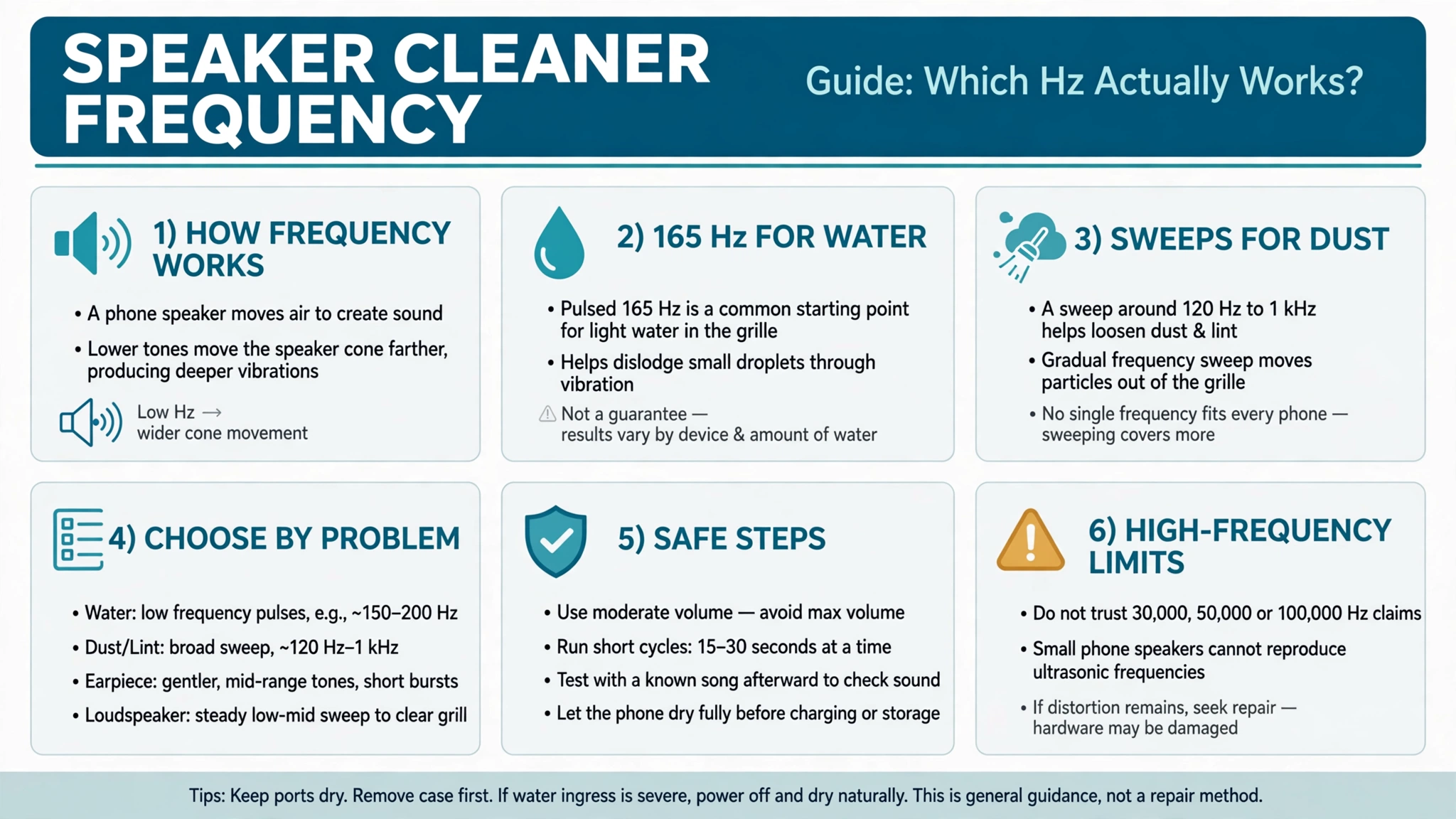
    Speaker Cleaner Frequency Guide: Which Hz Actually Works?

    There is no single best speaker cleaner frequency. A low tone moves the speaker cone farther and can help push light water near the grille, a sweep across many tones can help loosen loose dust, and a gentler mid-range tone suits the small earpiece. Higher is not better, and a tone cannot repair damage.

    Large numbers online sound more powerful, but a typical phone speaker cannot reliably reproduce 50,000 Hz or 1,000,000 Hz at all. Chasing them wastes time and misses the steps that sometimes help: dry the phone, use moderate volume, play the right tone, test, and stop if the sound gets worse.

    Who this guide is for

    This guide is for anyone whose phone speaker sounds muffled, quiet, or crackly after water, lint, or dust, and who wants to try a browser tone before paying for a repair. It is also for readers who have seen a specific frequency online – often 10,000 Hz, 20,000 Hz, or 50,000 Hz – and want to know whether that number means anything.

    You do not need an app, a download, or special equipment. You need a phone with a working speaker and a willingness to stop if the sound gets worse.

    Before you play anything

    Do the simple physical steps first. They matter more than the exact frequency. Remove the case, wipe the phone with a soft, lint-free cloth, and hold it with the speaker facing down and tap it gently. Do not insert anything into the grille, blow hard into it, or use compressed air or a sharp object; those actions can push debris deeper or damage the mesh.

    If the phone was fully submerged, shows a liquid warning, or will not charge, do not start with a cleaning tone. Turn it off if you can do so safely, let it air-dry, and follow the phone maker’s guidance for liquid exposure. A tone is for light water at the speaker opening and loose surface dust. It is not a treatment for liquid inside the phone.

    Check which speaker is the problem first. The loudspeaker is larger and louder; the earpiece at the top is smaller and used for calls. The microphone is not a speaker, and sound cannot push water out of it in the same way. The charging port is also separate.

    How frequency works in a phone speaker

    Frequency, measured in hertz (Hz), is how many times per second a sound wave cycles: a 165 Hz tone cycles 165 times per second, a 1,000 Hz tone 1,000 times. In general, lower tones move the speaker cone farther, while higher tones move it less far but faster. That movement is the idea behind a cleaner tone: cone movement moves air, which can help shift a drop of water or loose particle near the grille. Amplitude – how strong the movement is – is linked to volume, but volume alone does not make a bad frequency useful, and maximum volume can make distortion worse.

    A sine wave is a smooth, single-frequency tone. A sweep moves across a range of frequencies. A fixed tone gives steady movement at one frequency; a sweep is useful when you do not know where loose dust is sitting, because it shakes the mesh at many frequencies in turn. Neither can reach debris packed into the mesh or damage already in the driver.

    Human hearing also has limits, and phone hardware limits are often tighter. Most adults hear up to roughly 20,000 Hz in ideal conditions, and many hear less. A small phone speaker is designed for calls and media, not for accurate reproduction at the edge of hearing or above it. That is why a claim that depends on 30,000 Hz or higher should be treated with doubt.

    The frequencies this site actually uses

    This site does not use one frequency for everything. Its homepage tools use different settings for different jobs, and this guide follows that same split:

    JobSettingWhy it is used
    Water on the loudspeakerSteady 165 Hz pulsing toneLow, steady movement that can help push light water toward the grille
    Dust and lintFast sweeps from 120 Hz to 1 kHzMany frequencies in turn, to loosen loose particles in different spots
    Earpiece callsGentle 300 to 700 Hz tonesA mid-range tone suited to the small earpiece speaker
    Last drops after cleaning60 Hz pulses plus vibration, where supportedVery low pulses for a final check, not a stronger cleaning mode

    Those settings are starting points, not guarantees. If a water tone does not help after two or three cycles, drying time, a gentle brush of the outside of the grille, and a proper test are more useful than a new number.

    How to choose a frequency for your problem

    Match the tone to the problem and to the speaker, not to the largest number you find.

    If the loudspeaker sounds muffled after water, start with the water setting: a steady low tone around 165 Hz, at moderate volume, speaker facing down. Run one short cycle, test with music or a voice recording, and repeat only two or three times. If the problem is lint or dust, start with a dust sweep from 120 Hz to 1 kHz rather than a single high tone; after the sweep, brush the outside of the grille very gently with a soft, dry brush if maker guidance allows it, and test again.

    If callers sound quiet or crackly but loudspeaker music sounds normal, the earpiece is likely the problem. Use the gentler 300 to 700 Hz earpiece range, not the loudspeaker water tone at full strength.

    If you do not know the cause, start with a test, not a cleaning tone. Play music and try a call, and note whether the problem is in the loudspeaker, the earpiece, both, or only at high volume. A crackle only at high volume may be distortion or damage, not dust.

    How to use a cleaner tone, step by step

    For the loudspeaker:

    1. Remove the case, wipe the phone dry, and hold it with the loudspeaker facing down.
    2. Set the volume to a moderate level first, not maximum. You can raise it gradually if the tone is clean and comfortable.
    3. Choose the water tone for wet sound or the dust sweep for lint. Play one short cycle, usually about 60 seconds on this site’s tools.
    4. Stop the tone and play a familiar song or voice clip. Listen for clarity, not just loudness.
    5. If it sounds better, stop. If it sounds the same, you may repeat the same setting once or twice more, with a short pause between cycles.
    6. If it sounds worse, distorted, or rattling, stop at once. Let the phone air-dry and do not keep raising the volume.

    For the earpiece:

    1. Make sure the problem is in calls, not in music from the loudspeaker.
    2. Use the earpiece setting, in the 300 to 700 Hz range, at a moderate volume. Do not hold the phone to your ear at high volume while testing a cleaning tone.
    3. Play a short cycle, then make a test call or play a voice message through the earpiece.
    4. Repeat only if the sound is clean and improving. If the earpiece stays quiet, crackly, or silent, the problem may be blockage, a setting, or damage, and it needs a different check, not a higher frequency.

    Keep sessions short. A few careful cycles with testing are more useful than a long, loud session, and if nothing changes after three cycles and drying, further tones are unlikely to help.

    How to test whether it helped

    Test with sounds you know: a song with clear vocals, a voice message, and, if needed, a call. Test both speakers separately; a better loudspeaker does not prove the earpiece is fixed.

    Use the site’s speaker test to check for distortion, rattling, or dropouts. If the test tone itself sounds distorted at a moderate volume, that points to a speaker problem rather than a simple blockage, and cleaning tones should stop. Note briefly what you tried and what changed, so you do not repeat the same extreme frequency expecting a different result.

    Device and browser caveats

    iPhone and Android phones both work with browser tones, but speaker placement, water resistance, and audio settings vary by model and operating system version, so no single setting works the same on every phone. Follow your phone maker’s guidance for water exposure and grille cleaning if it differs from a general tip here.

    Vibration support also varies by device and browser. Treat vibrate mode as an extra check, not a stronger cleaner; if it is unavailable, that does not mean the tone failed. Bluetooth speakers, earbuds, and laptops are different hardware – do not assume a phone setting works the same on them, and do not test a cleaning tone at high volume through earbuds.

    What high frequencies can and cannot do

    A 10,000 Hz tone is high but audible, and it can be part of a sweep or test – but hearing it does not prove it is cleaning anything, and a high tone moves the cone less far than a low tone, so it is not automatically stronger. A 20,000 Hz tone sits at or above the hearing limit for many adults; silence there does not prove your speaker is broken, and hearing it does not prove it cleaned anything.

    A 30,000 Hz, 50,000 Hz, 90,000 Hz, or 100,000 Hz tone is above the normal audible range. A typical phone speaker cannot reliably reproduce those frequencies, and no cleaning benefit should be assumed. A file labeled with one of those numbers may play something audible, nothing useful, or a lower tone than claimed. The label alone is not evidence.

    A 1,000,000 Hz tone, and numbers far larger, are not realistic phone speaker settings and should be ignored, even in search suggestions. The same applies to ‘ultrasonic cleaner’ claims for a phone: ultrasound may be real in industrial equipment, but a phone speaker is not that equipment. The useful question is not ‘what is the highest frequency I can find?’ but ‘what audible, moderate-volume tone or sweep matches my problem, and does a careful test show improvement?’ If not, the next step is drying, gentle cleaning, settings checks, or repair – not a higher number.

    Troubleshooting

    Still muffled after water: Air-dry for a few hours, speaker facing down, then try one more water cycle. If a liquid warning is showing, do not charge until it clears and maker guidance allows charging.

    Crackling or rattling: Stop the tone. Crackling at moderate volume can mean debris, distortion, or damage. Do not raise the volume to push through it; try a gentle external clean and seek repair if the crackle stays.

    No sound from one speaker: Test loudspeaker and earpiece separately, check volume and mute settings, and restart if needed. A silent earpiece during calls but normal music may point to a call setting or earpiece issue, not a frequency problem.

    Sound is low but clear: Check volume limits, accessibility settings, and any case blocking the grille. Low but clear sound may not need a cleaning tone at all.

    Tone plays but nothing changes: That is a useful result, not a reason to try an extreme frequency. It suggests packed debris, a setting, deeper water, or damage. Move to drying, physical checks, and repair advice.

    Safety limits and when to seek repair

    Sound can help with light water at the speaker opening and loose dust. It cannot repair a torn driver, corrosion, a blocked charging port, or a damaged microphone, or undo water damage inside the phone.

    Seek repair, or contact the maker or a qualified shop, if the phone was submerged for a long time, will not turn on or charge, shows a persistent liquid warning, stays distorted or silent after drying and testing, or shows swelling, heat, or a damaged port. Do not open the phone yourself unless qualified, and do not use heat, high pressure, or liquid cleaners inside the speaker.

    Keep volume moderate. Stop if you hear harsh distortion, feel discomfort, or notice the sound getting worse. Do not test cleaning tones at maximum volume through earbuds, and do not hold the earpiece to your ear while a cleaning tone is playing.

    Conclusion

    Choose a cleaner frequency by the job, not by the size of the number. Use a low, steady tone for light water, a sweep for loose dust, and a gentler tone for the earpiece. Test after each cycle, keep volume moderate, and stop on distortion or no change. High-frequency labels above the audible range do not make a cleaner stronger, and they should not replace drying, gentle cleaning, and maker guidance. When those steps do not help, repair is the next step, not another tone.

    FAQ

    What frequency cleans speakers?

    There is no universal best frequency. A low tone around 165 Hz can help with light water, a sweep from 120 Hz to 1 kHz can help with loose dust, and a gentler 300 to 700 Hz range suits the earpiece. The right choice depends on the problem and the speaker.

    Is a 50,000 Hz speaker cleaner real?

    Not as a reliable phone cleaning tool. A typical phone speaker cannot reliably reproduce 50,000 Hz, which is well above normal hearing. A file with that label does not prove the phone is actually producing that frequency or cleaning anything.

    Can a speaker cleaner remove dust?

    It may help with loose dust near the grille, especially with a sweep, but sound does not reliably remove embedded debris. Packed lint usually needs gentle physical cleaning of the outside of the grille, and sometimes repair, rather than a louder or higher tone.

    Can I use maximum volume?

    No. Start at a moderate volume and raise it only gradually if the tone stays clean. Stop if you hear distortion, rattling, or discomfort. Maximum volume does not make an unsuitable frequency work, and it can make damage worse.

    Can sound repair water damage?

    No. Sound may help move light water at the speaker opening, but it cannot repair liquid damage inside the phone. If liquid ingress is suspected, stop using the device as directed by the maker, let it air-dry, and seek repair if problems persist.

    Does a speaker cleaner really work?

    It can help in limited cases: light water at the speaker opening and loose dust. It is not a repair guarantee. If the speaker stays muffled, distorted, or silent after drying and a few careful cycles, the cause is likely deeper than a tone can reach.

    Should the earpiece and the loudspeaker use the same tone?

    No. The earpiece is smaller and is used for calls, so it needs a gentler 300 to 700 Hz range at moderate volume. The loudspeaker can use the water or dust settings described above. Test each speaker separately.

    Related tools on this site

    Related tools:

    Related guides:

  • Speaker Cleaner Apps: Safe Use Without Installing One

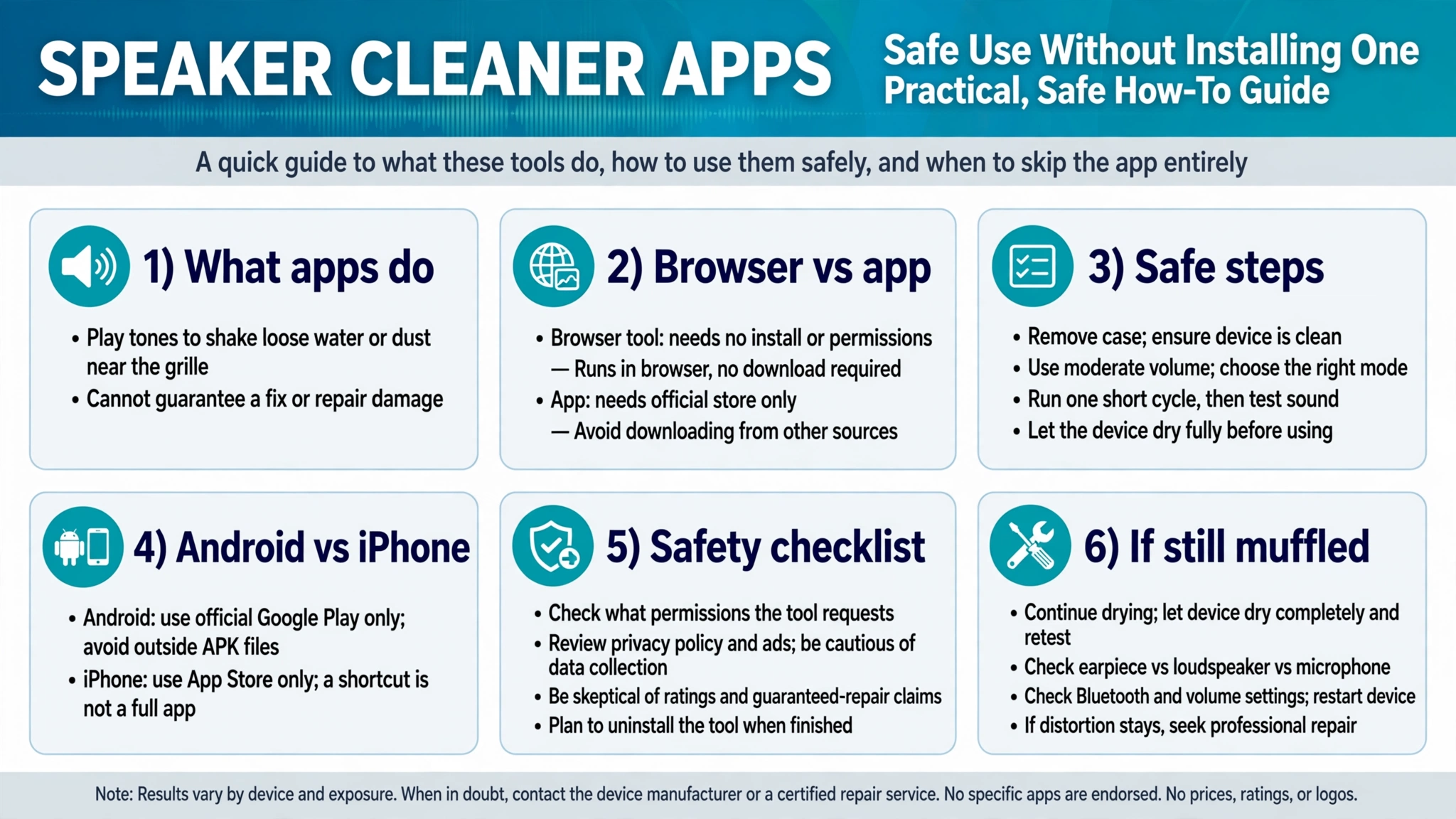
    Speaker Cleaner Apps: Safe Use Without Installing One

    Most speaker cleaner apps play tones through your phone speaker to shake loose water or dust near the grille. They can sometimes help with light, surface-level muffling, but they cannot guarantee a fix, and they cannot repair a damaged speaker.

    That distinction matters more than the download itself. If you understand what an app can and cannot do, you can decide in a few minutes whether to install one at all, what to check first, and what to try next if the sound stays muffled.

    Who this guide is for

    This guide is for anyone whose phone speaker sounds muffled, quiet, or crackly after water, dust, or lint, and who is searching for a speaker cleaner app to fix it. It is also for people who are unsure whether an app is safe, whether a free app is a good idea, or whether they need an app on Android or iPhone at all.

    You do not need technical knowledge to follow it. You do need to be honest about the problem: a tone can move air at the speaker opening, but it cannot undo corrosion, a torn speaker, or damage inside the phone.

    What a speaker cleaner app actually does

    A typical speaker cleaner app plays a tone, a sweep of tones, or a vibration pattern through the loudspeaker. The movement of the speaker can push some water droplets or loose dust toward the grille and out of the opening. Some apps offer different modes for water, dust, or the earpiece. Others simply play one tone and let you repeat it.

    That is the whole mechanism. The app does not open the phone, dry the inside, or clean the mesh by hand, and it does not diagnose hardware damage.

    Separate four parts that people often mix up:

    • Loudspeaker: the main speaker at the bottom or side of the phone. This is the part most cleaning tones target.
    • Earpiece: the small speaker at the top used for calls. It needs gentler tones and different handling. Do not assume a loudspeaker mode is right for the earpiece.
    • Microphone: the part that picks up your voice. Sound cannot push water out of a microphone in the same way, because a microphone does not move like a speaker. Air-drying and manufacturer guidance matter more here.
    • Charging port: a separate opening. Do not insert objects, compressed air at high pressure, or liquid into it to clean it, and do not charge a phone that shows a liquid warning.

    If your problem is mainly during calls, the earpiece is the likely focus. If music and videos sound muffled, the loudspeaker is the likely focus. If callers cannot hear you, the microphone may be the issue, and a speaker tone is not the right fix.

    App versus browser tool: when installing makes sense

    Many people search for a speaker cleaner app because they assume they need to download something. Often, they do not.

    A browser tool runs on the site itself, with no install, no app permissions, and nothing to update later. The free browser tool on this site follows that model: you open the page, choose a mode, and play the tone. That simplicity is a real advantage when you need a quick check after a spill, and it avoids the privacy and ad questions that come with installing an app.

    An installed app can make sense in narrower cases, for example if you want a tool you can open quickly without a browser. Offline access depends on the specific app and is not assumed here.

    Use this comparison to decide:

    QuestionBrowser toolInstalled app
    Do I need to install anything?NoYes
    Does it ask for app permissions?No app permissionsCheck before installing
    Can I try it once and leave?YesYou must uninstall it later if you do not want it
    Does it work on both Android and iPhone?In a modern browser, generally yesDepends on the app and the store

    The right choice is not about which option sounds more powerful. It is about which option adds the least risk for the problem you have. For a one-time check after light water or dust, the browser tool is usually the simpler path.

    How to use a speaker cleaner app safely, step by step

    If you do install an app, follow these steps in order. They apply to any app in general; no specific app was tested for this guide.

    1. Prepare the phone first. Remove the case. Wipe the outside dry with a soft, lint-free cloth. Hold the speaker facing down so gravity helps any loose water move toward the opening.
    2. Start at a moderate volume. Do not begin at maximum volume. Raise the volume gradually, and stop if you hear harsh rattling or distortion that does not go away.
    3. Choose the right mode. Use a water mode for a recent spill, a dust mode for lint, and an earpiece mode for call problems. Do not use a loudspeaker mode for the earpiece.
    4. Run one short cycle, then test. Play a song or a voice recording you know well. Listen for clarity, balance, and distortion. Repeat only a few times if needed.
    5. Let the phone dry if needed. If the sound is still muffled, stop and let the phone air-dry with the ports facing down. Do not keep running tones at high volume in the hope that repetition will fix deeper water or damage.
    6. Clean the grille gently if lint remains. A soft brush can help with surface lint. Do not push objects into the grille, do not use sharp tools, and do not blow hard into the opening.
    7. Check the result with a speaker test. A test can help you hear whether one side is quieter, whether the sound is distorted, or whether the problem has changed. It cannot prove the speaker is fully repaired.

    For a wet phone, follow the phone maker’s safety guidance first. That guidance takes priority over any app, tone, or guide, including this one. If the phone was fully submerged, keep it off if you can, do not charge it while a liquid warning is present, and let it dry. A cleaning tone is not a substitute for drying time or for repair.

    Android versus iPhone: what actually differs

    The basic idea is the same on both platforms, but the path to the tool is different.

    On Android, speaker cleaner apps are typically found in Google Play, and the term APK also appears in searches. An APK is an Android install file. Downloading an APK from outside Google Play carries extra risk: the file may not be what it claims to be, it may ask for broad permissions, and it may be harder to update or remove safely. For most users, the official store is the safer route, and a browser tool avoids the APK question entirely.

    On iPhone, apps come from the App Store, and some users also search for a speaker cleaner shortcut. A shortcut is not a full app. It is a small automation that can trigger a tone or open a tool, and its behavior depends on the phone, its settings, and how the shortcut was built. A shortcut can be convenient, but it does not add cleaning power by itself, and you should still check what it does before you run it at high volume.

    On both platforms, check who published the app, what permissions it requests, what data it collects, and whether its listing promises a guaranteed repair or claims any frequency will work on any phone. A vague listing, a request for contacts or location with no clear link to playing a tone, or pressure to pay before trying a basic tone are reasons to stop and use the browser tool instead.

    How to judge safety before you download

    Use this checklist before you tap install.

    • Use the official store. Avoid sideloaded APK files, modified apps, and links from unknown sites. Modified and premium-unlocked versions are not recommended.
    • Read the permissions. A tone player should not need access to your contacts, messages, location, or files to play sound. If the request does not match the job, do not install it.
    • Read the privacy description. Look for what data is collected, whether ads or tracking are involved, and whether you can use the basic function without creating an account. If that information is missing or unclear, treat that as a warning.
    • Be skeptical of reviews and ratings. This guide does not cite ratings, because ratings can be gamed, can reflect an old version, and do not prove that an app cleaned a specific speaker. Use reviews only as a prompt to check permissions and behavior, not as proof.
    • Watch for overpromising language. Be cautious of claims that a tone will always remove water or dust, repair damage, or work at frequencies far beyond what a small phone speaker can reproduce reliably. There is no single frequency that works for every phone, and no tone can guarantee a result.
    • Check for ads and upsells. Free does not always mean simple. Some free apps rely on ads, subscriptions, or in-app purchases. Decide in advance whether you want that trade-off, or whether a free browser tool is cleaner for a one-time use.
    • Plan to uninstall. If you install an app for one problem, remove it when you are done if you do not need it. That reduces future permissions, updates, and background activity.

    If any step feels unclear or unsafe, stop. The browser tool on this site does not require an install, and it lets you test the basic idea without giving an app access to your phone.

    If the sound stays muffled

    A cleaning tone is only one step. If the sound does not improve, work through these checks before you assume the app failed or the speaker is broken.

    First, repeat the test after drying time. Water deep inside the grille may need hours to dry. Second, check for packed lint. Sound can loosen loose particles, but it does not reliably remove embedded debris, so gentle physical cleaning is often more relevant for dust than another tone.

    Third, test the earpiece and the loudspeaker separately. A problem only during calls points to the earpiece. A problem only with music points to the loudspeaker. A problem with callers hearing you points to the microphone, which needs a different approach.

    Fourth, check simple settings: volume, mute, Bluetooth output, and whether sound is going to headphones or another device instead of the phone speaker. A tone will not help if the phone is sending audio elsewhere.

    If the speaker still crackles, distorts at normal volume, stays quiet after drying, or shows signs of deeper water damage, seek repair. Do not keep raising the volume, do not open the phone yourself unless you are qualified, and do not use high-pressure air or liquid cleaners. A repair shop or the manufacturer can check for damage that no app can diagnose from a tone.

    Safety limits to keep in mind

    Sound cleaning has limits, and respecting them protects both your hearing and your phone. Use a moderate volume, stop if you feel discomfort, and stop if distortion persists. Do not use maximum volume as a first step, and do not assume that louder is more effective.

    Do not try ultrasonic or very high-frequency tones as a shortcut. A small phone speaker cannot reliably reproduce frequencies such as 30,000, 50,000, or 100,000 Hz, and claims that such tones will clean better are not a safe basis for choosing an app. Audible tones in the range a phone speaker can actually play are the relevant range for this kind of tool.

    Do not insert objects into the speaker, earpiece, microphone, or charging port. Do not use sharp tools, needles, or high-pressure air. Do not pour liquid into an opening to flush it out. For a wet device, manufacturer guidance comes first, and drying time matters more than repeated tones.

    Conclusion

    A speaker cleaner app is best understood as a convenience, not a repair. It can play tones that may help with light water or loose dust at the speaker opening, but it cannot guarantee a result or repair damage, and it should not be chosen from a ranking, a rating, or a promise that sounds too strong.

    For most one-time problems, the simpler choice is a free browser tool with no install and no app permissions. If you do install an app, use the official store, check permissions and privacy first, start at a moderate volume, use the right mode for the loudspeaker or earpiece, and seek repair if the sound stays distorted or quiet after drying.

    FAQ

    1. Do speaker cleaner apps work?

    They may help with light water or loose dust near the speaker opening, because speaker movement can push some droplets or particles toward the grille. They do not guarantee a fix, and they cannot repair damage, corrosion, or a torn speaker.

    2. Is a speaker cleaner app safe?

    It can be safe if it comes from an official store, asks only for permissions that match playing a tone, and is used at a moderate volume. It is not automatically safe. Avoid sideloaded or modified APK files, broad permissions, and apps that promise a guaranteed repair.

    3. Do I need to download an app, or can I use a browser tool?

    You do not always need an app. A browser tool can play the same kind of tone without an install or app permissions, which is simpler for a one-time check. An app may suit you if you want a tool you can open quickly, but it does not add cleaning power by itself.

    4. Can a speaker cleaner app remove dust?

    It may help with loose dust at the surface, but sound does not reliably remove embedded debris. For packed lint, gentle physical cleaning of the grille and drying time are often more relevant than another tone.

    5. Can I use maximum volume to clean faster?

    No. Start at a moderate volume and raise it gradually. Stop if you hear persistent distortion or feel discomfort. Louder is not automatically more effective, and high volume can make distortion worse.

    6. Can sound repair water damage?

    No. If liquid ingress is suspected, follow the phone maker’s guidance, keep the phone off if you can, do not charge it while a liquid warning is present, and let it dry. If the problem persists, seek repair.

    7. What is different about a speaker cleaner shortcut on iPhone?

    A shortcut is a small automation, not a full app. It may trigger a tone, but its behavior depends on the phone and its settings. Check what it does before running it, and use the same volume and safety limits as for any tone.

    8. Should I download an APK instead of using the store?

    No, not as a first choice. APK files from outside Google Play carry extra risk, including malware and misrepresented apps. Use the official store, or use a browser tool and avoid the APK question entirely.

    Related tools on this site

    Related tools:

    Related guides: