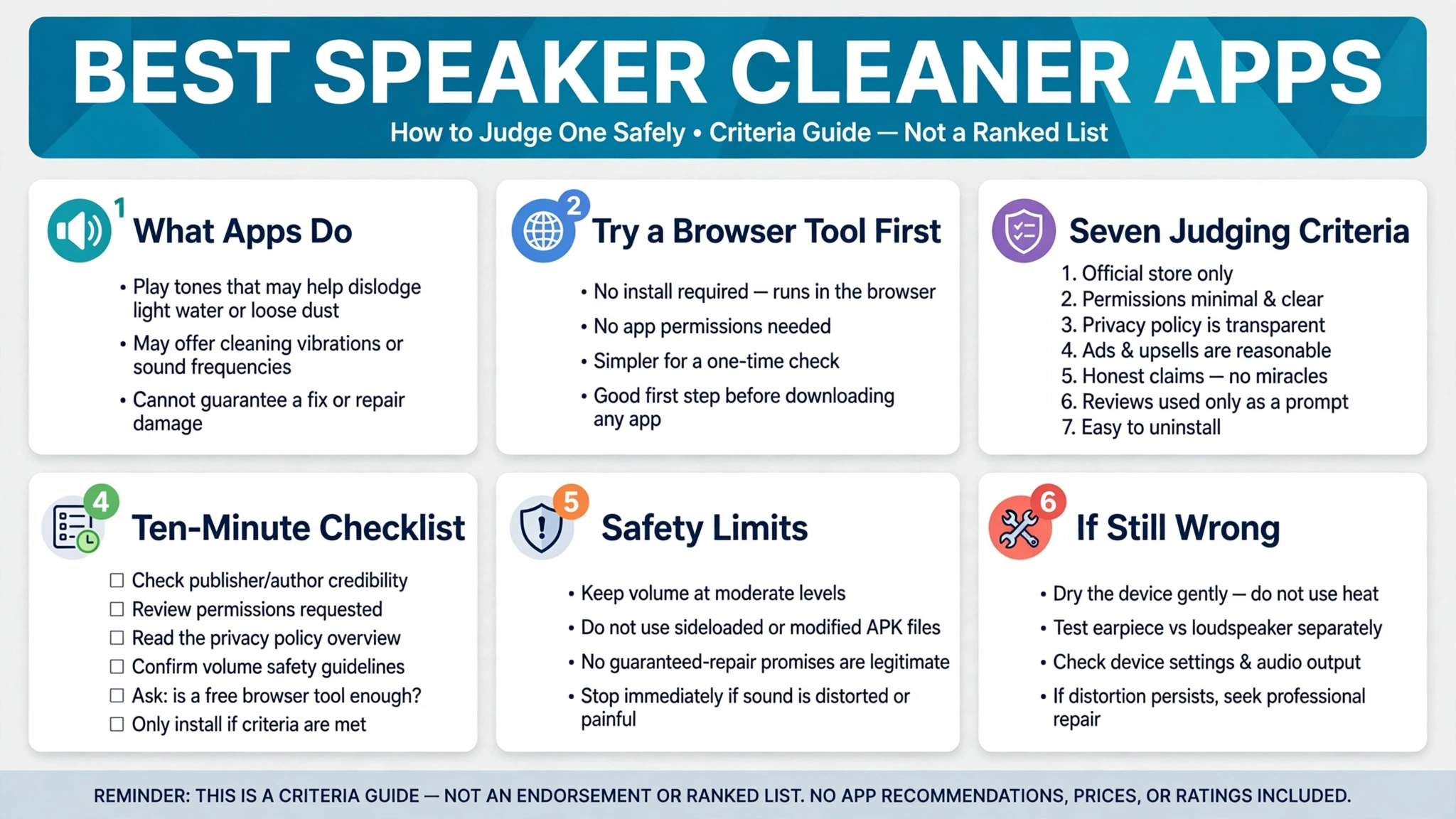
There is no verified “best” speaker cleaner app to name here, because no app was tested for this article. A web search on 2026-10-28 found comparison pages that frame the choice as browser tools versus Android apps versus iOS Shortcuts, and Google Play listings with strong, sometimes contradictory marketing claims — not an independent, tested ranking. The safest choice is usually the option that does the least harm: few permissions, clear privacy terms, moderate volume, honest audio claims, and no pressure to pay before you know whether sound helps at all. For many readers, a free browser tool is enough to try first.
Who This Guide Is For
This guide is for anyone whose phone speaker sounds muffled, quiet, or crackly after water, dust, or lint, and who is wondering whether to install an app to fix it. It is also for readers who have already seen app-store lists and reviews and are unsure which claims to trust.
It is not a repair manual for a broken speaker. If your phone was fully submerged, shows a liquid warning, will not charge, or smells of burning, stop and follow the manufacturer’s guidance for your model. Sound cannot repair corrosion, a torn speaker, or electrical damage.
What a Speaker Cleaner App Actually Does — and Does Not Do
A speaker cleaner app, and a browser tool like the one on this site, plays tones that move the speaker cone. That movement can, in some cases, help push loose water droplets or loose dust near the speaker opening outward. That is the limited, realistic use.
It does not reliably remove dust that is packed into the mesh. It does not clean inside the phone. It does not fix a speaker that is damaged, and it does not dry a phone that is wet inside. Physical cleaning, air-drying, and, when needed, professional repair are separate steps, not steps an app can replace.
Understanding that limit changes how you judge an app. An app that promises to “fix any speaker,” “remove all water,” or “repair water damage” is making a claim this guide does not support. Prefer an app or tool that states its limits clearly.
Try a Browser Tool Before You Install Anything
Before you give an app access to your phone, try a browser-based tool first. A browser tool runs in your web browser, so you do not need to install software, create an account, or grant app permissions to test whether tones help.
On this site, the homepage tool offers separate modes for water, dust, and earpiece cleaning, and separate tool pages cover water eject, dust cleaning, ear-speaker cleaning, and speaker testing. Try one short cycle at moderate volume, with the speaker facing down, then play music to check whether the sound changed. If nothing changes after a few careful cycles, installing more apps is unlikely to change the result.
A browser tool also avoids install risks such as background access, ads, subscriptions, and data collection.
How to Judge an App: Seven Criteria
Use these seven criteria in order. If an app fails the first three, the rest do not rescue it.
1. Does it match your actual problem?
Start with the problem, not the app name. A muffled loudspeaker after a spill is different from a quiet earpiece during calls, and both are different from a microphone that does not pick up your voice.
Loudspeaker: the main speaker at the bottom or side of the phone. This is the speaker most cleaning tones target. Earpiece: the small speaker at the top used for calls. It needs gentler tones and different settings, and it is easy to confuse with a loudspeaker problem. Microphone: sound does not push water out of a microphone the way it can move a speaker cone. An app that claims to “clean” a microphone with sound alone should be treated with skepticism. Charging port: a tone does not clean a charging port. Do not insert objects or liquids into a port to “help” an app work.
If an app does not let you choose the right speaker, or it treats every problem with the same loud tone, that is a weak sign.
2. Permissions and privacy: what does it ask for, and why?
This is often the most important check, and it takes less than a minute on the store listing.
A simple tone player should not need your contacts, photos, location, messages, or full device access. Be cautious if an app asks for permissions that have nothing to do with playing sound, running in the background without a clear reason, or accessing files you did not choose to share.
Read the privacy policy, or at least the store listing’s data summary, before installing. Look for what data is collected, whether it is shared, and whether you can delete it. If the policy is missing, vague, or hard to find, treat that as a reason to skip the app and use a browser tool instead.
Also check whether the app works without an account. An account is not needed to play a cleaning tone, and requiring one adds privacy risk without adding cleaning value.
3. Audio safety: volume, frequency, and honest claims
Audio safety is where many listings overpromise. Use these checks:
Volume: start at a moderate level and increase only if the sound is clean. Do not start at maximum volume, and stop if you hear harsh rattling, distortion, or discomfort. A tool that tells you to “always use maximum volume” is not giving safe advice.
Frequency: there is no single universal frequency that cleans every speaker. Audible tones in the normal range your speaker already plays are the realistic option. Be skeptical of claims about very high, inaudible frequencies. A typical phone speaker cannot reliably reproduce tones at 30,000, 50,000, or 100,000 Hz, and an app that presents those numbers as a cleaning advantage is misleading you about what your hardware can do.
Duration: short cycles with a test in between are safer than long, continuous playback at high volume. If an app encourages endless playback, close it and rethink.
Hearing safety: do not hold the phone to your ear while a cleaning tone plays, and keep the phone away from children and pets during loud playback.
An honest app states its tone range, warns about volume, and tells you to stop if distortion continues. A dishonest one hides behind “secret frequencies” and guarantees.
4. Price, ads, and subscriptions: what will it actually cost?
Price and review keywords appear often in searches for this topic, but this article gives no price for any app, because no price was verified for publication. App prices change, free trials convert to paid plans, and a price in one country does not apply in another.
Before you install, check on the current store listing, not in a search snippet: is it free, paid once, or subscription-based? Do ads interrupt cleaning? Does a “free” version limit cycles or modes until you pay? Can you cancel easily?
A paid app is not automatically better, and a free app is not automatically safe. The question is whether the cost is clear before you install, and whether a free browser tool gives you the same short test without paying first.
5. Reviews: how to read them without trusting stars alone
Star ratings alone are a weak signal. Reviews can be old, incentivized, written for a different version of the app, or focused on problems that have nothing to do with cleaning, such as ads or billing.
When you read reviews, look for patterns, not single comments: do recent reviews mention the same problem, such as unexpected charges, crashes, or permissions? Do reviews describe a specific result, such as “muffled sound after rain improved after two cycles,” or only vague praise? Do negative reviews mention distortion, overheating, or a speaker that sounded worse afterward? Take those seriously. Are reviews for your device and operating system, or for a different phone?
If the most recent reviews are mostly about billing and ads, that tells you more about the app’s business model than about its tones. If there are almost no recent reviews, do not treat an old average as current evidence.
6. Device and operating-system fit
An app that works well on one phone may behave differently on another. Check whether the listing names your operating system and, ideally, your device type.
iPhone and Android handle audio, background playback, and vibration differently. Vibration-based modes, for example, may work in some Android browsers or apps and not in others. An app that promises the same vibration result on every device is overstating what it can control.
For an earpiece problem, check whether the app has a separate earpiece mode. Using a loudspeaker tone at full volume for an earpiece issue is not a substitute for the right mode, and it can be unpleasant and unhelpful.
7. Updates, support, and manufacturer guidance
Prefer an app with a recent update history and a way to contact the developer. An app that has not been updated for a long time may not match current Android or iOS audio behavior.
More importantly, manufacturer guidance comes first for a wet device. Apple, Samsung, Google, and other makers publish their own advice for liquid exposure, drying, and charging. If an app’s advice conflicts with that guidance — for example, by telling you to charge a phone that shows a liquid warning, or to use rice, compressed air, or a sharp object in the grille — follow the manufacturer, not the app.
A Ten-Minute Checklist Before You Install
Work through this checklist in order. You can stop at any step if the answer is no.
- Name the problem: loudspeaker, earpiece, microphone, or charging port?
- Try the browser tool first for one short cycle at moderate volume.
- Test the speaker with music or a call. Did the sound change?
- If you still want an app, read the store listing for permissions and data collection.
- Check price, ads, and subscription terms on the current listing.
- Read recent reviews for patterns about billing, crashes, and distortion.
- Check device and operating-system fit for your phone.
- Install only if the app passes the checks above. Test it once, then decide whether to keep it.
- If the sound does not improve, stop installing more apps. Try gentle physical cleaning and air-drying, then seek repair if needed.
- Uninstall any app you do not keep. Do not leave unused audio apps with broad permissions on your phone.
This checklist is the comparison. It does not require a ranked list, and it works even when rankings and prices change.
If the Speaker Still Sounds Wrong
Troubleshooting after a cleaning attempt is about narrowing the cause, not turning the volume up further.
Still muffled after water: let the phone air-dry with the speaker facing down. Do not charge it if it shows a liquid warning. Try a speaker test to check left and right channels separately, and compare the loudspeaker with the earpiece.
Crackling or distortion: stop playback. Distortion that continues at normal volume after drying may mean damage, not dirt. Do not keep running loud tones to “push through” it.
Low volume: check volume settings, Do Not Disturb, Bluetooth connections, and whether sound is routing to headphones or another device. A cleaning app cannot fix a routing or settings problem.
Earpiece quiet during calls: check call volume, accessibility settings, and whether the earpiece grille is blocked. Clean the outside gently with a soft, dry brush. Do not insert objects or liquid into the earpiece.
Microphone problems: air-dry the phone, check that no case blocks the microphone hole, and test with a voice recording. Sound-based cleaning is not a microphone repair.
If the problem persists after drying, settings checks, and gentle external cleaning, seek professional repair. Bring a clear description: when it started, whether water or dust was involved, and what you already tried.
Safety Limits to Remember
Sound tools help only with light water and loose dust near the speaker opening. They do not guarantee results, and they do not repair damage.
Do not use excessive volume, high-pressure air, or liquid cleaners inside the speaker. Do not insert pins, needles, or sharp tools into the grille, earpiece, microphone, or charging port. Do not open the phone unless you are qualified to do so. For a wet device, prioritize the manufacturer’s safety instructions over any app’s marketing.
Conclusion
The best speaker cleaner app, if you need one at all, is honest about its limits, asks for little access, charges transparently, and lets you test it safely. In many cases, that test needs no install: a browser tool, a short cycle at moderate volume, and a simple speaker test will tell you whether sound helps.
Use the checklist above, read the current store listing before you install, and stop when the evidence stops improving.
FAQ
Is a speaker cleaner app safe?
It can be, if it asks for few permissions, explains its data use, uses moderate volume, and states its limits. An app is less safe if it requests unrelated access, hides its privacy terms, pushes maximum volume, or promises to repair damage. When in doubt, use a browser tool instead of installing.
Does a speaker cleaner really work?
Sometimes, for light problems. A tone can help move loose water or loose dust near the speaker opening. It cannot guarantee a result, and it cannot fix a torn, corroded, or electrically damaged speaker.
Can sound remove dust from a speaker?
Sound may loosen dust that sits loosely near the grille, but it does not reliably remove dust that is packed into the mesh. Gentle external cleaning with a soft, dry brush and air-drying are often needed as well. Do not insert objects into the grille.
What frequency cleans speakers?
There is no universal best frequency. Hardware, speaker size, and the type of blockage all vary, and audible-range tones are the realistic option. Be skeptical of any app that presents a single secret frequency, especially a very high one, as the answer for every phone.
Is a 50,000 Hz speaker cleaner real?
A typical phone speaker cannot reliably reproduce 50,000 Hz. An app may label a tone that way, but that label does not mean your speaker is actually producing that frequency accurately, and it does not make the tone more effective. Judge an app by its audible behavior and safety warnings, not by extreme numbers.
Can I use maximum volume?
No, not as a starting point. Start at a moderate level, increase only if the sound stays clean, and stop if you hear distortion or discomfort. Maximum volume does not make cleaning more reliable, and it increases the risk to your hearing and speaker.
Can sound repair water damage?
No. Sound cannot repair liquid damage inside a phone. If liquid ingress is suspected, stop using the device as directed by the manufacturer, let it dry, and do not charge it if it shows a liquid warning. Seek professional repair if the problem continues.
Do I need to buy a speaker cleaner app?
Not necessarily. Many readers can test whether tones help by using a free browser tool first, without installing or paying. Only consider a paid app after that test, and only if its current store listing makes its price, subscription terms, and permissions clear.
Related tools on this site
Related tools:
- Speaker Cleaner
- Water Eject
- Dust Cleaner
- Ear Speaker Cleaner
- Speaker Test
- Tone Generator
- Mic Test
- Volume Booster
- Headphone Test
- Noise Generator
- Bluetooth Latency Test
- Sound Meter
- Earbuds Cleaner
- Bass Test
- Hearing Test
- Android Water Eject
- iPhone Water Eject
Related guides:
Leave a Reply