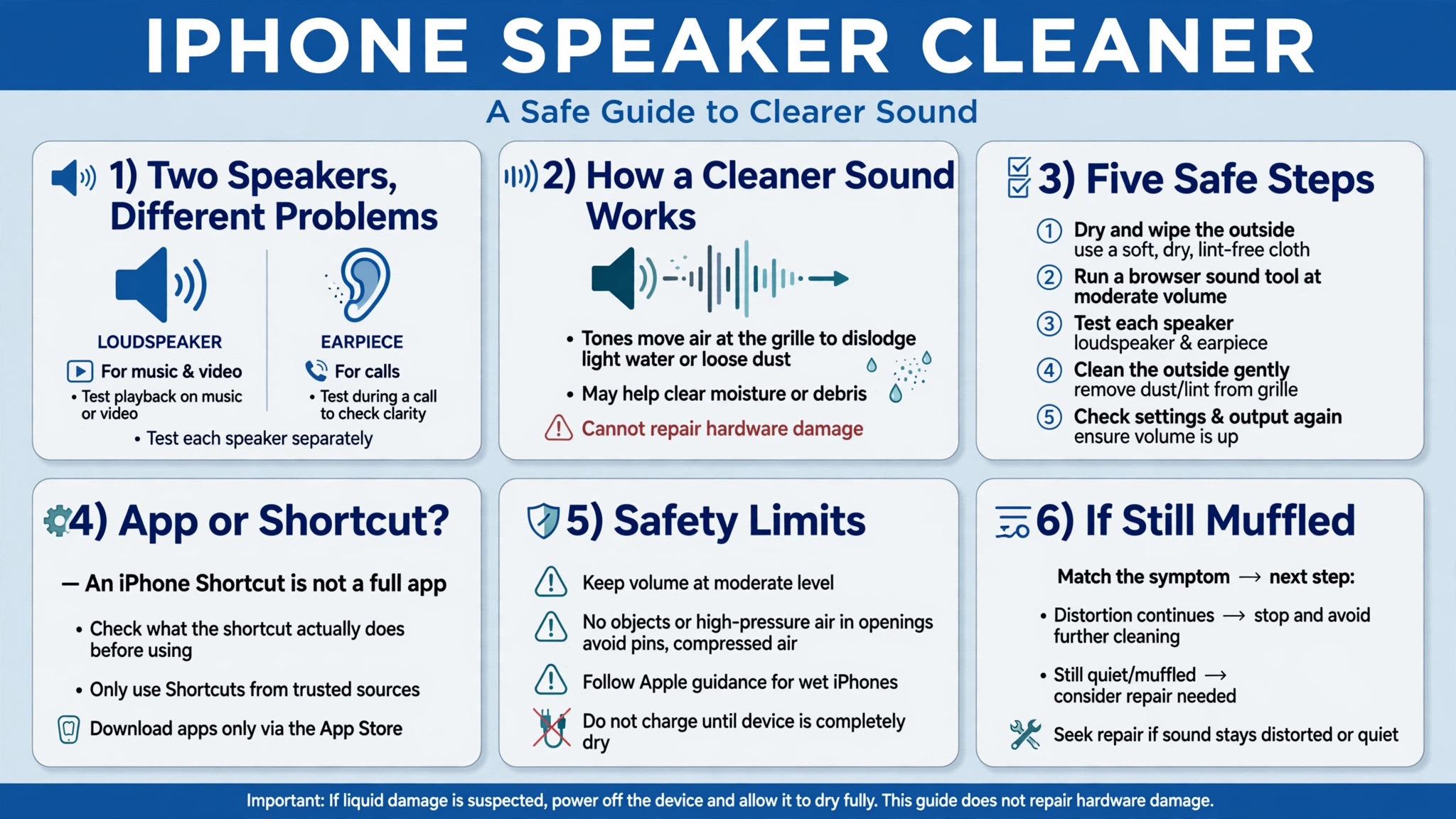
An iPhone speaker cleaner is a browser sound tool that plays tones meant to help with light water or loose dust near the speaker opening. It may help when sound is muffled after a splash, but it cannot repair damage, remove packed dirt, or guarantee that water will come out.
That limit matters. Many iPhone speaker problems look alike, but they do not all have the same fix. A quiet call, a muffled song, and a crackling speaker can come from water, dust, a blocked opening, a wrong audio output, or a damaged speaker. This guide helps you tell those cases apart, try the safe steps in order, and know when to stop.
Who this guide is for
This guide is for iPhone owners whose sound has changed and who want a safe first response. It covers the general iPhone case. It does not cover one specific model in detail, and it does not replace Apple’s guidance for your model. If your phone was fully submerged, shows a liquid warning, or will not charge, follow the manufacturer’s guidance for a wet device first and skip straight to the safety and repair sections below.
The two iPhone speakers are not the same problem
An iPhone has more than one sound opening, and the fix depends on which one is affected.
The loudspeaker is the speaker you hear when you play music, watch a video, or use speakerphone. The earpiece is the small speaker you hold to your ear during a regular call. They serve different jobs, so a problem in one does not always mean a problem in the other. Test them separately. Play music to check the loudspeaker, then make or receive a call without speakerphone to check the earpiece.
Two other openings are often confused with speakers. The microphone picks up your voice; sound cannot push water out of a microphone the way a moving speaker cone can move air. The charging port is a separate opening. Do not insert objects, liquid, or high-pressure air into any of these openings. If the microphone sounds muffled or the charging port is wet, air-drying and manufacturer guidance matter more than a cleaning tone.
Before you start
You do not need to install anything to try the browser tool on this site. Before you run a tone, do these quick checks:
- Check where the sound is going. Make sure audio is playing through the iPhone speaker, not through headphones, earbuds, a Bluetooth speaker, or another device. A quiet iPhone speaker is sometimes just the wrong output.
- Check volume and mute. Turn the volume up to a moderate level and make sure sound is not muted. Do not start at maximum volume.
- Remove the case if it covers a speaker opening. A thick or wet case can muffle sound on its own. Wipe the outside of the phone with a soft, dry, lint-free cloth.
- Do not charge a wet phone. If the phone shows a liquid warning, or if you suspect liquid is still inside, do not plug it in. Let it air-dry and follow the manufacturer’s guidance.
- Stop if you hear harsh distortion. A cleaning tone should not be painful or produce a harsh rattle that does not go away. If it does, stop, lower the volume, and move to the troubleshooting section.
These checks take a minute and prevent the most common mistake: running a cleaning tone for a problem that was never about water or dust.
How a speaker cleaner sound works, and where it stops
A speaker makes sound by moving a thin cone back and forth. Low tones move that cone farther than high tones, and that movement can push air — and, in some light cases, water droplets near the opening — toward the grille. That is why this site’s homepage tool uses a steady 165 Hz tone for water: it is a low, audible tone that moves the speaker cone a lot. Apple does not offer a built-in water-eject button on iPhone; the tones feature Apple documents is Water Lock on Apple Watch (September 17, 2026).
Dust needs a different idea. Fast sweeps across a range of frequencies shake the mesh at many frequencies, which can loosen particles sitting in different spots. That is why the homepage offers separate modes for water, dust, deep cleaning, earpiece, and vibration, rather than one sound for everything.
There are clear limits: sound may help with light water at the speaker opening and loose dust. It is not a repair. Sound does not reliably remove embedded debris packed into the mesh. That needs gentle external cleaning, and sometimes repair. Sound cannot fix a torn, corroded, or electrically damaged speaker. There is no single frequency that cleans every speaker. Audible range and hardware vary, and very high frequencies are not a reliable cleaning shortcut. This guide does not claim that a phone speaker can accurately reproduce extremely high frequencies, and it does not recommend them. Water resistance, where a model has it, does not mean a wet phone is safe to charge or to clean aggressively. Resistance can change over time, and liquid inside the phone is a different problem from a few drops at the opening.
Keep those limits in mind before you expect a tone to fix a serious problem.
Step by step: clean an iPhone speaker safely
Follow the steps in order. Do not skip the drying and testing steps.
1. Dry and wipe the outside
If the phone got wet, take it out of the water, remove the case, and wipe it with a soft, lint-free cloth. Hold it so any visible water can drain away from the openings, and let it air-dry for a while. Do not use heat, do not put it in rice, and do not insert anything into the speaker, microphone, or charging port. Rice and heat can add dust or damage, and they do not replace drying time.
If the phone is only dusty, start with a dry wipe. Do not add liquid cleaner to the speaker opening.
2. Run the browser sound tool at moderate volume
Open the free browser tool on this site. No app download is needed. Choose the mode that matches your problem: iPhone water eject for a splash, dust cleaning for lint, earpiece cleaning for quiet calls, or deep clean if you have tried a single mode and still have a light problem.
Start at a moderate volume. The homepage tool runs a cycle of about 60 seconds. Let one cycle finish, then play music or make a short test call. Repeat for two or three cycles if the sound is improving and there is no distortion. Do not run the tone over and over at maximum volume in the hope that more volume will force a result. More volume does not make a damaged speaker work, and it can make distortion worse.
3. Test each speaker separately
After each cycle, test the loudspeaker with music and the earpiece with a call (speaker test). Note which one improved, which one stayed the same, and whether the problem changed from muffled to crackly or from quiet to distorted. That note helps you decide the next step, and it helps a repair shop if you later need one.
4. Clean the outside gently for dust and lint
If dust or lint is the problem, sound alone may not be enough. Use only safe external cleaning. Apple’s iPhone cleaning guidance (October 22, 2026) is to unplug cables, turn the phone off, and avoid moisture in openings and compressed air: wipe the grille area gently with a soft, dry, lint-free cloth. Use a soft, dry brush lightly across the surface if lint is sitting on the outside. Do not press hard and do not push debris further in. Stop if the mesh looks packed, sticky, or damaged.
Do not use sharp objects, pins, toothpicks, or metal tools to clear the grille. Do not pour liquid into the opening, do not use high-pressure air, and do not use harsh cleaners. Those methods can push dirt deeper, damage the mesh, or push liquid inside.
5. Check the simple settings and output again
After cleaning, check again that the volume is up, sound is not muted, and audio is coming from the iPhone speaker you intend to test. If you were connected to Bluetooth or headphones earlier, disconnect them for the test. If the problem appears only on calls, check the earpiece separately. If it appears only with music, check the loudspeaker separately.
Troubleshooting: match the symptom to the next step
| Symptom | Check | Next step |
|---|---|---|
| Muffled after rain or a spill | Is liquid still present? Is charging safe? | Air-dry, then run the water mode for one cycle at moderate volume and test. |
| Quiet calls, but music sounds normal | Earpiece, not loudspeaker | Use the earpiece mode, test with a call, and clean the outside gently. |
| Music quiet, but calls sound normal | Loudspeaker, not earpiece | Use the water or dust mode as appropriate, then test with music. |
| Crackling or distortion | Volume too high, debris, or damage | Lower the volume, stop the tone if distortion stays, and do not force more cycles. |
| Low volume everywhere | Output, mute, case, or blockage | Check output and case, wipe the outside, test each speaker, then consider repair. |
| Dust or lint visible at the opening | Packed debris | Gentle external cleaning only. Do not insert tools. |
| Sound still bad after drying and a few cycles | Deeper water, packed dirt, or damage | Stop cleaning tones. Let the phone dry longer and seek repair advice. |
This table is a starting point, not a diagnosis. If two or more symptoms point to damage, or if the problem gets worse, stop and seek repair.
Do you need an iPhone speaker cleaner app?
No. The browser tool on this site runs without installing anything, and your audio does not need to leave your device to use it. That is a practical advantage: you avoid giving an app permissions it does not need.
If you still consider an app, check it the way you would check any app. Look at who makes it, what permissions it asks for, whether it needs an account, and what it does with your data. Do not install an app that promises to repair water damage, remove all dust with certainty, or play frequencies your phone cannot reproduce reliably. Those promises are not supported by the limits explained above.
This guide does not recommend a specific app and does not list app prices, because prices and app features change and were not verified for this draft.
Safety limits to remember
Sound is a light cleaning aid, not a repair tool. Use moderate volume. Stop if you hear distortion or discomfort. Do not insert objects or liquid into the speaker, microphone, or charging port. Do not use high-pressure air or harsh cleaners on the grille. Do not charge a phone that may still have liquid inside. Follow Apple’s guidance for a wet device before you try anything else. If that guidance conflicts with a general tip in this article, follow the manufacturer’s guidance. If the phone was fully submerged, keep it off where possible, let it dry, and get repair advice rather than running repeated cleaning cycles.
When to seek repair
Seek repair advice if any of these apply: sound stays muffled, crackly, or quiet after drying and a few gentle cycles. The phone shows a liquid warning, will not charge, or has visible damage. The speaker distorts even at normal volume. The mesh is packed, sticky, or damaged, or debris cannot be removed from the outside. The problem started after a drop, a deep soak, or exposure to salt water, soap, or another liquid that is not clean water.
A repair shop can check for internal moisture, corrosion, or speaker damage that no tone can fix. Bring a short note about what happened, which speaker is affected, and what you already tried. That saves time and avoids repeated cleaning that could make things worse.
Conclusion
An iPhone speaker cleaner can be a useful first step for light water or loose dust, when it is used at moderate volume and paired with drying, gentle external cleaning, and a separate test of the loudspeaker and earpiece. It cannot repair damage, remove packed debris, or guarantee that water will come out.
Start with the simple checks, run one or two cycles, test, and stop if the sound does not improve or gets worse. For a wet device, manufacturer guidance comes first. For a damaged or persistently bad speaker, repair is the safer next step.
FAQ
Does an iPhone speaker cleaner really work?
It may help with light water at the speaker opening or loose dust, but it is not a repair guarantee. If sound stays muffled after drying and a few cycles, the problem may be deeper water, packed dirt, or damage.
Can a speaker cleaner remove dust from an iPhone?
Sound may loosen loose dust, but it does not reliably remove embedded debris. For dust, combine a sound cycle with gentle external cleaning using a soft, dry cloth or brush, and do not insert tools into the grille.
What frequency cleans iPhone speakers?
There is no single best frequency for every phone. This site’s homepage uses a 165 Hz tone for water because low tones move the speaker cone more. Audible range and hardware vary, so very high frequencies should not be treated as a stronger or more reliable cleaner.
Can I use maximum volume for cleaning?
No. Start at a moderate volume and stop if you hear distortion or discomfort. Maximum volume does not guarantee a better result and can make distortion worse.
Can sound repair water damage?
No. Sound cannot repair corrosion, a torn speaker, or electrical damage. If liquid ingress is suspected, stop using the device as advised by the manufacturer, let it dry, and seek repair advice.
How do I clean an iPhone earpiece safely?
Test the earpiece with a regular call, not speakerphone. Use the earpiece mode at moderate volume, wipe the outside gently with a soft, dry cloth, and do not insert objects or liquid into the earpiece opening.
Do I need a speaker cleaner app for iPhone?
No. A browser tool works without installing an app. If you consider an app, check its maker, permissions, privacy practices, and audio levels first, and do not trust promises of guaranteed water removal or damage repair.
Related tools on this site
Related tools:
- Speaker Cleaner
- Water Eject
- Dust Cleaner
- Ear Speaker Cleaner
- Speaker Test
- Tone Generator
- Mic Test
- Android Water Eject
- iPhone Water Eject
Related guides:
- Does Speaker Cleaner Work?
- Clean Dust from Phone Speaker
- Clean Ear Speaker
- How to Clean Phone Speakers
- Phone Speaker Muffled
- 165 Hz Water Eject Sound
- Speaker Cleaner Apps
- Speaker Cleaner Frequency
- Speaker and Microphone Cleaning
- Best Speaker Cleaner Apps
- Phone Microphone Not Working
- Clean Charging Port Lint
- Clean iPhone Speakers
- How to Test Speakers
- Phone Speaker Crackling
- Phone Speaker Volume Low
Leave a Reply