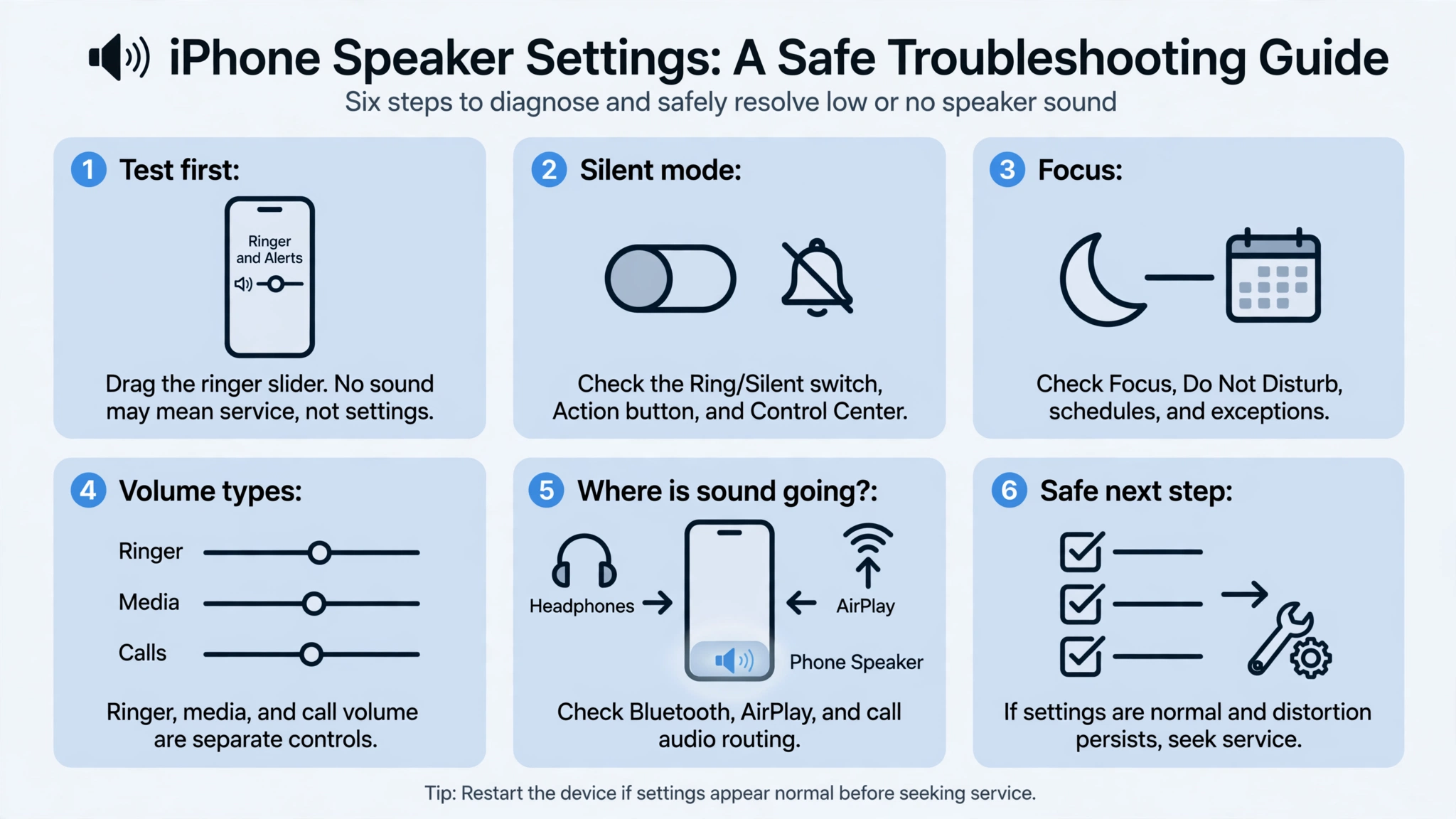
If your iPhone suddenly stops ringing, plays videos silently, or only works on speakerphone, a setting is a likely cause. Silent mode, Focus, a low ringer slider, or an audio route to another device can each silence a speaker that still works perfectly.
Settings checks are quick, reversible, and safe, and they should come before cleaning attempts and repair visits. Work through them in order, test after each change, and note the original position of any setting you change. Labels vary by iOS version, so if a name in this guide looks different on your phone, use the search box inside Settings and type the setting name.
Test the speaker before changing settings
Start with the test Apple Support describes in general terms: open the sounds area in Settings and drag the Ringer and Alerts slider back and forth. If you hear sound, the speaker can produce sound, and the problem is a setting, an output choice, or an app. If you hear no sound, or the speaker button on that slider is dimmed, the speaker might need service, and settings changes are unlikely to fix it.
Next, test the parts separately. Play a video for the loudspeaker, then make a call and listen through the earpiece, then switch the same call to speakerphone. A problem only during calls points to the earpiece or call routing. A problem only with media points to media volume or output. A problem with callers hearing you points to the microphone, which is a different part from the speaker and needs a different approach.
Remove the case and any film over the speaker or receiver for the test. A case that covers the grille, or a screen protector that overlaps the receiver at the top of the phone, can muffle sound and look exactly like a settings fault.
Check Silent mode first
Silent mode is the fastest check and the easiest to trigger by accident. On iPhones with a Ring/Silent switch, the switch shows orange when silent mode is on; moving it toward the display turns silent mode off. On iPhones with an Action button, or on iPads, silent mode can be checked in Control Center. If the Action button is set to Silent mode, pressing it toggles that mode.
Silent mode stops ringtones and alerts, but it does not necessarily silence everything. Alarms, media in many apps, and some other sounds may still play, which is why a silent iPhone can still play a video and still miss every call. Do not conclude the speaker is broken from one silent test; check the switch or button, then test a ringtone and a video separately.
If you use the Action button for something else, check what it currently controls before assuming silent mode is off. A button set to another function will not toggle silent mode, and the phone may still be silent through Control Center or Focus.
Check Focus and Do Not Disturb
Focus, including Do Not Disturb, is the next most common cause of missed rings. Open Settings, then Focus, then Do Not Disturb, and check whether it is on. Also check whether it is scheduled, because a schedule explains a phone that is silent every night or during work hours and normal the rest of the day.
Focus can silence calls, alerts, and notifications while the screen is locked, while still allowing exceptions for certain people and apps. Open the exceptions list and confirm, rather than assuming a contact is allowed through. A repeated-calls option, where present, may allow a second call from the same person within a short time to ring through, but it should not be relied on for urgent calls you must not miss.
If Do Not Disturb is the cause, either turn it off or keep it with deliberate exceptions. Also check other Focus modes, such as Sleep or Work, because each can have its own silence and exception rules. Turning off one mode does not necessarily turn off another.
Check ringer, alerts, and media volume separately
iPhone volume is not a single control. Ringer and alerts volume, media volume, and call volume behave differently, and a low ringer slider explains a phone that plays videos loudly but never rings. In the sounds area, drag the Ringer and Alerts slider and listen. Then play media and use the side volume buttons to check media volume. Then make a test call and check call volume during the call.
Some iPhones offer a setting that lets the side buttons change ringer volume. If that setting is off, the side buttons may change only media volume, which makes the ringer slider seem unresponsive. Check the sounds area for that option, and note its original position before changing it.
Keep volume at a moderate, comfortable level for testing. Maximum volume does not clean a speaker, does not repair damage, and can make distortion worse. A clear test at moderate volume tells you everything you need: sound present, sound absent, or sound distorted.
Check where the sound is going
An iPhone with a working speaker can sound silent if audio is routed to another device. Bluetooth headphones, a car system, AirPods, or an AirPlay device can all take over output. Turn Bluetooth off temporarily and check the audio output control in Control Center, then test again. If sound returns through the built-in speaker, the output was routed elsewhere.
Call audio routing deserves its own check. In the accessibility area, call audio routing can be set to automatic, headset, speaker, or Bluetooth headset on many iPhones, though labels vary by iOS version. If calls always go to speakerphone or always go to a headset, check that setting and return it to automatic for testing. During a call, you can also change the output from the call screen itself, which is a useful per-call check.
Also check for connected wired or USB-C audio accessories. If an accessory is plugged in, the phone may send sound to it even when you expect the built-in speaker. Unplug accessories for the test, then reconnect only what you intend to use.
Check hearing and accessibility settings
Accessibility settings can change how sound behaves in ways that look like a fault. A left/right balance control, where present, can shift sound to one side. Mono audio combines stereo channels into one channel, which can help when one side is weaker but does not fix a blocked grille or a damaged speaker. Hearing-aid and audio routing options can also change which device receives sound.
If sound is one-sided, center the balance control and test again. If sound always goes to another device, check the audio routing and hearing-device settings in the accessibility area. Note the original positions before changing anything, and restore settings you do not intend to change permanently. These settings exist to match your hearing needs, so adjust them deliberately rather than resetting them blindly.
Check one app before blaming the whole iPhone
If sound works in most apps but fails in one, the problem is probably app-specific. Check that app's own mute, volume, and notification settings, and check whether the app is allowed to send notifications with sound. A video app can be muted inside the app while system volume is fine, and a messaging app can have its notification sound turned off while calls still ring.
Restart the iPhone, update iOS if an update is available, and test again. A restart clears temporary glitches, and updates can resolve audio bugs, though neither is a guaranteed fix. If the problem started after an app update, check that app's settings and, if needed, reinstall it. Test after each single change, so you know which change mattered.
When settings are not the cause
If Silent mode is off, Focus is off, ringer and media volumes are normal, no Bluetooth or AirPlay device is connected, call routing is automatic, accessibility balance is centered, and sound is still absent or distorted, the problem is probably not settings. Check gently for dust or lint blocking the speaker or receiver openings, using a small, clean, dry, soft-bristled brush as Apple Support describes in general terms. Do not insert sharp objects, and do not use liquid cleaners or high-pressure air.
For a wet iPhone, follow Apple's manufacturer guidance first, let the phone dry completely, and do not charge it while a liquid warning is present. No charging-wait hour figure is stated in this guide, because the safe course is to follow the current manufacturer guidance for your device and to wait until it is completely dry. Sound does not always eject water or dust, and it cannot repair damage, so do not keep raising the volume in the hope that repetition will fix it.
Seek service if you hear no sound from the Ringer and Alerts slider, if the speaker button on that slider is dimmed, if distortion persists at moderate volume after drying, or if the phone shows signs of deeper water or physical damage. Do not open the iPhone yourself unless you are qualified. A service provider can check for damage that no settings change can diagnose.
A safe order to remember
The safest order is: test the ringer slider, then Silent mode, then Focus, then ringer and media volume, then output and call routing, then accessibility settings, then one app, then restart and update, then gentle physical checks, then service. Note each original position as you go. That habit prevents a second silence later, when a changed Focus schedule or routing setting is forgotten.
Most iPhone speaker silences are a switch, a Focus mode, or an output choice. Checking those first saves a cleaning attempt on a clean speaker and a service visit for a muted phone.
FAQ
1. Why does my iPhone play videos but never ring?
Silent mode and Focus commonly silence ringtones and alerts while media still plays. Check the Ring/Silent switch or Action button, then Focus and Do Not Disturb, then the Ringer and Alerts slider.
2. How do I know if Do Not Disturb is scheduled on my iPhone?
Open Settings, then Focus, then Do Not Disturb, and look for a schedule. A schedule explains a phone that is silent at the same times each day and normal at other times. Turn the schedule off for testing, or adjust its exceptions deliberately.
3. Why do my calls always go to speakerphone or a headset?
Check call audio routing in the accessibility area, where present, and return it to automatic for testing. Also check Bluetooth and AirPlay output, because a connected device can take over call audio even when you expect the earpiece.
4. What should I do if the Ringer and Alerts slider makes no sound?
If dragging the slider produces no sound, or the speaker button on the slider is dimmed, the speaker might need service. Check Silent mode and output first, remove the case, and check the openings gently, but do not keep raising the volume as a fix.
5. Why does my iPhone sound one-sided?
Check the left/right balance control in the accessibility area, where present, and center it. A blocked receiver or loudspeaker opening can also cause one-sided sound, so check the grilles gently if balance does not explain it.
6. Should I reset all settings if my iPhone speaker has no sound?
Only after the simpler checks in this guide. A reset restores defaults without deleting personal files on most iPhones, but it can change Focus, accessibility, and network preferences. Note your current settings first so you can restore the ones you want.
7. My iPhone got wet and the speaker is muffled. Will settings fix it?
No. Follow the manufacturer's drying guidance first, let the phone dry completely, and do not charge it while a liquid warning is present. Settings checks help only after drying, and persistent distortion after drying points to service, not to another settings change.
Leave a Reply