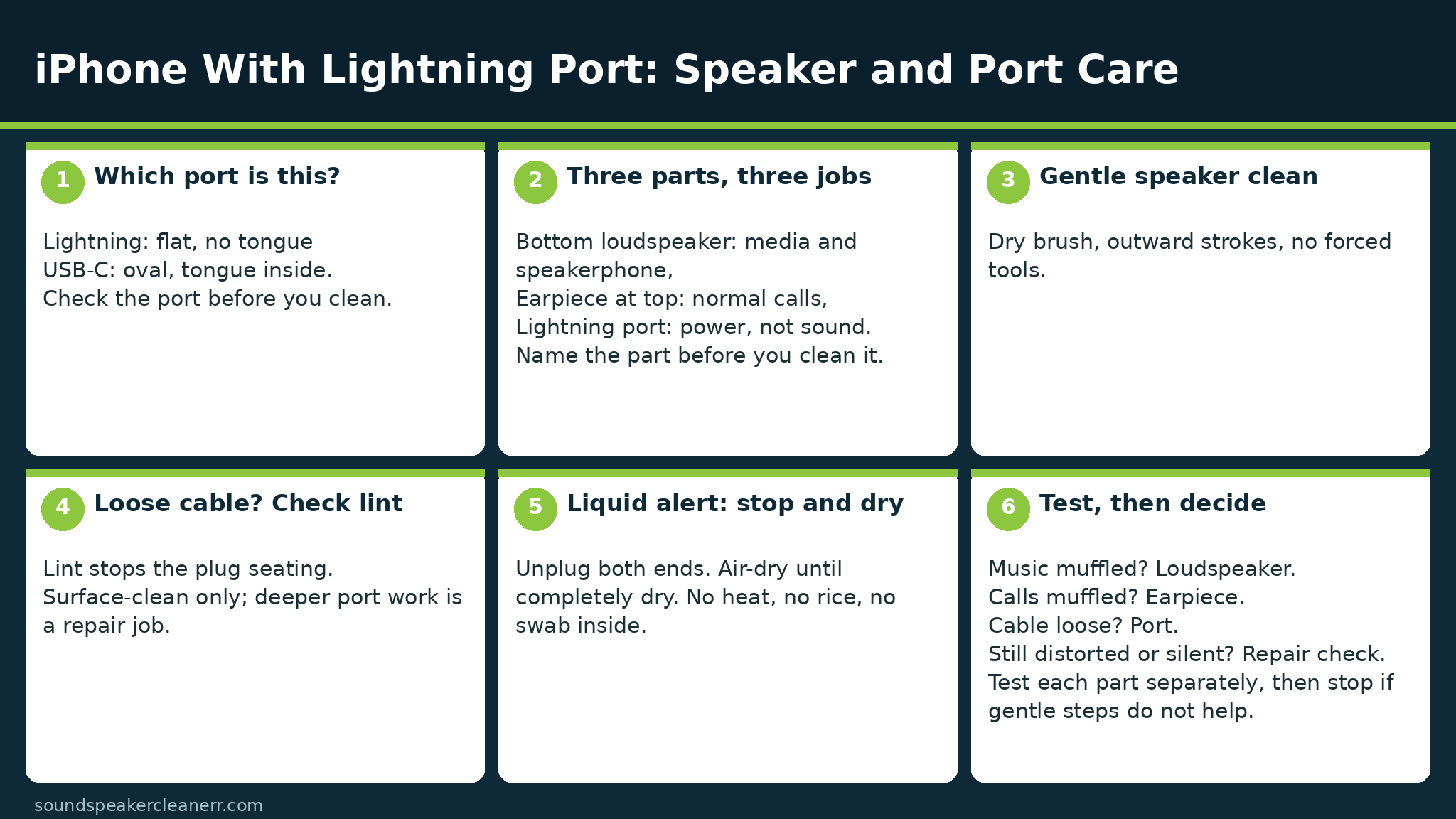
A Lightning iPhone needs gentle, separate care for three different parts: the bottom loudspeaker, the earpiece at the top, and the flat Lightning port between the speaker holes. Brush the speaker grilles lightly with a dry soft brush, keep liquids and sharp tools out of the port, and never charge a wet Lightning connector until it is completely dry.
That short answer matters because the three parts sit close together and are easy to confuse. A muffled call is usually the earpiece, not the bottom loudspeaker. A loose cable is usually lint in the Lightning port, not a speaker fault. And a liquid-detection alert is about the connector, not about whether the speaker sounds clear. Treating each part on its own keeps a simple cleaning job from becoming a port repair.
How to tell you have a Lightning iPhone
The fastest check is the charging port itself. A Lightning connector is flat and narrow, with its contacts on the outside of the plug, and the phone end is a shallow slot with no central tongue inside. A USB-C port is a wider oval opening with a small central tongue. If you are unsure, check the model in the usual About route on your iOS version, then check Apple's specifications for that model, rather than guessing from the phone's size or color.
This distinction matters for cleaning. Advice written for USB-C often warns you to avoid a central prong. That warning does not apply to Lightning, and following it blindly can distract you from the real Lightning risk: compacted lint at the bottom of a shallow slot, and pins that can be scratched by anything hard pushed inside. Conversely, Lightning advice about a flat plug does not transfer to USB-C. If you own both kinds of phone in one household, keep the cables apart and clean each phone by its own port type.
Lightning iPhones also span many years, so two Lightning phones may differ in water resistance, in whether they have a Home button, and in which iOS version they run. Do not assume that a step that worked on one Lightning model is identical on another. The gentle method in this guide — dry brush, lint-free cloth, no forced tools, no liquids in openings — is safe across those differences precisely because it does not depend on a model-specific rating or setting.
The three parts: loudspeaker, earpiece, and Lightning port
Before you clean anything, name the part you are treating. The loudspeaker sits at the bottom edge, beside the Lightning port, and plays media, ringtones, and speakerphone calls. The earpiece is the small speaker at the top, above the screen, and plays normal calls. The microphone captures your voice and is a separate opening again. The Lightning port carries power and wired accessories; it is not a speaker, and cleaning it will not fix a muffled loudspeaker, just as cleaning the speaker will not fix a loose cable.
Test each part separately with the same short, familiar voice message, at a comfortable volume, with Bluetooth and wired headphones disconnected. If music sounds muffled but calls sound fine, the bottom loudspeaker is the suspect. If calls sound muffled but music sounds fine, the earpiece is the suspect. If the cable wobbles or charging starts and stops, the Lightning port is the suspect, even if sound is perfect. If your own voice sounds distant to the other caller while you hear them clearly, the microphone is the suspect. This two-minute split saves you from cleaning the wrong part repeatedly.
A case or screen protector can also imitate a fault. A case edge that covers part of the bottom speaker holes, or a protector edge that sits over the earpiece slit, will muffle sound no matter how clean the phone is. Remove the case before you judge the sound, and check the protector's cutouts before you blame the speaker.
Cleaning the bottom speaker safely
Work on a clean table in good light, with the phone powered off and all cables unplugged. Remove the case. Look at the bottom edge: you will see the Lightning opening in the middle and small speaker holes to one side. Brush those holes lightly with a clean, dry, soft-bristled brush, stroking outward so loosened dust falls away from the phone rather than toward the port. Wipe the surrounding frame with a dry lint-free cloth. That is the whole routine for most dust.
Do not use compressed air. Apple advises against it for iPhone cleaning, and a strong blast can drive dust deeper into the grille or into the port beside it. Do not drip water, soap, or cleaning liquid onto the speaker holes, and do not press a damp cloth into the openings. A slightly damp lint-free cloth is for the outside surfaces only, kept away from openings, exactly as Apple's cleaning guidance describes. Do not use a needle, pin, SIM-eject tool, or metal pick to clear a speaker hole. The mesh behind the holes is thin, and a puncture turns a cleaning job into a repair.
If brushing once does not help, brush once more and retest with the same voice message. Do not escalate to harder tools or louder sound. A speaker that stays muffled after two gentle cleanings may be blocked deeper inside, may have residue from a liquid, or may be damaged. At that point the safe move is a professional check, not a sharper tool.
Cleaning around the Lightning port without damaging it
The Lightning port's most common problem is not damage but lint. Pocket lint, dust, and fibers collect in the shallow slot and compress each time a plug is pushed in. Eventually the plug cannot seat fully, so charging feels loose, stops and starts, or needs the cable held at an angle. That is a port problem, and it is easy to mistake for a failing cable or a failing battery.
The safe home step is inspection and surface cleaning only. In good light, look into the opening without pushing anything inside. Brush lightly across the outside of the opening with a dry soft brush, and wipe the phone's bottom edge with a dry lint-free cloth. If you can see loose lint at the very mouth of the opening, a light brush stroke may lift it. Do not push a toothpick, cotton swab, paper towel, or any tool deep into the port. Apple's liquid-detection guidance warns against inserting foreign objects such as cotton swabs and paper towels into the Lightning connector, and a hard tool can scratch pins or pack lint tighter at the bottom.
Test with a cable you know works, pushed straight in without force. A clean connection should feel snug, not wobbly. If the cable still feels loose after surface cleaning, or if you see bent or discolored pins, stop. Port cleaning beyond the surface is a repair-shop job, where the phone can be inspected without power running through a damaged connector. Trying a different cable first is still worthwhile: a worn cable can imitate a dirty port, and replacing the cable is cheaper than any repair.
Keep the port dry in daily use as well. Do not charge the phone with a wet cable, do not leave the phone charging in a steamy bathroom, and do not put a damp phone straight into a pocket where lint sticks to a wet opening. A dry port collects less lint, and lint in a dry port is easier to brush away.
What to do when liquid is detected
If you connect a Lightning cable or accessory and see a liquid-detection alert, unplug the cable from the phone and unplug the other end from the charger or accessory. Do not keep trying the cable to see whether the warning clears, and do not use an emergency override to force charging through a wet connector unless you genuinely have no other way to charge in an emergency. Apple warns that charging while the connector is wet can corrode the pins and cause permanent damage or connectivity problems, so an override trades a short-term charge for a long-term port problem.
Dry the phone by tapping it gently against your hand with the Lightning connector facing down, then leaving it in a dry place with good airflow. Do not use a hairdryer or other external heat, do not use compressed air, do not insert a cotton swab or paper towel into the connector, and do not put the phone in a bag of rice, which can leave small particles inside the phone. If your phone supports wireless charging and the back of the phone is dry, a wireless charger can be a temporary alternative while the port dries, following Apple's guidance for your model.
Wait until the iPhone and the cable are completely dry before plugging in again. This draft deliberately gives no hour figure, because secondary sources disagree and the maker's rule is the safe one: completely dry, not dry enough for one try. If the alert returns after the phone and cable are fully dry, or if it appears with a cable you know is dry, the cable, the accessory, or the port itself may be damaged, and that is a support or repair question rather than a drying question.
Note the speaker distinction here too. A liquid alert does not mean the speaker is wet, and a clear speaker does not mean the port is dry. Dry and test each part separately, and do not judge the port by the speaker's sound.
Can a cleaning tone help a Lightning iPhone?
A cleaning tone is a sound played through the speaker, and it may help move loose moisture or dust sitting near the grille. It is not a repair, it does not dry the Lightning port, it does not remove corrosion, and it does not fix a blocked earpiece when you play it through the loudspeaker. Use it only after the outside of the phone is dry, only at a moderate volume, and only for one short cycle with the phone on a table.
If one short cycle does not improve the sound, stop. Repeating the tone louder or longer will not reach lint packed inside the port or residue behind the mesh, and sustained high volume is harder on a speaker that may already be struggling. Instead, return to gentle brushing, retest with a familiar voice message, and consider a professional check if the sound stays muffled, crackles, or cuts out. The site's own water-eject and dust-cleaner tools follow this same moderate-volume, short-cycle idea, and they are a safer first try than any improvised loud test.
Also check the simple software causes before you blame the hardware. A connected Bluetooth speaker or pair of headphones, a Focus mode, the Ring/Silent switch where your model has one, or a low media volume can all imitate a broken loudspeaker. Disconnect Bluetooth, check the volume and silent settings on your iOS version, and retest. If sound returns, the speaker was never dirty.
When to stop and seek repair
Stop home cleaning and seek a professional check if any of these apply: sound is distorted at every volume, one speaker produces no sound in every app, sound changes when you press gently near the speaker or port, you can see a dent, crack, or bent pin, the phone has been submerged or exposed to salt water or a sugary drink, the phone overheats, restarts, or shows screen problems alongside muffled sound, or a liquid-detection alert keeps returning after full drying. Back up the phone before service if you can do so safely, and tell the repairer about any liquid exposure, because corrosion can spread and a delay can make repair harder.
A Lightning iPhone that is otherwise healthy is worth this care. Gentle brushing, a dry port, and patience after liquid exposure will keep most Lightning speakers sounding clear without ever needing a sharp tool. The moment gentle steps stop helping, the kindest thing for the phone is a trained inspection, not a harder push.
FAQ
How do I know my iPhone has a Lightning port?
Look at the charging opening: Lightning is a flat, narrow slot with no central tongue inside, while USB-C is a wider oval with a small central tongue. If you are still unsure, check the model in the About route on your iOS version and check Apple's specifications for that model.
Can I clean the Lightning port with a toothpick?
This guide says no for home cleaning. A toothpick or any hard tool can scratch pins or pack lint tighter at the bottom of the shallow slot. Brush lightly across the outside of the opening, wipe the frame with a dry lint-free cloth, and leave deeper port cleaning to a repair professional.
Why does my Lightning cable feel loose?
Compacted pocket lint in the port is the most common cause, because each plug-in compresses lint at the bottom of the slot. Try a cable you know works, pushed straight in without force. If it still feels loose after surface cleaning, have the port inspected rather than forcing the cable.
What does a liquid-detection alert mean on a Lightning iPhone?
It means liquid has been detected in the Lightning connector, or on the cable or accessory, and charging and accessory connection are unavailable until everything is dry. Unplug both ends, dry the phone with the connector facing down in airflow, and do not plug in again until the iPhone and cable are completely dry.
Can I use compressed air on my Lightning iPhone speaker?
No. Apple's iPhone cleaning guidance advises against compressed air. Use a clean, dry, soft-bristled brush and a lint-free cloth instead, and keep moisture out of the openings.
Will a cleaning tone dry out my Lightning port?
No. A cleaning tone plays through the speaker and may help move loose moisture or dust near the speaker grille, but it cannot dry the charging port, remove corrosion, or repair damage. Dry the port by airflow and time, and test the port separately from the speaker.
My calls are muffled but music sounds fine. Is that the Lightning port?
No. That pattern points to the earpiece at the top, which plays normal calls, rather than the bottom loudspeaker or the Lightning port. Clean the earpiece grille gently, check the case and screen protector cutouts, and test again before touching the port.
When should I stop cleaning and get a repair?
Stop if sound is distorted at every volume, one speaker is silent in every app, you see a dent, crack, or bent pin, the phone was submerged or exposed to salt water, or a liquid alert keeps returning after full drying. Back up the phone if you safely can, and tell the repairer about any liquid exposure.
Leave a Reply