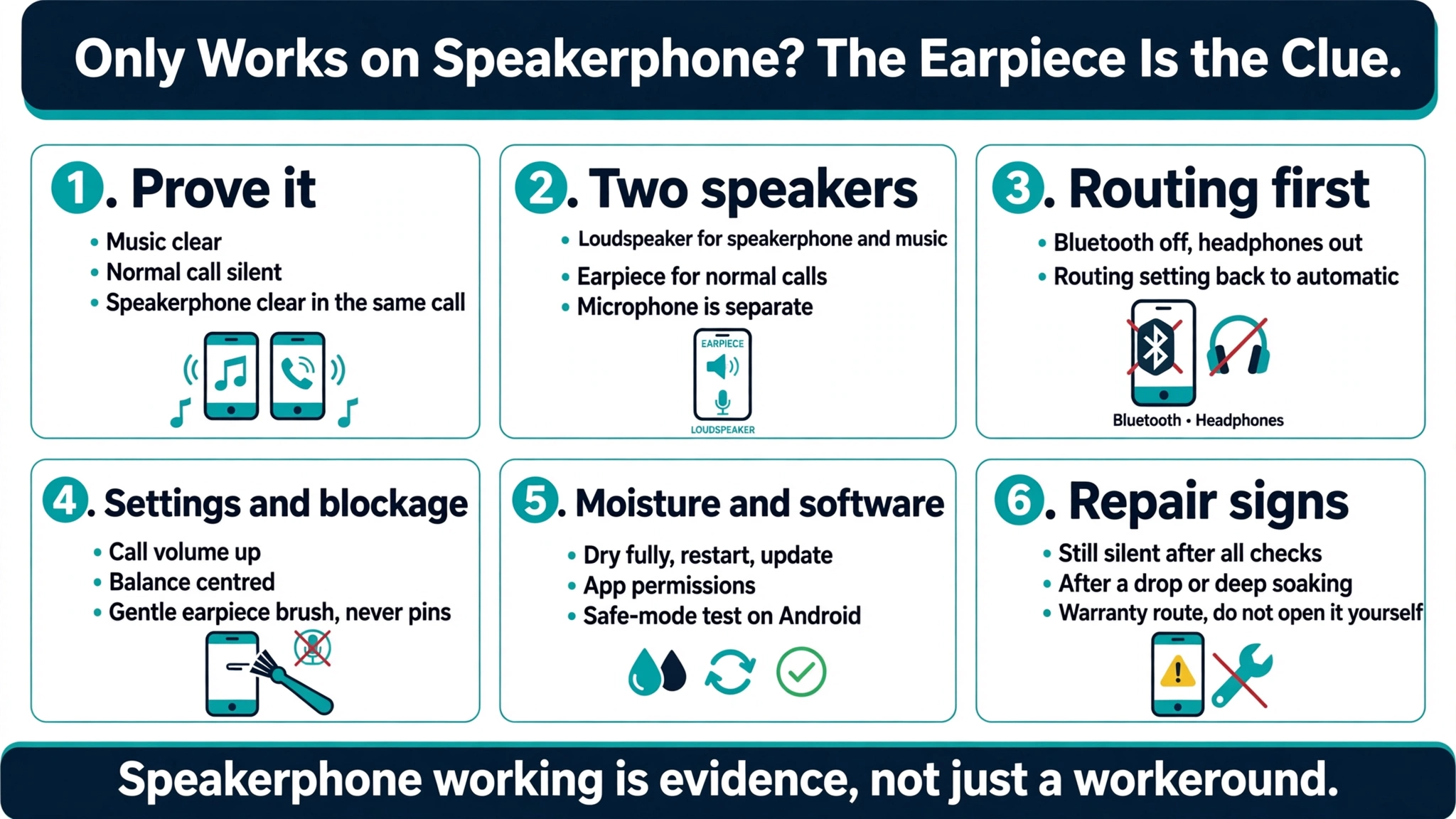
If your phone works on speakerphone but not on a normal call, you already have the most important diagnostic clue. Speakerphone uses the loudspeaker — the main speaker that also plays music and videos. A normal call uses the earpiece — a much smaller speaker at the top of the phone. When one works and the other does not, the fault is narrowed to the earpiece, its path, or the routing that chooses between them.
That narrowing is good news. It means the main audio system, the loudspeaker, and usually the microphone are working. The job now is to determine, step by step, whether the earpiece is blocked, misrouted, misconfigured, affected by software, or genuinely faulty.
First, prove the pattern properly
Before changing anything, confirm the pattern with three quick tests. This takes two minutes and prevents a misdiagnosis:
- Music test. Play a song or video out loud, not on speakerphone, just through the phone's normal media output. If music sounds clear, the loudspeaker works.
- Call test, earpiece. Make a call to someone who can talk for a few seconds, hold the phone to your ear normally, and listen. Note whether the earpiece is silent, very quiet, muffled, or distorted. Silent and muffled are different clues: silent suggests failure or routing, muffled suggests blockage or moisture.
- Call test, speakerphone toggle. During the same call, switch speakerphone on and then off again. If sound returns clearly on speakerphone and disappears again off speakerphone, the pattern is confirmed: loudspeaker works, earpiece does not, in the same call, on the same network.
Also note the reverse direction: can the other person hear you in both modes? If they can hear you on speakerphone but not on a normal call, that is a different fault — the call microphone, not the earpiece — and it needs a different guide. This article covers "you cannot hear them unless on speakerphone." If the problem is "they cannot hear you," the microphone path is the focus instead.
Test with a second caller and, if possible, a second calling app, such as a messaging app's voice call. If the earpiece fails in every app, the fault is in the phone. If it fails in only one app, that app's permissions or audio settings are the likely cause.
Understand the four parts, because the names cause confusion
Readers with this symptom often say "my speaker is broken," but four separate parts are involved, and only one of them is the likely fault:
- Loudspeaker: the main speaker at the bottom or side of the phone. It plays music, videos, ringtones, and speakerphone calls. It is working in this symptom, because speakerphone works.
- Earpiece: the small speaker at the top of the phone, in the thin slot above the screen. It plays normal calls held to the ear. It is the prime suspect in this symptom.
- Microphone: the part that picks up your voice. Phones often use different microphones for calls, voice notes, and video. If callers cannot hear you, the microphone path is the issue, not the earpiece.
- Charging port: a separate opening. It does not produce call audio, but lint or moisture in it can affect audio routing on some phones, and it must never be cleaned with sharp objects.
Keeping these apart prevents the most common mistake with this symptom: running loudspeaker cleaning tones repeatedly for an earpiece problem. A loudspeaker tone does not test or clean the earpiece unless the tool has a separate earpiece mode, and even then the earpiece needs gentler handling than the loudspeaker.
Step 1: Rule out routing — is audio going somewhere else?
Routing is the fastest cause to rule out, and it is surprisingly common. A phone may be sending call audio to earbuds in a pocket, a car system, a watch, or a Bluetooth speaker, while media audio still comes from the phone speaker. In that case, speakerphone "fixes" the call only because speakerphone forces output to the loudspeaker, overriding the routing.
Turn Bluetooth off completely, disconnect wired headphones, and make a test call holding the phone to your ear. Check the audio output or routing control during the call: on iPhone, check the audio button on the call screen and Control Center for an output choice; on Android, check the call screen's output option and the media output selector. If the call audio was going to another device, it will now come through the earpiece, and the mystery is solved.
Also check accessibility and hearing settings that control audio routing. Some phones offer an audio-routing option that can be set to speaker or to a specific device, and a routing choice left on speaker can make every call start on speakerphone. Menu names vary by brand and software version; use the settings search on your phone and look for routing, hearing, or call-audio options. If you find a routing setting forced to speaker, change it back and test a normal call.
Step 2: Rule out settings — volumes, modes, and balance
Call volume and media volume are separate. A reader who raised the media volume for music may still have a low call volume, and a reader who muted calls may not realise it. During a normal call, press the volume-up button and watch for a call-volume indicator, not the media indicator. Raise call volume to a comfortable level and test again.
Check silent mode, Do Not Disturb, and focus modes. These mainly affect ringtones and notifications, but a focus mode or a muted state can confuse call-audio testing, especially if the reader is testing with ringtones rather than live calls. Always test with a live call, not a ringtone, for an earpiece diagnosis.
Check mono-audio and balance settings. A balance control pushed fully to one side, or a mono-audio setting combined with a stereo earpiece path, can make earpiece audio seem absent or strangely quiet. Set any balance control to the centre and turn mono-audio off temporarily, then test a normal call. If the earpiece returns, a setting was the cause.
Check hearing-enhancement and call-audio processing options. Some phones offer noise-cancellation or voice-enhancement features for calls that can change how the earpiece sounds. Temporarily turn call-audio enhancements off and test again. If the earpiece clears up, an enhancement was distorting or suppressing it.
Step 3: Rule out blockage — the earpiece grille
The earpiece opening is a thin slot at the top of the phone, and it collects dust, lint, makeup, and pocket debris more easily than readers expect. A blocked earpiece sounds muffled or very quiet on normal calls while speakerphone, which uses the separate loudspeaker, sounds perfectly clear. That contrast is exactly this symptom.
Inspect the earpiece slot in bright light. Look for a dull, matted, or discoloured slot rather than a clean opening. Brush it very gently with a clean, dry, soft-bristled brush, using light strokes along the slot, and wipe the surrounding area with a dry, soft cloth. A small piece of tape dabbed lightly on the slot can lift loose surface lint. Press gently and never force anything into the slot.
Do not use pins, needles, toothpicks pushed into the slot, or any sharp object. The earpiece mesh and the small speaker behind it are delicate, and a puncture turns a cleaning problem into a repair problem. Do not pour liquid into the slot, do not blow hard into it with your mouth, and do not use compressed air at close range, which can push debris deeper or damage the small speaker.
Test a normal call after gentle cleaning. If the earpiece is clearly louder or clearer, blockage was the cause, and a regular gentle brushing routine will matter more than any deeper step. If there is no change at all, move on; do not brush harder.
Step 4: Rule out moisture
If the phone recently got wet — rain, a splash, a shower, a sweaty workout — moisture in or near the earpiece can muffle or silence it while the loudspeaker still works, because the two speakers are separate parts in separate positions. The earpiece, at the top of the phone, can trap a film of water across its small opening even when the rest of the phone seems dry.
Remove the case, wipe the outside with a soft, lint-free cloth, and leave the phone in a dry area with airflow, earpiece facing down where that is practical. Do not charge a wet phone, and follow the phone maker's guidance for wet devices. Do not use rice, a hair dryer, or external heat. Test a normal call after a proper drying period, not immediately after another cleaning attempt. If the earpiece improves as the phone dries, moisture was the cause.
If the phone was deeply soaked, or if the earpiece stays silent after full drying, treat the possibility of internal moisture or corrosion seriously and move to the hardware conclusion below rather than repeating drying and cleaning indefinitely.
Step 5: Rule out software
Software can silence an earpiece while leaving the loudspeaker untouched, especially after an update or a new app installation. Work through these checks in order:
- Restart the phone. A restart clears temporary audio glitches and is worth trying before any larger step.
- Check for a software update. Audio glitches are a regular item in system update notes. Install an available update, restart afterwards, and test a normal call.
- Check the calling app's permissions. The phone app or calling app needs microphone and audio permissions to handle calls correctly. Check that the app has the permissions it requests for calls, and test with a second calling app to see whether the fault follows the app or the phone.
- Remove recently installed audio-related apps one by one. Equalizer apps, call recorders, and audio managers can interfere with call routing. Remove the most recent one, restart, and test a normal call before removing the next.
- Test safe mode on Android. In safe mode only system apps run, so if the earpiece works normally in safe mode, a third-party app is interfering. Remove recently installed apps one by one until the earpiece returns in normal mode. On iPhone, there is no safe mode in the same sense; instead, remove recently installed audio apps one by one, restarting and testing after each change.
- Reset all settings as a later step. This restores system preferences to defaults without deleting personal data on most phones, but it does change Wi-Fi, Bluetooth, and sound preferences, so note your settings first and back up your data. Treat a factory reset as a last resort, only after backing up fully and only if every earlier step has failed.
Do not factory-reset a phone for an earpiece problem as a first step. It is a large action with real data risk, and it rarely fixes a problem that a routing, blockage, or app check would have found in minutes.
When speakerphone-only means hardware
If the earpiece is still silent or severely muffled after routing, settings, gentle cleaning, full drying, and software checks, the fault is most likely hardware: a failed earpiece speaker as a separate part, debris lodged where surface cleaning cannot reach, or a damaged flex connection between the earpiece and the phone's audio system. A drop, a deep soaking, or gradual wear can each cause this kind of failure.
Seek professional inspection in that case, and bring the diagnosis notes from this guide: music clear but calls silent, speakerphone toggle result, second-caller and second-app results, cleaning and drying already tried, and software steps already taken. Those notes help a technician confirm the earpiece fault quickly instead of repeating the whole diagnosis.
Do not open the phone yourself unless you are qualified to do so, and do not attempt an earpiece replacement from an unverified guide. The earpiece sits near the screen, sensors, and front camera on many phones, and an incorrect repair can damage neighbouring parts. If the device is under warranty, avoid opening it yourself, as that may affect warranty coverage; use the manufacturer or an authorised service route instead.
Living with the symptom while you decide
Speakerphone is a workable temporary measure, but it is not a fix, and it has practical costs: less privacy on calls, more background noise for the other person, and a phone that cannot be used normally in quiet places. A wired or Bluetooth headset is a better temporary workaround while you work through the diagnosis or wait for repair, because it routes call audio to a working output without broadcasting the call. Use the workaround while diagnosing, not instead of diagnosing — especially after water exposure, where waiting without a drying and inspection plan can let corrosion progress.
The diagnosis itself is the value of this guide. Speakerphone working is not a consolation; it is evidence. It proves the loudspeaker and much of the audio system work, and it points, step by step, at the earpiece, the routing, the settings, or the hardware. Follow the steps in order, note what each test shows, and the cause will usually declare itself before any repair decision is needed.
FAQ
Why does my phone only work on speakerphone?
Because speakerphone uses the loudspeaker, while a normal call uses the separate, smaller earpiece at the top of the phone. When speakerphone works but normal calls do not, the fault is narrowed to the earpiece, its path, or the routing that chooses between them — not to the whole audio system.
How do I know if my earpiece is broken or just blocked?
Test the pattern first: music clear, normal call silent or muffled, speakerphone clear in the same call. Then brush the earpiece slot very gently and test again after drying if the phone got wet. If gentle cleaning restores the earpiece, it was blocked. If it stays silent after routing, settings, cleaning, drying, and software checks, hardware failure is more likely.
Could Bluetooth be causing my phone to only work on speakerphone?
Yes. A phone may send call audio to earbuds, a car system, or another Bluetooth device while media audio still comes from the phone speaker, and speakerphone overrides that routing. Turn Bluetooth off completely and test a normal call; if the earpiece returns, routing was the cause.
Why can I hear them on speakerphone but they cannot hear me?
That is the reverse pattern, and it points to the microphone path rather than the earpiece. Phones often use different microphones for calls, voice notes, and video. Record a voice note and a video clip to test which microphone path fails, and check the calling app's microphone permission.
Is it safe to clean the earpiece with a pin?
No. Pins, needles, and other sharp objects can puncture the earpiece mesh or damage the small speaker behind it. Use only a clean, dry, soft-bristled brush with light strokes along the slot, and gentle tape dabbing for loose surface lint.
Can a setting force my phone to use speakerphone for calls?
Yes. An audio-routing or hearing-accessibility setting left on speaker, or a call-audio option set to a specific device, can make calls start on speakerphone. Check routing and hearing settings, set any routing choice back to automatic or to the phone, and test a normal call.
Should I factory-reset my phone if only the earpiece fails?
No, not as a first step. Work through routing, settings, gentle cleaning, drying, restart, updates, app permissions, and app removal first. Reset all settings only as a later step after backing up, and treat a factory reset as a last resort.
When does speakerphone-only mean I need a repair?
Seek repair if the earpiece stays silent or severely muffled after routing, settings, gentle cleaning, full drying, and software checks, or if the problem began after a hard drop or deep soaking. That pattern points to a failed earpiece speaker or a damaged connection, which needs professional inspection.
Leave a Reply