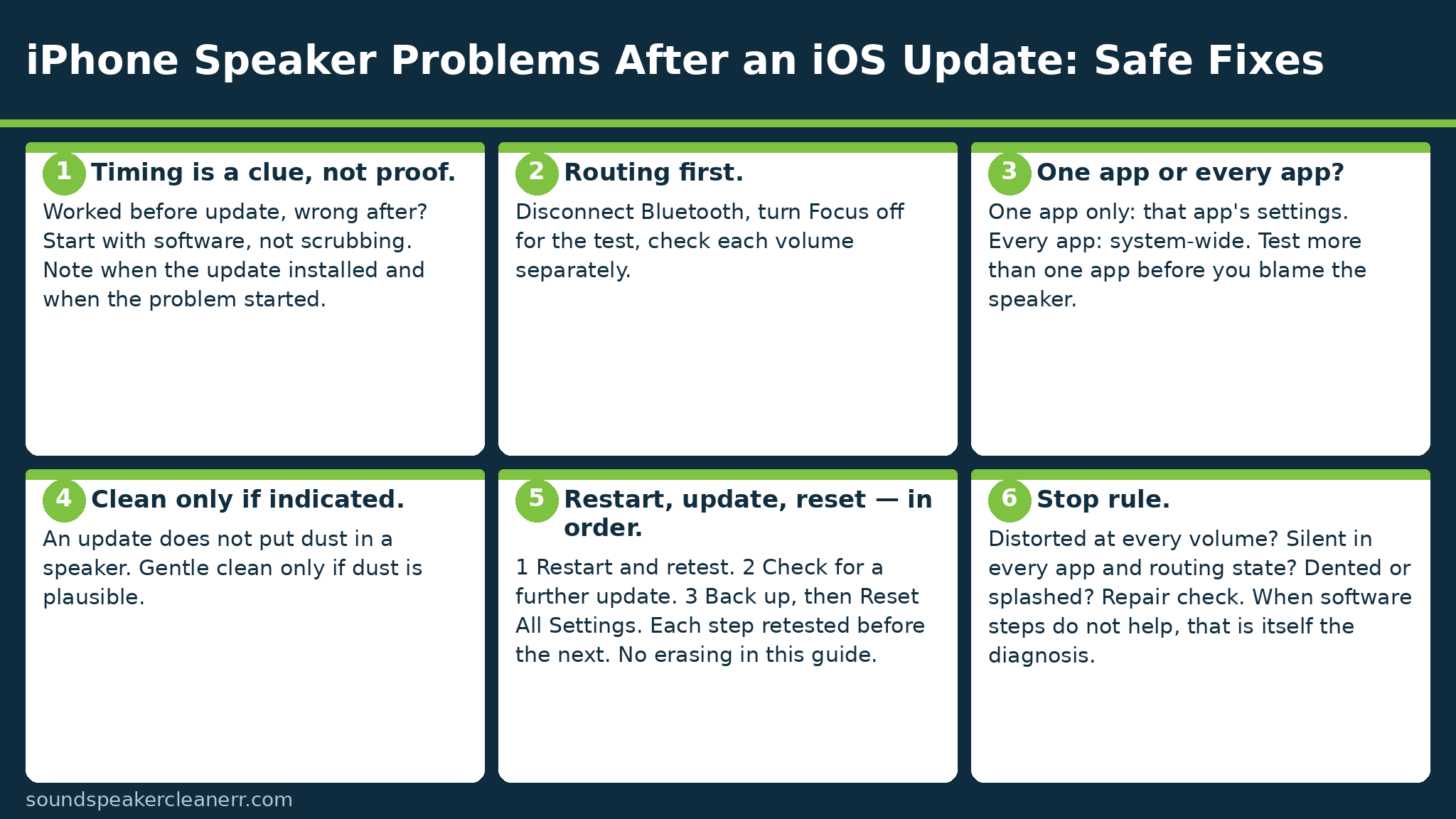
If your iPhone speaker sounded fine before an iOS update and sounds wrong right after it, check routing and settings before you clean anything: disconnect Bluetooth, check Focus and Silent controls, test more than one app, and restart. Most post-update speaker problems are routing or settings, not dirt, and cleaning a healthy speaker will not fix them.
That short answer saves readers from the two most common post-update mistakes. The first is scrubbing a speaker that was never dirty, which risks the mesh for no benefit. The second is erasing or restoring a phone for a problem that was a Bluetooth speaker still connected in another room, a Focus mode silencing notifications, or one app's own audio setting. The order in this guide — prove it is the speaker, prove it is not routing, prove it is not one app, then clean gently, then restart and update, then reset settings, then seek repair — is designed to prevent both.
First question: did the update cause it, or only coincide with it?
Timing is evidence, not proof. A speaker problem that starts within minutes of an update, on a phone that was not dropped, splashed, or cleaned in between, is more likely to be software than hardware. A speaker problem that starts days after an update, or that follows a drop or a splash that happened to occur around update time, is less clearly software. Write down the timing before you change anything: when the update installed, when the problem first appeared, and what else happened to the phone in between. That note helps you judge each later test, and it helps support or a repairer if you need them.
Also separate the two speakers from the start. The loudspeaker at the bottom plays media, ringtones, and speakerphone calls. The earpiece at the top plays normal calls. An update can change routing, volume, balance, or accessibility settings that affect one more than the other, and a test that only plays music will miss an earpiece problem, just as a test that only makes a call will miss a loudspeaker problem. Test both, with the same short, familiar voice message, at a comfortable volume, and note exactly which one sounds wrong.
Do not test at maximum volume. A speaker that is already struggling can be hurt by sustained high volume, and a distorted speaker tested loudly can sound worse afterward for reasons that have nothing to do with the update. Comfortable volume, familiar sound, quiet room: that is the test that gives honest answers.
Step one: prove it is not routing
Routing is where sound is sent, and an update can leave routing in a state you did not choose. Check these in order, retesting after each one, because the first check that restores sound is the answer and the rest can stop.
First, disconnect Bluetooth. Open the usual Bluetooth route on your iOS version and disconnect or forget nearby speakers, headphones, and car systems, or simply turn Bluetooth off for the test. A phone that is still connected to a speaker in another room will play everything there and stay silent itself, and that silence looks exactly like a broken loudspeaker. Second, check AirPlay and wired accessories: disconnect any wired headphones or adapter, and check that audio is not being sent to a television or speaker on the same network. Third, check the Ring/Silent switch where your model has one, and the Action button where your model has that instead — the control differs by model, so check the one your phone actually has, and note that Silent affects ringtones and alerts differently from media volume.
Fourth, check Focus and Do Not Disturb. A Focus mode can silence notifications and calls while leaving media untouched, which imitates a broken earpiece or a broken ringer. Turn Focus off for the test, and check that no Focus schedule is turning it back on. Fifth, check the volume controls separately: media volume, ringtone volume, and call volume are not one control, and an update can leave one low while the others are normal. Use the volume buttons while the relevant sound is playing — a ringtone sample for ringtones, a voice message for media, a call for call volume — so you are adjusting the control you think you are adjusting.
If any of these steps restores sound, you have found a routing problem, not a speaker problem. Write down which step fixed it, so you can undo it deliberately later rather than rediscovering it after the next update.
Step two: prove it is not one app
If routing checks do not help, test more than one app before you blame the phone. Play the same familiar voice message in two different apps, play a ringtone sample, and make a short test call. If sound is wrong in every app, the problem is system-wide. If sound is wrong in only one app, the problem is more likely that app's own audio setting, its permissions, or its stored state than the speaker itself.
For a single-app problem, check that app's own sound and notification settings, check that it is not muted inside the app, and check that it has the permissions it needs for audio on your iOS version. Then close the app fully and reopen it, and retest. Do not delete the app or erase the phone for a single-app problem without backing up that app's data first, and do not assume that an app that worked before the update must still work the same way after it: updates can change how apps request audio, and an app that has not itself been updated may behave differently on a new iOS version.
For a system-wide problem, check the accessibility audio settings on your iOS version, including mono audio and left-right balance where your version offers them. A balance setting pushed fully to one side can make one speaker seem silent, and a mono-audio setting can change how stereo sound is presented. Note the current values before you change them, so you can restore them if they were not the cause. If you use hearing devices or assistive audio accessories, disconnect them for the test as well, because they are another routing path that can imitate a speaker fault.
Step three: clean gently, but only if cleaning is actually indicated
Cleaning belongs third, not first, in a post-update guide. Clean only if the tests above point to a physical blockage — for example, if the sound is muffled in every app, in both routing states, and you can see dust in the grille — or if you have not cleaned the phone in a long time and dust is a plausible contributor. Do not clean aggressively because the problem started after an update; an update does not put dust in a speaker, and aggressive cleaning will not remove a software setting.
When cleaning is indicated, follow Apple's guidance: power off, unplug all cables, brush the speaker holes and the earpiece slit lightly with a clean, dry, soft-bristled brush, stroking outward so dust falls away from the phone, and wipe the surrounding frame with a dry lint-free cloth. A slightly damp lint-free cloth is for outside surfaces only, kept away from openings. Do not use compressed air, which Apple advises against. Do not drip water, soap, or cleaning liquid onto the speaker holes, and do not use a needle, pin, SIM-eject tool, or metal pick. If two gentle passes change nothing, stop. The problem is not surface dust, and harder cleaning will not fix a routing or software problem.
A cleaning tone belongs in this same cautious category. It may help move loose moisture or dust near the grille, but it cannot fix a routing setting, a balance setting, or a software bug, and it cannot repair damage. Use it only after the outside of the phone is dry, only at a moderate volume, and only for one short cycle. If one short cycle does not help, stop, and return to the software steps below.
Step four: restart, then update again
Restart the phone normally — power off, wait a short moment, power on — and retest with the same familiar sound. A restart clears temporary states that can follow an app crash or an update, including stuck routing and stuck volume states, and it costs nothing. If a restart helps briefly but the problem returns, that pattern itself is useful information: a problem that returns after a restart is less likely to be a one-time stuck state and more likely to be a setting, an app, or a deeper software issue.
Next, check for a further iOS update in the usual Software Update route, with the phone plugged in and on Wi-Fi, and with enough free space for the update. Apple regularly releases follow-up updates that include fixes, and a speaker problem introduced by one update is sometimes addressed by the next. Do not install an update on a phone that is wet, overheating, or nearly out of battery, and do not interrupt an update once it has started. Update duration and space needs vary by update and by phone, so allow generous time and do not plan the test for the middle of an update. After any update, retest with the same familiar sound before changing anything else, so you know whether the update itself was the fix.
Step five: Reset All Settings, with a backup first
If routing checks, per-app tests, gentle cleaning, a restart, and a further update have all failed, the next software step is Reset All Settings, in the usual Transfer or Reset route on your iOS version. Older iOS versions used a shorter Reset route, so the exact wording varies by version; the step to look for is the one that resets settings without erasing content. This step does not delete photos or apps, but it does reset audio, display, and network configurations to their defaults, including saved Wi-Fi networks, Bluetooth pairings, and custom sound and notification preferences. Plan a few minutes afterward to reconnect to Wi-Fi, re-pair Bluetooth devices, and restore any custom sound settings you had noted earlier.
Back up the phone before this step, even though it is not supposed to erase content. A backup protects you if anything goes wrong during the reset, and it is the same habit that protects you before any service visit. Note your current settings before the reset — Wi-Fi passwords, Bluetooth pairings, Focus schedules, accessibility audio settings, and custom ringtones — because you will need that list to restore the phone to the way you like it. After the reset, retest with the same familiar sound before restoring custom settings one by one, so that if a custom setting was the cause, you will see the problem return when you restore it, rather than wondering which change mattered.
Do not go further than Reset All Settings on your own in this guide. Erasing all content, restoring as new, or using a third-party tool to reinstall iOS can lose data and can complicate a later warranty or repair assessment. If Reset All Settings does not help, the problem has earned a support or repair conversation, not a more destructive home step.
When a post-update problem is actually hardware
Stop the software steps and seek a professional check if any of these apply at any stage: sound is distorted at every volume, one speaker produces no sound in every app and in every routing state, sound changes when you press gently near the speaker, you can see a dent, crack, or damaged mesh, the phone was dropped or splashed around the time of the update, the phone overheats, restarts, or shows screen problems alongside muffled sound, or a liquid-detection alert appears when you connect a cable. Back up the phone before service if you can do so safely, and tell the support or repair contact exactly when the update installed, when the problem first appeared, and which steps you have already tried, in order. That history prevents repeating the same checks and helps the repairer separate a software cause from a hardware cause that happened to coincide with an update.
A post-update speaker problem is frustrating precisely because the phone worked yesterday. Working through routing, apps, gentle cleaning, restart, update, and reset in order — and stopping at the step that restores sound — turns that frustration into a diagnosis. And when none of those steps restores sound, that negative result is itself the diagnosis: the speaker needs a trained inspection, not another update or another cleaning.
FAQ
Did the iOS update break my iPhone speaker?
Not necessarily. Timing suggests software, but it does not prove it. A speaker problem that starts within minutes of an update, with no drop or splash in between, is more likely software. A problem that follows a drop or splash around update time may be hardware that only coincided with the update. Work through routing, apps, cleaning, restart, update, and reset in order to separate the two.
Why does my iPhone have no sound after an update?
The most common post-update causes are routing and settings, not damage: a Bluetooth device still connected, audio sent to another AirPlay device, a Focus mode silencing alerts, the Silent control, or a single volume control left low. Disconnect Bluetooth, turn Focus off for the test, check each volume control while its sound is playing, and retest before cleaning anything.
Should I clean my speaker after an iOS update?
Only if cleaning is actually indicated — muffled sound in every app, in every routing state, with visible dust in the grille. An update does not put dust in a speaker, so aggressive cleaning will not fix a routing or settings problem. When cleaning is indicated, brush gently with a dry soft brush, keep liquids out of openings, and do not use compressed air or sharp tools.
What does Reset All Settings do to my iPhone?
It resets settings to their defaults without deleting photos or apps, but it does reset audio, display, and network configurations, including saved Wi-Fi networks, Bluetooth pairings, and custom sound preferences. Back up first, note your current settings, and plan a few minutes afterward to reconnect and restore them.
Will updating iOS again fix my speaker?
Sometimes. Follow-up updates can include fixes for problems introduced by an earlier update, so checking the usual Software Update route, with the phone plugged in and on Wi-Fi, is a reasonable step after a restart. Do not install an update on a wet, overheating, or nearly out-of-battery phone, and retest with the same familiar sound after the update before changing anything else.
Can a cleaning tone fix a post-update speaker problem?
Only if the problem is loose moisture or dust near the grille. A cleaning tone cannot fix a routing setting, a balance setting, or a software bug, and it cannot repair damage. Use one short cycle at moderate volume after the phone is dry on the outside, and stop if it does not help.
My speaker works in one app but not another after the update. Is that hardware?
Probably not. A problem in only one app points to that app's own audio setting, permissions, or stored state, or to how that app behaves on the new iOS version. Check the app's own sound settings, close and reopen it, and retest before blaming the speaker.
When should I stop troubleshooting and get a repair?
Stop if sound is distorted at every volume, one speaker is silent in every app and routing state, sound changes when you press near the speaker, you see a dent or damaged mesh, the phone was dropped or splashed around update time, or Reset All Settings does not help. Back up if you safely can, and tell support exactly when the update installed and which steps you tried, in order.
Related tools on this site
- Water Eject
- Dust Cleaner
- Ear Speaker Cleaner
- Speaker Test
- Tone Generator
- Mic Test
- Volume Booster
- iPhone Water Eject
Related guides on this site
- How to Clean Phone Speakers
- How to Clean iPhone Speakers the Safe Way
- Clean Dust from Phone Speaker
- Clean Ear Speaker
- Phone Speaker Muffled
- Phone Speaker Crackling
- Phone Speaker Volume Low
- Phone Microphone Not Working
- How to Test Speakers
- Speaker Cleaner Apps: Safe Use Without Installing One
- Does Speaker Cleaner Work?
- Reduce Mic Background Noise
Leave a Reply