A Galaxy S phone that suddenly sounds muffled is annoying precisely because it is a flagship: calls, video, and music are the things it is expected to do well. In most cases the cause is ordinary — a blocked grille, a case covering an opening, a Bluetooth connection stealing the audio, or water that has not fully dried. This guide gives you the safe order for a Galaxy S: test each part separately, check the settings that mimic a broken speaker, clean only the outside of the grille, and stop when the symptoms point to damage rather than dirt.
What makes a Galaxy S different
Galaxy S phones are sealed, slab-style flagships with no removable back and no hinge or fold to worry about. That simplicity is good news for speaker care: there is one main loudspeaker area, usually at the bottom edge, one earpiece at the top for normal calls, and microphones at the top and bottom. Samsung's own troubleshooting page names exactly those four spots to dry after water exposure: earpiece, microphones, speaker, and USB port. Knowing those four spots matters, because each one fails differently and each one needs a different test.
The other Galaxy S difference is expectation. Many S models play media in stereo, using the earpiece together with the loudspeaker, so a blocked earpiece can make music sound thin or one-sided even when the loudspeaker itself is fine. If your music sounds unbalanced, do not assume the loudspeaker is broken — test the earpiece separately first, as described below. Menu names also vary by One UI version, so if a setting below sits in a slightly different place on your phone, search the Settings app for the setting name.
Check your model's water resistance before you assume anything
Samsung's retrieved rating table lists the Galaxy S series at IP68, covering a long run of models, but it also warns that resistance is not guaranteed beyond the tested depth or beyond 30 minutes, that high-pressure water is a risk, and that resistance can diminish over time with wear or damage. Older S models, repaired phones, and phones with cracked screens or damaged seals may not match the table at all. Before you treat a wet S phone casually, confirm your exact model in Settings, then check Samsung's support page for that model. Water resistant is not a guarantee against all water, and a rating earned in a lab in fresh water does not cover pool water, sea water, soapy water, or a jet of water from a tap.
That check changes what you do next. A phone with an intact seal that got splashed with fresh water needs drying and patience. A phone that went into the sea, a pool, or soapy water needs a fresh-water rinse and thorough drying exactly as Samsung directs for your model, because salt and chemicals left to dry can block the speaker, microphone, and earpiece. A phone that was dropped, cracked, or repaired should be treated as unrated until a service center checks it.
Diagnose first: test each part separately
Test in a quiet room, with the case removed, no Bluetooth device connected, and no headphones plugged in, so nothing else can hide the result.
First, play music or a video at a moderate volume. Note whether it is muffled, crackly, quiet, one-sided, or silent. Then use this site's Speaker Test tool to check for distortion or dropouts. Next, make a normal call without speakerphone and listen through the earpiece, then switch the same call to speakerphone and listen through the loudspeaker. Finally, record a short voice note and play it back: that tests the microphone, not the speaker. If only one test fails, you have narrowed the problem to that part, and you should clean or troubleshoot that part only.
Samsung Members adds a second check. Open Samsung Members, go to Support, then Phone diagnostics, and run the speaker and microphone tests offered there. A diagnostics pass does not prove the speaker is perfect, and a fail does not by itself prove hardware damage, but a clear difference between the loudspeaker, earpiece, and microphone results helps you describe the problem accurately if you need service.
Check the settings that mimic a broken Galaxy S speaker
Samsung's own troubleshooting order starts with the simplest causes, and this guide follows it. Remove any case, screen protector, or film that covers a speaker opening, microphone hole, or air-vent groove, and test again — Samsung specifically warns that third-party cases and protectors can cover those grooves. A poorly placed protector is one of the cheapest causes of distorted call sound.
Next, check volumes separately. In-call volume can only be adjusted during a call, using the side keys, while media volume is adjusted during music or video. Open Settings, then Sounds and vibration, then Volume, and confirm media volume is up. Turn Bluetooth off temporarily, because audio may be routing to earbuds, a car system, or a Bluetooth speaker instead of the phone. Check Do Not Disturb, which can silence calls and notifications while music still plays. Also check that the "Mute all sounds" accessibility option is off, under Settings, Accessibility, Hearing enhancements.
Restart the phone and test again. A restart clears temporary software glitches, and Samsung lists it before deeper steps for a reason. If sound fails in only one app, check that app's mute controls and permissions before changing phone-wide settings, and test with a second app and a locally saved file so a streaming problem does not confuse the result.
Clean a Galaxy S speaker safely
Dry cleaning only, and nothing inserted into any opening. Wipe the outside of the grille with a dry, lint-free cloth, then use a soft, dry brush with light outward strokes so loosened dust falls away from the phone rather than deeper into it. For the earpiece slot, use the same light strokes across the slot. Do not press a brush into the slot, and never use a pin, needle, toothpick, or SIM ejector tool in a speaker or microphone hole. For a microphone hole, wipe around the opening and brush lightly outward; do not insert anything, blow hard into it, or use liquid, because a microphone membrane is delicate.
If the speaker still sounds muffled after dry cleaning, try one short browser tone at a moderate volume with the speaker facing down, using this site's speaker cleaning tool or the Android Water Eject tool. Play one short cycle, then test with music. Repeat only once or twice more if the sound is clean and improving. Sound may help with light water or loose dust near a speaker opening. It is not a guarantee, and it does not repair a torn, corroded, or electrically damaged speaker. Do not use canned compressed air: Samsung's guidance warns against it, and high-pressure air at close range can push debris deeper or damage a mesh. If packed dirt does not shift with brushing, stop; that is a repair-shop job.
If a Galaxy S phone got wet
Water changes the order. Do not start by playing loud tones or plugging in a charger. Remove the case, wipe the outside dry with a clean, soft cloth, and hold the phone with the speaker and port openings facing down. Samsung's guidance for a wet phone is to pat the earpiece, microphones, speaker, and USB port dry, then let the phone air-dry thoroughly before calling. For faster drying, Samsung's older S guidance suggests cool wind, or shaking the device smoothly a few times while holding the speaker face down — never heat, never a hair dryer on hot, and never rice.
If the phone was exposed to salt water, pool water, or soapy water, rinse it with fresh water and dry it thoroughly as Samsung directs for your model, because residue left to dry can block the openings. Do not charge while a liquid warning is shown, and do not use the phone in water to "test" it. Only after drying, and only if there is no liquid warning, test the loudspeaker at moderate volume with a short tone. No specific charging-wait hour figure is given here, because guidance varies by model; follow Samsung's instructions for your exact phone. If sound is still muffled after thorough drying, or the phone was fully submerged or exposed to salt or soapy water, seek professional guidance.
Use Safe Mode to test for an app problem
If the speaker works in some apps but not others, or fails after a new install, test in Safe Mode. Samsung's Safe Mode steps are: swipe down to open Quick Settings, tap the power icon, touch and hold Power off until the Safe Mode prompt appears, then tap Safe Mode. In Safe Mode only pre-installed apps run. Play music and make a test call. If the speaker works normally in Safe Mode but fails in normal mode, a downloaded app is the likely cause: restart normally, then uninstall the most recently installed or updated audio-related apps one at a time, testing after each removal. If the speaker still fails in Safe Mode, the cause is more likely a setting, blockage, water, or hardware.
If Safe Mode does not identify an app, Samsung's later steps include resetting all settings, which resets network and accessibility settings while keeping your data, and, as a last resort, a factory reset after backing up your data. Do not start with a factory reset. A reset will not fix a blocked grille, water damage, or a damaged speaker.
Troubleshooting
Still muffled after water: air-dry longer, speaker facing down, then try one more short tone. Do not charge while a liquid warning shows. Crackling or rattling: stop the tone. Crackling at moderate volume can mean debris, distortion, or damage. Do not raise the volume to push through it. Music one-sided or thin: test the earpiece separately; a blocked earpiece affects stereo media, not just calls. Callers sound quiet, speakerphone sounds fine: check the earpiece, in-call volume during a call, and any case or film covering the earpiece. Callers cannot hear you: check microphone permissions, a case covering a mic hole, and Bluetooth routing, then test with a voice-note recording. Sound low but clear: check media volume, Sounds and vibration settings, and whether a case blocks the grille. Works in Safe Mode only: uninstall recently added audio apps one at a time. Tone plays but nothing changes: that suggests packed debris, a setting, deeper water, or damage, not a need for a higher frequency.
When to seek repair
Seek Samsung service or a qualified repair shop if sound stays distorted after gentle cleaning and drying; a speaker stays silent in Safe Mode and after resetting settings; the phone was fully submerged or exposed to salt or soapy water; or you see corrosion, swelling, a cracked screen near a speaker, or a liquid warning that will not clear. Bring a clear description: when it started, whether water or dust was involved, what Samsung Members diagnostics showed, and what you already tried.
Conclusion
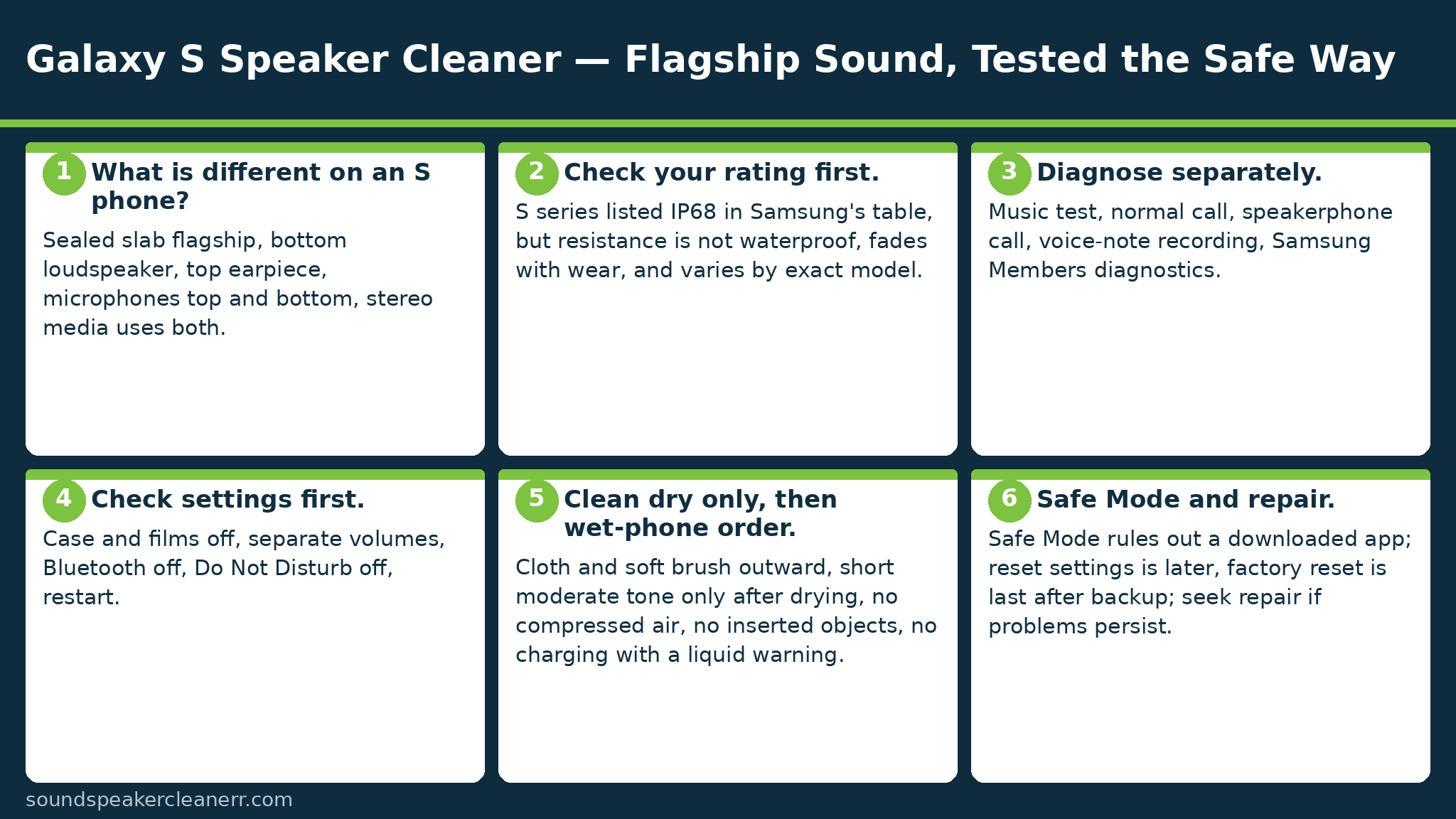
For a Galaxy S, the safe order is: confirm your model's rating, remove the case and films, test loudspeaker, earpiece, and microphone separately, run Samsung Members diagnostics, check separate volumes, Bluetooth, and Do Not Disturb, restart, clean only the outside of the grille, try a short moderate-volume tone only after drying, use Safe Mode to rule out an app, and stop on distortion or no change. That order respects what makes an S phone different — a sealed flagship you rely on every day — and it avoids the two most common mistakes: cleaning the wrong part, and playing louder tones at a wet or damaged phone.
FAQ
How do I clean a Galaxy S speaker safely?
Wipe the grille with a dry, lint-free cloth and brush lightly outward with a soft, dry brush. Do not insert pins or toothpicks, do not use liquids or harsh chemicals, and do not use canned compressed air.
Why does my Galaxy S sound muffled after getting wet?
Water in or on the speaker mesh muffles sound until it dries. Pat the earpiece, microphones, speaker, and USB port with a clean, soft cloth, let the phone air-dry thoroughly before calling, and only then test with a short tone at moderate volume.
Is my Galaxy S waterproof?
No. Samsung lists the S series as water resistant (IP68 in the retrieved rating table), not waterproof, and resistance can diminish over time and does not cover every liquid or high-pressure water. Confirm your exact model's rating before assuming protection.
Why is music one-sided on my Galaxy S?
Media on many S models uses the earpiece together with the loudspeaker for stereo sound, so a blocked earpiece can make music sound thin or one-sided. Test a normal call (earpiece) and a speakerphone call (loudspeaker) separately to find which part is affected.
Should I use compressed air on a Galaxy S speaker?
No. Samsung's guidance warns against cans of compressed air for drying and cleaning. Use a dry cloth and a soft, dry brush with light outward strokes, and stop if packed dirt does not shift.
My Galaxy S got wet. Can I charge it right away?
No, not while a liquid warning is shown. Dry the phone thoroughly with a clean, soft cloth, let it air-dry, and follow Samsung's wet-phone guidance for your exact model before charging. No hour figure is given here because guidance varies by model.
What does Safe Mode prove on a Galaxy S?
If sound works in Safe Mode but fails normally, a downloaded app is the likely cause. If sound still fails in Safe Mode, the cause is more likely a setting, blockage, water, or hardware.
Can a cleaning tone fix a damaged Galaxy S speaker?
No. A short tone may help with light water or loose dust near a speaker opening, but it does not repair a torn, corroded, or electrically damaged speaker, and it does not clean a microphone or a charging port.
Leave a Reply