Author: Owner

  • OxygenOS Speaker Settings: A Safe Troubleshooting Guide

    OxygenOS Speaker Settings: A Safe Troubleshooting Guide

    If your OnePlus phone running OxygenOS suddenly goes quiet, sounds one-sided, or starts sounding distorted, the cause is often a setting rather than a broken speaker. A physical alert control, a separate volume slider, a balance control, a spatial audio option, or a Bluetooth output can each change what you hear, while the speaker itself still works.

    That is good news, because settings checks are quick and reversible. Work through them in order, test after each change, and note the original position of anything you change. Labels and menu positions vary by OxygenOS version, model, region, and carrier, so if a label in this guide does not match your phone, use the search box inside Settings and type the setting name rather than assuming the setting does not exist.

    Test the two speakers separately first

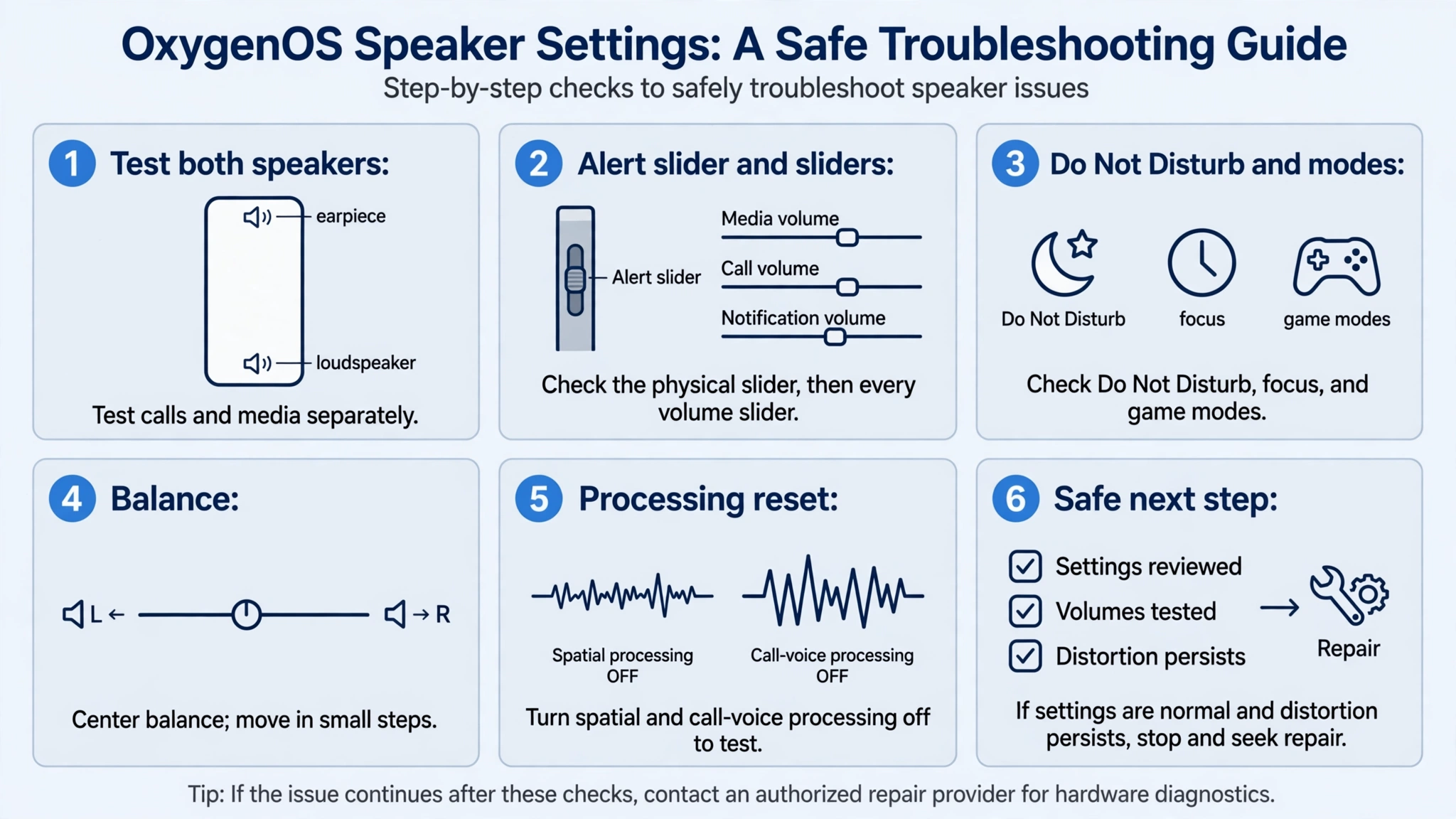
    Before changing anything, find out whether the speaker can make sound at all. Play a short video or a song you know well, then make a test call and listen on the earpiece, then on speakerphone. Media normally uses the loudspeaker, while calls normally use the small earpiece at the top. A problem only during calls points to the earpiece, call volume, or call routing. A problem only with media points to media volume, media output, or a sound effect. A problem with callers hearing you points to the microphone, which is a different part from either speaker.

    Also remove the case for the test. A thick case or a cover that overlaps a grille can muffle sound and look exactly like a settings fault. If sound returns without the case, the case was the problem, and no settings change is needed.

    Check the alert slider first if your phone has one

    Some OnePlus phones have a physical alert slider on the side of the phone, separate from the volume buttons. If your phone has one, check its position before opening any menu. Depending on the model, the slider can switch the phone between ring, vibrate, and silent, and a phone left on silent by the slider will not ring even though every on-screen slider looks fine. Move the slider to the ring position for testing, and only return it to silent or vibrate deliberately afterward.

    Not every OnePlus phone has an alert slider, and its positions vary by model, so do not search for one that is not there. If your phone has no slider, skip this step and move on to the on-screen controls. The slider is worth checking first precisely because it is physical: it can be moved by accident in a pocket or case, and no menu will show why the phone went silent.

    Check the separate volume sliders in Sound and vibration

    OxygenOS does not have one volume control. It has several, and they work independently. Your ringtone can be loud while media is silent, or media can be loud while call volume is low. Open Settings, then the Sound and vibration area, and check each slider in turn: media, ringtone, notifications, and alarms. During a call, press the volume buttons to check call volume separately, because call volume is normally adjusted while a call is active.

    Raise each slider gradually, not straight to maximum. Listen at a moderate, comfortable level first. If a slider is at zero or very low, that alone explains silence for that kind of sound. Do not use maximum volume as a diagnostic tool. Loud sound does not clean a speaker, does not repair damage, and can make distortion worse.

    While you are in the Sound and vibration area, check the sound profile and the ringtone selection. A silent profile, or a ringtone set to none, silences calls and notifications even though media may still play. Set the profile back to sound for testing, and choose a real ringtone and notification sound rather than silence, so the test is meaningful.

    Check Do Not Disturb, including schedules

    Do Not Disturb is a separate control from the alert slider and the silent profile, and it is one of the most common causes of a phone that never rings. Look for Do Not Disturb in the Sound and vibration area or the notifications area, check whether it is on, and check whether it is scheduled to turn on at certain times. A schedule explains a problem that appears every evening and disappears every morning.

    If Do Not Disturb is the cause, you have two safe choices: turn it off, or keep it and add exceptions for the people and apps that should still ring. Do not assume a contact is excepted. Open the exceptions list and confirm it, because an exception that was never added will not help. Also check for any focus or game mode that can silence notifications, since a mode left on after a game or a work session can keep a phone quiet long after the session ended.

    Check audio balance in the accessibility area

    If your OnePlus phone sounds one-sided, the audio balance control is the first suspect, not the speaker. OxygenOS includes a balance slider in the accessibility area on many versions, where it shifts output continuously between the left and right channels. On older versions it was reached through the system and accessibility menus; on newer versions the accessibility layout may differ, so use the Settings search box and search for balance if the older path does not match.

    Move the slider in small steps and test with familiar audio, because large jumps make the change hard to judge. If sound is one-sided, return the slider to the center position and test again. If the imbalance only appears with one headset, check that device's own levels first, because a system-wide balance change will affect every audio source connected to the phone, not just that headset. Mono audio, where present, combines stereo channels into one channel and can help when one side is weaker, but it does not fix a blocked grille or a damaged speaker.

    Note the original position of any accessibility setting before you change it, and restore anything you do not intend to change permanently. Accessibility settings should be adjusted to your needs, not reset blindly, because they may have been set deliberately for hearing assistance.

    Check spatial audio, Dolby Atmos, and call-voice options with care

    OxygenOS offers audio processing options that vary widely by model and version, and they are a common cause of sound that is present but wrong. Holo Audio, where present, is a spatial audio option in the Sound and vibration area with automatic or custom settings. Dolby Atmos, where present, offers sound profiles for different kinds of content. Clear Voice, where present, is aimed at call clarity rather than media. None of these options exists on every OxygenOS phone, and the same label can behave differently on different models.

    If distortion, echo, or muffled media appeared after one of these options was changed, turn it off for testing and listen at a moderate volume. A spatial or heavy preset can make small phone speakers sound harsh or hollow, and the fix is simply to undo the preset. Test with all processing off first. Only after clear sound returns should you re-enable one option at a time, testing after each change, rather than turning everything back on at once and losing track of the culprit.

    Treat these options as listening preferences, not repairs. They can change tone and spaciousness, but they cannot unblock a grille, eject water reliably, or repair a damaged speaker. If distortion persists at moderate volume with all processing off, the problem is probably not a setting. Also note that some OxygenOS builds include a speaker-cleaning tool in quick settings that plays sound through the speaker. Availability varies, and it is not a guaranteed fix: sound does not always eject water or dust, and it cannot repair damage.

    Check where the sound is going

    A phone with a working speaker can still sound silent if it is sending audio elsewhere. Bluetooth headphones, a car system, a smart speaker, or wired earphones can all take over output, sometimes without an obvious indicator. Turn Bluetooth off temporarily, unplug any wired audio accessory, and test again. If sound returns, the speaker was never broken; the output was routed elsewhere. Also check the media output control in quick settings or the volume panel, where your phone may list the phone speaker alongside connected devices. Choose the phone speaker for the test, and only switch back to another device when you intend to use it.

    If only one app is silent, check that app's own volume, mute, and notification settings before blaming the whole phone. A video app can be muted inside the app while system volume is fine, and a messaging app can have its notification sound turned off while calls still ring.

    Keep the distinction between parts in mind throughout. The loudspeaker, the earpiece, the microphone, and the charging port are different parts with different checks. Cleaning the wrong opening, or treating a microphone problem as a speaker problem, wastes time and can cause damage.

    When settings are not the cause

    If the alert slider is on ring where present, every slider is up, Do Not Disturb and any focus or game mode are off, balance is centered, audio processing is off, and no Bluetooth device is connected, yet sound is still absent or distorted, the problem is probably not settings. Check gently for dust or lint blocking a grille, and check whether the phone got wet. For a wet phone, follow the manufacturer's guidance first, let the phone dry completely, and do not charge it while a liquid warning is present. Sound does not always eject water or dust, and it cannot repair damage, so do not keep raising the volume in the hope that repetition will fix it.

    Stop and seek repair if you hear persistent crackling or distortion at moderate volume, if sound stays quiet after drying, if a grille or case is visibly damaged, or if the phone was submerged. Do not open the phone yourself unless you are qualified, do not insert sharp objects into a grille, and do not use high-pressure air or liquid cleaners.

    A safe order to remember

    The safest OxygenOS troubleshooting order is: test the loudspeaker and earpiece separately, then the alert slider where present, then volume sliders, then sound profile and ringtone, then Do Not Disturb and its schedule, then audio balance, then spatial and call-voice processing, then Bluetooth and media output, then physical checks, then repair. Most OxygenOS speaker silences turn out to be the slider, a volume control, a balance setting, or a routed output. Checking those first saves a cleaning attempt on a clean speaker and a repair visit for a muted phone.

    FAQ

    1. Why is my OnePlus phone silent even though the volume is up?

    Check the physical alert slider first if your phone has one: it can leave the phone on silent even when every on-screen slider looks fine. Then check the separate volume sliders, the sound profile, Do Not Disturb, and whether sound is routed to Bluetooth.

    2. Why does my OxygenOS phone sound one-sided?

    Check the audio balance slider in the accessibility area, where present. If it is shifted to one side, return it to the center position and test again. A blocked grille or a damaged speaker can also cause one-sided sound, so check the grille gently if balance does not explain it.

    3. Can Holo Audio or Dolby Atmos make my OnePlus speaker sound distorted?

    Yes. A spatial or heavy preset can make small phone speakers sound harsh or hollow, especially at higher volumes. Turn the processing off for testing, at a moderate volume, before concluding the speaker is damaged.

    4. What is Clear Voice on OxygenOS?

    It is a call-clarity option found under sound settings on some OxygenOS builds. It is aimed at calls, not media, so it will not fix a media speaker problem, and its availability varies by model and version.

    5. Do all OnePlus phones have an alert slider?

    No. Some OnePlus phones have a physical alert slider and some do not, and its positions vary by model. If your phone has no slider, skip that step and use the on-screen sound profile and Do Not Disturb controls instead.

    6. Can a game or focus mode silence my OnePlus phone?

    Yes. A mode left on after a game or a work session can keep notifications quiet long after the session ended. Check for any active focus or game mode, along with Do Not Disturb and its schedule, if a phone keeps going quiet.

    7. My OxygenOS speaker is still muffled after checking settings. What next?

    Check gently for dust or lint, and check whether the phone got wet. Follow the manufacturer's drying guidance for a wet device, and do not keep raising the volume. If distortion persists at moderate volume after drying, seek repair rather than repeating tones.
    Related tools on this site

    Related guides on this site

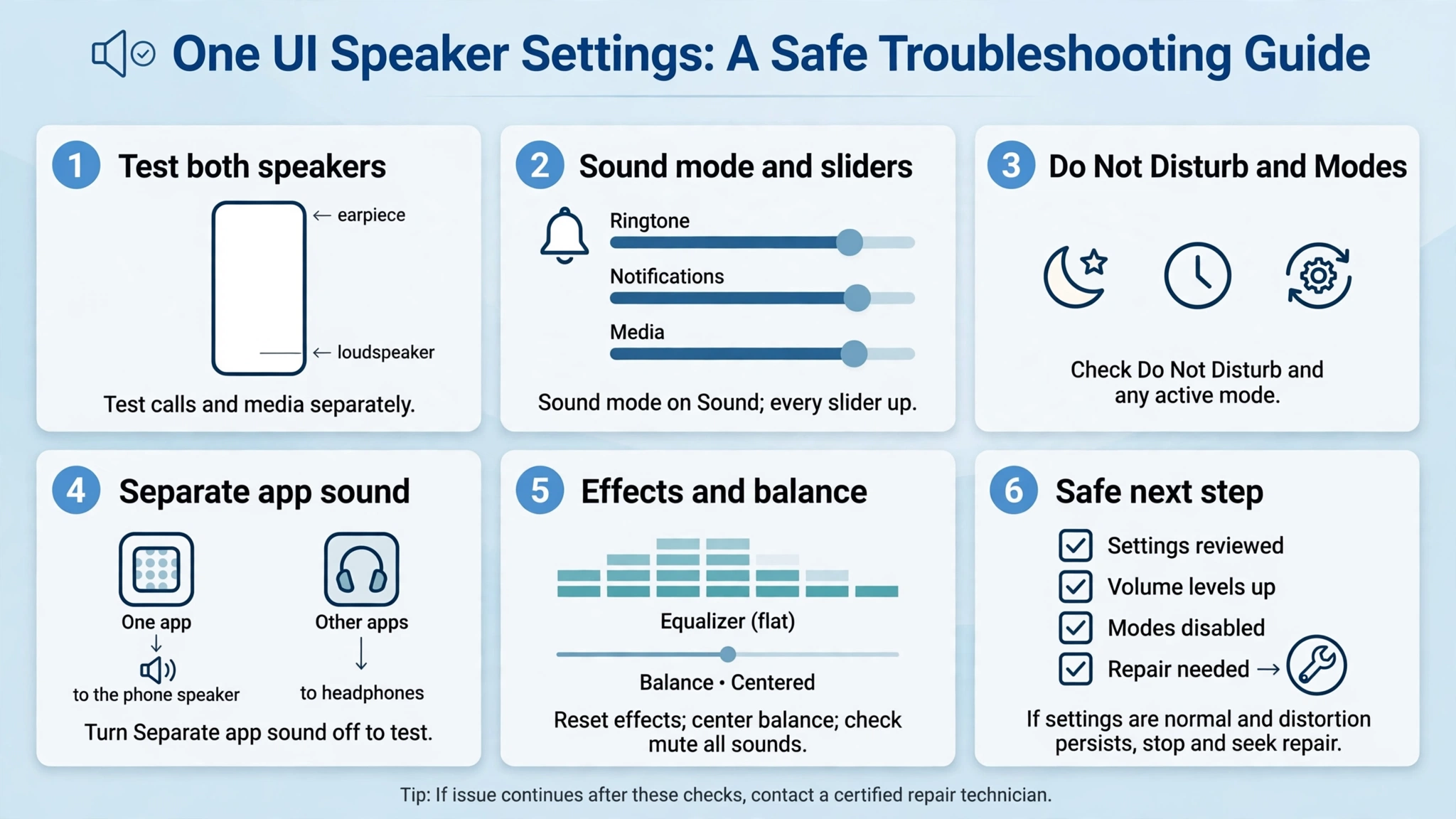
  • One UI Speaker Settings: A Safe Troubleshooting Guide

    One UI Speaker Settings: A Safe Troubleshooting Guide

    If your Samsung Galaxy phone running One UI suddenly goes quiet, plays only through another device, or starts sounding distorted, the cause is often a setting rather than a broken speaker. A separate volume slider, a sound mode, a per-app output choice, a routine, or a sound effect can each change what you hear, while the speaker itself still works.

    That is good news, because settings checks are quick and reversible. Work through them in order, test after each change, and note the original position of anything you change. Labels and menu positions vary by One UI version, model, region, and carrier, so if a label in this guide does not match your phone, use the search box inside Settings and type the setting name rather than assuming the setting does not exist.

    Test the two speakers separately first

    Before changing anything, find out whether the speaker can make sound at all. Play a short video or a song you know well, then make a test call and listen on the earpiece, then on speakerphone. Media normally uses the loudspeaker, while calls normally use the small earpiece at the top. A problem only during calls points to the earpiece, call volume, or call routing. A problem only with media points to media volume, media output, or a sound effect. A problem with callers hearing you points to the microphone, which is a different part from either speaker.

    Also remove the case for the test. A thick case or a cover that overlaps a grille can muffle sound and look exactly like a settings fault. If sound returns without the case, the case was the problem, and no settings change is needed.

    Check sound mode and the separate volume sliders

    One UI keeps sound mode and volume separate, and both can silence a phone. Open Settings, then the Sounds and vibration area. First confirm the sound mode is set to Sound, not Vibrate or Mute. A phone on Mute will not ring or play notification sounds, even though media may still play, and a phone on Vibrate will buzz instead of ringing.

    Next, open the volume area and check each slider in turn: ringtone, notifications, media, calls, and system sounds. Pressing a volume button during playback normally adjusts only the stream that is active at that moment, so a media slider that looks fine while a video is paused tells you nothing about the ringtone slider. Raise each slider gradually, not straight to maximum, and listen at a moderate, comfortable level. If a slider is at zero or very low, that alone explains silence for that kind of sound. Do not use maximum volume as a diagnostic tool. Loud sound does not clean a speaker, does not repair damage, and can make distortion worse.

    While you are here, check that a real ringtone and notification sound are selected, not silence. A ringtone set to none produces exactly the same symptom as a broken speaker for incoming calls, and it is fixed in seconds once found.

    Check Do Not Disturb, Modes, and Routines

    Do Not Disturb on One UI lives in the notifications area, not only in quick settings, and it is easy to leave on by accident or on a schedule. Open the Do Not Disturb area, check whether it is on now, and check whether a schedule is set to turn it on again. A schedule explains a problem that appears every evening and disappears every morning. If Do Not Disturb is the cause, turn it off for testing, or keep it and add exceptions for the people and apps that should still ring. Do not assume a contact is excepted; open the exceptions list and confirm it.

    One UI also has Modes and Routines, such as Sleep or Driving, that can mute sound automatically. A routine can re-silence a phone even after you have turned Do Not Disturb off by hand, which is why a problem that keeps returning deserves a check here. Open the Modes and Routines area and turn off any active mode for testing. If sound returns, the mode was the cause, and you can then decide whether to keep the mode with a sound exception or delete the routine.

    Check Separate app sound: the One UI routing trap

    Separate app sound is the One UI feature most likely to confuse troubleshooting, because it is designed to split audio on purpose. When it is on, a chosen app can play through the phone speaker while everything else uses a Bluetooth device, or a chosen app can play through Bluetooth while everything else uses the speaker. That means sound can work in most apps and fail in exactly one, or work through headphones and fail through the speaker, without any hardware fault at all.

    Samsung's own troubleshooting guidance lists disabling Separate app sound if it is not needed as one of the first settings checks. Open the Sounds and vibration area, find Separate app sound, and turn it off for testing. If the silent app suddenly plays through the phone speaker, routing was the cause. Restore the feature afterward only if you actually want per-app routing, and note that it cannot assign different apps to different Bluetooth devices — the choice is the phone speaker or the single connected Bluetooth device.

    If only one app is silent and Separate app sound is already off, check that app's own volume, mute, and notification settings before blaming the whole phone. A video app can be muted inside the app while system volume is fine, and a messaging app can have its notification sound turned off while calls still ring.

    Check sound quality and effects before blaming the speaker

    One UI's Sound quality and effects area, where present, holds several controls that can change how the built-in speaker sounds. Dolby Atmos processing, an equalizer, and Adapt Sound — a personalized hearing profile — can each make audio quieter, harsher, or muffled if they are miscalibrated or if a preset does not suit the phone's small speakers. Availability and labels vary by model and version.

    If distortion, tinny sound, or quiet call audio appeared after an update or after an effect was changed, reset this area for testing: turn Dolby Atmos off, return the equalizer to its Normal or default preset, and turn Adapt Sound off. Test at a moderate volume with a song and a call you know well. If clear sound returns, the effect was the cause. You can then re-enable one effect at a time, testing after each change, rather than turning everything back on at once and losing track of the culprit. If distortion persists at moderate volume with all effects off, the problem is probably not a setting.

    Check hearing enhancements: balance and mute all sounds

    One UI places hearing options in the accessibility area, under hearing enhancements on many versions. Samsung's own guidance names two checks here: left and right sound balance, and mute all sounds. A balance control shifted to one side makes a phone sound quiet or one-sided. A mute-all-sounds toggle, where present, turns off all sounds including calls and alerts. Both can look like a speaker fault, and both are fixed in seconds once found.

    If sound is one-sided, center the balance control and test again. If all sound is gone, check for a mute-all-sounds toggle and turn it off for testing. Note the original position of any accessibility setting before you change it, and restore anything you do not intend to change permanently. Accessibility settings should be adjusted to your needs, not reset blindly, because they may have been set deliberately for hearing assistance.

    Check Bluetooth and other outputs last in the settings layer

    A phone with a working speaker can still sound silent if it is sending audio elsewhere. Bluetooth headphones, a car system, a smart speaker, or a wired accessory can all take over output. Turn Bluetooth off temporarily, unplug any wired audio accessory, and test again. If sound returns, the speaker was never broken; the output was routed elsewhere. Also check the media output control in quick settings or the volume panel, where your phone may list the phone speaker alongside connected devices. Choose the phone speaker for the test, and only switch back to another device when you intend to use it.

    Keep the distinction between parts in mind throughout. The loudspeaker, the earpiece, the microphone, and the charging port are different parts with different checks. Cleaning the wrong opening, or treating a microphone problem as a speaker problem, wastes time and can cause damage.

    When settings are not the cause

    If sound mode is Sound, every slider is up, Do Not Disturb and every mode are off, Separate app sound is off, effects are default, balance is centered, mute all sounds is off, and no Bluetooth device is connected, yet sound is still absent or distorted, the problem is probably not settings. Check gently for dust or lint blocking a grille, and check whether the phone got wet. For a wet phone, follow the manufacturer's guidance first: Samsung's guidance includes turning the device off if wet and drying the speaker, microphone, and USB port areas with a soft, clean cloth, and letting the phone dry completely. Do not charge it while a liquid warning is present. Sound does not always eject water or dust, and it cannot repair damage, so do not keep raising the volume in the hope that repetition will fix it.

    Stop and seek repair if you hear persistent crackling or distortion at moderate volume, if sound stays quiet after drying, if a grille or case is visibly damaged, or if the phone was submerged. Do not open the phone yourself unless you are qualified, do not insert sharp objects into a grille, and do not use high-pressure air or liquid cleaners.

    A safe order to remember

    The safest One UI troubleshooting order is: test the loudspeaker and earpiece separately, then sound mode and volume sliders, then ringtone selection, then Do Not Disturb and Modes and Routines, then Separate app sound, then sound quality and effects, then hearing enhancements, then Bluetooth and media output, then physical checks, then repair. Most One UI speaker silences turn out to be a mode, a slider, a routine, or a routed output. Checking those first saves a cleaning attempt on a clean speaker and a repair visit for a muted phone.

    FAQ

    1. Why is my One UI phone silent even though the volume is up?

    Because One UI has separate sliders for ringtone, notifications, media, calls, and system sounds, and a separate sound mode. Check that sound mode is Sound, not Vibrate or Mute, and check each slider, not just the one shown by the volume buttons.

    2. What is Separate app sound, and why does it silence one app?

    It routes a chosen app to a different output from the rest of the phone — for example, one app through the phone speaker while the rest use Bluetooth. Turn it off for testing if only one app is silent or plays elsewhere. Restore it only if you want that behavior.

    3. Can Modes and Routines silence my Galaxy phone?

    Yes. A Sleep, Driving, or custom routine can mute sound automatically and can re-silence the phone after you turn Do Not Disturb off by hand. Check the Modes and Routines area and turn off any active mode for testing.

    4. Can Dolby Atmos or Adapt Sound make my Galaxy speaker sound distorted?

    Yes. A sound effect, a heavy equalizer preset, or a miscalibrated Adapt Sound profile can make audio harsh, tinny, or quiet. Return effects to default and Adapt Sound to off for testing, at a moderate volume, before concluding the speaker is damaged.

    5. Why does my One UI phone sound one-sided?

    Check the left and right sound balance control in the accessibility area under hearing enhancements, where present. If it is shifted to one side, center it and test again. A blocked grille or a damaged speaker can also cause one-sided sound, so check the grille gently if balance does not explain it.

    6. Why does my phone play videos but never ring?

    That pattern points to a setting, not the speaker. Check sound mode, the ringtone and notification sliders, a ringtone set to none, Do Not Disturb, and any active mode or routine. Media uses different sliders and is often unaffected by Do Not Disturb.

    7. My One UI speaker is still muffled after checking settings. What next?

    Check gently for dust or lint, and check whether the phone got wet. Follow the manufacturer's drying guidance for a wet device, and do not keep raising the volume. If distortion persists at moderate volume after drying, seek repair rather than repeating tones.
    Related tools on this site

    Related guides on this site

  • HyperOS Speaker Settings: A Safe Troubleshooting Guide

    HyperOS Speaker Settings: A Safe Troubleshooting Guide

    If your Xiaomi, Redmi, or POCO phone running HyperOS suddenly goes quiet or starts sounding distorted, the cause is often a setting rather than a broken speaker. A separate volume slider, a silence mode, a Bluetooth output, or a sound-effects preset can each change what you hear, while the speaker itself still works.

    That is good news, because settings checks are quick and reversible. Work through them in order, test after each change, and note the original position of anything you change. Labels and menu positions vary by HyperOS version, model, region, and carrier, so if a label in this guide does not match your phone, use the search box inside Settings and type the setting name rather than assuming the setting does not exist.

    Test the two speakers separately first

    Before changing anything, find out whether the speaker can make sound at all. Play a short video or a song you know well, then make a test call and listen on the earpiece, then on speakerphone. Media normally uses the loudspeaker, while calls normally use the small earpiece at the top. A problem only during calls points to the earpiece, call volume, or call routing. A problem only with media points to media volume, media output, or a sound effect. A problem with callers hearing you points to the microphone, which is a different part from either speaker.

    Also remove the case for the test. A thick case or a cover that overlaps a grille can muffle sound and look exactly like a settings fault. If sound returns without the case, the case was the problem, and no settings change is needed.

    Check the separate volume sliders in Sound and vibration

    HyperOS does not have one volume control. It has several, and they work independently. Your ringtone can be loud while media is silent, or media can be loud while call volume is low. Open Settings, then the Sound and vibration area, and check each slider in turn: media, ringtone, notifications, and alarms. During a call, press the volume buttons to check call volume separately, because call volume is normally adjusted while a call is active.

    Raise each slider gradually, not straight to maximum. Listen at a moderate, comfortable level first. If a slider is at zero or very low, that alone explains silence for that kind of sound. Do not use maximum volume as a diagnostic tool. Loud sound does not clean a speaker, does not repair damage, and can make distortion worse.

    While you are in the Sound and vibration area, check the sound profile and the ringtone selection. A silent profile, or a ringtone set to none, silences calls and notifications even though media may still play. Set the profile back to sound for testing, and choose a real ringtone and notification sound rather than silence, so the test is meaningful.

    Check Do Not Disturb, including schedules

    Do Not Disturb is a separate control from the silent profile, and it is one of the most common causes of a phone that never rings. On some HyperOS builds, Do Not Disturb can also mute media, so do not assume media is unaffected. Look for Do Not Disturb in the Sound and vibration area or the notifications area, check whether it is on, and check whether it is scheduled to turn on at certain times. A schedule explains a problem that appears every evening and disappears every morning.

    If Do Not Disturb is the cause, you have two safe choices: turn it off, or keep it and add exceptions for the people and apps that should still ring. Do not assume a contact is excepted. Open the exceptions list and confirm it, because an exception that was never added will not help.

    Check sound effects and the equalizer before blaming the speaker

    This is the HyperOS step most often missed, and it is what distinguishes HyperOS troubleshooting from a generic Android check. Inside the Sound and vibration area, some HyperOS phones offer a Sound effects area. Where offered, it may let you choose between sound-effect systems and open a graphic equalizer with presets. Availability, names, and presets vary by model and version, so your phone may show one system, both, or neither.

    If distortion, harshness, or muffled sound appeared after a sound effect or preset was changed, return the effect to its default or off position and test at a moderate volume. A heavy preset can push small phone speakers into distortion, especially at higher volumes, and the fix is simply to undo the preset. Test with the equalizer flat or off first. Only after clear sound returns should you reapply a gentler preset, one change at a time, testing after each change.

    Treat sound effects as listening preferences, not repairs. They can change tone and spaciousness, but they cannot unblock a grille, eject water reliably, or repair a damaged speaker. If distortion persists at moderate volume with all effects off, the problem is probably not a setting.

    Check where the sound is going

    A phone with a working speaker can still sound silent if it is sending audio elsewhere. Bluetooth headphones, a car system, a smart speaker, or wired earphones can all take over output, sometimes without an obvious indicator. Xiaomi's own support guidance lists a connected Bluetooth headset as one of the first things to check, and it also warns about a phone that mistakenly detects a wired headset when none is connected. If the status bar shows a headset icon while nothing is plugged in, that false detection is a likely cause. Gently check the port area and reconnect and disconnect a wired accessory once to clear it. Do not insert sharp objects into any port or grille.

    Turn Bluetooth off temporarily, unplug any wired audio accessory, and test again. If sound returns, the speaker was never broken; the output was routed elsewhere. Some apps also hold an audio channel without playing anything, so close background apps and reopen only the app you want to test if sound seems stuck after disconnecting Bluetooth. If only one app is silent, check that app's own volume, mute, and notification settings before blaming the whole phone.

    Check hearing and accessibility options

    HyperOS places hearing-related options in the accessibility area. Two of them can look like a speaker fault. Mono audio combines stereo channels into one channel, which can help when one side is weaker but does not fix a blocked grille or a damaged speaker. A left and right balance control, where present, can shift sound to one side, which makes a phone sound quiet or one-sided. If sound is one-sided, center the balance control and test again.

    Note the original position of any accessibility setting before you change it, and restore anything you do not intend to change permanently. Accessibility settings should be adjusted to your needs, not reset blindly, because they may have been set deliberately for hearing assistance.

    Use the built-in hardware test where your phone offers it

    Xiaomi's support pages describe a built-in hardware test that can play test audio through the speaker and earpiece independently. The code and menu layout vary by model and version, and not every phone presents it the same way, so do not rely on a code copied from an unrelated guide. If your phone offers a hardware test through its support or diagnostics area, use it only to answer one question: does the speaker make sound at all? A test that plays clearly points back to settings or routing. A test that stays silent or distorted points toward cleaning or repair.

    Keep the distinction between parts in mind throughout. The loudspeaker, the earpiece, the microphone, and the charging port are different parts with different checks. Cleaning the wrong opening, or treating a microphone problem as a speaker problem, wastes time and can cause damage.

    When settings are not the cause

    If every slider is up, no silence profile or Do Not Disturb schedule is on, sound effects are off or default, no Bluetooth device is connected, no false headset detection is showing, accessibility options are normal, and sound is still absent or distorted, the problem is probably not settings. Check gently for dust or lint blocking a grille, and check whether the phone got wet. For a wet phone, follow the manufacturer's guidance first, let the phone dry completely, and do not charge it while a liquid warning is present. Sound does not always eject water or dust, and it cannot repair damage, so do not keep raising the volume in the hope that repetition will fix it.

    Stop and seek repair if you hear persistent crackling or distortion at moderate volume, if sound stays quiet after drying, if a grille or case is visibly damaged, or if the phone was submerged. Do not open the phone yourself unless you are qualified, do not insert sharp objects into a grille, and do not use high-pressure air or liquid cleaners.

    A safe order to remember

    The safest HyperOS troubleshooting order is: test the loudspeaker and earpiece separately, then volume sliders, then sound profile and ringtone, then Do Not Disturb and its schedule, then sound effects and equalizer, then Bluetooth and headset detection, then accessibility balance, then the hardware test where available, then physical checks, then repair. Most HyperOS speaker problems turn out to be a slider, a profile, a routed output, or a preset. Checking those first saves a cleaning attempt on a clean speaker and a repair visit for a muted phone.

    FAQ

    1. Why is my HyperOS phone silent even though the volume is up?

    Because HyperOS has separate sliders for media, ringtone, notifications, alarms, and calls. Check each slider, not just the one shown by the volume buttons. Also check the sound profile, Do Not Disturb, and whether sound is routed to Bluetooth or a headset.

    2. Can a sound effect make my HyperOS speaker sound distorted?

    Yes. A heavy sound-effects preset or equalizer setting can push small phone speakers into harshness or distortion, especially at higher volumes. Return the effect to its default or off position and test at a moderate volume before concluding the speaker is damaged.

    3. Can Do Not Disturb mute media on HyperOS?

    On some HyperOS builds, yes, which is why media silence should not be used to rule out Do Not Disturb. Check whether Do Not Disturb is on now and whether a schedule is set to turn it on again.

    4. Why does my HyperOS phone show a headset icon when nothing is plugged in?

    The phone may be mistakenly detecting a wired headset, which routes sound away from the built-in speaker. Disconnect any accessory, gently check the port area, and test again. Do not insert sharp objects into the port.

    5. What is the difference between MIUI and HyperOS sound settings?

    HyperOS is Xiaomi's successor skin to MIUI. The core areas are similar — Sound and vibration, separate sliders, Do Not Disturb, and routing — but HyperOS adds or renames the sound-effects area on many models, and labels vary by version, model, region, and carrier. Use the Settings search box when a label does not match.

    6. Why does my HyperOS phone sound one-sided?

    Check the left and right balance control in the accessibility area, where present. If it is shifted to one side, center it and test again. A blocked grille or a damaged speaker can also cause one-sided sound, so check the grille gently if balance does not explain it.

    7. My HyperOS speaker is still muffled after checking settings. What next?

    Check gently for dust or lint, and check whether the phone got wet. Follow the manufacturer's drying guidance for a wet device, and do not keep raising the volume. If distortion persists at moderate volume after drying, seek repair rather than repeating tones.
    Related tools on this site

    Related guides on this site

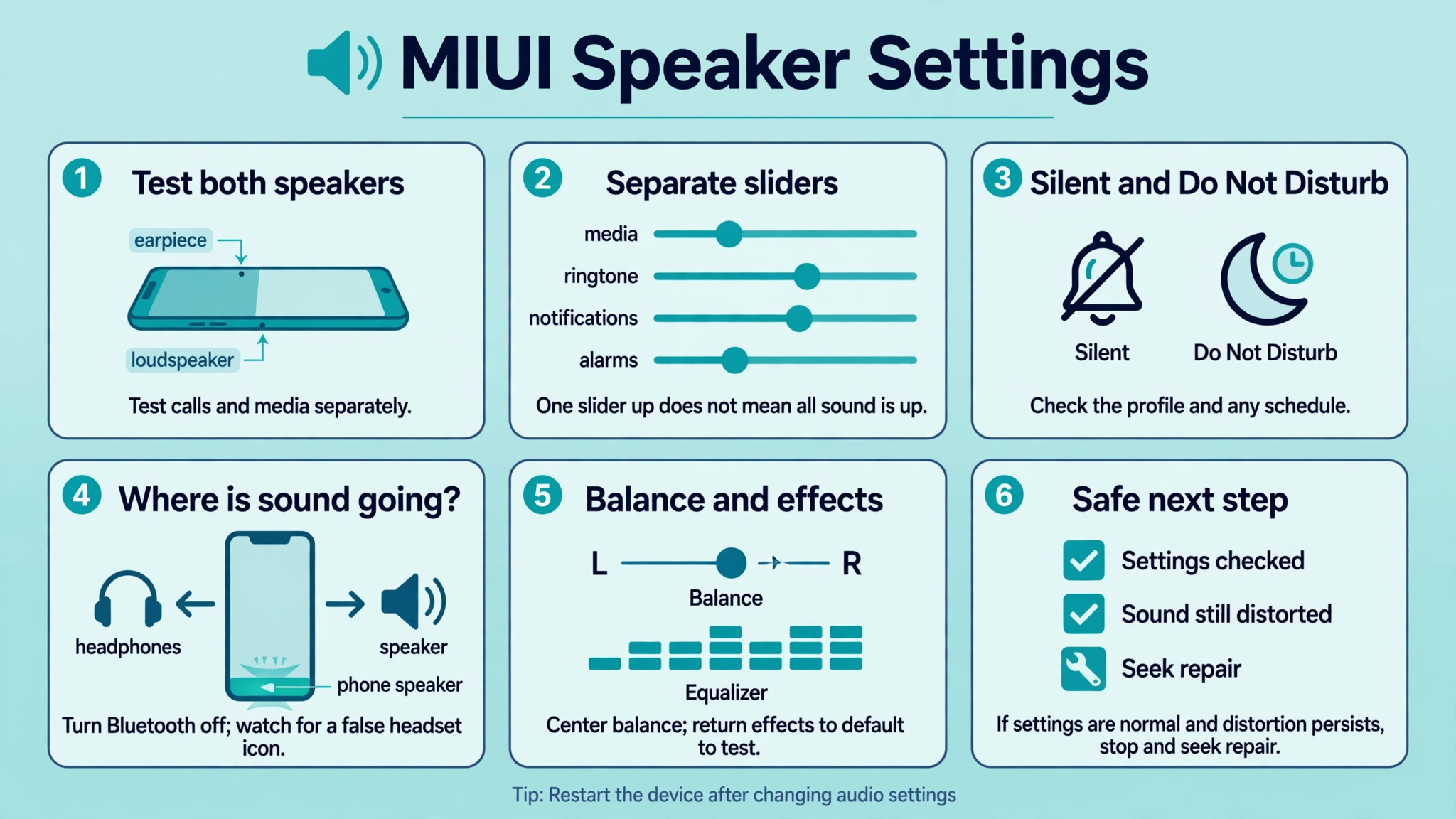
  • MIUI Speaker Settings: A Safe Troubleshooting Guide

    MIUI Speaker Settings: A Safe Troubleshooting Guide

    If your Xiaomi, Redmi, or POCO phone running MIUI suddenly goes quiet, the cause is often a setting rather than a broken speaker. A separate volume slider, a silence mode, a Bluetooth output, or a hearing option can each send sound somewhere you do not expect, while the speaker itself still works.

    That is good news, because settings checks are quick and reversible. Work through them in order, test after each change, and note the original position of anything you change. Labels and menu positions vary by MIUI version, model, region, and carrier, so if a label in this guide does not match your phone, use the search box inside Settings and type the setting name rather than assuming the setting does not exist.

    Test the two speakers separately first

    Before changing anything, find out whether the speaker can make sound at all. Play a short video or a song you know well, then make a test call and listen on the earpiece, then on speakerphone. Media normally uses the loudspeaker at the bottom of the phone, while calls normally use the small earpiece at the top. A problem only during calls points to the earpiece, call volume, or call routing. A problem only with media points to media volume or media output. A problem with callers hearing you points to the microphone, which is a different part from either speaker.

    Also remove the case for the test. A thick case or a cover that overlaps a grille can muffle sound and look exactly like a settings fault. If sound returns without the case, the case was the problem, and no settings change is needed.

    Check the separate volume sliders in Sound and vibration

    MIUI does not have one volume control. It has several, and they work independently. Your ringtone can be loud while media is silent, or media can be loud while call volume is low. Open Settings, then the Sound and vibration area, and check each slider in turn: media, ringtone, notifications, and alarms. During a call, press the volume buttons to check call volume separately, because call volume is only adjustable while a call is active on many phones.

    Raise each slider gradually, not straight to maximum. Listen at a moderate, comfortable level first. If a slider is at zero or very low, that alone explains silence for that kind of sound. If a slider moves but no sound follows, note which kind of sound is affected, because that narrows the next step. Do not use maximum volume as a diagnostic tool. Loud sound does not clean a speaker, does not repair damage, and can make distortion worse.

    While you are in the Sound and vibration area, check the sound profile. MIUI phones can sit in a silent or vibrate profile that is easy to leave on by accident, and the quick settings panel may show the current profile. If the phone is silent, ringtones and notifications will not play through the speaker even though media may still play. Set the profile back to sound for testing, and only restore a silent profile deliberately afterward.

    Check Do Not Disturb, including schedules

    Do Not Disturb is a separate control from the silent profile, and it is one of the most common causes of a phone that never rings. In the Sound and vibration area, or in the notifications area depending on your MIUI version, look for Do Not Disturb, check whether it is on, and check whether it is scheduled to turn on at certain times. A schedule explains a problem that appears every evening and disappears every morning.

    If Do Not Disturb is the cause, you have two safe choices: turn it off, or keep it and add exceptions for the people and apps that should still ring. Do not assume a contact is excepted. Open the exceptions list and confirm it, because an exception that was never added will not help.

    Check where the sound is going

    A phone with a working speaker can still sound silent if it is sending audio elsewhere. Bluetooth headphones, a car system, a smart speaker, or wired earphones can all take over output, sometimes without an obvious indicator. Xiaomi's own support guidance lists a connected Bluetooth headset as one of the first things to check, and it also warns about a phone that mistakenly detects a wired headset when none is connected. If the status bar shows a headset icon while nothing is plugged in, that false detection is a likely cause, and gently cleaning the port area and reconnecting and disconnecting a wired accessory once may clear it. Do not insert sharp objects into any port or grille.

    Turn Bluetooth off temporarily, unplug any wired audio accessory, and test again. If sound returns, the speaker was never broken; the output was routed elsewhere. Some apps also hold an audio channel without playing anything, so close background apps and reopen only the app you want to test if sound seems stuck after disconnecting Bluetooth. If only one app is silent, check that app's own volume, mute, and notification settings before blaming the whole phone.

    Check hearing and accessibility options

    MIUI places hearing-related options in the accessibility area, on many versions under Additional Settings. Two of them can look like a speaker fault. Mono audio combines stereo channels into one channel, which can help when one side is weaker but does not fix a blocked grille or a damaged speaker. A left and right balance control, where present, can shift sound to one side, which makes a phone sound quiet or one-sided. If sound is one-sided, center the balance control and test again.

    Note the original position of any accessibility setting before you change it, and restore anything you do not intend to change permanently. Accessibility settings should be adjusted to your needs, not reset blindly, because they may have been set deliberately for hearing assistance.

    Check sound effects and enhancements with care

    Some MIUI phones include a sound enhancement or equalizer area inside Sound and vibration. Where present, it may offer presets or an equalizer for music and media. An extreme preset can make small phone speakers sound harsh or distorted at higher volumes, especially if bass is pushed hard. If distortion appeared after an enhancement was changed, return the enhancement to its default or off position and test at a moderate volume before concluding the speaker is damaged.

    Not every MIUI phone has the same sound effects, and the same label can behave differently on different models. Treat any enhancement as a preference, not a repair. If turning an enhancement off restores clear sound, leave it off or use a gentler preset. If distortion persists at moderate volume with enhancements off, the problem is probably not a setting.

    Use the built-in hardware test where your phone offers it

    Xiaomi's support pages describe a built-in hardware test, sometimes called CIT, that can play test audio through the speaker and earpiece independently. The code and menu layout vary by model and version, and not every phone presents it the same way, so do not rely on a code copied from an unrelated guide. If your phone offers a hardware test through its support or diagnostics area, use it only to answer one question: does the speaker make sound at all? A test that plays clearly points back to settings or routing. A test that stays silent or distorted points toward cleaning or repair.

    Keep the distinction between parts in mind throughout. The loudspeaker, the earpiece, the microphone, and the charging port are different parts with different checks. Cleaning the wrong opening, or treating a microphone problem as a speaker problem, wastes time and can cause damage.

    When settings are not the cause

    If every slider is up, no silence profile or Do Not Disturb schedule is on, no Bluetooth device is connected, no false headset detection is showing, accessibility options are normal, and sound is still absent or distorted, the problem is probably not settings. Check gently for dust or lint blocking a grille, and check whether the phone got wet. For a wet phone, follow the manufacturer's guidance first, let the phone dry completely, and do not charge it while a liquid warning is present. Sound does not always eject water or dust, and it cannot repair damage, so do not keep raising the volume in the hope that repetition will fix it.

    Stop and seek repair if you hear persistent crackling or distortion at moderate volume, if sound stays quiet after drying, if a grille or case is visibly damaged, or if the phone was submerged. Do not open the phone yourself unless you are qualified, do not insert sharp objects into a grille, and do not use high-pressure air or liquid cleaners.

    A safe order to remember

    The safest MIUI troubleshooting order is: test the loudspeaker and earpiece separately, then volume sliders, then sound profile, then Do Not Disturb and its schedule, then Bluetooth and headset detection, then accessibility balance, then sound effects, then the hardware test where available, then physical checks, then repair. Most MIUI speaker silences turn out to be a slider, a profile, or a routed output. Checking those first saves a cleaning attempt on a clean speaker and a repair visit for a muted phone.

    FAQ

    1. Why is my MIUI phone silent even though the volume is up?

    Because MIUI has separate sliders for media, ringtone, notifications, alarms, and calls. Check each slider, not just the one shown by the volume buttons. Also check the sound profile, Do Not Disturb, and whether sound is routed to Bluetooth or a headset.

    2. How do I check call volume on MIUI?

    Call volume is separate from media volume and is normally adjusted during an active call. Make a test call, press the volume buttons during the call, and listen on the earpiece first, then on speakerphone, to separate an earpiece problem from a loudspeaker problem.

    3. Can Do Not Disturb silence my MIUI phone on a schedule?

    Yes. Do Not Disturb can be scheduled, so a phone can miss calls every evening and ring normally every morning. Check both whether Do Not Disturb is on now and whether a schedule is set to turn it on again.

    4. Why does my MIUI phone show a headset icon when nothing is plugged in?

    The phone may be mistakenly detecting a wired headset, which routes sound away from the built-in speaker. Disconnect any accessory, gently check the port area, and test again. Do not insert sharp objects into the port.

    5. What is the MIUI clean speaker option, and should I use it?

    Some MIUI models offer a speaker-cleaning option that plays sound through the speaker. Availability and location vary by model and version, so it may not exist on your phone. It is not a guaranteed fix: sound does not always eject water or dust, and it cannot repair damage.

    6. Why does my MIUI phone sound one-sided?

    Check the left and right balance control in the accessibility area, where present. If it is shifted to one side, center it and test again. A blocked grille or a damaged speaker can also cause one-sided sound, so check the grille gently if balance does not explain it.

    7. My MIUI speaker is still muffled after checking settings. What next?

    Check gently for dust or lint, and check whether the phone got wet. Follow the manufacturer's drying guidance for a wet device, and do not keep raising the volume. If distortion persists at moderate volume after drying, seek repair rather than repeating tones.

    Related tools on this site

    Related guides on this site

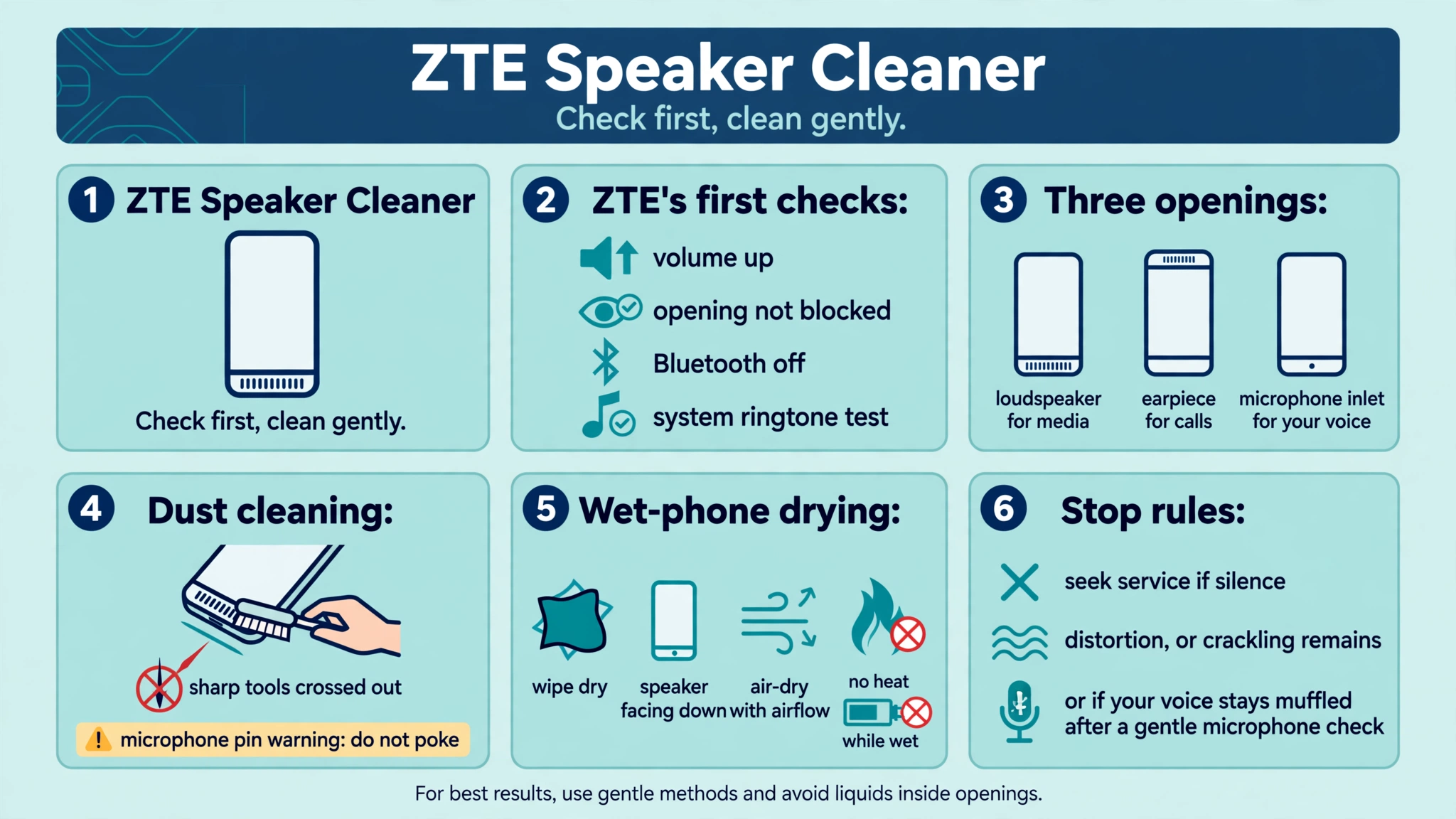
  • ZTE Speaker Cleaner: A Safe Guide to Clear Sound

    ZTE Speaker Cleaner: A Safe Guide to Clear Sound

    A ZTE phone speaker usually sounds muffled because dust, lint, or water is blocking the small speaker grille, or because something simple — a blocked opening, a Bluetooth routing, or an app left on earpiece mode — is sending sound elsewhere. Start with ZTE's own support checks: turn the volume up, check that nothing blocks the speaker opening, disconnect Bluetooth, and test with the system ringtone. Then clean the grille gently with a dry soft brush if it is dusty, or air-dry the phone fully if it got wet. If sound stays distorted, silent, or crackling after those steps, stop and seek repair rather than pushing tools into the grille.

    Which ZTE phones this guide covers

    This is a parent guide for ZTE phones as a group. It does not claim a feature, rating, or menu layout for any single model, because ZTE phones span different years, designs, and software versions. Speaker placement varies by model: some have a bottom loudspeaker, some have a back speaker opening that can be blocked by the surface the phone rests on, and every phone has a separate earpiece near the top for calls plus a microphone inlet, often on the bottom edge, that affects how others hear you. Before cleaning, find all three openings on your own phone in good light: loudspeaker, earpiece, and microphone inlet. A blocked loudspeaker muffles media, a blocked earpiece muffles calls you hear, and a blocked microphone inlet muffles your voice to the other person. Those are three different problems with three different fixes, and cleaning the wrong one wastes time.

    Menu names vary by model and Android version. On most Android phones, volume, sound, and Bluetooth controls live under Sound settings, but exact labels and order change. This guide therefore describes what to check — media volume, call volume, Bluetooth routing, and mute or do-not-disturb settings — rather than giving one exact tap sequence that may not match your phone.

    Start with ZTE's own checks, before cleaning

    ZTE support, cited in section (A), gives a useful order, and this guide follows it. First, press Volume Up while playing sound, because a low volume setting is the simplest cause and the easiest to rule out. Second, verify that the speaker is not blocked. ZTE support names three blockages readers often miss: fingers covering the bottom speaker opening while holding the phone sideways, a non-standard case covering the opening, and a phone placed on a bed blocking a back speaker opening. Remove the case, hold the phone without covering the openings, and place it on a hard surface for testing, then replay the same track.

    Third, turn off Bluetooth and check the settings, because a connected headphone, earbud, or speaker can take the audio without any visible warning. Fourth, change the tone source and test with the system ringtone, as ZTE support recommends. If the ringtone plays clearly but one app sounds muffled, that app's own volume or audio setting is more likely than a blocked speaker. Fifth, remember ZTE's note about third-party apps: an app can leave audio routed to the earpiece, so sound seems to come from the wrong place even after you leave the app. If sound is coming from the earpiece during media playback, check the last app you used for an audio or earpiece setting, and recover the normal routing in that app.

    For calls, ZTE support gives a parallel set of checks. Check whether a film covers the earpiece sound outlet at the top of the handset, since that film affects earpiece volume directly. Check whether a foreign object or sticky liquid has accumulated at the opening. Play a loud ringtone and check whether the alarm clears, and press Volume Up while playing music. If none of these checks solve the problem, ZTE support directs readers to back up their data and take the phone, with its invoice, to an after-sales service office. That escalation step is worth keeping in mind throughout this guide: home cleaning is for loose surface debris and surface water, not for faults that survive the full check sequence.

    Dust and lint: ZTE's brush step, done safely

    If the checks above point to a blocked grille, ZTE support's own cleaning advice is to gently remove dirt from the speaker hole with a toothbrush or other small brush. That advice shapes this section, with one important boundary added: brush the surface only, and never push anything into the holes. Power the phone off or stop all audio, hold it with the grille angled downward so loosened dust falls away from the phone, and brush lightly across the grille with a clean, dry, soft-bristled brush, using short outward strokes and almost no pressure. Wipe with a dry microfiber cloth and inspect the grille in bright light. If surface lint remains, repeat the gentle brushing once, then retest with the system ringtone.

    Do not insert pins, needles, paper clips, or any metal tool into the holes. Asurion's muffled-speaker guide warns that a pointy object can permanently damage the speaker, and the iFixit ZTE discussion warns even more specifically about the microphone inlet: do not use a pin there, because the microphone sits right behind the hole and can be damaged. If the microphone inlet looks blocked, use a magnifying glass and strong light to confirm, then try only gentle surface brushing or short, careful suction from a distance, and leave a stubborn blockage to a professional. The same rule applies to the speaker grille: a brush lifts surface debris, while a sharp tool risks the mesh and the parts behind it.

    Stay dry for a dusty grille. Do not pour or spray liquid into the speaker opening, and do not use chemical cleaners on the grille. A lightly damp cloth may be used on the phone's outer surface, but not pressed over the speaker opening. If a sticky liquid has accumulated at an opening, as ZTE support mentions, do not try to dissolve it at home with solvents or extra liquid. A sticky or oily blockage that survives gentle dry brushing is a professional-cleaning job, because home liquids can spread residue deeper into the grille and microphone area.

    If the phone got wet: dry first, test second

    Water changes the order completely. If your ZTE phone got wet, do not charge it, do not plug anything into the port, and do not play loud sound through it while it is still wet. Wipe the outside with a soft, dry cloth, remove the case, and hold the phone with the speaker facing down so gravity helps water drain out of the grille area. Tap it very gently against your hand if droplets are visible, then set it speaker-down on a dry cloth in a room with good airflow, away from direct heat.

    Let the phone air-dry fully before you judge the speaker. A speaker that sounds muffled an hour after a splash may sound normal once the grille is fully dry, because a thin film of water across the mesh blocks sound even when the rest of the phone is fine. Do not use a hair dryer, a heater, or an oven, and do not put the phone in rice. Heat can damage the speaker and other parts, and rice dust can add debris to the grille. Do not open the phone at home to dry the inside. Opening a modern sealed phone without the right tools risks breaking the body and battery area, and it is not needed for a surface grille clean.

    This draft gives no water-resistance rating for ZTE models and no fixed drying hour figure, because neither was verified across ZTE models. Use the general rule instead: the phone must be fully dry, inside the ports as well as on the surface, before charging or judging the speaker. If the phone was exposed to salt water, soapy water, or drinks rather than clean fresh water, seek professional advice sooner, because ZTE support itself lists water, drinks, and oil stains among the impurities that can block the speaker air filter over time, and residue from those liquids can cause corrosion even after the phone feels dry.

    Only after full air-drying should you try a sound check at a moderate volume. A browser-based speaker tool can play a low tone that vibrates the speaker, and that vibration may help move remaining droplets near the grille. Treat this honestly: it may help with loose surface water, it does not guarantee that all water is ejected, and it cannot repair internal water damage. Run a short cycle at a moderate volume, pause between cycles, and stop if you hear crackling, distortion, or silence. Those sounds after full drying point to damage, not to a need for louder sound.

    Settings checks that are often mistaken for damage

    Before concluding that a speaker is broken, work through the settings that mimic a speaker fault, in addition to ZTE's checks above. Confirm media, ring, and call volumes separately, since Android keeps them apart. Check that no silent or do-not-disturb mode is active, and check the in-app volume of the app you are testing. Check audio balance if your phone offers it, since a balance slider pushed to one side can mimic a one-sided fault on stereo models. Check the earpiece area for a screen film covering it, and check whether the last audio app you used left sound routed to the earpiece. Restart the phone after these checks, because a restart clears temporary audio routing glitches, including audio stuck on a previous Bluetooth device.

    Keep notes as you go: whether the phone was wet or dusty, which opening was affected — loudspeaker, earpiece, or microphone inlet — what you cleaned, how long it dried, and what changed after each step. Those notes are exactly what a service office will ask for, and they help separate a simple grille blockage from a fault that needs parts. ZTE support's escalation step — back up data and visit a service office — is easier when you can describe what you already tried.

    When cleaning is not the answer

    Stop home cleaning and seek professional or manufacturer support if the speaker is completely silent after drying and a restart; if sound is distorted or crackling at normal volume after gentle cleaning; if the phone was submerged, exposed to salt or soapy water, or shows condensation under the screen; if the phone will not power on, charges abnormally, or smells of burning; or if the grille is dented, torn, or pushed inward. The same applies if your voice stays muffled to callers after the microphone inlet has been checked gently, since that points to a microphone fault rather than a speaker blockage. Sound tools and dry brushing can move loose surface debris and surface water. Neither can fix a torn mesh, a damaged driver, corrosion, or a loose internal connection. Continuing to play loud tones into a damaged speaker can make the damage worse, so a persistent fault after careful cleaning is information, not a reason to try harder with the same method.

    Prevention is simple. Use a case whose cutouts line up with your model's speaker openings, keep the phone out of dusty pockets without a case, avoid placing a back-speaker phone face-up on soft bedding while playing audio, and wipe the grille area with a dry cloth after dusty or sweaty days. Checking the grille in good light occasionally, rather than waiting until sound fades, prevents a hardened layer of lint and avoids the temptation to use a sharp tool when sound finally fades.

    FAQ

    Why does my ZTE phone speaker sound muffled?

    Most often, dust or lint is blocking the grille, a case or hand is covering the opening, audio is routed to Bluetooth or to the earpiece by an app, or a thin film of water is sitting across the mesh. Work through ZTE's checks first — volume, blockage, Bluetooth, and the system ringtone — then clean gently or air-dry fully before concluding the speaker is broken.

    Can I use a pin to clear my ZTE speaker or microphone holes?

    No. Pins and other sharp tools can permanently damage the speaker mesh, and the microphone sits right behind its inlet hole, so a pin there can damage the microphone itself. Use only a dry soft brush on the surface, and leave stubborn blockages to a professional.

    Why do callers hear me muffled even though I hear them fine?

    Your voice uses the microphone inlet, while what you hear uses the earpiece or loudspeaker. If the microphone inlet on the bottom edge is blocked by dust or lint, callers hear you muffled while your own audio sounds normal. Check the inlet in bright light, brush its surface gently, and seek repair if your voice stays muffled after that.

    My ZTE phone got wet. Should I charge it right away?

    No. Do not charge a phone that may still be wet inside the port or grille. Wipe the outside, keep the speaker facing down, and let the phone air-dry fully in a room with airflow first. If your model's official guidance gives a specific drying instruction, follow that instruction.

    Can a speaker cleaner tone repair my ZTE speaker?

    No. A short tone at a moderate volume, after full drying, may help move remaining surface droplets near the grille, but it does not guarantee water ejection and cannot repair a damaged driver or internal water damage. Persistent distortion or silence after drying is a repair question.

    How do I know if the case is the problem?

    Remove the case, hold the phone without covering the openings, and replay the system ringtone. If volume and clarity return without the case, the case was blocking the grille. Replace a case whose cutouts do not line up with your model's speaker openings.

    Why does sound come from the earpiece during music playback?

    A third-party app can leave audio routed to the earpiece, as ZTE support notes. Check the last audio app you used for an earpiece setting, recover the normal routing in that app, restart the phone, and test again with the system ringtone.

    When should I take my ZTE phone to a service office?

    When the speaker stays silent, distorted, or crackling after ZTE's checks, gentle cleaning, full drying, and a restart, or when the phone was submerged, exposed to salt or soapy water, shows condensation, will not charge normally, or your voice stays muffled to callers after a gentle microphone check. Back up your data first, as ZTE support advises.

    Related tools on this site

    Related guides on this site

  • Lenovo Speaker Cleaner: A Safe Guide to Clear Sound

    Lenovo Speaker Cleaner: A Safe Guide to Clear Sound

    A Lenovo phone speaker usually sounds muffled because dust, lint, or water is blocking the small speaker grille, not because the speaker itself has failed. Start by removing the case and checking whether calls, media, or both are affected, then clean the grille gently with a dry soft brush. If the phone got wet, dry the outside, keep the speaker facing down, and let it air-dry fully before charging. If sound stays distorted, silent, or crackling after careful cleaning and drying, stop and seek repair rather than pushing tools into the grille.

    Which Lenovo phones this guide covers, and what it does not claim

    This is a parent guide for Lenovo phones as a group. It does not claim a feature, rating, or menu layout for any single model, because Lenovo phones span different years, designs, and software versions, and speaker placement varies by model. Some models use a bottom loudspeaker, some use stereo speakers, and every phone has a separate earpiece near the top for calls. Before cleaning, find both openings on your own phone in good light and treat them separately. A blocked earpiece makes calls sound faint while music sounds normal, and a blocked loudspeaker does the opposite.

    This guide also does not present itself as Lenovo official guidance. The searches for this draft found no Lenovo-specific official speaker-cleaning page to cite, and inventing one would be misleading. The steps here are general Android safe-cleaning steps, applied to Lenovo phones, and they are deliberately conservative: dry brushing for dust, air-drying for water, and no opening, no sharp tools, and no liquid in the grille. If you find official guidance for your exact Lenovo model, follow that guidance where it differs from this general guide.

    Menu names vary by model and Android version. On most Android phones, volume, sound, and Bluetooth controls live under Sound settings, but exact labels and order change. This guide therefore describes what to check — media volume, call volume, Bluetooth routing, and mute or do-not-disturb settings — rather than giving one exact tap sequence that may not match your phone.

    First, diagnose before you clean

    Play the same music track and then make or receive a short call, both at a moderate volume, and note what sounds wrong. The iFixit discussion cited above makes the same point: test the earpiece separately with a call, because music fine but calls faint points to the earpiece, not the loudspeaker. Remove the case and test again before cleaning anything. A thick case, a case with a misaligned cutout, or lint trapped inside a case can block a grille and make a healthy speaker sound quiet. If sound improves without the case, the case was the problem. Try a different audio source as well. If only one app sounds muffled, that app's own volume or audio setting is more likely than a blocked speaker.

    Check the simple causes next. Media and call volumes are separate on Android, so turn both up for testing. Disconnect Bluetooth headphones, earbuds, and speakers, because audio routed to another device makes the phone speaker seem dead. Check that no mute or do-not-disturb setting is suppressing the sound you are testing. Restart the phone after these checks. A restart clears temporary audio routing glitches, including audio stuck on a previous Bluetooth device, and gives you a clean comparison after cleaning.

    Dust and lint: the safe cleaning sequence

    For a dry Lenovo phone, power it off or stop all audio, then hold it with the grille angled downward so loosened dust falls away from the phone rather than deeper into it. Brush lightly across the grille with a clean, dry, soft-bristled brush, such as a soft toothbrush kept only for this job, using short outward strokes and almost no pressure. Wipe with a dry microfiber cloth and inspect the grille in bright light. If surface lint remains, repeat the gentle brushing once, then retest.

    Do not insert pins, needles, paper clips, or any metal tool into the holes. Asurion's muffled-speaker guide warns that a pointy object can permanently damage the speaker, and that warning applies to every model in this parent guide. Do not use a high-pressure air gun, and do not blow hard with your mouth, which adds moisture. If you use canned air at all, keep bursts short, hold the can upright and at a distance, and stop if debris visibly moves inward. The iFixit discussion cited above advises skipping compressed air for a wet speaker altogether, because blasting air tends to push water further in, and that caution is worth keeping in mind for dust as well: brushing first, air only briefly if needed, and never as a forceful blast.

    Stay dry for a dusty grille. Do not pour or spray liquid into the speaker opening, and do not use chemical cleaners on the grille. A lightly damp cloth may be used on the phone's outer surface, but not pressed over the speaker opening. If a sticky residue remains after dry brushing, pause and consider professional cleaning rather than adding liquid at home. Sticky residue can be pushed deeper by brushing, and a repair shop can clean it without risking the mesh.

    If the phone got wet: dry first, test second

    Water changes the order completely. If your Lenovo phone got wet, do not charge it, do not plug anything into the port, and do not play loud sound through it while it is still wet. Wipe the outside with a soft, dry cloth, remove the case, and hold the phone with the speaker facing down so gravity helps water drain out of the grille area. Tap it very gently against your hand if droplets are visible, then set it speaker-down on a dry cloth in a room with good airflow, away from direct heat. The iFixit discussion cited above recommends resting a wet phone speaker-down on a dry cloth for a few hours, and that resting period is the minimum mindset here: hours, not minutes, and longer in a humid room.

    Let the phone air-dry fully before you judge the speaker. A speaker that sounds muffled an hour after a splash may sound normal once the grille is fully dry, because a thin film of water across the mesh blocks sound even when the rest of the phone is fine. Do not use a hair dryer, a heater, or an oven, and do not put the phone in rice. Heat can damage the speaker and other parts, and rice dust can add debris to the grille. Do not open the phone at home to dry the inside. Opening a modern sealed phone without the right tools risks breaking the body and battery area, and it is not needed for a surface grille clean.

    This draft gives no water-resistance rating for Lenovo models and no fixed drying hour figure, because neither was verified across Lenovo models. Use the general rule instead: the phone must be fully dry, inside the ports as well as on the surface, before charging or judging the speaker. If the phone was exposed to salt water, soapy water, or drinks rather than clean fresh water, seek professional advice sooner, because residue from those liquids can cause corrosion even after the phone feels dry.

    Only after full air-drying should you try a sound check at a moderate volume. A browser-based speaker tool can play a low tone that vibrates the speaker, and that vibration may help move remaining droplets near the grille. Treat this honestly: it may help with loose surface water, it does not guarantee that all water is ejected, and it cannot repair internal water damage. Run a short cycle at a moderate volume, pause between cycles, and stop if you hear crackling, distortion, or silence. Those sounds after full drying point to damage, not to a need for louder sound.

    Settings checks that are often mistaken for damage

    Before concluding that a speaker is broken, work through the settings that mimic a speaker fault. Confirm Bluetooth is off or disconnected from other audio devices. Confirm media, ring, and call volumes separately. Check that no silent or do-not-disturb mode is active, and check the in-app volume of the app you are testing. Check audio balance if your phone offers it, since a balance slider pushed to one side can mimic a one-sided fault on stereo models. Also check the earpiece area for a screen protector or film covering it, since a misaligned film can muffle calls while leaving music untouched. Realigning or replacing that film is simpler than any cleaning step.

    Keep notes as you go: whether the phone was wet or dusty, which speaker was affected, what you cleaned, how long it dried, and what changed after each step. Those notes are exactly what a repair shop will ask for if you end up taking the phone in, and they help separate a simple grille blockage from a fault that needs parts.

    When cleaning is not the answer

    Stop home cleaning and seek professional or manufacturer support if the speaker is completely silent after drying and a restart; if sound is distorted or crackling at normal volume after gentle cleaning; if the phone was submerged, exposed to salt or soapy water, or shows condensation under the screen; if the phone will not power on, charges abnormally, or smells of burning; or if the grille is dented, torn, or pushed inward. Sound tools and dry brushing can move loose surface debris and surface water. Neither can fix a torn mesh, a damaged driver, corrosion, or a loose internal connection. Continuing to play loud tones into a damaged speaker can make the damage worse, so a persistent fault after careful cleaning is information, not a reason to try harder with the same method.

    Prevention is simple. Use a case whose cutouts line up with your model's speaker openings, keep the phone out of dusty pockets without a case, wipe the grille area with a dry cloth after dusty or sweaty days, and check the grille in good light occasionally rather than waiting until sound fades. A minute of dry wiping now prevents a hardened layer of lint later, and it avoids the temptation to use a sharp tool when sound finally fades.

    FAQ

    Why does my Lenovo phone speaker sound muffled?

    Most often, dust or lint is blocking the grille mesh, or a thin film of water is sitting across it after a splash. Clean the grille gently with a dry soft brush for dust, or air-dry the phone fully for water, then retest. If sound stays muffled after both, check settings, the case, and the earpiece-versus-loudspeaker distinction before concluding the speaker is broken.

    Can I use a pin to clear my Lenovo speaker holes?

    No. Pins, needles, and other sharp or metal tools can permanently damage the speaker mesh and push debris deeper. Use only a dry soft brush and a dry microfiber cloth on the grille surface, and leave stubborn blockages to a professional.

    My Lenovo phone got wet. Should I charge it right away?

    No. Do not charge a phone that may still be wet inside the port or grille. Wipe the outside, keep the speaker facing down, and let the phone air-dry fully in a room with airflow first. If your model's official guidance gives a specific drying instruction, follow that instruction.

    Why are calls quiet but music sounds normal?

    Calls use the earpiece and media uses the loudspeaker, so a blocked earpiece or a screen film covering it makes calls faint while music stays clear. Test the earpiece separately with a call, check the top earpiece area, and check call volume separately from media volume.

    Can a speaker cleaner tone repair my Lenovo speaker?

    No. A short tone at a moderate volume, after full drying, may help move remaining surface droplets near the grille, but it does not guarantee water ejection and cannot repair a damaged driver or internal water damage. Persistent distortion or silence after drying is a repair question.

    How do I know if the case is the problem?

    Remove the case and replay the same track. If volume and clarity return without the case, the case was blocking the grille. Clean lint from inside the case and replace a case whose cutouts do not line up with your model's speaker openings.

    Is there an official Lenovo speaker-cleaning guide I should follow?

    No Lenovo-specific official speaker-cleaning page was found in the searches for this draft, so this guide uses conservative general Android steps and says so plainly. If you find official guidance for your exact model, follow that guidance where it differs from this guide.

    When should I take my Lenovo phone to a repair shop?

    When the speaker stays silent, distorted, or crackling after gentle cleaning, full drying, a restart, and a settings check, or when the phone was submerged, exposed to salt or soapy water, shows condensation, or will not charge normally.

    Related tools on this site

    Related guides on this site

  • Nokia Speaker Cleaner: A Safe Guide to Clear Sound

    Nokia Speaker Cleaner: A Safe Guide to Clear Sound

    A Nokia phone speaker usually sounds muffled because dust, lint, or water is blocking the small speaker grille, not because the speaker itself has failed. Start by removing the case and checking whether calls, media, or both are affected, then clean the grille gently with a dry soft brush. If the phone got wet, dry the outside, keep the speaker facing down, and let it air-dry fully before charging. If sound stays distorted, silent, or crackling after careful cleaning and drying, stop and seek repair rather than pushing tools into the grille.

    Which Nokia phones this guide covers

    This is a parent guide for Nokia-branded phones as a group. It does not claim a feature, rating, or menu layout for any single model, because Nokia phones span many years, designs, and software versions, from older single-speaker models to newer stereo models. Speaker placement varies by model: some have a bottom loudspeaker only, some add a top speaker, and every phone has a separate earpiece near the top for calls. Before cleaning, find both openings on your own phone in good light and treat them separately. A blocked earpiece makes calls sound faint while music sounds normal, and a blocked loudspeaker does the opposite. That distinction is the fastest way to avoid cleaning the wrong part.

    Menu names vary by model and Android version. On most Android phones, volume, sound, and Bluetooth controls live under Sound settings, but exact labels and order change. This guide therefore describes what to check — media volume, call volume, Bluetooth routing, and mute or do-not-disturb settings — rather than giving one exact tap sequence that may not match your phone. If a label on your phone differs, follow the label that matches the idea.

    First, diagnose before you clean

    Play the same music track and then make or receive a short call, both at a moderate volume, and note what sounds wrong. Remove the case and test again before cleaning anything. A thick case, a case with a misaligned cutout, or lint trapped inside a case can block a grille and make a healthy speaker sound quiet. If sound improves without the case, the case was the problem. Try a different audio source as well. If only one app sounds muffled, that app's own volume or audio setting is more likely than a blocked speaker.

    Check the simple causes next. Media and call volumes are separate on Android, so turn both up for testing. Disconnect Bluetooth headphones, earbuds, and speakers, because audio routed to another device makes the phone speaker seem dead. Check that no mute or do-not-disturb setting is suppressing the sound you are testing. Restart the phone after these checks. A restart clears temporary audio routing glitches, including audio stuck on a previous Bluetooth device, and gives you a clean comparison after cleaning. If sound improves after a restart or a software update, the cause may have been software rather than debris.

    Dust and lint: the safe cleaning sequence

    For a dry Nokia phone, power it off or stop all audio, then hold it with the grille angled downward so loosened dust falls away from the phone rather than deeper into it. Brush lightly across the grille with a clean, dry, soft-bristled brush, such as a soft toothbrush kept only for this job, using short outward strokes and almost no pressure. Wipe with a dry microfiber cloth and inspect the grille in bright light. The HardReset guide for the Nokia 8.1 Plus, cited above, follows the same pattern: power off, remove the case, brush gently without too much pressure, and use a small soft brush for stuck debris.

    If surface lint remains after gentle brushing, repeat once, then retest. Do not insert pins, needles, paper clips, or any metal tool into the holes. Asurion's muffled-speaker guide warns that a pointy object can permanently damage the speaker, and that warning applies to every model in this parent guide. Do not use a high-pressure air gun, and do not blow hard with your mouth, which adds moisture. If you use canned air at all, follow the cautious pattern in the Nokia guide cited: hold the can upright, keep it at a distance from the speaker, and use short bursts only. Stop if debris visibly moves inward rather than out, and do not use canned air as a substitute for brushing.

    Stay dry for a dusty grille. Do not pour or spray liquid into the speaker opening, and do not use chemical cleaners on the grille. A lightly damp cloth may be used on the phone's outer surface, but not pressed over the speaker opening. If a sticky residue remains after dry brushing, pause and consider professional cleaning rather than adding liquid at home. Sticky residue, unlike dry lint, can be pushed deeper by brushing, and a repair shop can clean it without risking the mesh.

    If the phone got wet: dry first, test second

    Water changes the order completely. If your Nokia phone got wet, do not charge it, do not plug anything into the port, and do not play loud sound through it while it is still wet. Wipe the outside with a soft, dry cloth, remove the case, and hold the phone with the speaker facing down so gravity helps water drain out of the grille area. Tap it very gently against your hand if droplets are visible, then set it speaker-down on a dry cloth in a room with good airflow, away from direct heat.

    Let the phone air-dry fully before you judge the speaker. A speaker that sounds muffled an hour after a splash may sound normal once the grille is fully dry, because a thin film of water across the mesh blocks sound even when the rest of the phone is fine. Do not use a hair dryer, a heater, or an oven, and do not put the phone in rice. Heat can damage the speaker and other parts, and rice dust can add debris to the grille. Do not open the phone at home to dry the inside. Opening a modern sealed phone without the right tools risks breaking the body and battery area, and it is not needed for a surface grille clean.

    This draft gives no water-resistance rating for Nokia models and no fixed drying hour figure, because neither was verified across Nokia models for this guide. Use the general rule instead: the phone must be fully dry, inside the ports as well as on the surface, before charging or judging the speaker, and if your own model's official guidance gives a specific drying instruction, follow that instruction. If the phone was exposed to salt water, soapy water, or drinks rather than clean fresh water, seek professional advice sooner, because residue from those liquids can cause corrosion even after the phone feels dry.

    Only after full air-drying should you try a sound check at a moderate volume. A browser-based speaker tool can play a low tone that vibrates the speaker, and that vibration may help move remaining droplets near the grille. Treat this honestly: it may help with loose surface water, it does not guarantee that all water is ejected, and it cannot repair internal water damage. Run a short cycle at a moderate volume, pause between cycles, and stop if you hear crackling, distortion, or silence. Those sounds after full drying point to damage, not to a need for louder sound.

    Settings checks that are often mistaken for damage

    Before concluding that a speaker is broken, work through the settings that mimic a speaker fault. Confirm Bluetooth is off or disconnected from other audio devices. Confirm media, ring, and call volumes separately. Check that no silent or do-not-disturb mode is active, and check the in-app volume of the app you are testing. Check audio balance if your phone offers it, since a balance slider pushed to one side can mimic a one-sided fault. Also check the earpiece area for a screen protector or film covering it, since a misaligned film can muffle calls while leaving music untouched. Realigning or replacing that film is simpler than any cleaning step.

    Keep notes as you go: whether the phone was wet or dusty, which speaker was affected, what you cleaned, how long it dried, and what changed after each step. Those notes are exactly what a repair shop will ask for if you end up taking the phone in, and they help separate a simple grille blockage from a fault that needs parts.

    When cleaning is not the answer

    Stop home cleaning and seek professional or manufacturer support if the speaker is completely silent after drying and a restart; if sound is distorted or crackling at normal volume after gentle cleaning; if the phone was submerged, exposed to salt or soapy water, or shows condensation under the screen; if the phone will not power on, charges abnormally, or smells of burning; or if the grille is dented, torn, or pushed inward. Sound tools and dry brushing can move loose surface debris and surface water. Neither can fix a torn mesh, a damaged driver, corrosion, or a loose internal connection. Continuing to play loud tones into a damaged speaker can make the damage worse, so a persistent fault after careful cleaning is information, not a reason to try harder with the same method.

    Prevention is simple. Use a case whose cutouts line up with your model's speaker openings, keep the phone out of dusty pockets without a case, wipe the grille area with a dry cloth after dusty or sweaty days, and check the grille in good light occasionally rather than waiting until sound fades. A minute of dry wiping now prevents a hardened layer of lint later, and it avoids the temptation to use a sharp tool when sound finally fades.

    FAQ

    Why does my Nokia phone speaker sound muffled?

    Most often, dust or lint is blocking the grille mesh, or a thin film of water is sitting across it after a splash. Clean the grille gently with a dry soft brush for dust, or air-dry the phone fully for water, then retest. If sound stays muffled after both, check settings, the case, and the earpiece-versus-loudspeaker distinction before concluding the speaker is broken.

    Can I use a pin to clear my Nokia speaker holes?

    No. Pins, needles, and other sharp or metal tools can permanently damage the speaker mesh and push debris deeper. Use only a dry soft brush and a dry microfiber cloth on the grille surface, and leave stubborn blockages to a professional.

    My Nokia phone got wet. Should I charge it right away?

    No. Do not charge a phone that may still be wet inside the port or grille. Wipe the outside, keep the speaker facing down, and let the phone air-dry fully in a room with airflow first. If your model's official guidance gives a specific drying instruction, follow that instruction.

    Why are calls quiet but music sounds normal?

    Calls use the earpiece and media uses the loudspeaker, so a blocked earpiece or a screen film covering it makes calls faint while music stays clear. Check the top earpiece area, the film alignment, and call volume separately from media volume.

    Can a speaker cleaner tone repair my Nokia speaker?

    No. A short tone at a moderate volume, after full drying, may help move remaining surface droplets near the grille, but it does not guarantee water ejection and cannot repair a damaged driver or internal water damage. Persistent distortion or silence after drying is a repair question.

    How do I know if the case is the problem?

    Remove the case and replay the same track. If volume and clarity return without the case, the case was blocking or muffling the grille. Clean lint from inside the case and replace a case whose cutouts do not line up with your model's speaker openings.

    Is compressed air safe for a Nokia speaker grille?

    Use it only cautiously, if at all: hold the can upright, keep it at a distance, and use short bursts, as in the Nokia guide cited above. Stop if debris moves inward. Gentle dry brushing is the safer first step, and high-pressure air should never be used on the grille.

    When should I take my Nokia phone to a repair shop?

    When the speaker stays silent, distorted, or crackling after gentle cleaning, full drying, a restart, and a settings check, or when the phone was submerged, exposed to salt or soapy water, shows condensation, or will not charge normally.

    Related tools on this site

    Related guides on this site

  • Sony Xperia Speaker Cleaner: A Safe Sound Guide

    Sony Xperia Speaker Cleaner: A Safe Sound Guide

    A Sony Xperia speaker usually sounds muffled because water or dust is sitting on the grille mesh, not because the speaker itself has broken. If the phone got wet, follow a drying sequence first: wipe it with a micro-fiber cloth, shake it gently with the port facing down, wipe the speakers and microphones, and leave it until it is completely dry before use. If the phone is dry and dusty, clean the grille gently with a dry soft brush and never push a sharp tool into the holes. If sound stays distorted or silent after careful cleaning and full drying, stop and seek repair rather than forcing the speaker with loud sound.

    Which Xperia phones this guide covers, and one important warning

    This is a parent guide for Xperia phones as a group. It does not assign one water-resistance rating to every Xperia model, because ratings, covers, and designs vary by model and year. The Sony guides cited in section (A) state IPX5/IPX8 and IP6X for the Xperia 1 VI and Xperia 10 VI specifically, along with a warning that warranty does not cover damage from abuse or from disregarding Sony's instructions. Your own model may differ, so check the official Help Guide for your exact model before assuming anything about water exposure. A rating, where one exists, describes protection under test conditions for a new device. It does not mean the phone can be used underwater, washed in seawater or soapy water, or charged while wet, and it does not mean a wet speaker will sound clear without drying.

    Speaker placement also varies. Most Xperia phones have a loudspeaker for media and a separate earpiece for calls, and some models place stereo speakers at the top and bottom edges. Find both openings on your own phone before cleaning. If calls are faint but music is clear, the earpiece is the likely problem. If music is muffled but calls are clear, the loudspeaker grille is the likely problem. Cleaning the wrong opening wastes time and risks damage to a part that was fine.

    Menu names vary by model and Android version. On most Android phones, volume, sound, and Bluetooth controls live under Sound settings, but exact labels change. This guide therefore names what to check — media volume, call volume, Bluetooth routing, and mute or do-not-disturb settings — rather than giving one exact tap sequence that may not match your phone.

    First, diagnose before you clean

    Play the same music track, then make or receive a short call, both at a moderate volume, and note which one sounds wrong. Remove the case and test again. A case with a misaligned cutout, or lint trapped inside a case, can muffle a healthy speaker, and no amount of grille cleaning will fix a case problem. Try a different audio source as well. If only one app sounds muffled, that app's own volume or audio setting is more likely than a blocked speaker.

    Check the simple causes next: media and call volumes are separate on Android, so turn both up for testing; disconnect Bluetooth headphones, earbuds, and speakers, because audio routed elsewhere makes the phone speaker seem dead; and check that no mute or do-not-disturb setting is suppressing the sound you are testing. Restart the phone after these checks. A restart clears temporary audio routing glitches, including audio stuck on a previous Bluetooth device, and gives you a clean comparison after cleaning.

    Dust and lint: gentle surface cleaning only

    For a dry Xperia phone, power it off or stop all audio, then hold it with the grille angled downward so loosened dust falls away from the phone. Brush lightly across the grille with a clean, dry, soft-bristled brush, using short outward strokes and almost no pressure. Wipe with a dry microfiber cloth and inspect the grille in bright light. If surface lint remains, repeat the gentle brushing once. Then stop and retest.

    Do not insert a pin, needle, toothpick, or any sharp object into the speaker holes. The Sony community discussion cited above warns specifically about puncturing the membrane that provides water resistance, and that warning matters even more for Xperia phones whose water protection depends on that membrane staying intact. Do not use a high-pressure air gun, and do not blow hard with your mouth, which adds moisture. If you use canned air at all, keep bursts short, hold the can upright and away from the grille, and stop if debris visibly moves inward. Do not pour or spray liquid into the grille, and do not use chemical cleaners, thinners, or alcohol on the speaker area unless your own model's official guidance explicitly allows it for that part. Sony's speaker-care guidance for its speakers warns against thinner, benzine, and alcohol damaging the finish, and the safer general rule for a phone grille is to stay dry.

    A screen protector or film deserves a separate check when the earpiece is quiet. If a film covers or partly covers the earpiece opening at the top of the phone, it can muffle calls even when the loudspeaker is perfect. Realigning or replacing a misaligned film is a simpler fix than any cleaning, and it should be checked before you brush the earpiece.

    If the Xperia got wet: Sony's drying sequence, in plain language

    Water is the case where Xperia owners most need manufacturer guidance rather than guesswork. Sony's guides for the Xperia 1 VI and Xperia 10 VI, cited in section (A), describe a specific sequence, and the steps below follow that sequence in plain language. If your model has its own Help Guide, follow that guide where it differs from this summary.

    First, wipe away excess moisture with a micro-fiber cloth. Second, hold the device firmly with the USB port facing downward and shake it vigorously, then reverse the orientation and shake again, so water can drain rather than sit in ports and grilles. Third, use the micro-fiber cloth to wipe away remaining moisture from buttons, ports, speakers, microphones, and other parts. Fourth, leave the device for at least a couple of hours and ensure it is completely dry before use. Do not charge it, do not plug accessories into a wet port, and do not use it as if it were dry during that period. The Sony guides stress that all ports and connectors must be completely dry before use and that attached covers, where your model has them, must be firmly closed.

    Beyond that sequence, the general wet-phone cautions apply. Do not use a hair dryer, heater, or oven, and do not put the phone in rice. Heat can damage the speaker and battery area, and rice dust can add debris to the grille. Do not open the phone at home to dry the inside. A muffled speaker shortly after water exposure often improves as the grille dries, because a thin film of water across the mesh blocks sound even when the rest of the phone is fine. Give drying time before judging the speaker, and keep the phone in a dry room with airflow, away from direct heat and cold that could freeze remaining moisture on the surface.

    Only after the phone is fully dry should you try a sound check at a moderate volume. A browser-based speaker tool can play a low tone that vibrates the speaker, and that vibration may help move remaining droplets near the grille. Treat this honestly: it may help with loose surface water, it does not guarantee that all water is ejected, and it cannot repair internal water damage. Run a short cycle at a moderate volume, pause between cycles, and stop if you hear crackling, distortion, or silence. Salt water, chlorinated water, and drinks deserve extra caution, because Sony's guides warn against exposing the device to them; if the phone was exposed to anything other than clean fresh water, seek professional advice sooner rather than repeating home steps.

    Settings checks that mimic a broken speaker

    Work through these before concluding that the speaker is damaged. Confirm Bluetooth is off or disconnected, confirm media, ring, and call volumes separately, confirm no silent or do-not-disturb mode is active, and confirm the app you are testing does not have its own low volume slider. Check audio balance if your phone offers it, since a balance slider pushed to one side can mimic a one-sided fault on stereo models. If sound improves after a restart, a software update, or removing a recently installed app, the cause may have been software rather than a blocked grille, and that points to a different fix from cleaning.

    Keep notes: whether the phone was wet or dusty, which speaker was affected, what you cleaned, how long it dried, and what changed after each step. If you take the phone to a repair shop, those notes answer the first questions they will ask, and they help distinguish a simple grille blockage from a fault that needs parts or professional cleaning.

    When to stop and seek repair

    Seek professional or manufacturer support if the speaker stays silent, distorted, or crackling after gentle cleaning, full drying, a restart, and a settings check; if the phone was submerged, exposed to seawater, salt water, chlorinated water, or drinks; if condensation appears under the screen; if the phone will not power on or charge normally; or if the grille or membrane is dented, torn, or pushed inward. Sound tools and dry brushing can move loose surface debris and surface water. Neither can fix a torn membrane, a damaged driver, corrosion, or a loose internal connection, and playing loud tones into a damaged speaker can worsen it. A persistent fault after careful cleaning is useful information, not a reason to try harder with the same method.

    Prevention is straightforward. Use a case whose cutouts line up with your model's speakers, keep the phone out of dusty pockets without a case, wipe the grille area with a dry cloth after dusty or wet days, and check the grille in good light occasionally rather than waiting until sound fades. If you use the phone near water, remember that drying it properly afterward, with covers closed and ports fully dry, matters more than any cleaning tone.

    FAQ

    Why does my Xperia speaker sound muffled after getting wet?

    A thin film of water across the grille mesh blocks sound, even when the rest of the phone is fine. Wipe the phone, shake it gently with the port facing down, wipe the speakers and microphones, and leave it until completely dry before judging the speaker. Sound often improves once the mesh is fully dry.

    Does every Xperia phone have the same water-resistance rating?

    No. The IPX5/IPX8 and IP6X ratings cited in this draft apply to the Xperia 1 VI and Xperia 10 VI in Sony's guides for those models. Ratings vary by model, so check the official Help Guide for your exact model and do not assume your phone shares another model's rating.

    Can I use a toothpick to clear my Xperia speaker holes?

    No. Sharp objects can puncture the membrane that helps provide water resistance and can push debris deeper. Use only a dry soft brush and a dry microfiber cloth on the grille surface, and leave stubborn blockages to a professional.

    How long should I leave a wet Xperia to dry?

    Sony's guides for the models cited say to leave the device for at least a couple of hours until completely dry before use, after wiping and shaking out moisture. Do not charge it or use a wet port during that period, and give extra time if the phone was heavily soaked or the room is humid.

    Why are calls quiet but music sounds normal on my Xperia?

    Calls use the earpiece and media uses the loudspeaker, so a blocked earpiece or a screen film covering it makes calls faint while music stays clear. Check the top earpiece area, the film alignment, and call volume separately from media volume.

    Can a speaker cleaner tone fix a wet Xperia speaker?

    A short tone at a moderate volume, after full drying, may help move remaining surface droplets near the grille, but it does not guarantee water ejection and cannot repair internal water damage. Stop and seek repair advice if distortion, crackling, or silence remains after drying.

    Should I charge my Xperia right after it gets wet?

    No. Sony's guidance states that all ports and connectors must be completely dry before use. Wipe, shake out, and air-dry the phone first, and do not plug in a charger or accessory while the port may still be wet.

    When should I take my Xperia to a repair shop?

    When sound stays silent, distorted, or crackling after gentle cleaning, full drying, a restart, and a settings check, or when the phone was submerged, exposed to seawater or drinks, shows condensation, or will not charge normally.

    Related tools on this site

    Related guides on this site

  • Asus Speaker Cleaner: A Safe Guide to Clear Sound

    Asus Speaker Cleaner: A Safe Guide to Clear Sound

    An Asus phone speaker usually sounds muffled because dust, lint, or water is blocking the small speaker grille, not because the speaker itself has failed. Start by removing the case, checking whether the sound problem affects calls, media, or both, and cleaning the grille gently with a dry soft brush. If the phone got wet, dry the outside, keep the speaker facing down, and let it air-dry fully before charging. If sound stays distorted, silent, or crackling after careful cleaning and drying, stop and seek repair rather than pushing tools into the grille.

    Which Asus phones this guide covers

    This is a parent guide for Asus phones as a group, including the Zenfone and ROG Phone lines in general terms. It does not claim a feature, rating, or menu layout for any single model, because Asus phones differ by year, model, and software version. Speaker placement also varies: some models use a bottom loudspeaker, some use stereo speakers, and the earpiece used for calls is a separate, smaller opening near the top of the phone. Before you clean anything, find both openings on your own phone in good light, and treat them separately. A blocked earpiece makes calls sound faint while music sounds normal, and a blocked loudspeaker does the opposite. Knowing which one is affected saves you from cleaning the wrong part.

    Menu names vary too. On most Android phones, volume, sound, and Bluetooth controls live under Sound settings, but the exact labels and order change with the Android version and the Asus software on your model. This guide therefore describes what to check — media volume, call volume, Bluetooth routing, and any mute or do-not-disturb setting — rather than giving one exact tap sequence that may not match your phone. If a label on your phone differs, follow the label that matches the idea, not the wording in this guide.

    First, find out what kind of problem it is

    Do not start cleaning until you know what you are dealing with. Play the same music track and then make or receive a short call, both at a moderate volume, and note what happens. If music is muffled but calls are clear, the loudspeaker grille is the likely suspect. If calls are faint but music is clear, check the earpiece and also check whether a screen protector or film is covering it, since a misaligned film can muffle the earpiece. If every sound is quiet, check the simple causes first: media and call volume, a connected Bluetooth device sending audio elsewhere, and a do-not-disturb or mute setting.

    Remove the case and test again before you clean anything. A thick case, a case with a misaligned cutout, or a case full of pocket lint can block a grille and make a healthy speaker sound quiet. If sound improves without the case, the case was the problem, and cleaning the phone will not help. Also try a different audio source, such as a second music track or a different app. If only one app sounds muffled, that app's own volume or audio setting is more likely than a blocked speaker, and reinstalling or adjusting that app is a separate job from cleaning.

    Dust and lint: the safe cleaning sequence

    For a dry phone with a dusty grille, work in this order. Power the phone off first, or at least stop all audio, so you are not brushing a speaker while it is vibrating. Hold the phone with the grille angled downward so loosened dust falls away from the phone rather than deeper into it. Brush lightly across the grille with a clean, dry, soft-bristled brush, such as a soft toothbrush kept only for this job. Use short, outward strokes and almost no pressure. The grille mesh is thin, and pressing hard does not clean it better; it risks pushing debris through the mesh or denting it.

    Wipe the area with a dry microfiber cloth afterward, and check the grille in bright light. If you can still see lint sitting on the surface, repeat the gentle brushing once more. Do not insert pins, needles, paper clips, toothpicks, or any metal tool into the holes. Do not use a high-pressure air gun, which ASUS guidance warns against, and do not blow hard with your mouth, which adds moisture. Short bursts from a can of compressed air held at a distance are sometimes suggested in general guides, but they can also drive debris deeper, so if you use one at all, keep it brief, upright, and away from the grille, and stop if dust visibly moves inward rather than out.

    ASUS official cleaning guidance, cited above, recommends a soft clean cloth and warns against chemical cleaners and against letting liquid enter through the speaker, USB port, or audio jack. That guidance shapes this draft: for a dry, dusty grille, stay dry. A lightly damp cloth may be used on the phone's outer surface, but not pressed over the speaker opening, and no cleaning liquid should be poured or sprayed into the grille. If a sticky residue remains after dry brushing, that is a reason to pause and consider professional cleaning, not to add more liquid at home.

    If the phone got wet: dry first, test second

    Water changes the order completely. If your Asus phone got wet, do not charge it, do not plug anything into the port, and do not play loud sound through it while it is still wet. Wipe the outside with a soft, dry cloth, remove the case, and hold the phone with the speaker facing down so gravity helps water drain out of the grille area. Tap it very gently against your hand if droplets are visible, then set it speaker-down on a dry cloth in a room with good airflow, away from direct heat.

    Let the phone air-dry fully before you judge the speaker. A speaker that sounds muffled an hour after a splash may sound normal once the grille is fully dry, because a thin film of water across the mesh blocks sound even when the rest of the phone is fine. Do not use a hair dryer, a heater, or an oven, and do not put the phone in rice. Heat can damage the speaker and other parts, and rice dust can add debris to the grille. Do not open the back panel at home to dry the inside. Forum threads sometimes describe opening a phone for cleaning, but opening a modern sealed phone without the right tools and seals risks breaking the body, the battery area, and any water protection the model may have had, and it is not needed for a surface grille clean.

    Only after the outside is dry and the phone has had a proper air-drying period should you try a sound check at a moderate volume. A browser-based speaker tool can play a low tone that vibrates the speaker, and that vibration may help move remaining droplets near the grille. Treat this honestly: it may help with loose surface water, it does not guarantee that all water is ejected, and it cannot repair water damage inside the phone. Run a short cycle at a moderate volume, not maximum volume for a long period, pause between cycles, and stop if you hear crackling, distortion, or silence. Those sounds after full drying point to damage, not to a need for louder sound.

    Sound and settings checks that are often mistaken for damage

    Before concluding that a speaker is broken, work through the settings that mimic a speaker fault. Confirm that Bluetooth is off or disconnected from headphones, earbuds, and speakers, because audio routed to another device makes the phone speaker seem dead. Confirm that media volume, ring volume, and in-call volume are all turned up, since Android keeps these separately and a low media volume does not affect call volume, or the reverse. Check that no mute, do-not-disturb, or silent mode is suppressing the sound you are testing, and check the in-app volume of the app you are using, since some apps have their own slider.

    Restart the phone after cleaning and drying. A restart clears temporary audio glitches and audio routing stuck on a previous Bluetooth device, and it gives you a clean test. If sound improves in safe mode or after an update, a third-party app or a software glitch may have been involved, and that is a software question rather than a cleaning question. Keep notes as you go: which speaker was affected, whether the phone was wet or dusty, what you cleaned, and what changed after each step. Those notes are exactly what a repair shop will ask for if you end up taking the phone in.

    When cleaning is not the answer

    Stop home cleaning and seek professional or manufacturer support if any of the following apply: the speaker is completely silent after drying and a restart; sound is distorted or crackling at normal volume after gentle cleaning; the phone was submerged, exposed to salt water, soapy water, or another liquid, or shows condensation under the screen; the phone will not power on, charges abnormally, or smells of burning; or the grille is dented, torn, or pushed inward. Sound tools and dry brushing can move loose surface debris and surface water. Neither can fix a torn mesh, a damaged driver, corrosion, or a loose internal connection. Continuing to play loud tones into a damaged speaker can make the damage worse, so a persistent fault after careful cleaning is information, not a reason to try harder with the same method.

    Preventing the next blockage is simpler than fixing one. Keep the phone out of dusty pockets without a case, or use a case whose speaker cutouts actually line up with your model's grille. Wipe the grille area with a dry cloth after dusty or sweaty days, and check the grille in good light once in a while rather than waiting until sound fades. If you use a gaming phone heavily, remember that long, loud sessions heat the device and do not clean the speaker; cooling down and a gentle dry wipe are safer than a loud cleaning tone after every session.

    FAQ

    Why does my Asus phone speaker sound muffled after a dusty day?

    Dust and lint collect on the thin grille mesh and block sound from passing through cleanly. A gentle dry brush across the grille, with the phone angled downward, usually lifts surface debris. If sound stays muffled after two gentle passes, the blockage may be deeper, or the cause may be software or damage rather than dust.

    Can I use a pin to clear my Asus speaker holes?

    No. Pins, needles, and other sharp or metal tools can pierce or dent the mesh and push debris deeper into the grille. Use only a dry soft brush and a dry microfiber cloth on the grille surface, and leave stubborn or deep blockages to a professional.

    My Asus phone got wet. Should I play a cleaning sound right away?

    No. Dry the outside, keep the speaker facing down, and let the phone air-dry fully first, and do not charge it while it may still be wet. Only then try a short sound check at a moderate volume. If sound stays distorted after full drying, seek repair advice instead of repeating loud cycles.

    Does ASUS recommend opening the phone to clean the speaker?

    The official ASUS cleaning guidance found for this draft does not describe opening the phone. It describes turning the device off, using a soft cloth, keeping liquid out of ports and the speaker, and avoiding chemical cleaners and high-pressure air. Opening a sealed phone at home risks damage and is not part of this safe guide.

    Why is my earpiece quiet but music sounds fine?

    Calls and media use different openings. A blocked or film-covered earpiece makes calls faint while the loudspeaker still plays music normally. Check the top earpiece area for a misaligned screen film or visible lint, clean it gently if it is dusty, and check call volume separately from media volume.

    Can a speaker cleaner tone repair a damaged Asus speaker?

    No. A tone may help move loose surface water or dust near the grille, but it cannot repair a torn mesh, a damaged driver, or internal water damage. Treat a tone as a short test at a moderate volume, and treat persistent distortion or silence as a repair question.

    How do I know if the case is the problem?

    Remove the case and replay the same track. If volume and clarity return without the case, the case was blocking or muffling the grille. Check that the case cutouts line up with your model's speaker openings, clean lint from inside the case, and replace a case that covers the grille.

    When should I take my Asus phone to a repair shop?

    When the speaker stays silent, distorted, or crackling after gentle cleaning, full drying, a restart, and a settings check, or when the phone was submerged, exposed to salt or soapy water, shows condensation, or will not charge normally. Bring notes about what happened and what you already tried.

    Related tools on this site

    Related guides on this site

  • Speaker Cleaner Safety Around Children and Pets

    Speaker Cleaner Safety Around Children and Pets

    A speaker cleaner can be used in a home with children and pets, but not while they are next to the speaker. Run cleaning tones only in a separate room or after children and pets have left the immediate area, keep the volume moderate, keep cycles short, and keep the device away from every ear — especially a baby's. If a child or pet shows distress, stop the tone immediately and do not repeat it to "test" their reaction.

    Why children and pets need a different rule

    Adults can judge a tone, move away, or cover their ears. Young children may not understand what the sound is, may not report discomfort clearly, and may move toward an interesting sound rather than away from it. Babies cannot report discomfort at all and cannot move away on their own. A sudden loud or high-pitched tone can startle a child, cause crying or distress, and, at high volume or close range, add to hearing exposure that a child cannot consent to or control.

    Pets add a second difference. Dogs, cats, and other animals may hear frequencies and levels differently from people, and a tone that sounds ordinary to an adult may sound sharp, loud, or distressing to an animal. A pet that hides, paces, barks, flattens its ears, or tries to leave the room is communicating discomfort, even if the tone seems quiet to you. That reaction is a stop signal, not a curiosity to investigate with a louder cycle.

    The rule that follows from both points is the same: the cleaning moment is an adults-only, separate-room task. It takes only a few minutes, and moving it to another room costs almost nothing.

    Before you run a cycle: the room check

    First, choose the room. Pick a room where you can close the door, where children and pets are not present, and where you can place the device on a table away from your own ears. If no separate room is available, wait until children and pets are in another part of the home with another adult, rather than running a cycle while they play nearby.

    Second, secure the device. Put the phone or speaker on a stable surface where a child cannot grab it mid-cycle and a pet cannot knock it over. Remove the device from a child's reach before you press start, not after the tone begins. If a child is old enough to use the device, explain in simple terms that the cleaning sound is loud and that they should stay in the other room until you say it is finished.

    Third, set the volume before you start. Begin at a moderate level, not maximum. A cleaning check does not require maximum volume, and starting moderate protects everyone in earshot, including you, if someone enters the room unexpectedly. Keep the cycle short: one short run, then stop and judge the result in normal use.

    Fourth, warn other adults in the home. A short message — "I am running a loud speaker tone in the next room for a minute, please keep the kids and the dog out" — prevents a well-meaning adult from bringing a child or pet in mid-cycle.

    During a cycle: what to watch for

    Stay with the device for the whole cycle. Do not start a tone and walk away, because a child or pet may enter the room while it is playing. Keep the speaker facing away from the door and away from your own ears, and listen from arm's length or farther.

    Stop immediately if a child enters the room, a pet enters or shows distress, or anyone reports discomfort, ringing, or pain. Do not finish the cycle first. Stopping early loses nothing: a partial cycle still tells you whether the speaker changed, and you can repeat a short cycle later in a properly cleared room if needed.

    Watch pets for signs that are easy to miss if you are focused on the phone: leaving the room, hiding, pacing, panting, barking or meowing unusually, flattened ears, or a tucked tail. Any of these means stop, let the animal settle in a quiet space, and do not repeat the tone to see whether the reaction happens again. If distress persists, contact a veterinarian for advice rather than testing further.

    Babies and toddlers: the strictest rule

    For babies and toddlers, apply the strictest version of the rule: no cleaning tones in the same room at all, even at low volume, and never hold a device playing a cleaning tone near a baby's ears. Babies cannot move away, cannot explain discomfort, and have developing hearing that deserves extra caution. Clean the device while the baby is asleep in another room or with another caregiver, and store the device out of reach afterward.

    The same caution applies to cleaning products and tools. Keep small brushes, cotton swabs, and detached ear tips out of a toddler's reach, because small parts are a choking hazard separate from any sound risk. Physical cleaning should also be an adult task, done away from small children, with tools put away immediately afterward.

    Pets: species and individual differences

    Not all pets react the same way, and an individual animal's past experience matters. A dog that has heard household sounds calmly for years may still react to a new sustained tone, while another may ignore it entirely. Do not assume a calm reaction last time guarantees a calm reaction next time, especially if volume, duration, or the animal's stress level has changed.

    Keep the animal's escape route open. A pet that can leave the room will usually do so if uncomfortable, which is a safer outcome than a cornered animal that panics. Never hold a pet near a speaker during a cleaning tone, never place a speaker in a pet's bed or enclosure to "clean" it there, and never use a cleaning tone as a training sound or deterrent. The tool is for speakers, not for animal behavior, and using it that way risks distress without benefit.

    After a cycle, give a pet time to settle before handling it for grooming or play, and note any lasting change in behavior. Persistent hiding, loss of appetite, or unusual vocalization after a loud exposure deserves veterinary advice, not another exposure to confirm the pattern.

    Children using the device themselves

    Older children may ask to clean their own phone or tablet, especially if a speaker sounds muffled after water or dust exposure. Treat this as a supervised adult task, not a child task. An adult should inspect the device, do the physical cleaning, and run any tone check in a separate room, then hand the device back for normal use at normal volume.

    Use the moment to teach a simple safety habit that will serve the child later: loud sounds are for short checks from a distance, never for listening with the speaker pressed to the ear, and never through earbuds worn during a cleaning tone. Explain that a speaker that only works at maximum volume needs adult help or repair, not louder listening. That habit matters far more than any single cleaning result.

    Also check privacy and access before handing a device back. A cleaning session is a good moment to confirm that volume limits are set, that the device is dry before charging, and that no cleaning tool or tone is left running unattended.

    If something goes wrong

    If a child reports ringing, muffled hearing, pain, or distress after a tone, stop all loud sound, move to a quiet room, and rest. Seek medical advice promptly if symptoms persist, worsen, or follow a very loud or close exposure, and describe the volume, distance, and duration as best you can. Do not test the child's hearing with more tones.

    If a pet shows persistent distress after a tone, move it to a quiet, familiar space with water and a place to hide, avoid further loud sounds that day, and contact a veterinarian if behavior does not return to normal. Keep a short note of what happened — device, volume setting, duration, and the animal's reaction — because that note helps a professional judge whether the exposure matters.

    If a device was dropped, knocked over, or grabbed mid-cycle, inspect it before further use: check for cracks, a swollen battery, or a charging fault, and do not charge a wet or damaged device. A disrupted cleaning session is not a failed session; it is a session that ended safely, which is the right outcome.

    A safe household routine, in one paragraph

    Clean physically first with the sound off. Move to a separate room, close the door, place the device on a table away from your ears, and confirm children and pets are elsewhere with another adult if needed. Run one short cycle at moderate volume, stop, and judge the speaker in normal use. Put tools away, return the device only when dry and fully checked, and note any reaction from a child or pet rather than repeating the tone. That routine takes a few extra minutes and removes almost all of the risk that makes parents and pet owners hesitate.

    FAQ

    Is a speaker cleaner safe around children?

    It can be used in a home with children, but not while children are next to the speaker. Run tones in a separate room, keep volume moderate and cycles short, and keep the device away from every ear, especially a baby's.

    Can I run a cleaning tone while my baby sleeps in the same room?

    No. Use a separate room or wait until the baby is with another caregiver elsewhere. Babies cannot move away or report discomfort, so the strictest rule applies.

    Are cleaning tones harmful to dogs and cats?

    They can startle or distress animals, which may hear tones differently from people. Keep pets out of the room, keep volume moderate, and stop immediately if a pet hides, paces, barks unusually, or tries to leave.

    What should I do if my pet reacts to a cleaning tone?

    Stop the tone at once, let the pet settle in a quiet familiar space, and do not repeat the tone to test the reaction. Contact a veterinarian if distress or unusual behavior persists.

    Can my child clean their own phone speaker?

    Treat cleaning as a supervised adult task. An adult should inspect the device, do the physical cleaning, and run any tone check in a separate room, then return the device for normal use at normal volume.

    Should I use maximum volume for a better clean?

    No. Start at a moderate level. Maximum volume is not required for a useful check, and it increases risk for everyone in earshot, including you, if someone enters unexpectedly.

    What if a child grabs the phone during a cycle?

    Stop the tone immediately, take the device calmly, and check the child for distress. Do not restart the cycle until children are in another room, and inspect the device for damage before further use.

    Is a speaker cleaner a substitute for repair?

    No. Cleaning can help with loose surface debris, but it cannot repair a damaged driver, a torn mesh, or water damage inside the device. Seek repair advice if sound stays distorted, crackles, cuts out, or is absent after gentle cleaning.

    Related tools on this site

    Related guides on this site