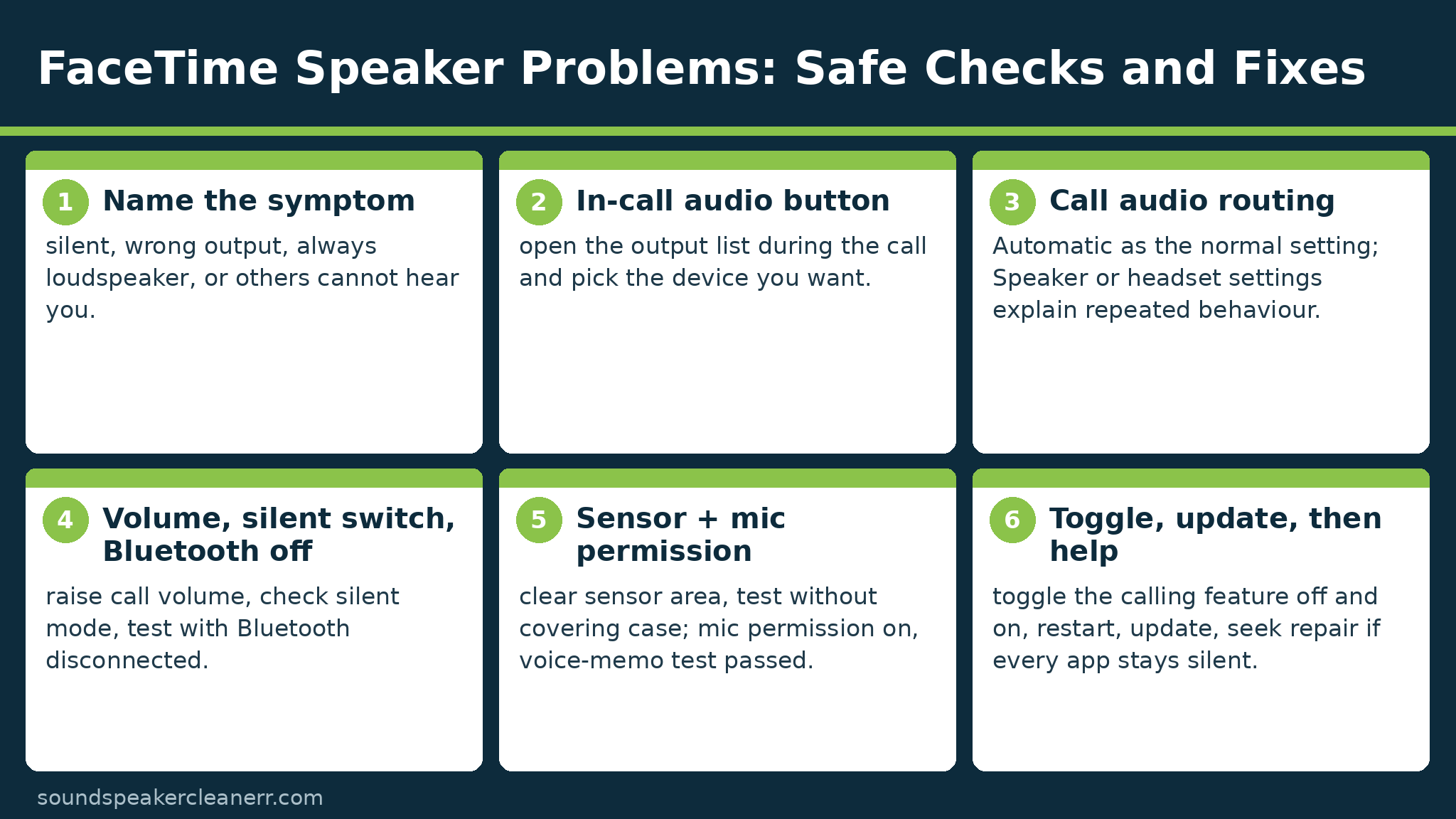
If your FaceTime call is silent or playing through the wrong speaker, first tap the audio button during the call and choose the output you want, then check iPhone call audio routing, because FaceTime audio usually goes exactly where the phone was told to send it. These Apple-specific checks come before any general speaker work.
Tap the audio button during the call
FaceTime's audio destination is chosen in the call itself. While on a FaceTime call, tap the screen to reveal the call controls, then tap the audio button — it may show a speaker icon, an AirPods icon, or another device icon depending on the current output. A list of available outputs appears, typically including iPhone, Speaker, and any connected Bluetooth device or earbuds. Choose the one you want and listen. If sound appears immediately, the speaker was never broken; the audio was routed to a device you were not using. If the list shows only one option, that itself is information: no other device is connected, so the fault is not a competing Bluetooth route, and you should move to volume and routing settings. The button's exact look varies by iOS version, so look for the audio control in the call interface rather than a specific icon style. Also glance at Mute while you are there: mute stops the other person hearing you, not you hearing them, but ruling it out costs a second and avoids a two-sided confusion.
Check Call Audio Routing — the setting that keeps sending calls to speaker
If every FaceTime call starts on loudspeaker, or always goes to a Bluetooth headset, the cause may be a system setting rather than anything you tapped in the call. On iPhone, Settings > Accessibility > Touch > Call Audio Routing offers Automatic, Speaker, and Bluetooth Headset options (menu wording varies by iOS version). Automatic is the normal behaviour: the phone decides based on how you are using it, and you choose per call with the audio button. If the setting is on Speaker or Bluetooth Headset without you intending it, change it back to Automatic and test a new call. This distinction matters: a per-call audio-button choice fixes one call, while a routing setting explains why every call behaves the same way. If you deliberately want calls to start on speaker, Speaker is a legitimate choice — but then do not treat loudspeaker starts as a fault. Write down what the setting was before changing it, so you can restore a deliberate choice.
Volume, mute switch, and Bluetooth — the phone-level trio
Three phone-level checks still cause most FaceTime silences. First, raise the volume with the hardware buttons during the call, since call volume is separate from media volume and a phone that plays music loudly can still have a quiet call. Second, check the physical mute switch on iPhones that have one, and make sure it is not set to silent, along with checking Focus or Do Not Disturb, which can suppress incoming FaceTime calls even if in-call audio is fine. Third, disconnect Bluetooth temporarily. If a forgotten speaker, car system, or earbuds are connected, FaceTime will send audio there and the phone will stay silent; turning Bluetooth off for one test call proves or rules this out immediately. If sound returns with Bluetooth off, re-pair the device afterwards rather than leaving Bluetooth off permanently, unless you prefer it that way. Keep test volume moderate throughout.
The cheek-tap problem and the proximity sensor
If sound cuts out right after you lift the phone to your ear, suspect an accidental tap, not a speaker failure. When you hold an iPhone to your ear, a sensor near the receiver turns the screen off so your cheek cannot press buttons. If a thick case lip or a screen protector covers that sensor area, the screen may stay awake and your cheek can tap the audio button, mute, or speaker control mid-call. Remove the case and, if the protector covers the sensor area, test without it, then make a test call holding the phone normally. If the problem disappears, the protector or case was the cause, and replacing it with one that leaves the sensor clear is the fix. Clean the sensor area gently with a dry, soft cloth. Do not poke anything into the speaker grille or sensor area, and do not use compressed air at close range.
Microphone permission, FaceTime toggle, and Screen Time
If others cannot hear you on FaceTime, work the microphone side. Check Settings > Privacy & Security > Microphone and confirm FaceTime is enabled (path wording varies by iOS version). Test the microphone with Voice Memos: record a short memo and play it back. If the memo is clear but FaceTime still fails, the fault is FaceTime-specific. Two FaceTime-specific resets are safe to try: toggle FaceTime off in Settings > FaceTime, restart the phone, then toggle it back on; and check Settings > Screen Time > Content & Privacy Restrictions > Allowed Apps to confirm FaceTime is allowed, if restrictions are enabled. After either change, make a fresh test call rather than resuming an old one. Also update iOS via Settings > General > Software Update, since call-audio bugs are sometimes fixed in updates. Do not reset network settings as an early step: it erases saved Wi-Fi passwords, so keep it for later, after the checks above have failed.
Test outside FaceTime to separate app from phone
Before concluding anything about the speaker, run two tests outside FaceTime. Play music or a video at moderate volume: clear sound means the loudspeaker works. Record and play back a Voice Memo: a clear memo means the microphone works. If both pass but FaceTime stays silent, the fault is FaceTime routing, permission, settings, or version. If music is also muffled, silent, or distorted, treat it as a phone-wide speaker problem and use the general speaker guides linked below. This distinction also protects you from an unnecessary repair: a loudspeaker that plays music perfectly does not need replacing because one app routes audio elsewhere. Repeat the two outside-app tests after any settings change you make, so you can confirm whether that change — rather than coincidence — is what restored FaceTime sound. Keep the distinction between parts clear throughout: the earpiece at the top is for private calls, the loudspeaker is for hands-free sound, the microphone carries your voice, and the charging port is unrelated to call audio except when water is involved.
A short checklist to run before an important call
Before a call that matters, run a sixty-second check: start a test call, confirm the audio button shows the output you want, confirm the volume is up during the call, and confirm the other person can hear you. Catching a routing problem in that minute beats discovering it mid-conversation.
Wet phones, drops, and when to seek help
If the FaceTime problem began after water exposure, follow the manufacturer's guidance, do not charge the phone, and do not rely on loud sounds to fix it. This guide gives no specific charging-wait hour figure, because that figure varies by manufacturer and model — check the manufacturer's own support pages for your device. Sound-based cleaning is not a guaranteed way to remove water or dust and never repairs damage. If the problem began after a drop, if the loudspeaker is silent in every app after the checks above, or if sound is distorted in every app at moderate volume, seek qualified repair and bring your test history: audio-button choice, Call Audio Routing setting, Bluetooth-off test, music test, and Voice Memo test. If the problem is FaceTime-only and survives the toggle, restart, update, and permission checks, contact Apple Support with your iPhone or iPad model and iOS version, since an app-and-system fault after those steps is theirs to diagnose.
FAQ
Why is my FaceTime call silent but video works?
Video and audio are separate. Tap the audio button during the call and choose iPhone or Speaker, check the volume during the call, and disconnect Bluetooth temporarily — the audio may be routing to a device you are not using.
Why do all my FaceTime calls start on loudspeaker?
Check Settings > Accessibility > Touch > Call Audio Routing. If it is set to Speaker instead of Automatic, every call will start on loudspeaker. Set it back to Automatic unless you deliberately want speaker starts.
Why does my FaceTime sound cut out when I hold the phone to my ear?
Your cheek may be tapping call controls because the screen stayed awake. A case lip or screen protector covering the proximity sensor area can cause this. Remove the case, test without the covering protector, and clean the sensor area gently.
Why can others not hear me on FaceTime?
Check microphone permission for FaceTime, test with Voice Memos, and confirm you are not muted. If the memo is clear but FaceTime fails, toggle FaceTime off and on, restart, check Screen Time restrictions, and update iOS.
Does resetting network settings fix FaceTime audio?
It sometimes helps intermittent audio, but it erases saved Wi-Fi passwords, so it is a later step, not a first step. Try the audio button, routing, Bluetooth, permission, toggle, and update checks first.
Can playing a loud sound fix a wet FaceTime speaker?
No, not reliably, and it is not a repair. Sound may help move loose moisture in some cases, but it does not guarantee water or dust removal. For a wet phone, follow the manufacturer's guidance and do not charge until the manufacturer says it is safe.
Should I reinstall FaceTime for a speaker problem?
FaceTime is a built-in app, so there is no ordinary reinstall as with a store app. Use the FaceTime toggle off and on, restart, permission, routing, and iOS-update steps instead, and contact Apple Support if a FaceTime-only fault survives them.
Leave a Reply