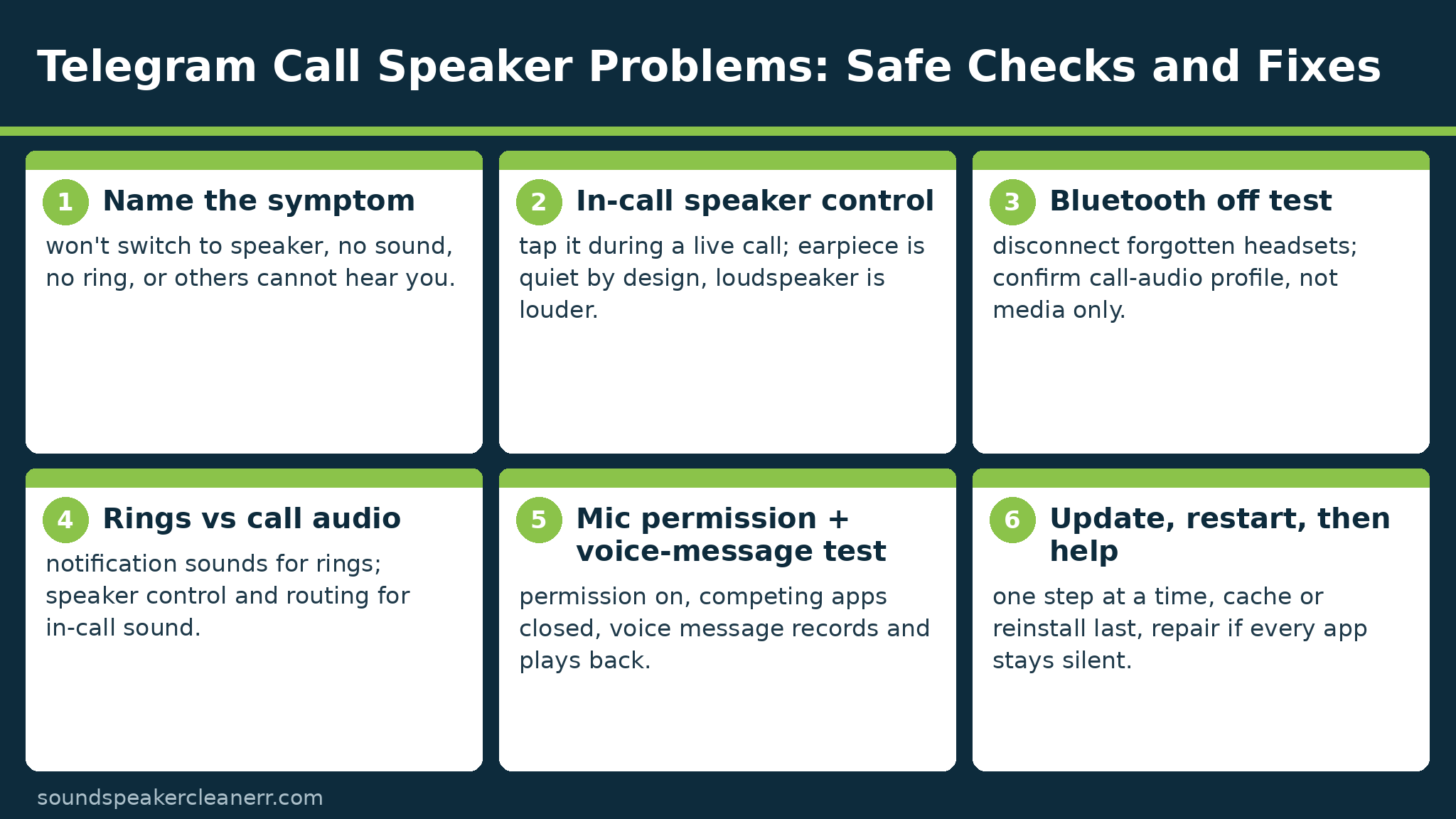
If your Telegram call will not switch to speaker, has no sound, or the other person cannot hear you, first tap the in-call speaker control, disconnect Bluetooth, and check Telegram's microphone permission, because most Telegram call problems are routing or permission issues, not a broken speaker. These Telegram-specific checks come before phone-wide speaker work.
Use the in-call speaker control — and check what it actually selected
During a Telegram voice or video call, look for the speaker control in the call screen and tap it to switch between the earpiece and the loudspeaker. If the control appears to switch but sound stays quiet, you may have switched to the earpiece rather than the loudspeaker, or to a connected Bluetooth device without realising it. Tap the control again and listen carefully to where the sound comes from: the top earpiece is quiet by design for private calls, while the loudspeaker is much louder. The control's exact look and position vary by Telegram and OS version. If tapping changes nothing at all, do not keep tapping — move to the Bluetooth check, because a stuck route will not clear through repeated taps. Also check mute while you are on the call screen: mute stops the other person hearing you, not you hearing them, so it explains only one direction of a silent call.
Disconnect Bluetooth: the "won't switch to speaker" fix
A Bluetooth device that is still connected is the leading explanation for a Telegram call that refuses to switch to the phone speaker. Earbuds in a pocket, a car system, or a smart speaker can all hold the call audio while the phone speaker stays silent, and the call screen may not make that obvious. Turn Bluetooth off temporarily, or disconnect the device, and make a fresh test call on the phone speaker. If the call now switches to loudspeaker normally, routing was the cause. Then re-pair the Bluetooth device if you want to keep using it, and test a call through it separately. Also check the phone's Bluetooth settings to confirm a headset is connected for call audio, not only for media audio, since those can be separate profiles. If the call switches to speaker with Bluetooth off but fails again the moment Bluetooth returns, the headset or its pairing — not Telegram — is the next thing to investigate.
Check notification sounds separately from call audio
Telegram's Settings > Notifications and Sounds area controls sound alerts, including sounds for calls, but those alert sounds are not the same as in-call speaker audio. Confusing the two wastes time: a phone that rings for Telegram calls can still have silent in-call audio, and a phone with call alerts muted can still carry a perfectly clear call once answered. So check both, but separately. For missing rings, confirm call sounds are enabled in Telegram's notification settings and that the phone allows Telegram notifications with sound. For silent in-call audio, work the speaker control, Bluetooth, and volume checks instead. Also check Do Not Disturb and battery-saver modes: Do Not Disturb can suppress rings, and battery saver or background restrictions on Telegram can interfere with calls and notifications on some phones. Exact menu names vary by OS version and manufacturer; on Android, battery settings for Telegram are typically under the app's battery or background settings, and on iPhone, Low Power Mode is under Settings > Battery.
Microphone permission and the voice-message test
If the other person cannot hear you, the loudspeaker is not the suspect — the microphone is. Check that Telegram has microphone permission: on iPhone, Settings and then Telegram, with microphone enabled; on Android, Settings > Apps > Telegram > Permissions, with microphone allowed. Paths vary by OS version and manufacturer. After changing permission, force-close and reopen Telegram, then make a fresh test call. A fast extra test is a Telegram voice message: record one and play it back. If the voice message records and plays clearly, the microphone works and the call fault is routing, permission timing, or network. If voice messages also fail, the fault is the microphone path or permission, and speaker work will not help. Also close other apps that might hold the microphone, such as another calling app or a recorder, since only one app can normally capture it at a time.
Volume, mute switch, and the phone-level checks
Raise the volume with the hardware buttons during the Telegram call itself, because call volume is separate from media volume. On iPhones with a physical mute switch, confirm it is not set to silent. Check that the phone is not in silent or vibrate-only mode and that Do Not Disturb is off for the test. Then run the two outside-app tests: play music or a video at moderate volume to check the loudspeaker, and record and play back a voice memo to check the microphone. If both pass but Telegram calls still fail, the fault is Telegram routing, permission, cache, or version. If music is also silent or distorted, treat it as a phone-wide speaker problem and use the general guides linked below. Keep test volume moderate; loud testing does not diagnose faster and is not good for the speaker or your hearing.
Update, restart, cache, and reinstall — in that order
Work through software fixes one at a time, testing with a short call after each. Update Telegram from the app store and check for an operating-system update. Restart the phone to clear temporary audio-routing glitches. On Android, clearing only the app cache (Settings > Apps > Telegram > Storage > Clear Cache, path varies by brand) is a safe step; do not clear app data without understanding that it signs you out and removes local data. On iOS there is no per-app cache button, so the equivalent step is deleting and reinstalling Telegram, which requires signing in again — back up chats first if needed and know your sign-in details. A later, deliberate step reported in guides is resetting all settings on iPhone (Settings > General > Transfer or Reset iPhone > Reset > Reset All Settings), which resets system preferences such as Wi-Fi, Bluetooth, and display settings without deleting data — but note down settings you may need to restore, and treat it as a last resort before repair, not a first step. Do not factory-reset the phone for a Telegram-only problem.
A short checklist to run before an important call
Before a call that matters, run a sixty-second check: make a test call, confirm the speaker control gives you the loudspeaker when you want it, confirm the other person can hear you, and confirm a voice message records and plays back. That minute catches most routing and permission problems early.
Network, wet phones, and when to seek repair
Choppy, robotic, or dropping Telegram audio with normal volume often points to the network rather than the speaker: try switching between Wi-Fi and mobile data, or moving closer to the router, and see whether clarity improves. Telegram calls need a stable connection, and a weak one can mimic a speaker fault. If the problem began after water exposure, follow the manufacturer's guidance, do not charge the phone, and do not rely on loud sounds to fix it — sound-based cleaning never guarantees water or dust removal and never repairs damage, and this guide gives no specific charging-wait hour figure. If the loudspeaker is silent in every app after the checks above, sound is distorted in every app at moderate volume, or the fault began after a drop, seek qualified repair with your test history: in-call speaker result, Bluetooth-off test, permission state, voice-message test, music test, and whether the fault is Telegram-only. If the fault is Telegram-only and survives update, restart, cache, and reinstall, report it through Telegram's own support route with your phone model, OS version, and Telegram version.
FAQ
Why won't my Telegram call switch to speaker?
The audio is often routing to a connected Bluetooth device or stuck on the earpiece. Tap the in-call speaker control, then turn Bluetooth off temporarily and make a fresh test call on the phone speaker to prove whether routing was the cause.
Why does Telegram have no sound on calls but music works?
When other apps sound fine, the fault is usually Telegram-specific: a stuck audio route, a Bluetooth device still connected, microphone or notification permissions, or a corrupted cache or version. Work through the speaker control, Bluetooth-off, permission, update, restart, and cache steps.
Why can I hear the caller on Telegram but they cannot hear me?
That is a microphone issue, not a speaker issue. Check microphone permission for Telegram, close other apps holding the microphone, and test with a Telegram voice message. If the voice message is clear but calls fail, update, restart, and reinstall if needed.
Do Telegram notification sounds affect in-call speaker audio?
No, they are separate. Notification settings control rings and alerts, while the in-call speaker control and phone routing control what you hear during the call. Check both, but do not expect fixing rings to fix in-call audio.
Does clearing Telegram's cache delete my chats?
Clearing cache on Android removes temporary files, not chats, but clearing app data is different and can sign you out. On iOS there is no per-app cache button, so reinstalling is the equivalent step — back up and know your sign-in details first.
Can a weak connection make a Telegram call sound like a speaker problem?
Yes. Choppy, robotic, or dropping audio with normal volume often points to Wi-Fi or mobile data rather than the speaker. Switch networks and test again before assuming the speaker is faulty.
Should I reset all settings for a Telegram speaker problem?
Only as a late step. Resetting all settings on iPhone resets system preferences without deleting data, but you must note down settings to restore. Try the speaker control, Bluetooth, permission, update, restart, cache, and reinstall checks first.
Leave a Reply