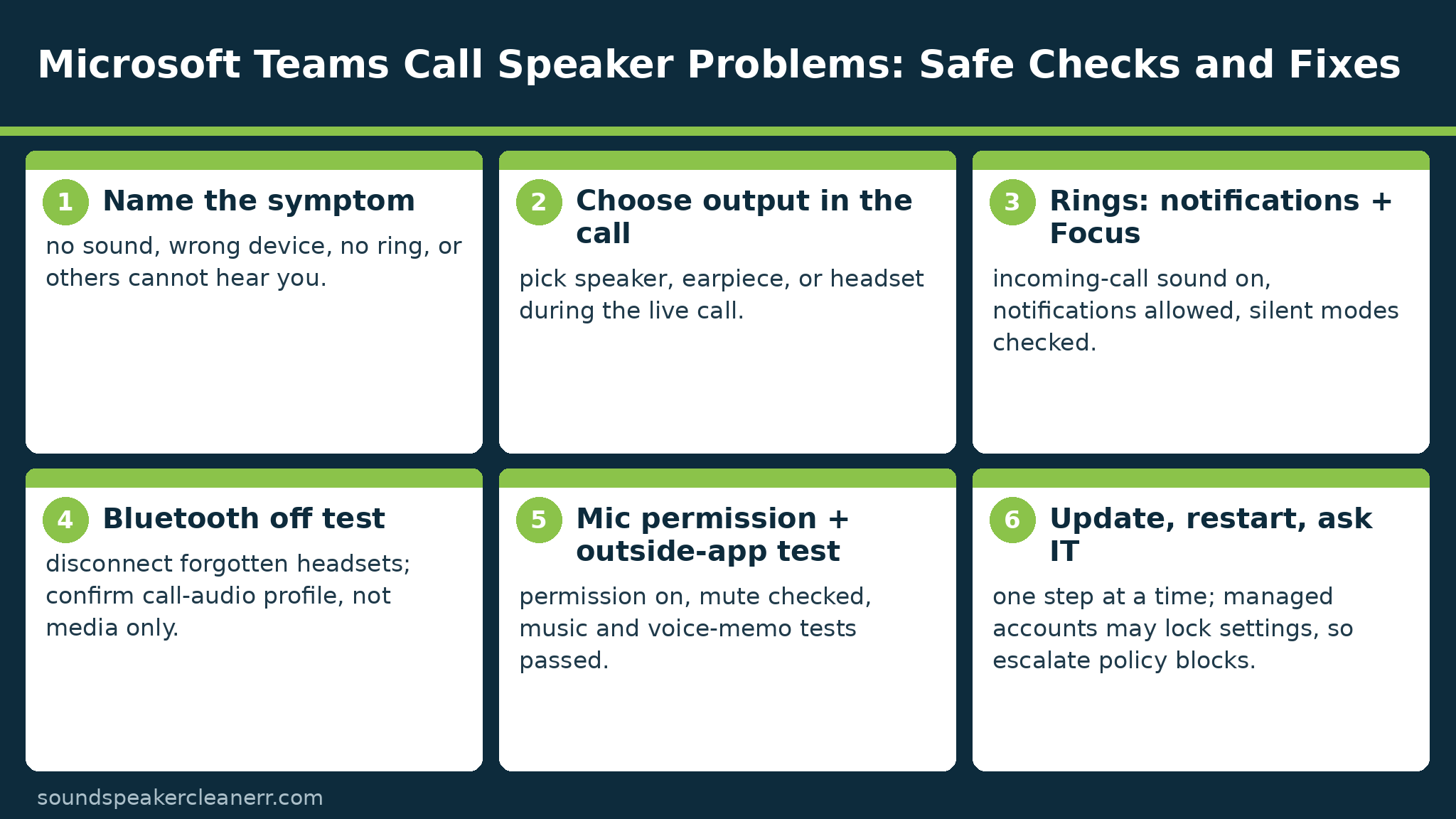
If you cannot hear a Microsoft Teams call, first choose the audio output during the call itself, check that Teams is allowed to play incoming-call sounds, and disconnect Bluetooth, because Teams on a phone does not use one permanent speaker default the way desktop does. These Teams-specific checks come before phone-wide speaker work.
Choose the output during the call — there is no permanent mobile default
This is the point most Teams mobile users miss. On a desktop, you can pick a speaker in settings and expect it to stick. On a phone, Teams expects you to choose where the call plays while you are in the call: phone speaker, earpiece, or a connected headset. If you answer a call and hear nothing, open the in-call audio output control and select the device you actually want. If a Bluetooth headset is listed and selected, the audio is going there even though the phone looks silent. The exact control and its labels vary by Teams and OS version, and on some versions you reach it through the call screen's audio or device options. Do not waste time hunting for a permanent "default speaker" setting on mobile that, in the reported experience, does not exist — test the in-call choice first, on a live call, and confirm sound before changing anything else.
If Teams calls do not ring at all
A missing ringtone is a different symptom from a silent call, and it has its own checks. In Teams, check the notification settings for incoming calls and make sure playing a sound for incoming calls is enabled. On the phone, check that Teams is allowed to send notifications with sound, and that Focus or Do Not Disturb is not suppressing them. Some Teams versions offer a setting that lets Teams override Do Not Disturb for calls; without it, Teams respects silent mode and will not ring. Exact toggle names vary by version. Also check the phone is not in silent or vibrate-only mode and that the ringtone volume is up. Test by asking a colleague to call you after each change, rather than changing five settings at once, so you know which one restored the ring. If rings work but call audio does not, move on — the ringtone path and the call-audio path are separate, and fixing one does not guarantee the other.
Bluetooth, headsets, and the "wrong device" problem
Teams calls are especially prone to the wrong-device problem because work users often switch between a headset, car system, and phone speaker during the day. If the call plays through a device you are not wearing, the phone will seem silent. During the call, open the audio output control and pick the phone speaker or earpiece deliberately. If that does not help, turn Bluetooth off temporarily and test again on the phone speaker alone. For earbuds and headsets generally, check the phone's Bluetooth settings to confirm the device is connected for call audio, not only for media audio — some devices show those as separate profiles, and a headset connected for music only will not carry a Teams call. Re-pair a troublesome headset once if needed, and test it on a short call before an important meeting. Keep volume moderate during tests.
Microphone permission, mute, and the other side of the call
If colleagues cannot hear you, the speaker is probably innocent. Check that Teams has microphone permission: on iPhone, Settings and then Teams, with microphone access enabled; on Android, Settings > Apps > Teams > Permissions, with microphone allowed. Paths vary by OS version and manufacturer. After changing permission, leave and rejoin the call so it applies to a fresh session. Check mute in two places: your own mute control, and whether the meeting organiser or host muted you, since a host mute may need host action to lift. Close other apps that might hold the microphone, such as another calling app. Noise suppression, where your version offers it in audio settings, changes how background noise is handled; it does not choose your speaker, so do not treat it as a speaker fix. If you can hear everyone and nobody can hear you, work the microphone list, not the speaker list.
Desktop-style checks that still help phone users
Even though this guide is phone-first, two desktop concepts help diagnose a phone problem. First, the test call: where your Teams version offers a test-call option, use it to confirm that audio reaches hardware you can actually hear before a real meeting. Second, the pre-join audio choice: before joining a meeting, check the audio section of the pre-join screen. Where your organisation allows it, a Phone audio option may let Teams call your phone directly for meeting audio, or give you a dial-in number and conference ID to join audio from the phone dialer. If that option is missing, your organisation may not allow dial-in audio — ask the organiser or administrator rather than assuming the app is broken. Standard carrier charges may apply to dial-in numbers, so check before dialling. These options matter because they bypass a broken app-audio route entirely: if phone audio works while app audio does not, you have isolated the fault to the app's routing. Note the result of this comparison before changing other settings, because it tells you — and IT, if you escalate — whether to keep working on the app or to look at the phone and network instead.
Test outside Teams, then update and restart
Run the two phone tests before reinstalling anything. Play music or a video at moderate volume: if the loudspeaker sounds clear, it works. Record and play back a voice memo: if your voice is clear, the microphone works. If both pass but Teams stays silent, the fault is Teams routing, permissions, notifications, or version. If music is also silent, follow the phone-wide speaker guides instead. Then update Teams from the app store, check for an OS update, and restart the phone, testing with a short call after each step. On Android, clearing only the Teams app cache (Settings > Apps > Teams > Storage > Clear Cache, path varies by brand) is a reasonable step; do not clear app data without understanding that it signs you out. On iOS there is no per-app cache button, so reinstalling from the app store is the equivalent last step, and it requires signing in again. Do not factory-reset the phone for a Teams-only problem.
A short checklist to run before an important call
Before a meeting that matters, run a sixty-second check: join a test call or a call with a colleague, confirm you can hear them through the intended output, confirm they can hear you, and confirm the ringtone works for an incoming call. Finding a routing problem in that minute is far better than finding it after a meeting has started.
Managed work accounts and when to ask IT
Teams is often a work app on a managed account, and that changes troubleshooting. Your organisation may lock audio settings, block dial-in audio, route calls through a specific setup, or require a particular headset. If settings described here are missing, greyed out, or reset themselves, that may be policy, not a fault on your phone — ask your IT administrator or the meeting organiser before forcing changes. Likewise, if a problem affects many colleagues at once, or a Teams service issue is suspected, check with IT rather than reinstalling repeatedly. For a fault confined to your phone after the checks above, report it with the short test history: in-call output chosen, Bluetooth-off test, music test, voice-memo test, permission state, and whether rings work. That history lets IT separate an account policy from a device fault quickly.
FAQ
Why does my Teams call play through my headset instead of the phone speaker?
Teams on a phone chooses audio output during the call rather than using a permanent mobile speaker default. Open the in-call audio output control and select the phone speaker, or turn Bluetooth off temporarily to force audio back to the phone.
Why do Teams calls not ring on my phone?
Check Teams notification settings for incoming-call sounds, the phone's notification permission for Teams with sound allowed, and whether Focus or Do Not Disturb is suppressing rings. Some versions offer an override for Do Not Disturb; without it, Teams respects silent mode.
Why can I hear everyone on Teams but nobody can hear me?
That is a microphone or mute issue, not a speaker issue. Check microphone permission for Teams, your mute state, whether the host muted you, and whether another app is holding the microphone, then rejoin the call.
What is the Phone audio option before joining a Teams meeting?
Where your organisation allows it, Phone audio lets Teams call your phone directly for meeting audio, or gives you a dial-in number and conference ID. If the option is missing, your organisation may not allow dial-in audio — ask the organiser or administrator.
Does clearing the Teams cache delete my chats and meetings?
Clearing cache removes temporary files, not your account data, but clearing app data is different and can sign you out. On iOS there is no per-app cache button, so reinstalling is the equivalent step and requires signing in again.
Why is Teams silent only on my phone, not my computer?
A phone-only fault points to mobile routing, permissions, notifications, or the app version on that phone. Work through the in-call output, Bluetooth-off, permission, update, and restart checks on the phone itself before assuming a service problem.
Should I factory-reset my phone for a Teams audio problem?
No. If the problem is Teams-only, update, restart, clear cache, or reinstall Teams first. A factory reset erases the phone and is not justified for a fault confined to one app; ask IT first if the account is managed.
Leave a Reply