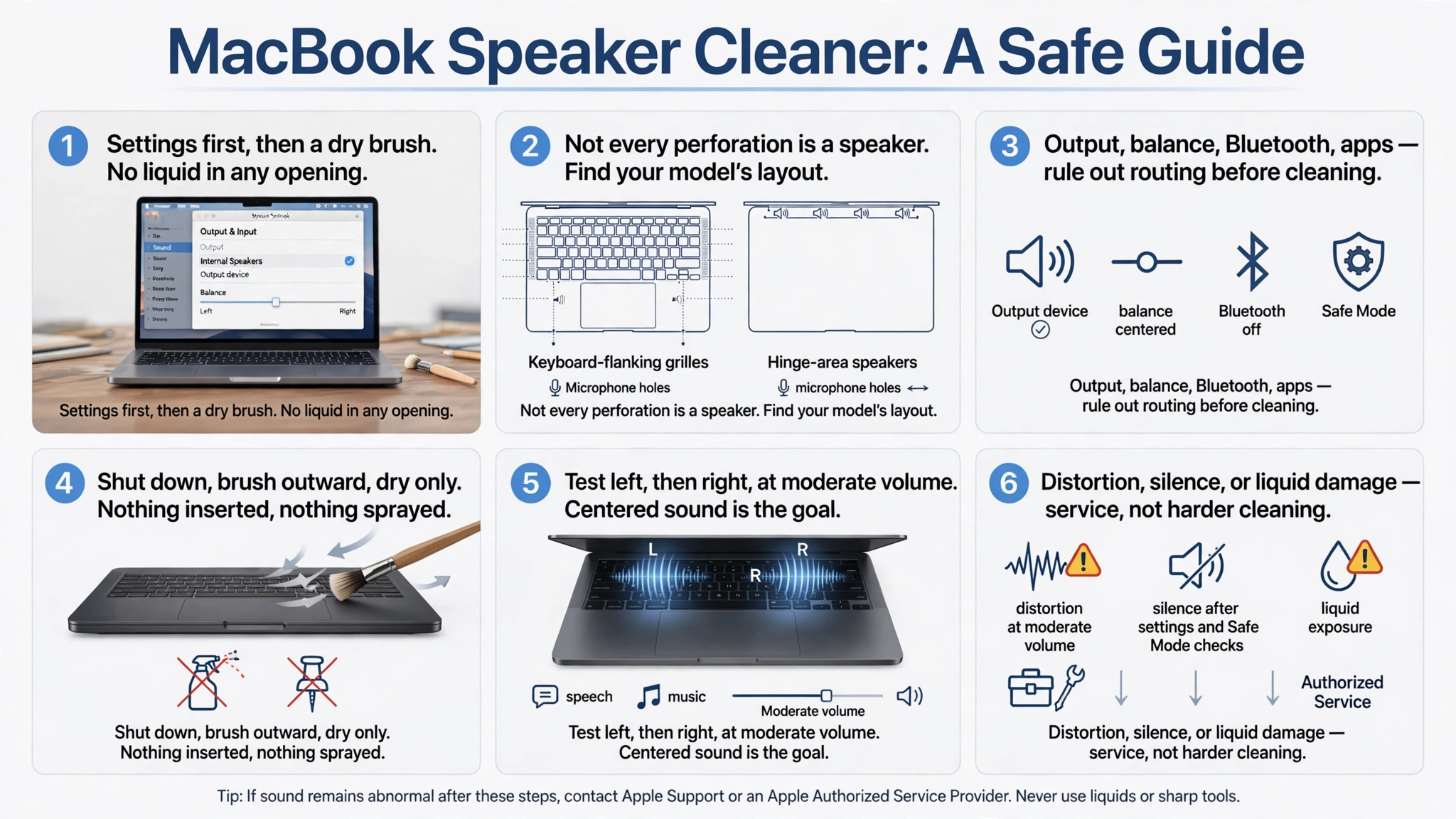
A muffled MacBook speaker is often dust in the keyboard-flanking grilles, a wrong macOS output device, or an off-center balance — not a dead speaker. Check System Settings, Sound, Output first, confirm MacBook Speakers is selected and balance is centered, then shut down and brush the grilles gently with a dry soft brush.
Keep liquid out of every opening, test each side separately, and seek service if distortion or silence stays after those steps.
That order protects both sound and hardware. MacBook grilles sit beside the keyboard, where crumbs, dust, and skin oils collect, and where any liquid used for cleaning can travel into openings it should never enter. At the same time, macOS can quietly route sound to AirPods, a monitor, a Bluetooth speaker, or a previous output device, which looks exactly like a broken built-in speaker. Cleaning a speaker that macOS is not using will not restore sound, and spraying a grille that only needs a dry brush can create a new problem.
Where MacBook speakers actually are
Do not assume every perforation on a MacBook is a speaker. On many MacBook Pro models, the speaker grilles are the perforated areas flanking the left and right sides of the keyboard. On many MacBook Air models, the speakers sit near the hinge area, or beside the keyboard in a different pattern, depending on the model year. Some perforations are for microphones or ventilation, not speakers, and cleaning a microphone hole as if it were a speaker grille will not help sound output.
Find your model's layout before cleaning. Look at the keyboard deck in good light, note the perforated strips or slots, and compare them with your model's manual or Apple Support page if you are unsure. Note also whether sound seems to come from both sides, one side, or the hinge area when you play speech. That observation, plus the settings checks below, tells you which grille to clean and whether both sides even need cleaning.
A second layout point matters for cleaning: MacBook speakers cannot be tipped grille-down the way a phone or tablet can. The MacBook stays flat and open on a desk, lid open, while you brush the grilles. Gravity will not help you here, so the brush stroke itself must do the work, outward and away from the openings, never inward. Do not tilt the MacBook sharply or shake it to dislodge debris; that risks the display, hinge, and internal parts far more than it helps a grille.
Check macOS settings first
Open the Apple menu, then System Settings, then Sound, then Output. Confirm that MacBook Speakers, or the equivalent built-in speaker name for your model, is selected as the output device. If AirPods, a monitor, an external speaker, or a Bluetooth device is selected, sound is going there, not to the built-in speakers. Select the built-in speakers and test again.
In the same Output panel, check the Output volume slider and the Balance slider. Move the Balance slider to the center. An off-center balance can make one side sound dead even when both speakers work, and it is one of the most common causes of "only one MacBook speaker works." Lower the output volume if crackling gets worse at high volume; crackling that only appears at high volume may be overdriving or distortion, not dirt, and cleaning will not fix it.
Also check the volume in the app you are using, and check whether the app itself has a mute, balance, or output setting that overrides the system setting. A video player or call app with its own output choice can send sound elsewhere even when System Settings looks correct. Test with a second app, such as a music app and a browser video, before concluding the hardware is at fault.
If the built-in speakers do not appear in the Output list at all, restart the MacBook and check again. If they still do not appear, check for a macOS update in System Settings, General, Software Update, and install any available update, then restart and test again. Audio problems after an update sometimes resolve with a further update or restart, and that check costs nothing. Do not follow old Intel-era reset instructions, such as key combinations for NVRAM or SMC, on an Apple silicon MacBook unless current Apple Support guidance for your exact model tells you to; those procedures differ by chip generation, and following the wrong one wastes time at best.
For a deeper check, open Applications, Utilities, Audio MIDI Setup, click Output, and confirm MacBook Speakers is selected with a normal format, such as two channels. A misconfigured output can hide here even when the main Sound panel looks normal.
Rule out Bluetooth, apps, and headphones
Disconnect Bluetooth audio devices for the test. Turn Bluetooth off temporarily, or disconnect AirPods and Bluetooth speakers, and unplug any wired headphones or external speakers. A MacBook that keeps reconnecting to a nearby headset will keep stealing sound from its built-in speakers, and the built-in speakers will look dead.
Test in a clean audio state. Close apps that may hold the audio session, such as a call app or a music app left playing in the background, then play a simple track in one app. If sound returns when Bluetooth is off and only one app is playing, the problem was routing or an app holding the session, not a dirty grille.
Safe Mode is useful if sound works inconsistently or only some apps are affected. Start in Safe Mode following current Apple Support guidance for your chip type, log in, and play audio. If speakers work in Safe Mode but not normally, a third-party app or audio tool is likely interfering; remove recently installed audio apps one at a time and test after each. Do not keep a booster running at high gain while diagnosing.
Clean MacBook speakers, step by step
Shut down the MacBook and unplug it before cleaning. Work on a clean, dry desk, with the lid open and the keyboard deck flat.
- Shut down, unplug, and let the MacBook cool if it is warm. Wipe the keyboard deck around the grilles with a soft, dry, lint-free cloth. Do not use a damp cloth on the grilles themselves.
- Take a clean, dry, soft-bristled brush, such as a soft makeup brush, small paintbrush, or clean dry toothbrush. Brush lightly across each grille, with short strokes that lift debris outward and away from the openings. Do not press hard, do not scrub in circles that push debris inward, and do not insert the brush bristles into the holes.
- If you use compressed air at all, hold the can upright, keep the nozzle several inches from the grille, and use short bursts angled across the grille so dust is nudged away from the openings, not driven into them. Never blast directly into a grille at close range, never tilt the can so liquid propellant can escape, and never use compressed air on a wet MacBook. Many MacBook grilles can be cleaned with a brush alone, and skipping compressed air is always the safer choice.
- Wipe the deck again with a dry cloth to pick up loosened dust. Do not use tape or putty pressed into the grille holes; residue or pressure at the grille can make sound worse, and the keyboard beside the grille leaves little room for error.
- Power on, open System Settings, Sound, Output, confirm MacBook Speakers is still selected and balance is centered, then play speech at a moderate volume and compare with how it sounded before cleaning. If it sounds clear, stop. If it is better but still dull, you may repeat the dry brush once. If it is unchanged after two careful cycles, further brushing is unlikely to help.
Keep the whole cleaning dry at the grille. Apple's published cleaning guidance for its products is consistent on this point: use a soft, slightly damp, lint-free cloth on outer surfaces, avoid abrasives and aerosol sprays, and never let moisture get into any opening. A slightly damp cloth on the outer enclosure is not a damp cloth on a speaker grille. The grille is an opening, and moisture in an opening is exactly what the guidance excludes. Follow that distinction strictly on a MacBook, where the keyboard sits beside the grilles and a damp cloth can easily cross from enclosure to opening.
Test each side separately
Play speech first, because speech makes a quiet side easier to hear than bass-heavy music. Sit in your normal position, lid open, and listen for whether sound is centered or pulled to one side. Then use the site's speaker test, or a stereo test track, to play sound through the left side only, then the right side only. Note which side, if either, sounds muffled, quiet, crackly, or silent.
Also test with music with clear vocals and with a video call, because different sources expose different faults. Muffling that improves after brushing points to blockage; distortion or rattling that stays points to hardware; silence on one side after settings, balance, and brushing points to that side's speaker or connection.
Test at a moderate volume, not maximum. Maximum volume can make a healthy speaker distort and can make a damaged speaker sound worse, which confuses the diagnosis. If a speaker sounds clean at moderate volume but distorted only at maximum, the problem may be overdriving, an enhancer, or a driver limit, not a blocked grille. Lower the volume and retest before cleaning again.
Troubleshooting
Muffled on both sides: Brush both grilles gently, check that no case, skin, or cover is sitting over the keyboard deck, and test again. If both sides stay muffled after two careful cycles, the cause may be deeper than surface dust.
Quiet or silent on one side: Recheck balance, output device, and Bluetooth routing first. If the quiet side stays quiet after those checks and gentle brushing, that side's speaker needs inspection, not more brushing.
Crackling: Lower the volume and disable any audio enhancer or booster. If crackling stays at moderate volume after brushing, stop cleaning tones and loud tests. Crackling at moderate volume can mean debris touching a driver, distortion, or damage.
No sound at all: Check output device, volume, mute, Bluetooth, and headphones before assuming damage. Restart, update macOS, and test in Safe Mode. If built-in speakers still do not appear or produce sound, seek service.
Sound comes and goes: Check for a Bluetooth device reconnecting, an app holding the audio session, or a loose external device. Intermittent sound is often routing, not a grille problem.
Worse after cleaning: Stop. You may have pushed debris inward, introduced moisture, or damaged a grille. Let the MacBook rest, retest once with dry grilles and correct settings, and seek service if the worsening persists. Do not try to fix it with more force or liquid.
What not to do on a MacBook
Do not use liquids, sprays, disinfectant, or a damp cloth on the speaker grilles. Do not use a pin, needle, toothpick, or cotton swab in a grille hole. Do not use a vacuum cleaner near the MacBook, because of static risk noted in third-party guides. Do not shake the MacBook or tilt it sharply to dislodge debris. Do not open the MacBook yourself unless you are qualified; MacBooks are difficult to disassemble, and opening one risks the display, battery, and internal parts. Do not follow a generic Windows laptop guide for macOS settings, and do not follow old Intel reset steps on an Apple silicon model unless current Apple guidance for that model says to.
Also do not chase extreme frequencies as a stronger cleaner. A tone labeled far above normal hearing is not a stronger MacBook cleaner. A typical built-in speaker cannot reliably reproduce such frequencies, and a label alone is not evidence that the speaker is producing that frequency or cleaning anything. Use audible, moderate-volume test tones, test, and stop.
When to seek Apple service
Contact Apple Support or an authorized service provider if the built-in speakers stay silent after output, balance, Bluetooth, restart, update, and Safe Mode checks, stay distorted or rattling after two careful dry cleans, show a damaged grille, or had liquid exposure and still sound wrong after full drying. Bring your note: which side, which symptom, what settings you checked, and whether Safe Mode changed anything. That note helps a technician separate a settings problem from a hardware problem without repeating your work. Do not attempt a speaker replacement yourself unless you have extensive experience; on a MacBook, that job is generally not a do-it-yourself repair.
Conclusion
MacBook speaker cleaning is macOS diagnosis first, dry gentle brushing second: confirm built-in output and centered balance, rule out Bluetooth and app routing, locate your model's grilles, and brush outward with a dry soft brush. Test each side at moderate volume, stop on distortion or no change, and use service, not harder cleaning, when careful steps do not restore sound.
FAQ
How do I clean MacBook speakers safely?
Shut down and unplug the MacBook, then brush the grilles gently with a clean, dry, soft-bristled brush, stroking outward and away from the openings. Keep liquid out of every opening, do not insert anything into the holes, and test at a moderate volume after cleaning.
Why is only one MacBook speaker working?
Check System Settings, Sound, Output, and center the Balance slider first, and confirm MacBook Speakers is selected. A Bluetooth device or app may also be routing sound elsewhere. If one side stays quiet after settings and gentle brushing, that side's speaker needs inspection.
Where are the speakers on a MacBook?
It depends on the model. Many MacBook Pro models have grilles flanking the keyboard, and many MacBook Air models have speakers near the hinge or beside the keyboard. Some perforations are for microphones or ventilation, not speakers, so check your model's layout before cleaning.
Can I use compressed air on MacBook speakers?
With caution, or not at all. If used, hold the can upright, keep the nozzle several inches away, and use short bursts angled across the grille, never blasted directly into it. A dry soft brush alone is safer and is enough for most MacBook grilles.
Why do MacBook speakers crackle?
Crackling can come from dust in a grille, high volume or an audio enhancer causing distortion, a software or app problem, or driver damage. Lower the volume, disable enhancers, brush gently, and test in Safe Mode. Crackling that stays at moderate volume after those steps points to hardware.
Should I reset NVRAM or SMC to fix MacBook speakers?
Not automatically. Those procedures differ by chip generation, and older Intel instructions do not apply in the same way to Apple silicon Macs. Restart, update macOS, and follow current Apple Support guidance for your exact model instead of following a generic reset guide.
When should I take a MacBook to Apple service?
Seek service if speakers stay silent after output, balance, Bluetooth, restart, update, and Safe Mode checks, stay distorted or rattling after careful dry cleaning, or had liquid exposure and still sound wrong after drying. Do not open the MacBook yourself to replace a speaker unless you are qualified.
Leave a Reply