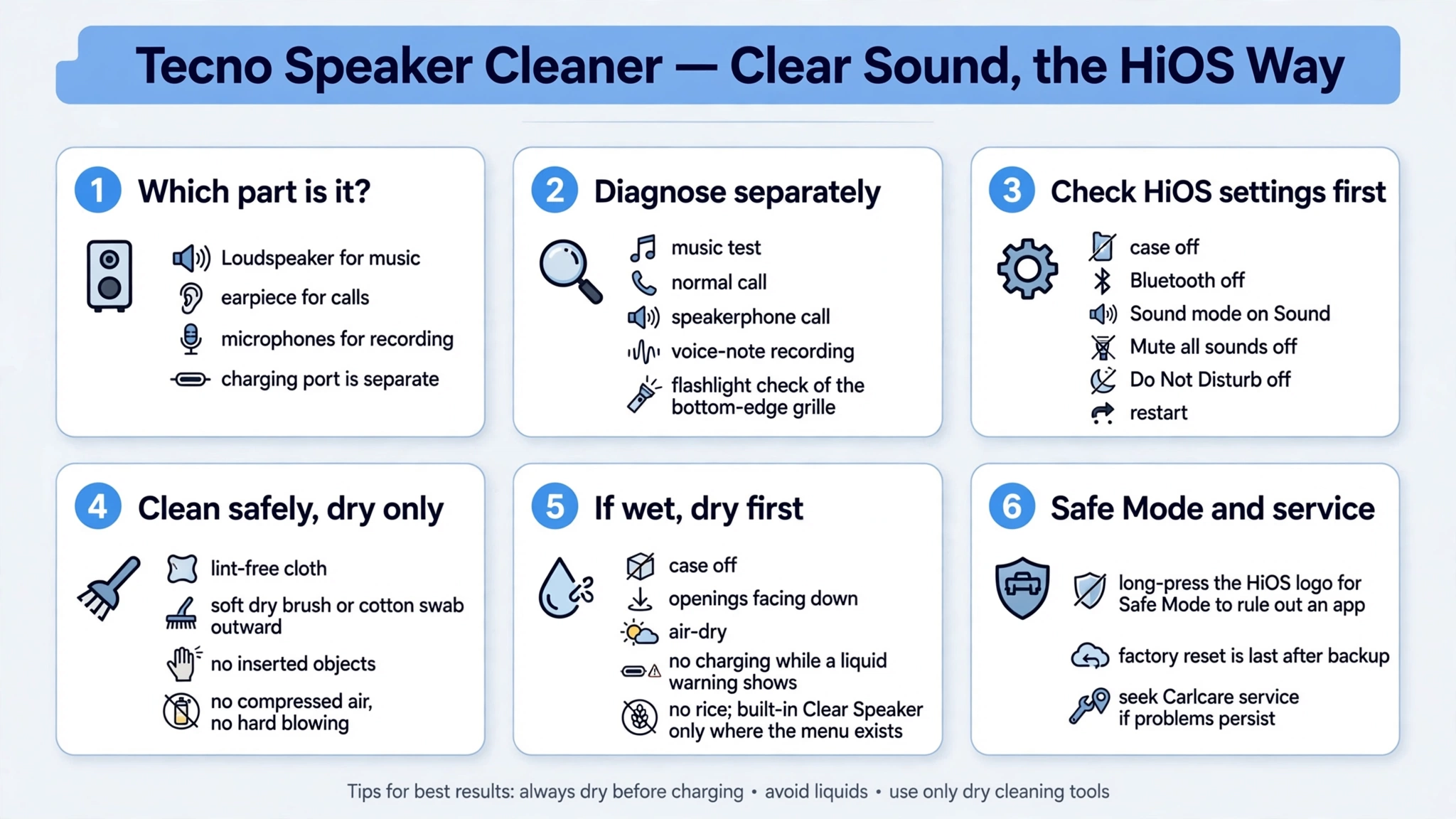
Tecno phones follow the same safe speaker approach as other Android phones, but HiOS adds two details: its Sound mode and “Mute all sounds” settings can silence a healthy speaker, and its Safe Mode entry works differently from stock Android.
This guide groups Tecno Spark, Camon, and Pop models together, because their speakers fail for the same reasons even though their exact layouts and HiOS menus differ.
Who this guide is for
This guide is for anyone whose Tecno phone sounds muffled, quiet, crackly, or silent, whether after dust, a splash, a new app, or a software update. It does not replace Tecno’s or Carlcare’s instructions for your exact model. If a menu name below differs on your phone, search your Settings app for the setting name. Menu names vary by HiOS version.
It is not a repair manual. If your phone was fully submerged, will not charge, shows a liquid warning, or smells of burning, follow Tecno and Carlcare guidance and seek authorized service instead of repeating cleaning tones.
The Tecno speakers and microphones, in plain terms
A Tecno phone normally has a loudspeaker, usually along the bottom edge, and a smaller earpiece at the top for normal calls. Many Tecno models use both together for stereo media sound. It also has more than one microphone: one near the bottom for calls, and others used for noise cancellation and video. Those parts fail differently, and testing them separately is the fastest way to avoid a wrong fix.
Music that sounds muffled points to the loudspeaker. Callers who sound quiet while speakerphone sounds fine point to the earpiece. Callers who cannot hear you while you hear them fine point to a microphone. A cable that will not click in, or charging that only works at an angle, points to the charging port, which sound does not clean. Keep those four parts separate before you clean anything.
Diagnose first: test each part separately
Do these tests in a quiet room, with no Bluetooth device connected and the case removed, so a case or film cannot hide the result.
Play music or a video at a moderate volume and note whether it is muffled, crackly, quiet, or silent. Then use the Speaker Test tool on this site to check for distortion or dropouts. Make a normal call without speakerphone and listen through the earpiece, then switch the same call to speakerphone and listen through the loudspeaker. Record a short voice note and play it back to test the microphone. If only one test fails, you have narrowed the problem to that part.
Shine a flashlight on the bottom-edge grille before you clean it. If you can see lint or dust packed into the holes, that visible blockage — not a software setting — is the likely cause, and dry brushing is the right first step.
Check the HiOS settings that mimic a broken speaker
HiOS can silence a healthy speaker in more ways than stock Android, so check settings before you clean. First, remove any case, screen protector, or film that covers a speaker or microphone opening, and test again. Even a well-designed case can sit misaligned over a grille and muffle sound.
Next, turn Bluetooth off in Settings, then Bluetooth, because sound may be routing to earbuds, a car system, or a Bluetooth speaker instead of the phone, and unplug any headphones or USB-C audio dongle. Open Settings, then Sound & vibration, and confirm Sound mode is set to Sound, not Silent or Vibrate, and check any “Mute all sounds” style option to make sure it is off. Check Do Not Disturb in Quick Settings and in Settings, since it can silence calls and notifications even though music still plays.
Check volumes separately. In-call volume can only be adjusted during a call, using the side volume keys, while media volume is adjusted during music or video. Restart the phone and test again: a restart clears temporary software glitches that affect audio. If sound fails in only one app, check that app’s permissions and mute controls before changing phone-wide settings, and test with a second app and a locally saved file so a streaming problem does not confuse the result.
Clean a Tecno speaker safely
Dry cleaning only, and nothing inserted into any opening. Wipe the outside of the grille with a dry, lint-free cloth, then use a soft, dry toothbrush or a clean, dry cotton swab with light outward strokes across the bottom-edge grille. For the earpiece, use the same light strokes across its slot. Do not press a brush into any opening, and never use a pin, needle, or toothpick. For a microphone hole, wipe around the opening and brush lightly outward; do not insert anything, blow hard into it, or use liquid, because a microphone membrane is delicate.
If the speaker still sounds muffled after dry cleaning, try a short browser tone at moderate volume, with the speaker facing down, using this site’s speaker cleaning tool. Play one short cycle, then test with music. Repeat only once or twice more if the sound is clean and improving. Sound may help with light water or loose dust near a speaker opening. It is not a guarantee, and it does not repair a torn, corroded, or electrically damaged speaker.
Some Tecno models may show a built-in cleaning option: Carlcare describes going to Settings, then Additional Settings, then Clear Speaker and following the on-screen instructions. Look for that menu on your phone, and if your model does not show it, use the browser tool on this site instead — do not install an app just to chase a menu your phone does not have. Do not use canned compressed air, even though some third-party guides suggest it: high-pressure air at close range can push debris deeper or damage a mesh. If packed dirt does not shift with brushing, stop; that is a service-center job.
If a Tecno phone got wet
Water changes the order. Do not start by playing loud tones or plugging in a charger. Remove the case, wipe the outside dry, hold the phone with the speaker and port openings facing down, and let it air-dry in a place with airflow. Do not put the phone in rice, and do not charge while any liquid warning is shown.
Only after drying, and only if there is no liquid warning, test the loudspeaker at moderate volume with a short tone — or, on models that have it, the built-in Clear Speaker option. If sound is still muffled after drying, or the phone was fully submerged or exposed to salt or soapy water, seek Carlcare service. No specific charging-wait hour figure is given here, because guidance varies by model; follow Tecno’s and Carlcare’s instructions for your exact phone.
Use Safe Mode to test for an app problem
Tecno’s Safe Mode entry is the detail most owners miss. Carlcare’s guidance for Tecno and Infinix phones is: long-press the power button to open the power menu, then long-press the HiOS logo in that menu — not the Power off button — until the “Reboot to Safe mode” prompt appears, then tap OK. In Safe Mode, only system apps run. Play music and make a test call. If the speaker works normally in Safe Mode but fails in normal mode, a downloaded app is the likely cause. Restart normally to exit Safe Mode, then uninstall the most recently installed or updated audio-related apps one at a time, testing after each removal. If the speaker still fails in Safe Mode, the cause is more likely a setting, blockage, water, or hardware.
If Safe Mode does not identify an app, a settings reset is a later step, and a factory reset after backing up data is the last resort. Do not start with a factory reset. A reset will not fix a blocked grille, water damage, or a damaged speaker.
Troubleshooting
Still muffled after dust: brush again with light outward strokes, then try one short tone. Do not insert anything into the grille. Crackling or rattling: stop the tone. Crackling at moderate volume can mean debris, distortion, or damage. Do not raise the volume to push through it. Callers sound quiet, speakerphone sounds fine: check the earpiece, in-call volume during a call, and any case or film covering the earpiece. Callers cannot hear you: check microphone permissions, a case covering a mic hole, and Bluetooth routing, then test with a voice recording. Sound low but clear: check media volume, Sound mode, and “Mute all sounds” in Sound & vibration. Works in Safe Mode only: uninstall recently added audio apps one at a time, using the HiOS-logo Safe Mode entry to retest. Tone plays but nothing changes: that suggests packed debris, a setting, deeper water, or damage, not a need for a higher frequency.
When to seek repair
Seek a Carlcare service center or a qualified repair shop if sound stays distorted after gentle cleaning and drying; a speaker stays silent in Safe Mode; the phone was fully submerged or exposed to salt or soapy water; or you see corrosion, swelling, a cracked screen near a speaker, or a liquid warning that will not clear. Bring a clear description: when it started, whether water or dust was involved, what you already tried, and what Safe Mode showed. Carlcare is Tecno’s authorized after-sales service in many regions; check Carlcare’s own site for the center nearest you.
Conclusion
For a Tecno phone, the safe order is: remove the case and films, test loudspeaker, earpiece, and microphone separately, check Bluetooth, Sound mode, “Mute all sounds,” and Do Not Disturb, restart, clean only the outside of the grille with a dry brush, try a short moderate-volume tone after drying, use the HiOS-logo Safe Mode entry to rule out an app, and stop on distortion or no change. That order uses HiOS and Carlcare guidance first, and it avoids the two most common mistakes: cleaning the wrong part, and playing louder tones at a wet or damaged phone.
FAQ
Does Tecno have a built-in speaker cleaner?
Some models may show a Clear Speaker option under Settings, then Additional Settings, as described by Carlcare. Not every Tecno model has it. If yours does not, use the browser tool on this site instead of installing an app for that menu alone.
How do I clean a Tecno speaker safely?
Wipe the outside of the grille with a dry, lint-free cloth, then brush lightly outward with a soft, dry toothbrush or cotton swab. Do not insert anything, use liquid, blow hard into the grille, or use canned compressed air.
How do I enter Safe Mode on a Tecno phone?
Long-press the power button, then long-press the HiOS logo in the power menu until the “Reboot to Safe mode” prompt appears, and tap OK. Restart normally to exit Safe Mode.
Why is my Tecno phone silent but music plays in one app?
Check Sound mode in Settings, then Sound & vibration, and make sure “Mute all sounds” is off and Do Not Disturb is off. Also check the silent app’s own mute controls and permissions.
Can a 50,000 Hz tone clean a Tecno speaker better?
No. A typical phone speaker cannot reliably reproduce 50,000 Hz, and a high-frequency label does not make a tone stronger. Use an audible, moderate-volume tone, and judge by a careful test afterwards.
My Tecno phone got wet. Can I charge it right away?
No, not while any liquid warning is shown. Wipe the outside dry, hold openings facing down, let the phone air-dry, and follow Tecno and Carlcare guidance for your model before charging.
What does Safe Mode prove on a Tecno phone?
If sound works in Safe Mode but fails normally, a downloaded app is the likely cause. If sound still fails in Safe Mode, the cause is more likely a setting, blockage, water, or hardware.
Does speaker cleaner really work?
It can help in limited cases: light water or loose dust near a speaker opening. It is not a repair guarantee, it does not reliably remove embedded debris, and it does not fix a microphone or a charging port.
Related tools on this site
Related tools:
Related guides:
- Speaker Cleaner Apps: Safe Use Without Installing One
- Speaker Cleaner Frequency
- Speaker and Microphone Cleaning
- iPhone Speaker Cleaner: A Safe Guide to Clearer Sound
- Does Speaker Cleaner Work?
- How to Clean Phone Speakers
- Phone Speaker Muffled
- Phone Speaker Crackling
- Phone Speaker Volume Low
- How to Test Speakers
- Clean Dust from Phone Speaker
- Clean Ear Speaker
- Phone Microphone Not Working
- Clean Charging Port Lint
- Phone Fell in Water
- Dry Phone Without Rice
Leave a Reply