Safe mode speaker diagnosis is a simple test that tells you whether a downloaded app is causing your speaker problem. In safe mode, your phone runs only its original system software, so if the speaker works there but not normally, an app is the likely cause.
That one sentence is the whole idea, and it is worth understanding before you touch any setting. A speaker problem can come from many places: a blocked grille, water or dust, a muted setting, a Bluetooth device stealing the audio, a faulty part, or a downloaded app interfering with sound. Safe mode does not fix any of those things. It separates one cause from the rest. Once you know whether the problem survives safe mode, every step after it gets easier, because you stop guessing and start narrowing down.
What safe mode actually does
Safe mode is a diagnostic startup mode built into Android phones. When you restart into safe mode, the phone loads only the software that came with it and temporarily disables apps you downloaded yourself. Your apps and files are not deleted. Nothing is uninstalled. The phone simply runs without third-party apps until you restart normally.
That is why the test is useful. If a downloaded app is changing audio routing, holding the audio output, crashing the sound system, or conflicting with another app, that interference disappears in safe mode. If the speaker still sounds wrong in safe mode, the app theory weakens, and you should look at settings, blockage, water or dust, or hardware instead.
One important limit: safe mode is an Android feature. iPhones do not have an equivalent safe mode for users to enter in the same way. If you use an iPhone, the closest equivalents are testing after closing recent apps, checking audio output routing, and making sure the software is up to date — and this article notes where iPhone readers should follow a different path. Do not try to force an Android safe-mode method onto an iPhone.
Before you start: three quick checks
Run these first, because they take a minute and they rule out the simplest causes. If any of them fixes the sound, you do not need safe mode at all.
First, check the obvious settings. Make sure media volume is turned up, Do Not Disturb is off, and no mute or silence setting is active. Play the same sound in two different places, for example a video and a ringtone, so you know whether the problem affects all sound or just one app.
Second, check audio routing. Disconnect Bluetooth headphones, earbuds, speakers, and any wired headset, and make sure the phone is not sending sound to another device. A phone connected to a car stereo or a wireless speaker can look exactly like a broken speaker.
Third, look at the speaker itself. Remove the case, check that nothing covers the grille, and look for visible dust, lint, or moisture. Do not push anything sharp into the grille. If the phone was recently wet, dropped, or shows swelling or visible damage, stop here and do not keep testing: follow your phone maker's guidance for wet or damaged devices and get it inspected rather than running repeated sound tests.
Write down what is wrong before you start. Note which speaker is affected — the loudspeaker at the bottom, the earpiece at the top during calls, or both — and when the problem began. That note matters later, because safe mode results only make sense when you test the same sound in the same way before and after.
How to enter safe mode
The exact steps vary by phone maker and Android version, so treat these as the common methods and check your maker's support page if your phone behaves differently.
On many Android phones, press and hold the power button until the power menu appears, then press and hold the "Power off" option until a safe-mode prompt appears, and tap it to restart. On some phones, you press and hold the volume-down and power buttons together until the power menu appears, then press and hold "Power off" and tap "Safe mode." On others, you open the quick-settings panel, tap the power icon, and then press and hold "Power off" until the safe-mode option shows.
When the phone restarts, look for the words "Safe mode" on the screen, usually near a corner. That label confirms you are in safe mode. You may need to enter your passcode or pattern, as usual. Your home screen may look different, and your downloaded apps will appear greyed out or unavailable. That is normal and temporary.
If you cannot find a safe-mode option with these methods, do not install a random tool to force it. Look up your exact phone model on your maker's official support site, or skip to the other checks in this guide and consider manufacturer support. Forcing a mode you do not understand can cause more confusion than the speaker problem itself.
How to test the speaker in safe mode
Test the same sound you tested before entering safe mode, so the comparison is fair. Play a video or a ringtone at a moderate volume — not maximum — and listen through the loudspeaker. If the original problem was during calls, make a short test call or play a voicemail on speakerphone, and also test the earpiece if that was the affected part.
Test each part separately if you can. The loudspeaker, the earpiece, and the microphone are different components, and a problem in one does not prove a problem in another. If calls are quiet but music is fine, the earpiece is the suspect. If music is distorted but calls are fine, the loudspeaker is the suspect. Note the result for each part, in plain words: clear, quiet, distorted, crackling, or silent.
Keep the test short. A few seconds of audio at moderate volume is enough to judge whether the problem is present. There is no need to play loud tones for a long time, and loud playback will not make the diagnosis more accurate.
Reading the result: what each outcome means
There are two main outcomes, and they point in opposite directions.
Outcome 1: the speaker works in safe mode. If the sound is clear in safe mode but was broken in normal use, a downloaded app is the likely cause. The phone's speaker, system software, and settings are probably fine, and something you installed is interfering. This is good news, because it means you probably do not need a reset or a repair — you need to find the app.
Outcome 2: the speaker still sounds wrong in safe mode. If the same distortion, quietness, or silence appears in safe mode, downloaded apps are probably not the cause. The problem is more likely in settings, a blocked or dirty grille, water or dust exposure, system software, or the speaker hardware itself. Do not start uninstalling apps at random in this case; it will not help and it wastes your time.
There is also a middle case worth noting: the sound improves in safe mode but is not perfect. That can mean more than one cause is at work — for example, a mildly blocked grille plus an interfering app. Treat it as a partial clue, not a final answer, and work through the remaining checks rather than declaring victory.
If the speaker works in safe mode: finding the app
Exit safe mode first by restarting the phone normally. Safe mode ends with an ordinary restart; your apps return as they were.
Then think about timing. Which apps did you install or update shortly before the problem began? Start with the most recent ones. Uninstall one app at a time, and test the speaker after each removal. Removing several apps at once feels faster, but it destroys the evidence: if the sound returns, you will not know which app caused it, and you may reinstall the culprit later.
Pay special attention to apps that handle audio, calls, recording, or sound effects, and to any app you installed just before the problem started. Also consider apps that run in the background or request audio permissions. That said, do not accuse an app on suspicion alone — remove, test, and only keep it removed if the sound stays fixed after a day or so of normal use.
If you remove recent apps one by one and the problem persists, the cause may not be a single app after all. It could be a system setting, a software update, or a hardware issue that happened to coincide with an install. At that point, move on to the broader checks below instead of deleting more apps.
If the speaker still fails in safe mode: what to check next
Start with settings again, now with more care. Check media, ringtone, and call volumes separately, check that mono audio or balance settings are not shifting sound to one side, and confirm the correct output device is selected. Check for a system software update, since updates sometimes include audio fixes, and install one only from your phone's official update screen.
Next, re-examine the physical side. A blocked grille can muffle or distort sound in exactly the same way in safe mode and normal mode, because safe mode changes software, not the grille. Clean gently with a soft, dry brush or cloth, and never use sharp objects or high-pressure air. If the phone was wet, let it dry fully following your maker's guidance before judging the sound, and do not charge a wet phone.
Also test with headphones. If headphones sound clear while the built-in speaker does not, the problem is specific to the speaker path rather than the phone's audio system as a whole. That is a useful detail to record for any later support or repair conversation.
How to exit safe mode
Restart the phone normally. On most phones, you press and hold the power button, choose restart or power off and then power on again, and the phone returns to normal mode with all your apps available. If the "Safe mode" label is still visible after a restart, restart once more; a stuck safe-mode label after two normal restarts is worth raising with your maker's support, since it can indicate a stuck button or a deeper software issue.
After exiting, test the speaker once more in normal mode and compare with your notes. If you removed an app, the sound should now match what you heard in safe mode. If you changed nothing, the sound should match what you heard before entering safe mode. A mismatch tells you something changed during the process, and it is worth working out what before you move on.
When safe mode is not enough
Safe mode answers one question only: is a downloaded app involved? It does not diagnose water damage, a blown speaker, a loose connection, or a faulty earpiece. If the speaker stays broken in safe mode, if the phone was dropped or soaked, if the sound is distorted at every volume, or if the problem keeps returning after you have ruled out apps and settings, stop repeating the same test. Record your results — what you tested, in which mode, and what you heard — and use them when you seek manufacturer support or a repair assessment. A clear symptom log saves time for everyone and helps avoid unnecessary work on the phone.
Safe mode is also not a reason to delay help for a damaged device. Swelling, a hot battery, a cracked phone that is getting worse, or any sign of liquid inside the device are reasons to stop using the phone normally and follow your maker's safety guidance, not reasons to run another sound test.
A safe, repeatable routine
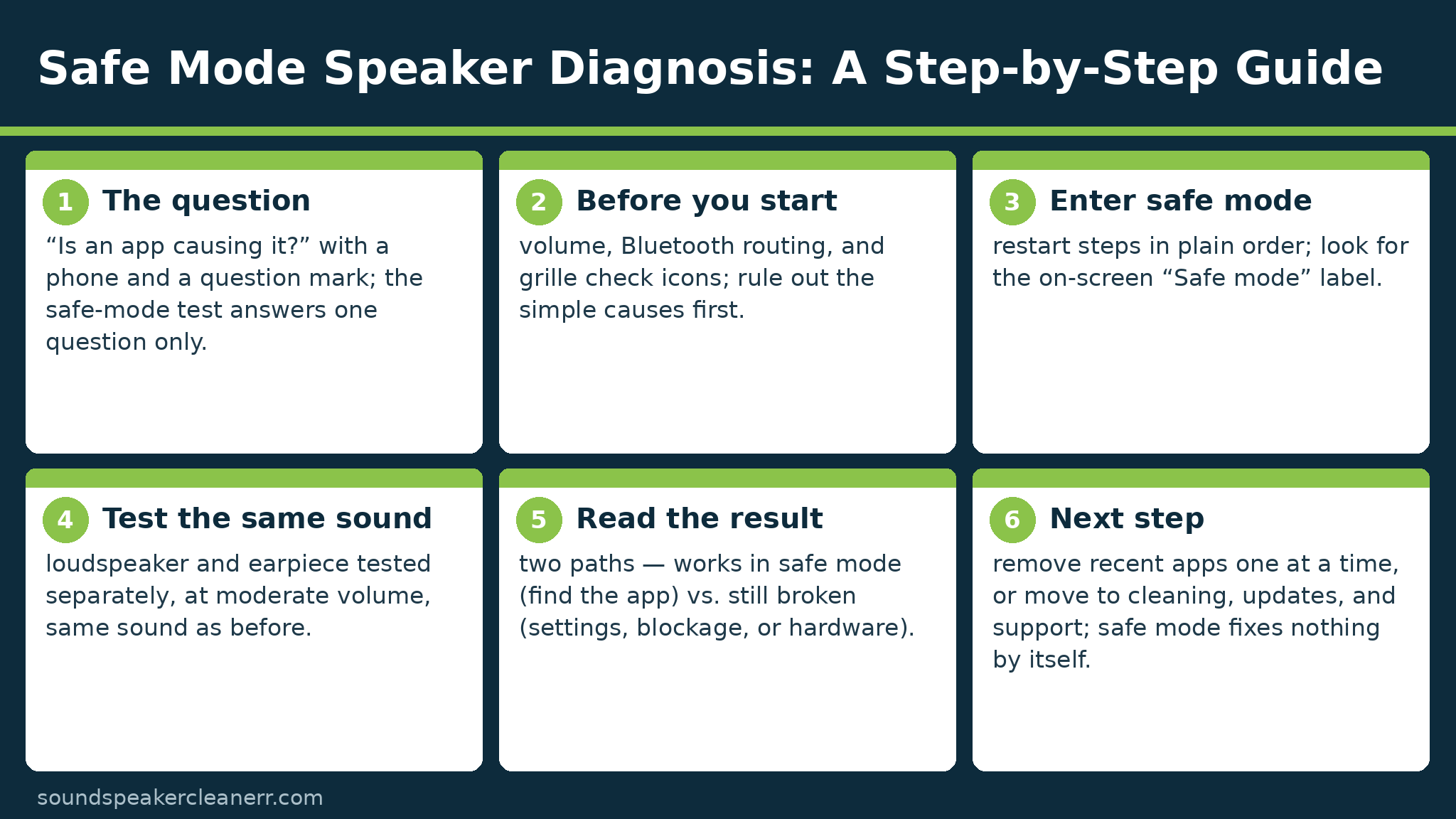
For the next speaker problem, the routine is short: note the symptom and which speaker is affected, rule out volume, routing, and blockage, enter safe mode, test the same sound at moderate volume, read the result, and act on it — remove recent apps one at a time if safe mode fixes it, or move to settings, cleaning, updates, and hardware checks if it does not. That routine takes a few minutes, deletes nothing, and turns a vague "my speaker is broken" into a specific, testable answer. It will not repair a damaged speaker, and it will not clear a blocked grille on its own, but it will tell you where the real problem lives — and that is the step most troubleshooting skips.
FAQ
Does safe mode delete my apps or files?
No. Safe mode only temporarily disables downloaded apps while it is active. Your apps and files return when you restart the phone normally. Nothing is uninstalled by entering safe mode.
How do I know I am in safe mode?
Look for the words "Safe mode" on the screen, usually near a corner, after the phone restarts. Your downloaded apps will also appear greyed out or unavailable. If you do not see the label, you may not be in safe mode yet.
My speaker works in safe mode. Does that mean it is fixed?
Not yet. It means a downloaded app is likely interfering. You still need to find the app by removing recent apps one at a time in normal mode and testing after each removal. If you simply exit safe mode without removing anything, the problem will probably return.
My speaker still sounds bad in safe mode. What does that mean?
It means downloaded apps are probably not the cause. Look next at settings, a blocked or dirty grille, water or dust exposure, system updates, or speaker hardware. Do not uninstall apps at random in this case.
Can I use safe mode on an iPhone?
No, iPhones do not offer the same user-entered safe mode as Android phones. iPhone readers should instead test after closing recent apps, check audio output routing, check volume and mute settings, and make sure the software is up to date.
How do I exit safe mode?
Restart the phone normally. On most phones, press and hold the power button and choose restart, or power off and then power on again. Safe mode ends with an ordinary restart, and your apps return.
Will safe mode fix a wet or physically damaged speaker?
No. Safe mode only changes which software runs. It cannot dry a wet phone, clear a blocked grille, or repair damaged hardware. For wet or damaged devices, follow your phone maker's guidance and get the phone inspected.
Should I try a factory reset if safe mode does not help?
Not immediately. A factory reset erases your data and does not fix hardware or blockage, so it should only come after you have ruled out settings, routing, blockage, updates, and apps. Back up first if you ever reach that step, and read a dedicated reset guide before proceeding.
Leave a Reply