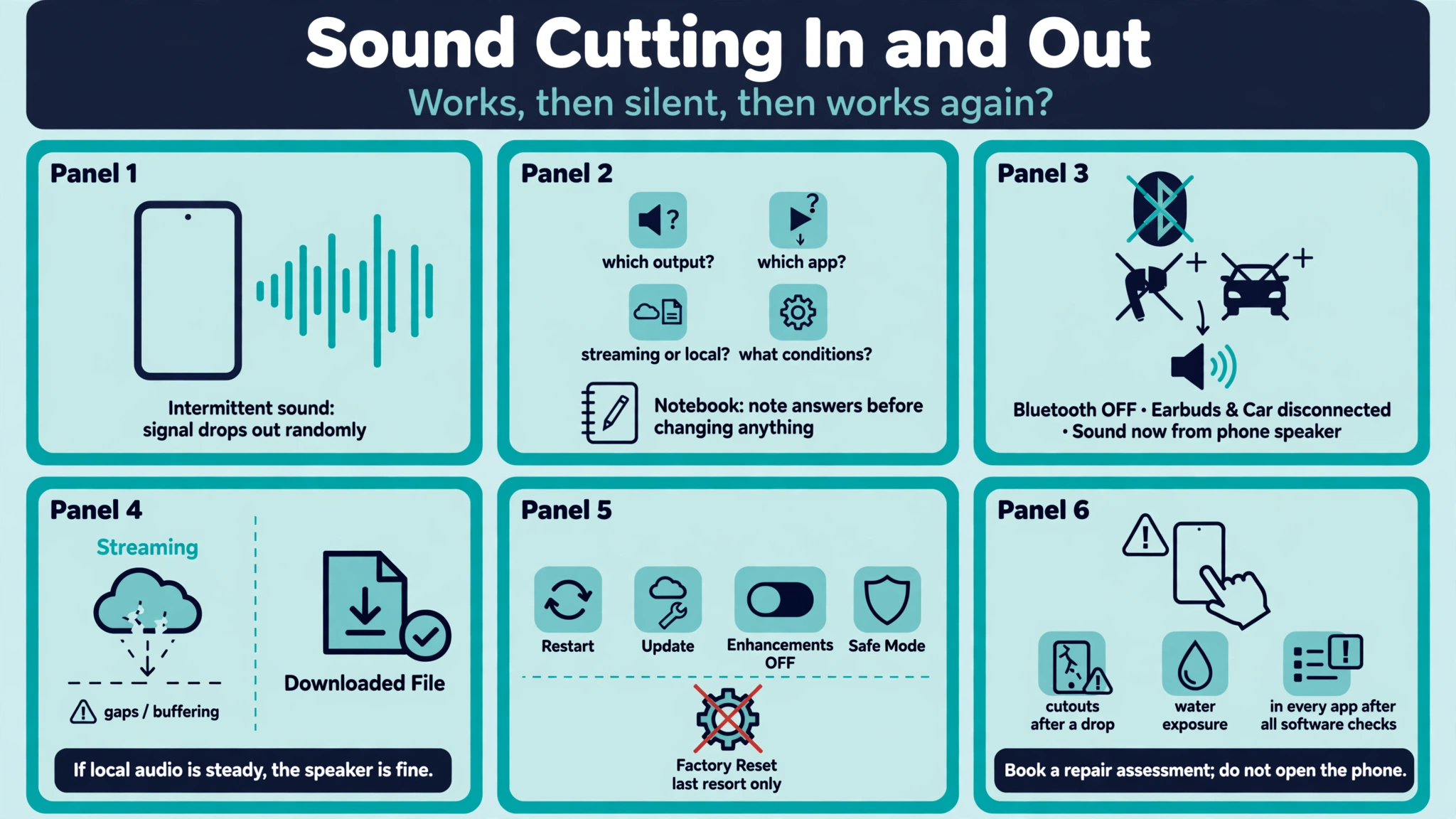
If your phone speaker keeps cutting in and out, first check whether cutouts follow the phone or the source. Turn Bluetooth off and play a downloaded file instead of a stream. If cutouts happen in every app on the phone's own speaker, restart and test safe mode; if only on Bluetooth or streaming, the speaker is probably fine.
Start by describing the pattern
Intermittent sound is frustrating precisely because it is inconsistent, so the first job is to make it consistent enough to diagnose. Before changing anything, observe and note four things over a few cutouts. First, where does the sound go: does it stop completely, drop very quiet, or switch to a different output such as earbuds? Second, when does it happen: during calls only, media only, or both? Third, in which app or apps: one app, or every app including ringtones? Fourth, under what conditions: on Wi-Fi or mobile data, while streaming or with downloaded files, on low battery or battery saver, or after the phone has been dropped or exposed to water?
These four answers split the causes into groups. Cutouts in one app only point to that app. Cutouts only while streaming point to the network or the stream. Cutouts that follow a Bluetooth connection point to routing. Cutouts in every app, on the phone's own speaker, at any battery level, point toward software or hardware in the phone itself. Skipping this step and jumping straight to cleaning or resetting wastes effort and can mask the real cause.
Step 1: Rule out routing — Bluetooth, accessories, and outputs
The most common cause of apparent cutouts is not the speaker at all: it is audio going somewhere else. A phone connected to earbuds, a car system, a smartwatch, or a nearby speaker can switch output automatically, and each switch sounds like the phone speaker cutting out. A loose wired accessory in the headphone jack can have a similar effect on phones that still have one.
Turn Bluetooth off completely — not just disconnect one device — and remove any wired accessory. Then play audio on the phone's own speaker for several minutes. If the cutouts stop, routing was the cause. Reconnect devices one at a time to find which one triggers the switching, and remove the forgotten pairing for any device you no longer use. Also check Do Not Disturb and silent settings, and any focus mode that may mute or reroute audio during certain hours, since those can produce cutouts that look random but actually follow a schedule.
While you are here, check the speaker grille for visible blockage and remove the case for a test. Debris does not usually cause clean on-off cutouts, but a case pressing on a button or covering a sensor can interrupt playback, and it costs nothing to rule out.
Step 2: Rule out the source — streaming vs downloaded audio
Streaming audio depends on the network, and a weak or congested connection produces gaps that feel exactly like speaker cutouts. The test is simple: play a downloaded file or a locally stored track on the phone's own speaker, with Bluetooth off, and compare it with a stream. If local audio plays smoothly while streaming cuts out, the speaker is fine and the problem is the connection, the streaming quality setting, or the app's cache.
If the cutout happens with local files too, the source is ruled out and the cause is in the phone. Also test a ringtone preview and a system sound: if those cut out as well, the problem affects the phone's whole audio output, not just one app's playback. If ringtones are steady but one app cuts out, return to that app — clear its cache, check for an app update, and reinstall it only after confirming your account and downloads are backed up.
Step 3: Restart, update, and test in safe mode
Temporary software glitches are a frequent cause of intermittent audio, and the standard sequence addresses them in order of increasing disruption. First, restart the phone: this clears temporary audio routing conflicts and background processes that can starve playback. Test for several minutes after the restart before moving on, since a single short test can miss an intermittent fault.
Second, check for operating-system updates and app updates, and install any that are available. Audio bugs can appear after an update and are often fixed by a later patch. Third, disable audio enhancements and equalizer settings temporarily and retest; processing conflicts can interrupt playback in ways that sound like hardware cutouts. Fourth, test in safe mode if your phone offers it (the method varies by model). Safe mode runs only system apps, so if cutouts disappear in safe mode, a third-party app is interfering — disable or remove recently installed or recently updated apps one at a time until the culprit is found.
A factory reset is sometimes suggested for persistent software problems, but treat it as a last resort, not a routine step: back up all data first, and only consider it after the checks in this guide and a repair assessment have ruled out hardware. Resetting a phone with a loose speaker connection will not fix the connection, and it costs the reader their setup for nothing.
Step 4: Check battery, power saving, and overload
Low battery and aggressive power-saving modes can throttle background processes, including audio playback and wireless connections, which produces buffering and cutouts. Charge the phone above a comfortable level and temporarily turn off Low Power Mode or Battery Saver, then retest under the same conditions that previously produced cutouts. If cutouts stop, power management was contributing, and the reader can adjust per-app battery settings so the audio app is allowed to run without restriction.
Overload matters too, especially on older phones. Streaming video, running several apps, and maintaining multiple Bluetooth connections at once can strain playback. Close unused apps, disconnect unused Bluetooth devices, and test with a single app playing. If cutouts track the phone's load rather than the speaker, the fix is reducing load, not replacing hardware.
Step 5: When hardware is the likely cause
If cutouts happen on the phone's own speaker, in every app, with local files, with Bluetooth off, after restart and updates, and outside safe mode, the cause is more likely hardware: a loose internal connection, a failing speaker, or damage from a drop or water exposure. Cutouts that began immediately after a drop, or that worsen when the phone is moved, tapped, or squeezed, strengthen the hardware suspicion — but do not open the phone to check. Internal connection inspection requires disassembly and is best left to a professional technician, as opening the phone can void warranties and damage other components.
Moisture deserves a separate note. If cutouts began after water exposure, follow your manufacturer's guidance for that model: dry the outside with a soft cloth, hold the speaker facing down so water can drain outward, let the phone air-dry in a dry room with airflow away from direct heat, and do not charge a wet phone. This guide gives no specific waiting-hour figure, because manufacturer guidance differs by model. If cutouts fade steadily as the phone dries, moisture was likely involved. If they persist unchanged after thorough drying, book a repair assessment.
A safe check sequence in order
Follow this order and stop when the cutouts stop. First, note the pattern: which output, which app, streaming or local, and under what conditions. Second, turn Bluetooth off, remove accessories, and test the phone's own speaker. Third, compare a downloaded file with a stream, and test a ringtone preview. Fourth, restart, update, disable enhancements, and test in safe mode. Fifth, charge the phone, turn off battery saver temporarily, and reduce load. Sixth, if cutouts persist through all of that, seek a professional assessment rather than opening the phone or repeating loud cleaning tones. Cleaning the grille gently with a dry soft brush is reasonable at any point if you can see debris, but sound-based cleaning does not guarantee water or dust ejection and cannot repair a loose connection or damaged driver, so do not rely on it for this symptom.
FAQ
Why does my phone speaker cut out only when streaming?
Streaming depends on the network, so weak or congested Wi-Fi or mobile data produces gaps that mimic speaker faults. Play a downloaded file on the phone's own speaker with Bluetooth off: if local audio is steady, the speaker is fine and the connection or stream is the problem.
Can Bluetooth cause my phone speaker to cut in and out?
Yes. A phone paired with earbuds, a car system, or a nearby speaker can switch audio output automatically, and each switch sounds like a cutout. Turn Bluetooth off completely and test the phone's own speaker; if cutouts stop, reconnect devices one at a time to find the trigger.
Why does sound cut out only in one app?
That pattern points to the app, not the speaker: its cache, its settings, a corrupted download, or a conflict with another app. Clear the app's cache, update it, and test other apps and ringtones. If everything else is steady, reinstall the app only after confirming your account and downloads are backed up.
Does battery saver affect phone speaker sound?
It can. Power-saving modes may throttle background processes, including audio playback and wireless connections, which causes buffering and cutouts. Charge the phone and temporarily turn off battery saver while testing; if cutouts stop, adjust the audio app's battery settings so it can run without restriction.
What does safe mode tell me about speaker cutouts?
Safe mode runs only system apps. If cutouts disappear in safe mode, a third-party app is interfering with audio. Disable or remove recently installed or updated apps one at a time until the cutouts stop, which identifies the culprit without a factory reset.
Should I factory reset a phone with intermittent sound?
Only as a last resort, after routing, source, restart, update, safe-mode, and power checks, and after backing up all data. A reset cannot fix a loose speaker connection or a damaged driver, so if cutouts persist through every software check, a repair assessment is the better next step.
When do intermittent cutouts mean hardware damage?
Suspect hardware if cutouts happen on the phone's own speaker in every app with local files and Bluetooth off, persist after restart, updates, and safe mode, began right after a drop or water exposure, or worsen when the phone is moved or tapped. Do not open the phone; a technician should inspect internal connections.
Leave a Reply