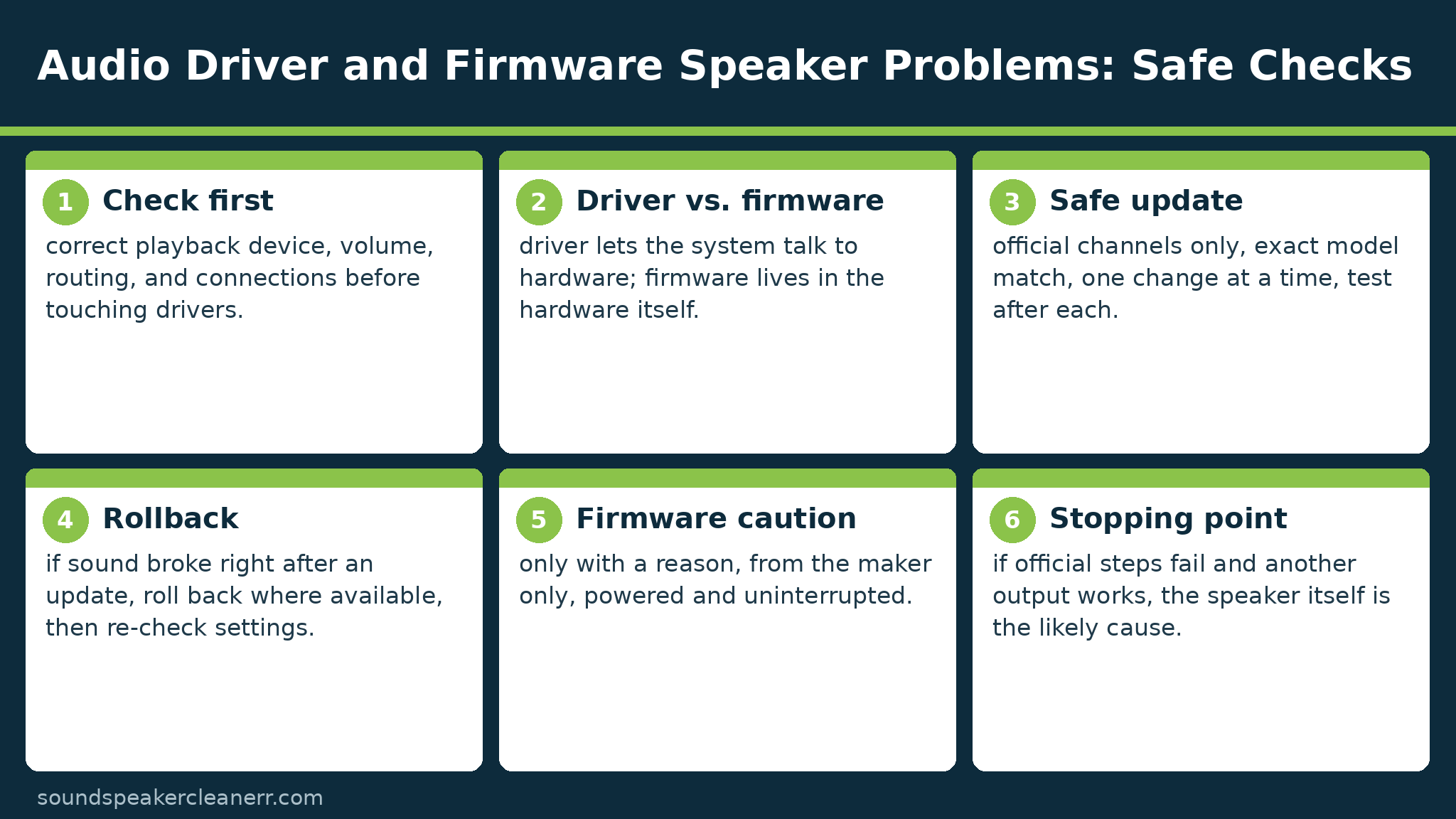
Audio driver and firmware problems can silence, distort, or misroute speaker sound even when the speaker itself is fine. Before updating anything, check the playback device and volume, and only download drivers or firmware from your device maker's official source.
That caution is the heart of this guide, because driver and firmware updates sit in an awkward middle ground: they are genuinely useful, and genuinely risky when done carelessly. An outdated or corrupted audio driver can cause crackling, missing sound, or a speaker that is not detected at all. A faulty new driver can cause exactly the same symptoms. And a driver downloaded from an unofficial site can introduce problems far worse than the one you were trying to fix. The safe approach is slow, official, and reversible — one change at a time, with a test after each.
Drivers vs. firmware: what each one does
A driver is software that lets the operating system talk to a piece of hardware. On a computer, the audio driver tells the system how to send sound to the built-in speakers, a headphone jack, or an external audio device. On a phone, there is no separate driver you install by hand in the same way; the equivalent is the system software and firmware that the maker ships with each update.
Firmware is software embedded in the hardware itself — in a speaker, a headset, a sound device, or a phone's audio components — that controls how that hardware behaves at a low level. A firmware update changes the hardware's own behaviour, which is why it carries more risk than an ordinary app update: if it is interrupted, or if the wrong firmware is installed, the device may stop working properly until it is recovered, if it can be recovered at all.
You do not need to master these definitions to fix a speaker problem. You need to know which one applies to your device, where the official update comes from, and what to do if an update makes things worse. Those three questions organize everything below.
First: is it really a driver or firmware problem?
Before touching drivers or firmware, rule out the simpler causes, because they mimic driver problems perfectly.
Check that the correct playback device is selected and set as default. On a computer, sound can be sent to a monitor, a Bluetooth device, a headset, or a virtual audio device without you noticing, and the built-in speakers will sit silent while the system insists sound is playing. Check the volume mixer as well: an individual app can be muted or set very low even when the main volume looks fine.
Check the physical side. On a phone, check the grille for blockage and check whether Bluetooth is capturing the audio. On a computer, check the speaker connection, the cable if there is one, and whether an external device is plugged in. A loose cable looks exactly like a driver failure.
Check timing. Did the problem begin immediately after a system update, a driver update, or a firmware update? If yes, the update is a strong suspect, and rollback becomes the key step. If the problem began gradually, or after a drop or liquid exposure, a driver is a weak suspect, and physical causes deserve attention first.
Only when the simple checks fail, and the timing or symptoms still point to software, should you move to driver or firmware steps.
Safe driver checks on a computer
Work in this order, testing the speaker after each step, and changing only one thing at a time.
First, check for system updates through the operating system's official update screen, including any optional driver updates it offers. Install updates from there before looking elsewhere, because the operating system vendor tests those drivers against your system.
Second, if the system offers no update, check the audio driver through the system's device manager. Look under the sound and audio device section, open the audio device's properties, and use the option to search automatically for an updated driver. If a newer driver is found, install it and restart the computer, then test.
Third, if automatic search finds nothing but you still suspect the driver, go to the computer maker's or the audio hardware maker's official website, find the support page for your exact model and operating system version, and download the audio driver from there. Match the model exactly: a driver for a similar model is not the same driver. Never download a driver from a third-party download site, a pop-up, or a tool that claims to update all your drivers at once. Those sources are a common route to unwanted software and wrong drivers.
Fourth, after any driver change, re-check the playback device and volume. Driver changes can reset the default device or mute an app, so a silent speaker after an update may be a settings reset rather than a failed driver.
Rolling back a driver that broke sound
If sound worked before a driver update and broke immediately after it, rolling back is usually the fastest safe fix. In the device manager, open the audio device's properties, find the driver tab, and use the roll-back option if it is available. Restart the computer and test.
If roll-back is not available, the next safe step is a clean reinstall: remove the audio device from the device manager, restart so the system attempts to reinstall a driver automatically, and then, if needed, install the previous driver version from the maker's official site. Keep a note of the driver version and date before and after each change, so you can tell support exactly what changed if you need help.
Do not keep installing newer and newer drivers in the hope that one will work. If two official driver versions fail, the problem is probably not the driver version at all, and further installs waste time while the real cause — a setting, a conflicting device, or faulty hardware — goes unaddressed.
Firmware checks: slower, and only from the maker
Firmware updates deserve extra caution, because they change the device itself rather than just the operating system. Only update firmware when there is a reason: the maker has released a fix for an audio issue you actually have, or the device's own support tool recommends it. Do not update firmware speculatively on a device whose sound works fine.
When you do update firmware, use only the maker's official tool or support page for your exact model, and follow its instructions exactly. Keep the device connected to power, do not interrupt the update, and do not use the device for other tasks during it. For a wireless speaker or headset, keep it charged and close to the updating device. An interrupted firmware update can leave a device unusable, which is a far worse outcome than the audio glitch you were fixing.
After a firmware update, test the speaker with normal sounds at moderate volume, and re-check volume, balance, and playback device settings, since firmware changes can reset them. If the sound is worse after a firmware update, contact the maker's support rather than trying another firmware version on your own; repeated firmware attempts compound the risk.
Phone firmware and system updates: the parallel path
Phones handle drivers and firmware together, through system updates from the maker. There is no separate audio driver to download by hand on a typical phone, and you should be wary of any site or tool that offers one.
If a phone speaker problem began right after a system update, the safe checks are: restart the phone, check volume, mute, and Bluetooth routing, check the grille, and test in more than one app. If the problem persists, check whether the maker has released a follow-up update that addresses it, and install updates only from the phone's official update screen. Do not install system software from unofficial sources, and do not attempt to modify firmware yourself; that can void support options and, in the worst case, leave the phone unusable.
If a phone problem began after an update but the speaker also shows physical symptoms — distortion at every volume, or silence that began with a drop — treat the physical cause as the priority, not the update. Timing can mislead: an update and a drop can coincide, and only the physical check separates them.
Conflicting devices and enhancements
Driver problems are often not driver problems at all, but conflicts. A computer with several audio devices — built-in speakers, a monitor with speakers, a USB audio device, a Bluetooth headset — can route sound to the wrong one after a driver change. Temporarily disconnect external audio devices, set the intended speaker as default, and test. If the sound returns, the driver was fine; the routing was wrong.
Also check audio enhancements. Some drivers offer sound enhancements or exclusive-mode settings that can distort or silence playback on certain hardware. Disabling enhancements, where the option exists, is a safe test: if the sound clears up, the enhancement was the problem, not the speaker. Note the change so you can restore it later if you wish.
On phones, the equivalent conflict is Bluetooth capture or an audio app holding the output. Disconnect Bluetooth devices and close recent audio apps before concluding that a system update damaged the speaker.
When the speaker itself is the cause
A driver or firmware check has a natural stopping point. If you have verified the playback device, volume, and routing; tried the official driver update and, where relevant, a rollback; checked enhancements and conflicting devices; and the speaker still fails on normal sounds — while headphones or another output work — the speaker or its connection is the likely cause.
At that point, stop reinstalling drivers. Further installs will not repair a faulty speaker, a damaged cable, or a blocked phone grille. Record the driver version and date, the steps you tried, and the test results, and take that record to the maker's support or a repair assessment. A clear software history prevents a technician from repeating work you have already done and helps them focus on the hardware.
The same logic applies to firmware. If a device's sound fails after a careful, official firmware update and the settings are correct, the device itself — not its software — needs attention.
A safe update routine
For the future, the routine is simple: keep a note of what works before an update, update from official channels only, change one thing at a time, test with normal sounds at moderate volume after each change, and keep the previous driver version in mind so you can roll back. Never update drivers or firmware on a device you need urgently, right before an important call or event, because even an official update can require a restart and a settings check afterward. Patience here is not caution for its own sake; it is the difference between a ten-minute fix and a device that no longer plays sound at all.
FAQ
Can an outdated audio driver cause speaker problems?
Yes. An outdated or corrupted audio driver can cause missing sound, crackling, distortion, or a speaker that is not detected. But settings, routing, blockage, and hardware can cause the same symptoms, so rule those out before blaming the driver.
Where should I download an audio driver from?
From the operating system update screen first, and otherwise from the computer or audio hardware maker's official website, for your exact model and operating system version. Do not download drivers from third-party download sites or from tools that promise to update all drivers at once.
My speakers stopped working right after a driver update. What should I do?
Roll back the driver if that option is available, restart, and test. If roll-back is not available, reinstall the driver cleanly or install the previous version from the maker's official site. Also re-check the default playback device and volume, since updates can reset them.
Should I update firmware if my speaker sounds fine?
No. Only update firmware when there is a reason, such as a maker-released fix for an issue you actually have. Firmware changes the device itself, and an interrupted or wrong firmware update can leave a device unusable.
Can I download a separate audio driver for my phone?
On a typical phone, no. Phones receive audio-related software through system updates from the maker. Be wary of any site or tool offering a separate phone audio driver download, and install phone updates only from the official update screen.
Will updating a driver fix a physically damaged speaker?
No. A driver update changes software only. It cannot repair a damaged speaker, a faulty cable, or a blocked phone grille. If official driver steps and settings checks fail, the speaker or its connection is the likely cause.
What should I note before changing a driver?
Note the driver version and date, the exact steps you take, and the test result after each change. That record lets you roll back accurately and helps support staff if you need them later.
Is it safe to update drivers right before an important call?
No. Even an official update can require a restart and a settings check afterward. Update when you have time to test, not when you need the device urgently.
Leave a Reply