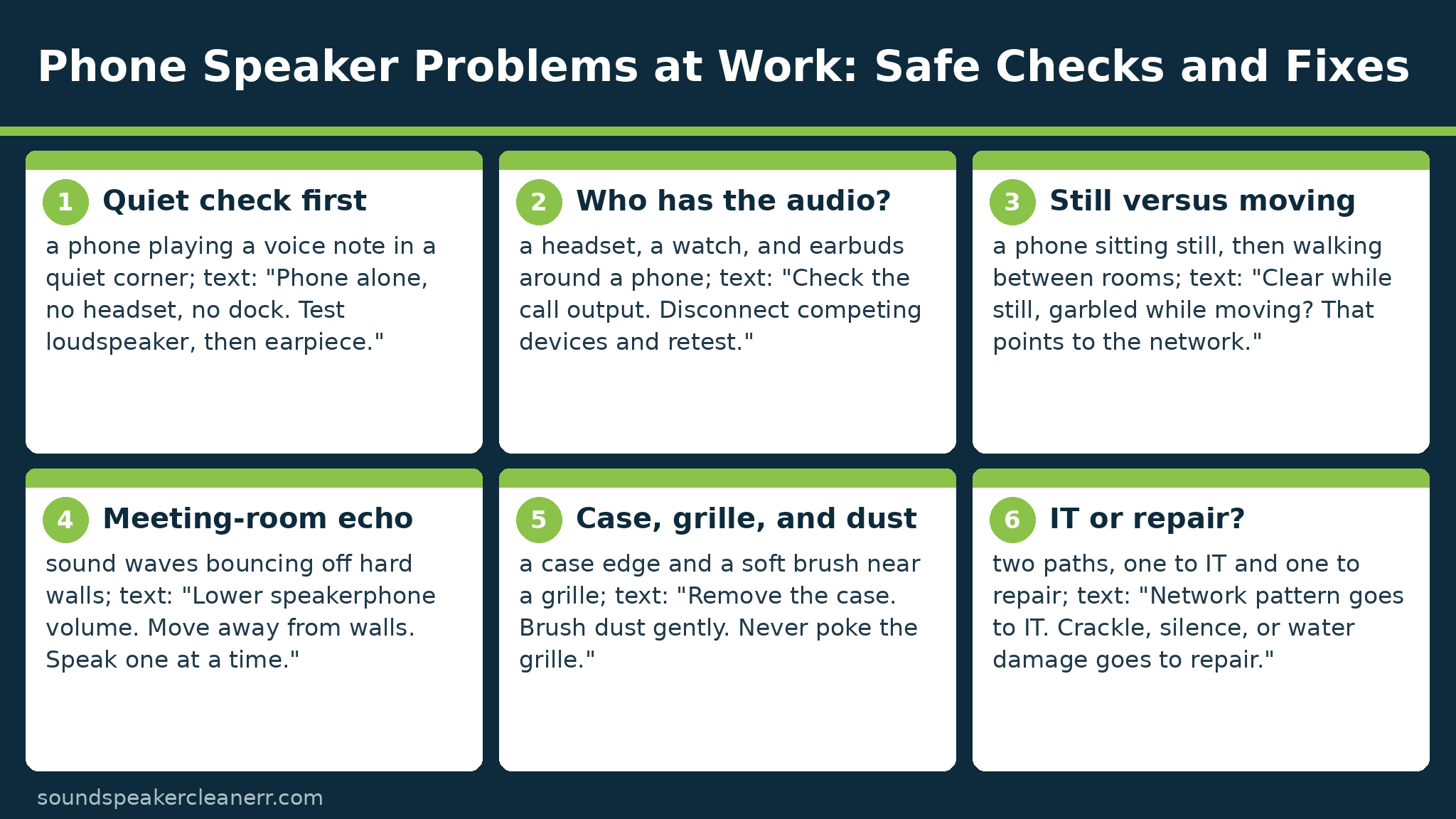
Work calls expose phone speaker problems that stay hidden at home: quiet earpieces in noisy offices, echo in meeting rooms, headsets that steal the audio, and office networks that garble voices. Check the speaker quietly first, then test headset, network, and room separately.
That short answer matters because at work the fault is rarely only the speaker. A headset left connected, a Bluetooth earbud in a pocket, a Wi-Fi handoff between floors, or a meeting room's hard walls can each mimic a broken speaker. Cleaning the grille before testing those causes wastes time and can damage a healthy speaker. The order in this guide — quiet speaker check, headset check, network check, room check, then repair decision — separates the causes without tools and without disturbing colleagues.
The quiet two-minute check
Do this check between meetings, in a quiet corner, with a short voice clip you already have — a voice note you recorded yourself, a voicemail, or a brief test call to your own voicemail. Do not test by calling colleagues repeatedly or by playing loud audio in an open office.
- Disconnect everything. Turn off Bluetooth temporarily, unplug wired earphones, and remove the phone from any dock. Play the clip through the phone's own loudspeaker at a moderate volume. If it sounds clear here, the speaker is likely fine, and the fault lies with a headset, dock, or network.
- Test the earpiece. Play the same clip as an ordinary call — hold the phone to your ear as on a call, or listen to a voicemail through the earpiece. If ordinary calls are quiet but loudspeaker playback is clear, the earpiece opening near the top is the suspect, not the loudspeaker at the bottom.
- Test speakerphone. Switch the same call or clip to speakerphone. If speakerphone echoes, cuts out, or sounds hollow while the earpiece is clear, the room, the microphone, or the speakerphone volume is involved — not necessarily a blocked grille.
- Remove the case. A work case, especially a thick protective case or one with a flap, can cover speaker or microphone openings. Retest without the case. If sound improves, the case was the cause.
- Check the grille in good light. Look at the loudspeaker grille and the earpiece for lint, dust, or a screen protector edge crossing an opening. Brush lightly with a clean, dry, soft-bristled brush, away from the phone, then wipe with a dry, soft cloth. Do not poke the grille with pins, paper clips, or sharp objects, and do not use high-pressure air. Do not use compressed air on an iPhone.
If the phone alone, without accessories, sounds clear in a quiet corner, do not clean further. Move on to the headset and network checks, which are the more likely work causes.
The headset and Bluetooth trap
The most common work fault is not a speaker fault at all: audio is going somewhere else. A Bluetooth headset paired in the morning, earbuds left in an open case in a bag, a smartwatch with call audio enabled, or a desk dock can all take over calls while the phone appears to be playing normally.
Check the audio route before every important work call. On the call screen, look at the audio output indicator and confirm it shows the phone, the speakerphone, or the device you actually intend to use — not a headset in another room. If the indicator shows a device you are not wearing, disconnect that device and retest.
Also check Bluetooth permissions for each paired device. A device paired for music may also claim call audio, and a watch or earbud can claim the call channel even when it is not in use. Temporarily disconnecting competing devices and retesting the call is a fast, safe diagnosis: if the call clears up, one of those devices was the cause, and you can re-pair only the device you need.
Wired headsets cause a similar trap. A partially inserted plug, a damaged cable, or a headset left plugged into a dock can route audio away from the speaker or leave the phone thinking a headset is still connected. Unplug fully, inspect the plug and the phone's port for lint, and retest through the phone alone. Lint in the headphone or charging port area is a separate problem from speaker dust; brush it out gently or seek help rather than pushing it deeper.
Office networks: Wi-Fi handoffs and weak signals
Work calls over office Wi-Fi behave differently from calls at home. As you move between floors, meeting rooms, or buildings, the phone hands off between Wi-Fi access points. During a handoff, a call can garble, drop a few seconds, or go silent, then recover on its own. That pattern — brief garbling while moving, clear sound while sitting still — points to the network, not the speaker.
To test this, make a test call while sitting still in one place with a strong signal, then note whether the fault follows movement. If sound is clear while still and garbled only while walking between areas, the network handoff is the likely cause. Staying in one place for important calls, or switching from Wi-Fi calling to mobile data for a test call, can confirm it. Do not change office network settings yourself; if the pattern is consistent, report it to IT with the details: where you were, whether you were moving, and whether mobile data behaved differently.
Weak signal causes a related pattern: voices that break up, sound robotic, or fade in and out, while ringtones and media played from the phone itself sound normal. Media stored on the phone does not need a network, so it is a useful comparison. If stored media is clear and only live calls break up, the connection is the suspect. Restarting the phone can clear a temporary software or connection glitch, and updating the phone's software can fix known call-audio faults — but neither step repairs a blocked grille or a damaged speaker.
Meeting rooms: echo, hard walls, and speakerphone volume
Meeting rooms make speakerphone problems worse. Hard walls, glass, and large tables reflect sound back into the phone's microphone, and the phone's echo control may then lower or mute the speaker to stop feedback. The result sounds like a faulty speaker: voices cut out, echo, or go quiet in turns.
Lower the speakerphone volume to a moderate level before assuming damage. High speakerphone volume in a reflective room is the most common echo trigger. Move the phone away from walls and laptop speakers, place it on a soft surface if one is available, and keep it away from other devices playing audio. If only one person speaks at a time and the echo stops, the room and volume were the cause.
Microphone placement matters here too. The phone has more than one microphone, and speakerphone calls may use a different microphone from ordinary calls. If colleagues hear you poorly on speakerphone but clearly on an ordinary call, check that no case, stand, or dust covers the microphone openings, and test a voice recording made in speakerphone position. A cleaning tone played through the speaker will not fix a blocked microphone, and shouting into the phone only increases echo.
For confidential or sensitive calls, avoid speakerphone in shared rooms altogether. Use the earpiece or a headset you control, in a private space. That protects privacy and also gives a cleaner test: if the earpiece is clear in private, the meeting-room echo was the problem, not the speaker.
Dust, pockets, and the workday pattern
Ordinary workdays still add dust. Lint from trouser pockets, dust from bags, crumbs from desk lunches, and fibres from a case lining all collect around the grille over weeks. The pattern is gradual: volume seems slightly lower each week, voices lose clarity, and music sounds flat. That slow change points to blockage rather than a sudden fault.
Brush the grille lightly after noticing gradual muffling, and check whether the case traps lint around the openings. A case that fits tightly around the grille can hold dust against it even when the phone looks clean. Clean the case separately, and check that no screen protector or film crosses the earpiece. Water exposure at work — a spill on a desk, rain on the commute, a wet jacket pocket — needs a different response: disconnect cables, remove the case, wipe the outside with a soft, lint-free cloth, and let the phone dry with good airflow before charging or judging its sound. Do not charge through a wet port; follow the phone maker's guidance and wait until the device is fully dry. A cleaning tone may help move moisture near a speaker opening only after the outside is dry, as one short cycle at moderate volume; it cannot dry a charging port, remove corrosion, or repair damage.
Do not use cleaning tones repeatedly through a workday as a substitute for brushing out dust. Repeated loud playback in an office disturbs colleagues and does not remove packed lint. One short, moderate-volume test after brushing is enough to judge whether sound improved.
Alarms, notifications, and ringtones at work
Work speaker complaints are sometimes not about calls at all. A missed alarm, a quiet ringtone, or a silent notification can look like a speaker fault when it is a settings fault. Ringtones, notifications, alarms, media, and calls often have separate volume controls and separate mute settings, including Do Not Disturb schedules and accessibility settings that mute all sounds. Before cleaning, check each volume in turn: play a ringtone, play a notification sound, and test an alarm at a safe time. If media is loud but the ringtone is silent, the ringtone volume or a mute setting is the cause.
Also check that the phone is not in a silent or focus mode carried over from a meeting. Focus modes can silence calls from unknown numbers or route them differently, which feels like a speaker failure to the caller and the owner alike. Clearing the mode and retesting takes seconds and prevents an unnecessary repair visit.
When to ask IT or a repair shop
Ask IT first when the fault follows the network: calls garble only while moving between areas, only on office Wi-Fi, or only on one work system, while the phone alone sounds clear. Give IT the test notes: still versus moving, Wi-Fi versus mobile data, headset versus phone alone. IT can check access points, call routing, and work accounts in ways a speaker guide cannot.
Seek repair help when the phone itself fails the quiet check: the speaker crackles or distorts at low volume after brushing, sound cuts in and out when the phone is moved, one speaker mode is silent entirely, or the fault followed a drop, submersion, or salt-water exposure. Also seek help if the phone gets unusually hot, restarts, or shows charging failures. Keep using a damaged speaker loudly will not repair it, and repeated cleaning tones through a damaged speaker may make distortion worse.
If the phone is a company device, follow company policy before opening anything, removing parts, or using third-party tools. Most work speaker checks in this guide need no tools and no disassembly, which keeps them within ordinary use.
A discreet routine for the workday
Before an important call, run this thirty-second routine: confirm the audio route shows the intended device, raise in-call volume during a test moment, and check that no headset or watch has claimed the call. Between meetings, if sound has faded gradually, brush the grille lightly and retest with a short voice note. After a spill or a rainy commute, dry the phone fully before charging or testing. That routine — route, volume, grille, network — resolves most work speaker complaints without tools, without noise, and without a repair visit.
FAQ
Why is my phone speaker quiet only during work calls?
Because work calls add headsets, Bluetooth routing, office Wi-Fi, and meeting-room echo on top of the speaker itself. Test the phone alone, without accessories, in a quiet corner first. If it is clear there, the fault is routing, network, or room, not the grille.
How do I check a phone speaker quietly at work?
Disconnect Bluetooth and wired earphones, remove the phone from any dock, and play a short voice note you recorded yourself through the loudspeaker at a moderate volume, then through the earpiece as a voicemail. That tests both speakers without disturbing colleagues.
Can a headset steal my work calls?
Yes. A paired headset, earbuds in an open case, or a smartwatch with call audio enabled can take the call channel while the phone looks connected. Check the call screen's audio output indicator and temporarily disconnect competing devices to test.
Why does speakerphone echo in a meeting room?
Hard walls and tables reflect sound back into the microphone, and the phone may lower or mute the speaker to stop feedback. Lower speakerphone volume to a moderate level, move the phone away from walls and other speakers, and speak one at a time.
Should I use Wi-Fi calling or mobile data at work?
Test both. If calls garble only while moving between Wi-Fi areas but stay clear while sitting still, or clear up on mobile data, the office network handoff is the likely cause. Report that pattern to IT rather than cleaning the speaker.
Can a work case block the speaker?
Yes. A thick case, a flap, or a case with misaligned holes can cover the loudspeaker grille, the earpiece, or a microphone opening. Remove the case and retest; if sound improves, the case was the cause.
When should I ask IT instead of cleaning the speaker?
When calls fail only on office Wi-Fi, only while moving, or only on one work system, while stored media and the phone alone sound clear. Give IT the still-versus-moving and Wi-Fi-versus-mobile-data test notes.
When does a work speaker problem need repair?
When the speaker crackles or distorts at low volume after brushing, cuts in and out when the phone moves, is silent in one mode entirely, or follows a drop, submersion, or charging failure. Those signs point to hardware, not dirt or settings.
Leave a Reply