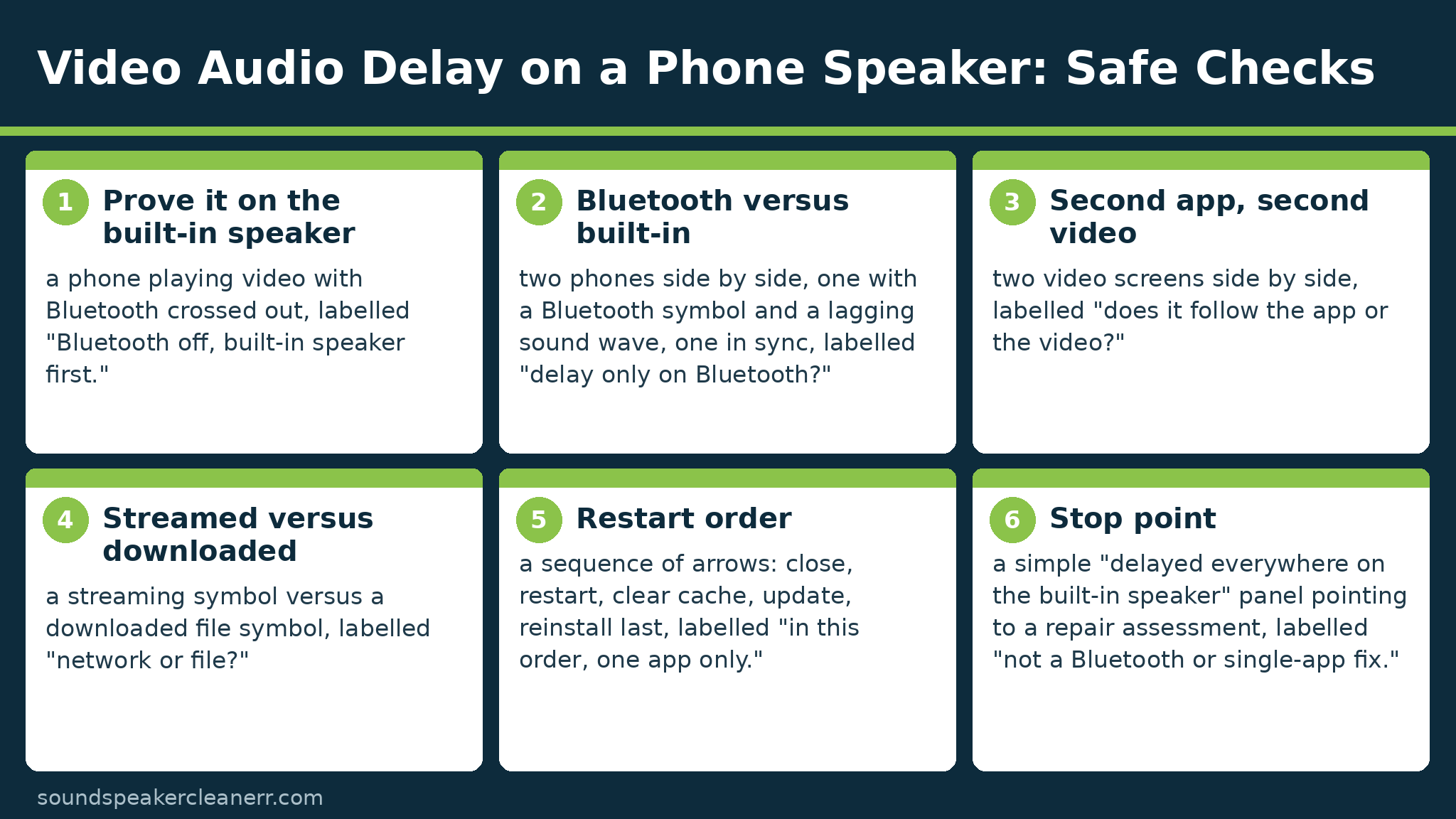
If video sound lags behind the picture on your phone, so lips move before the words arrive, the phone speaker may not be at fault. The delay could come from the app, the video, the network, or a Bluetooth device. This guide helps you prove which one it is, starting with the phone's own built-in speaker.
That starting point matters. Bluetooth audio involves buffering, which takes a little time, so a small delay on Bluetooth is common and does not prove the phone speaker is broken. A delay that also appears on the built-in speaker, with nothing connected, is a different problem, and it points to the app, the video, the network, or the phone's processing. Testing the built-in speaker first, with Bluetooth off, separates those two cases in under a minute.
First, prove the delay properly
Before changing settings, confirm the delay with three short tests, using the same video where possible.
- Built-in speaker test. Turn Bluetooth off, disconnect any wired headphones or adapter, and play a video with clear speech — a person talking to the camera is ideal — through the phone's built-in speaker. Watch the lips and listen for whether sound arrives after the lips move, before them, or in time. Note which direction the delay goes, because "sound late" and "sound early" can have different causes, and a precise note helps later.
- Second video test. Play a different video, preferably in a different app, through the same built-in speaker. If both videos are delayed the same way, the cause is likelier in the phone or its audio path. If only one video is delayed, that video, its file, or its streaming source is the likelier cause.
- Second output test. Now connect Bluetooth earbuds or a speaker, play the same first video, and compare. If the built-in speaker was in sync but Bluetooth is delayed, the delay is a Bluetooth characteristic, not a phone-speaker fault, and the Bluetooth section below applies. If both outputs are delayed the same way, the cause is upstream of the output: the app, the video, or the network.
Also note whether the delay is constant or grows worse as the video plays. A constant small delay from the start points more to buffering or encoding. A delay that grows over minutes points more to processing strain or a variable-frame-rate recording, where the phone struggles to keep audio and video aligned as the file plays.
Step 1: Compare Bluetooth and the built-in speaker honestly
Bluetooth delay deserves its own section, because it is the most misunderstood cause of phone video delay. When audio travels over Bluetooth, the phone and the receiving device buffer the digital stream — holding a little audio back so playback stays smooth despite wireless interference. That buffering takes time, and the video picture does not wait for it, so lips and sound drift apart. Some devices and apps compensate for this better than others, which is why the same video can be in sync on one Bluetooth device and delayed on another.
If your delay appears only on Bluetooth, try these comparisons before concluding anything is broken. Disconnect and reconnect the Bluetooth device, and test the same video again. Try a different Bluetooth device if one is available, and try the same video on the built-in speaker for comparison. Check whether the Bluetooth device or its companion app offers a video or low-latency mode, and try it if it exists — menu names vary, so look in the device's own settings or app for "video," "game," or "low latency" options. If the built-in speaker is in sync and Bluetooth is delayed across devices, the practical fix is to watch video on the built-in speaker or a wired connection when sync matters, rather than to replace the phone speaker. The phone speaker was never the problem in that case.
Do not confuse this with the television lip-sync problem. A television has its own image processing and its own lip-sync settings, and those steps do not apply to a phone's built-in speaker. This guide stays on the phone.
Step 2: Compare apps, videos, and streaming versus downloaded playback
If the delay also appears on the built-in speaker, the app and the video are next. Different apps handle audio and video differently, and a single app's cache, settings, or temporary glitch can delay its own audio while other apps stay in sync.
Play the same kind of video — clear speech, not just music — in a second app through the built-in speaker. If the second app is in sync, the first app is the likelier cause, and the app section below applies. If both apps are delayed, the video source or the phone is the likelier cause.
Next, compare streamed and downloaded playback of the same or a similar video, if a download is available. Streaming delay can come from the network: a slow or unstable connection can starve the video stream, and the player may let audio and video drift while it buffers. A downloaded video removes the network from the equation. If a downloaded video is in sync while the same video streamed is delayed, the network or the streaming source is contributing, and watching downloaded videos, or moving to a stronger connection, is a usable workaround. If a downloaded video is delayed too, the network is not the whole story, and the phone's processing or the file itself is next.
Also test a locally recorded video — one shot on the phone itself — through the built-in speaker. A phone-recorded video is the cleanest test of the phone's own playback, because it involves no streaming service, no download, and no other app's encoding. If phone-recorded videos are in sync but streamed videos are delayed, the streaming path is the focus. If phone-recorded videos are also delayed, the phone's playback or audio path is the focus.
Step 3: Restart, clear cache, and reinstall — in this order
If one app is delayed while others are in sync, work through that app in order, testing the same video after each step. Do not jump straight to reinstalling, because each step is less disruptive than the next.
First, close the app fully and reopen it, then play the test video again. A full close clears a temporary playback glitch that a simple pause does not. Second, restart the phone, with Bluetooth off and nothing connected, and test the same video through the built-in speaker. A restart clears temporary audio-processing and routing glitches that can leave audio and video misaligned.
Third, clear only that app's cache if your phone offers that option. Cache clearing removes temporary playback data without deleting your account or saved content in most apps, but check what your phone says cache clearing does for that app before confirming. Test the same video again after clearing cache.
Fourth, check for an update to the app and to the phone's software. Playback and sync behaviour can change with updates, and an update can also introduce a temporary glitch, so note whether delay began right after an update. That timing points to software rather than sudden hardware failure.
Fifth, and only if the earlier steps fail, uninstall and reinstall the single delayed app, after confirming you can sign back in and that your saved content is not stored only on the device. Reinstalling is disruptive, and it is wasted effort if the delay affects every app, because a single app's reinstall cannot fix a phone-wide problem. If every app is delayed, skip reinstalling and go to the phone-wide checks below.
Step 4: Phone-wide checks — resources, safe mode, and settings
If every app and every video, including phone-recorded video, is delayed on the built-in speaker, the phone itself is the focus. Start with resources: close resource-heavy apps, unused browser tabs, and background downloads, then play the test video again. Video playback, especially high-resolution video, demands steady processing, and a phone short on resources can let audio and video drift apart, with the drift growing as the video plays. If the video improves after closing other apps, resources were contributing.
Safe mode, where available on Android, runs the phone without third-party apps. If video is in sync in safe mode, a third-party app is interfering with playback or audio, and removing recently installed audio, video, or accessibility apps one at a time can identify it. If video stays delayed in safe mode, a third-party app is not the cause.
Check audio settings that can affect sync, using the settings search for "audio," "mono audio," or "accessibility audio." Some accessibility audio options change how channels are combined, and some sound enhancements add processing time. Menu names vary by brand and software version, so search rather than following one remembered path. Try the test video with any enhancement off, and compare. As a non-destructive step, resetting all settings (not erasing data) can clear a stuck audio configuration, but it also resets Wi-Fi, Bluetooth, and preferences, so note your settings first if you choose it.
Also check storage: a phone very low on free storage can struggle with video playback and caching. Freeing space is a simple, safe step before concluding hardware failure, and it helps playback generally, not only sync.
When to stop and seek repair
Seek a repair assessment if any of these apply: video audio delay persists on the built-in speaker across every app, every video including phone-recorded video, after restart, cache clearing, update, safe mode, and settings reset; the speaker is also distorted, quiet, or crackling, which points to playback hardware rather than sync alone; or the phone was dropped or exposed to significant water and video sync has been wrong ever since. In those cases the speaker, audio hardware, or an internal connection may be faulty, and that needs hands-on assessment rather than another reinstall. Do not open the phone yourself unless you are qualified to do so.
If delay appears only on Bluetooth, only in one app, or only on streamed video, repair is not the next step: the Bluetooth, app, or network fix above is. Keep a short note of your tests — built-in speaker versus Bluetooth, which apps, streamed versus downloaded, phone-recorded video, and which direction the delay goes — and share it with app support or a repairer. Those facts already rule out most guesses.
FAQ
Why is video sound delayed on my phone speaker?
The delay could come from the app, the video file, the network, Bluetooth buffering, or the phone's processing — not necessarily the speaker. Test the built-in speaker with Bluetooth off first to separate Bluetooth delay from phone delay.
Why does Bluetooth delay video but the built-in speaker does not?
Bluetooth buffers the digital audio stream to keep playback smooth, and that buffering takes time while the picture does not wait. That is a Bluetooth characteristic, not proof the phone speaker is broken.
How do I tell if one app is causing the delay?
Play a clear-speech video in a second app through the built-in speaker. If the second app is in sync, the first app is the likelier cause. Then work through close, restart, clear cache, update, and only then reinstall for that app.
Can a slow network cause video audio delay?
Yes, for streamed video. A slow or unstable connection can starve the stream and let audio and video drift. Compare a downloaded video and a phone-recorded video: if those are in sync, the streaming path is the focus.
Should I reinstall the app straight away?
No. Close the app fully, restart the phone, clear only that app's cache, and check for updates first, testing the same video after each step. Reinstall only if those steps fail, and only for a single delayed app.
What if every app and every video is delayed?
Then the phone itself is the focus. Close resource-heavy apps, try safe mode where available, check audio and enhancement settings, and free storage. If delay persists after all of those, seek a repair assessment.
When should I seek repair for video audio delay?
If delay persists on the built-in speaker across every app and video, including phone-recorded video, after restart, cache, update, safe mode, and settings checks, or if the speaker is also distorted or quiet, seek a repair assessment.
Related tools on this site
Related guides on this site
- TV Sound Out of Sync? How to Fix Lip Sync Delay
- How to Fix Bluetooth Audio Delay (Lip Sync Lag)
- How to Fix a Bluetooth Speaker With Muffled or No Sound
- Phone Speaker Troubleshooting
- How to Test Speakers
- Phone Speaker Muffled
- Phone Speaker Crackling
- How to Clean Phone Speakers
- Does Speaker Cleaner Work?
- Speaker Cleaner Apps: Safe Use Without Installing One
- Fix Speaker Android
- How to Clean iPhone Speakers the Safe Way
- Phone Microphone Not Working
Leave a Reply