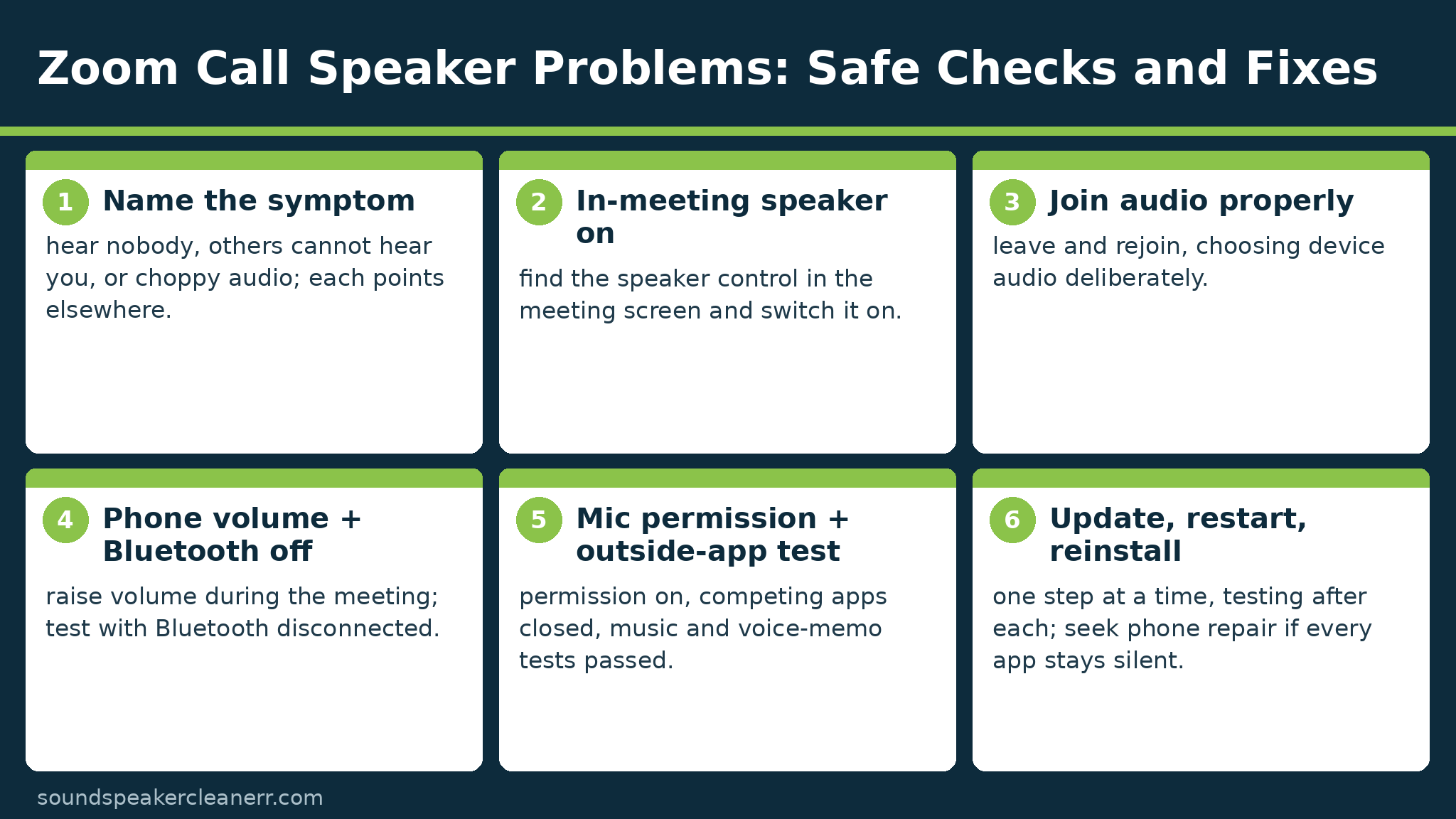
If you cannot hear anyone on a Zoom call, first check that the in-app speaker is switched on, that you actually joined the meeting audio, and that your phone volume is up, because a silent Zoom meeting is usually a meeting-audio problem, not a broken phone speaker. These Zoom-specific checks come before any phone-wide speaker work.
Check the in-app speaker icon first
Zoom has its own speaker control inside the meeting, separate from your phone's volume. On the mobile app, look at the top-left corner of the meeting screen for the speaker icon. If it shows as turned off, tap it to turn the speaker on. This single tap fixes a large share of "Zoom has no sound" reports, and it is easy to miss because the rest of the meeting looks normal — video works, participants are visible, and nothing looks broken. Tap the screen to reveal the controls if they are hidden. The icon's exact appearance varies by Zoom version, so look for a speaker symbol rather than a specific colour or shape. If the icon already shows as on and you still hear nothing, do not keep toggling it; move to the join-audio check, since a speaker that is on but never connected to the meeting audio will still stay silent.
Did you actually join the meeting audio?
Joining the video is not the same as joining the audio. When you enter a meeting, Zoom asks how to join audio — normally via device audio over Wi-Fi or cellular data. If you dismissed that prompt, tapped the wrong option, or joined with audio disconnected, you will see the meeting but hear nobody. Leave and rejoin the meeting, and this time choose the device-audio option deliberately. If you are already in the meeting, look for the audio controls to disconnect and rejoin audio with the device option. A useful tell is the mute and speaker state: if the meeting controls behave as if you are not connected to audio at all, a clean rejoin is the fix, not a volume change. Also check whether you are muted — by yourself or by the host. Mute stops others hearing you, not you hearing them, but a meeting where you think audio is broken in both directions is often a mute on one side plus a routing problem on the other, so rule both out.
Raise the volume on the phone, even with the Zoom speaker on
Even when Zoom's speaker is on, your phone's volume can still silence the meeting. Use the phone's volume buttons during the meeting, and check that the phone is not set to silent or vibrate-only, since Zoom's own guide notes that device volume set to vibrate can mute meeting sound even with the in-app speaker on. This surprises people because music apps sometimes behave differently, but call audio follows the phone's call and notification volume behaviour, not just the media volume. Test at a moderate level: raise it gradually until voices are clear, and do not push it to maximum for testing. If volume was the issue, you will hear participants immediately, which confirms the speaker was working all along.
Bluetooth and earphones: find where the audio actually went
A paired Bluetooth headset, car system, or speaker can quietly capture Zoom's audio while the phone stays silent. Temporarily turn Bluetooth off and test the meeting on the phone speaker. If voices return, routing was the cause. Then try the opposite test: connect earphones or a headset with a built-in microphone and check whether you can hear the meeting through them. If earphones work but the phone speaker does not, you have narrowed the fault to the phone speaker or its route, not to Zoom or the meeting. If neither works, the problem is more likely Zoom's audio connection, a permission, or the phone's overall audio. Disconnect and reconnect a Bluetooth device once if you want to keep using it, rather than repeatedly toggling, because re-pairing refreshes the route more reliably than tapping the same control.
Check microphone permission and close competing apps
If other participants cannot hear you, the speaker is probably not at fault at all — check the microphone path. Make sure Zoom has microphone permission: on iPhone, Settings and then Zoom, with microphone access enabled; on Android, Settings > Apps > Zoom > Permissions, with microphone allowed. Exact paths vary by OS version and manufacturer. After changing a permission, leave and rejoin the meeting so the new permission applies to a fresh session. Also close other apps that might be holding the microphone, such as another calling app, a voice recorder, or a browser tab using voice input, because only one app can normally capture the microphone at a time. If the host muted you, unmuting yourself may require the host's action depending on meeting settings, so ask the host if your unmute attempt does not stick — that is a meeting control, not a speaker fault.
Test the speaker and microphone before the next meeting
Zoom provides a speaker and microphone test in its audio settings, and using it before an important meeting prevents a silent start. On desktop the test plays a ringtone and then a microphone replay; on mobile, the practical equivalent is joining a test meeting or a short call with a colleague, confirming you can hear them and they can hear you, and checking the speaker icon and volume while you are in it. Outside Zoom, run the same two phone tests used for any call problem: play music or a video at moderate volume to check the loudspeaker, and record and play back a voice memo to check the microphone. If both pass but Zoom stays silent, the fault is in Zoom's audio connection, version, or permissions. If music is also silent, treat it as a phone-wide speaker problem and use the general guides linked below rather than reinstalling Zoom repeatedly.
Update, restart, reinstall — in that order
If the checks above fail, work through software fixes one at a time, testing after each. Update Zoom from your app store and check for an operating-system update. Restart the phone to clear temporary audio-routing glitches. If the problem survives both, reinstall Zoom from the official app store — Zoom's own guide lists reinstalling as a step when the speaker, volume, and earphone tests fail. Reinstalling means signing in again, so have your sign-in details ready, and note that a reinstall resets Zoom's local settings, which is the point: a stuck audio setting does not survive a fresh install. Do not factory-reset the phone for a Zoom-only problem; that erases everything and is disproportionate when the fault is confined to one app.
A short checklist to run before an important meeting
Before a meeting that matters, run a sixty-second check: join a test meeting or a call with a colleague, confirm the in-app speaker is on, confirm you joined device audio, and confirm the other person can hear you. That minute catches most join-audio and routing problems before they embarrass you live.
When the problem is not Zoom at all
Some Zoom audio complaints turn out to be network or hardware problems wearing a Zoom label. Choppy, robotic, or dropping audio with normal volume often points to a weak Wi-Fi or mobile connection rather than the speaker — try switching between Wi-Fi and mobile data, or moving closer to the router, and see whether clarity improves. Audio that is distorted in every app at moderate volume, a loudspeaker silent in every app, or a fault that began after a drop or water exposure points to the phone, not the meeting, and needs the phone-wide checks or qualified repair. Tell whoever helps you which tests passed: Zoom speaker icon on, device audio joined, Bluetooth off, earphones tested, music test, and voice-memo test. That list separates a meeting problem from a phone problem in under a minute.
FAQ
Why can I see everyone on Zoom but hear nobody?
You may have joined video without joining audio, or the in-app speaker may be off. Tap the speaker icon in the top-left corner of the meeting screen, then leave and rejoin, choosing device audio (Wi-Fi or cellular data) when prompted.
Why does Zoom stay silent even though my phone volume is up?
Zoom's in-app speaker can be off while the phone volume is up, or audio may be routing to a Bluetooth device. Check the in-app speaker icon, turn Bluetooth off temporarily, and raise the volume during the meeting itself.
Why can others not hear me on Zoom?
Check that you are not muted and that Zoom has microphone permission, then close other apps using the microphone and rejoin the meeting. If the host muted you, the host may need to allow you to unmute.
Does reinstalling Zoom delete my meetings?
Reinstalling removes the app's local settings and requires signing in again, but your scheduled meetings live in your Zoom account, not only on the phone. Still, have your sign-in details ready before reinstalling.
Can a weak internet connection make Zoom audio silent?
A weak connection more often makes audio choppy, robotic, or dropping rather than completely silent, but it can still disrupt a call. Switch between Wi-Fi and mobile data and test again before assuming the speaker is faulty.
Why does Zoom work with earphones but not the phone speaker?
That pattern points to the phone speaker or its routing rather than Zoom or the meeting. Test music playback on the loudspeaker; if music is also silent or distorted, follow the phone-wide speaker guides or seek repair.
Should I factory-reset my phone for a Zoom audio problem?
No. If the problem is Zoom-only, update, restart, and reinstall Zoom first. A factory reset erases the phone and is not justified for a fault confined to one app.
Leave a Reply