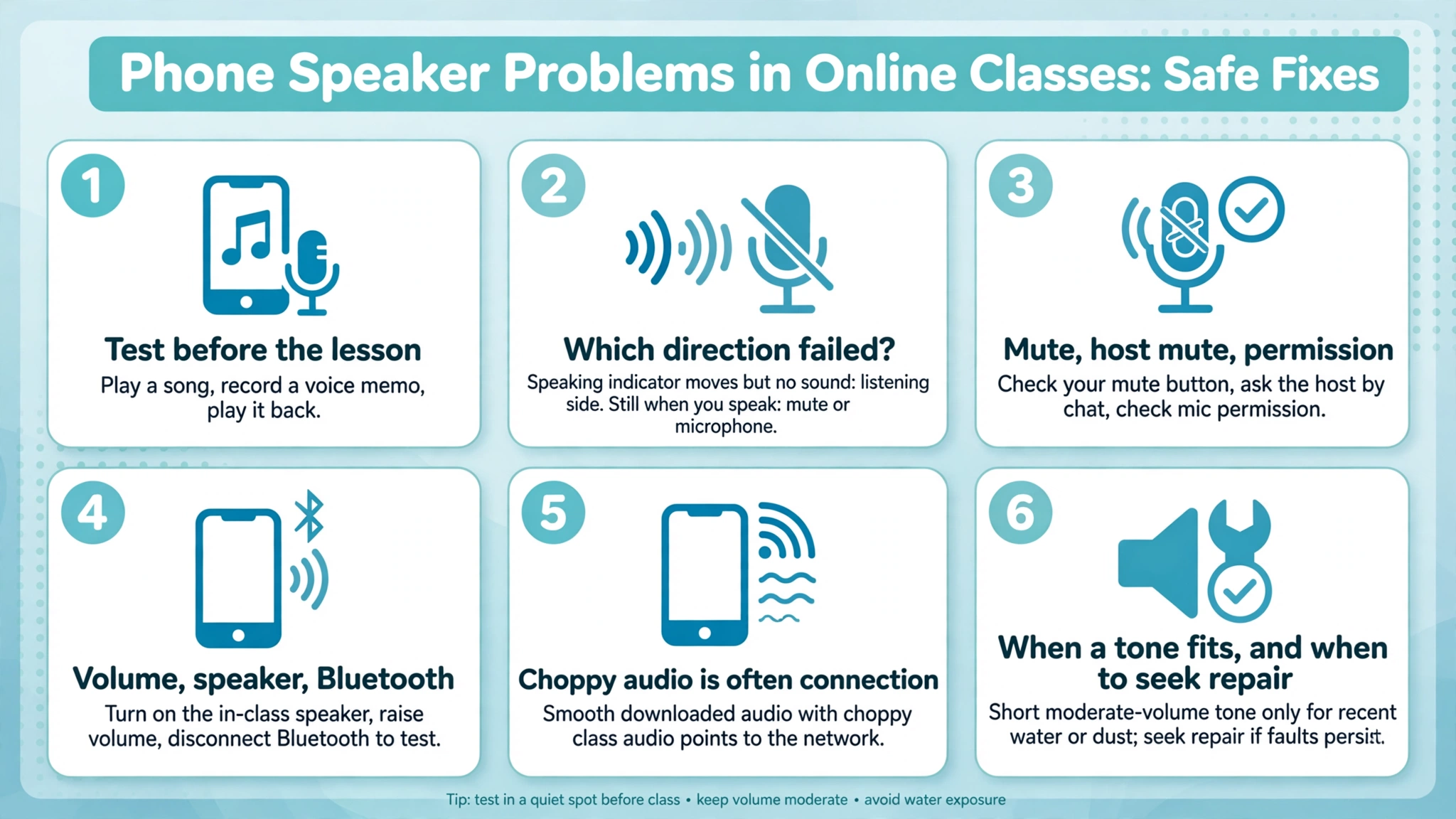
Class audio that fails on a phone is not always a speaker failure. A live class adds controls that a music app does not have: an in-class speaker toggle, a mute button, a host who can mute students, a join mode that disables audio on purpose, and a network that must carry speech for a full lesson.
The checks below separate those causes in order, starting with the fastest tests you can run before a lesson, so you can tell whether the fault is the speaker, the microphone, the class controls, or the connection.
Before the lesson: a two-minute audio test
Do not wait for a live lesson to discover an audio fault. Before class, play a short video or song through the phone loudspeaker, then record a voice memo and play it back through the same loudspeaker. If both are clear, the loudspeaker and microphone can work, and a later class fault is more likely a class control, a permission, or a connection.
Next, join a test session or a practice room, where the class app provides one, and check the in-class speaker control. Many class apps have their own speaker toggle, separate from the phone's volume, and it can be off even when the phone's volume is up. Turn the in-class speaker on, raise the phone's volume while the session is active, and confirm that the test tone or another participant's voice, where available, comes through the phone speaker rather than the earpiece. The earpiece is quiet by design for private calls; a class played through the earpiece will sound faint even when the loudspeaker is healthy.
Change one setting at a time, and retest with the same video and the same test session. If you change in-class speaker, phone volume, Bluetooth, and microphone permission together, you will not know which one helped, and the fault may return at the next lesson.
First test in a live class: can you hear them, or can they hear you?
When a class is already running, use the speaking indicator and a short message to separate the two directions before changing anything. If the teacher's tile or speaking indicator moves when the teacher speaks, but you hear nothing, the fault is more likely on your listening side: your speaker, your volume, your in-class speaker toggle, or your audio route. If your tile does not move when you speak, or classmates say they cannot hear you, the fault is more likely on your speaking side: your mute state, your microphone permission, or your microphone.
Tell the teacher or a classmate, by chat if audio is not working, what you can and cannot hear. A single sentence — "I can see the teacher speaking but hear nothing" or "I can hear the teacher but my microphone seems muted" — is far more useful than "audio is not working," and it lets the teacher check whether the problem affects one student or the whole class. If the whole class cannot hear the teacher, the teacher's microphone or connection is the likely focus, not your speaker.
Also check whether you joined in a mode that disables audio on purpose. Some class apps offer a companion or view-only join mode, where the microphone and speaker are unavailable by design, so that you can watch alongside a main device. If you joined in such a mode, leave and rejoin normally, following the app's own controls. Do not troubleshoot the speaker for a fault that the join mode created on purpose.
Mute, host mute, and microphone permission
Mute is the most common class-audio fault, and it has more than one layer. You can be muted by your own mute button, muted by the host, muted by a permission setting, or muted because another app is using the microphone. Each layer needs a different check.
First, check your own mute button in the class app, and check whether the host has muted you. If the host muted you, unmuting from your side may not work until the host allows it; ask the host by chat to unmute you, rather than repeatedly tapping the button. Second, check microphone permission for the class app in the phone's settings. If permission was denied, changed, or set to allow only on some occasions, the class app may not hear you even though the microphone works in other apps. Third, close other apps that may be holding the microphone, such as a recording app or another call app, and rejoin the class.
If you can hear the teacher but the teacher cannot hear you, do not start with the loudspeaker. The loudspeaker is the listening side, and it is already working. Start with mute, host mute, permission, and the microphone openings, and record a voice memo to confirm the microphone itself works. That separation saves a full lesson of fixing the wrong part.
Volume, Bluetooth, and the wrong audio route
Class audio needs the right volume at the right time. Raise the phone's volume while the class is active, not only from the home screen, because class audio can follow the media slider, the call slider, or a separate in-class volume, depending on the device and app. Check the in-class speaker toggle again after raising volume; a toggle that is off will keep the class silent no matter how high the phone volume goes.
Bluetooth is the next route to check. A paired headset, earbuds, car system, or speaker can take class audio away from the phone speaker, or add delay that makes speech sound out of sync with the teacher's video. Disconnect Bluetooth temporarily for the test, and check that no wired earphones are plugged in. Play a short video through the phone speaker alone, then rejoin the class. If class audio is clear on the phone speaker but poor on Bluetooth, the Bluetooth route or the paired device is the likely focus. If it is poor on both, the speaker, the class controls, or the connection is the likely focus.
The same check applies to any "separate app sound" or per-app audio-output setting, where the phone supports it. If the class app's sound is sent to a different device, the lesson may not come from the phone speaker even when other sounds do. Turn such routing off for the test, and rejoin the class.
Choppy, delayed, or out-of-sync class audio
Not every class-audio fault is a speaker fault. Choppy speech, robotic voices, frozen video with continuing audio, or audio that lags behind lip movement can all come from a weak or unstable connection, even when the speaker is healthy. The speaker can only play what arrives; if packets arrive late or out of order, the sound will break up no matter how good the speaker is.
Test the connection separately from the speaker. Play a downloaded video or a voice memo through the loudspeaker: if it plays smoothly, the speaker is likely fine, and the class connection is the likely focus. Move closer to the router, switch between Wi-Fi and mobile data where you have both, or close other apps that use the network, and rejoin the class. If the class audio improves, the connection, not the speaker, was the fault. If the class audio stays choppy on a stable connection, and downloaded audio is also choppy, the speaker or the device is more likely to be involved.
Do not confuse delay with echo. Delay is speech arriving late; echo is hearing your own voice back, usually because another participant's speaker feeds into their microphone. If you hear an echo, mute when you are not speaking, use earphones for the test, and ask classmates whether they hear the echo too. Echo is a room and routing problem, not a dirt problem, and a cleaning tone will not fix it.
Case, grille, study-room noise, and lesson recordings
A phone used for a class is often propped up, held in one hand, or placed on a desk, and each position can cover a grille or a microphone opening. A case that covers a loudspeaker grille can make the teacher sound muffled, and a hand over a microphone opening can make your voice sound muffled to the class. Remove the case for a test session, place the phone on a hard surface with the speaker and microphone openings uncovered, and rejoin the class. If clarity improves immediately, the case or your grip, not a broken part, was the fault.
Look at the grille and microphone openings under a bright light for lint or dust, and if the phone is dry and you can see surface lint, brush it gently with a clean, soft, dry brush. Do not insert pins, needles, or other objects into any opening, and do not use liquids or high-pressure air.
Study-room noise matters too. A noisy room, a fan, or other students speaking nearby can make a teacher's voice hard to follow, even when the speaker is healthy. Test in a quiet room, with the phone close enough to hear clearly, before concluding the speaker is at fault. For lesson recordings, the same test applies: play a recording through the loudspeaker, then through earphones. If the recording is clear on earphones but muffled on the speaker, the loudspeaker or its grille is the likely focus; if it is muffled on both, the recording itself or its source is the likely focus.
When a cleaning tone fits, and when it does not
A cleaning tone fits a class-audio problem only in a narrow case: the phone recently got wet or dusty, the loudspeaker sounds muffled or distorted for class audio and for music at a normal volume, and you can see or suspect loose material near the grille. In that case, after drying a wet phone fully and inspecting a dry grille, a short, moderate-volume tone may help move loose material near the grille, followed by a retest with the same song and the same class test session.
A cleaning tone does not fit most class problems. It does not fix a mute button, a host mute, a denied microphone permission, a Companion-style join mode, a Bluetooth route, a network dropout, an echo, or a microphone fault. It does not repair a torn diaphragm or corrosion. If you have already tried a few short, moderate-volume cycles and the sound has not improved, more cycles at higher volume are not the next step. Stop, recheck class controls and routing, and consider repair advice if distortion persists everywhere.
For a wet phone, follow the manufacturer's guidance first: do not charge a wet phone, and do not assume it is dry because the outside feels dry. A tone is only a grille-level check after the phone is fully dry, never a drying method on its own.
When to seek repair
Seek repair advice if: the loudspeaker is silent or distorted at a moderate volume across class audio, music, video, and calls; the microphone is muffled across voice memos, calls, and class sessions after mute, permission, and grille checks; there is no sound at all after class controls, Bluetooth, and grille checks; the grille or mesh is visibly torn or pushed in; the phone got wet and audio problems persist after full drying; or the phone overheats quickly, restarts, or has charging or screen problems alongside audio problems.
When you seek help, bring the pattern, not just a complaint: can you hear the teacher, can the teacher hear you, does the fault affect one class app or all audio, does it happen on Bluetooth or only on the phone speaker, is the audio choppy or muffled, and does it improve on a stable connection or in a quiet room? That pattern is what separates a class control, connection, or microphone fault from a hardware fault, and it helps a shop diagnose the phone without replacing a speaker that was never the problem.
FAQ
Why can I hear my teacher but my teacher cannot hear me?
Your listening side is working, so start with your speaking side: your mute button, a host mute, microphone permission for the class app, another app holding the microphone, or a blocked microphone opening. Record a voice memo to confirm the microphone itself works.
Why can I see my teacher speaking but hear nothing?
Check the in-class speaker toggle first, then phone volume while the class is active, then Bluetooth routing. Also check whether you joined in a view-only or companion mode that disables audio on purpose, and rejoin normally if so.
Why is class audio choppy but downloaded videos play smoothly?
Choppy class audio with smooth downloaded audio points to the connection, not the speaker. Move closer to the router, switch networks where you have both, close other network apps, and rejoin the class.
Why does class audio sound fine on earphones but not on the speaker?
Earphones bypass the phone loudspeaker, so a clear earphone test points to the loudspeaker, its grille, or its routing. Check the case, grille, in-class speaker toggle, and Bluetooth route, then test music through the loudspeaker alone.
Should I use a speaker cleaner for class audio problems?
Only in a narrow case: recent water or dust, and muffled or distorted sound from the same loudspeaker in music as well as class audio. A cleaning tone does not fix mute, host mute, permission, join-mode, Bluetooth, network, echo, or microphone faults.
Why do I hear an echo in my online class?
Echo is usually another participant's speaker feeding into their microphone, or your own speaker feeding into your microphone. Mute when you are not speaking, test with earphones, and ask classmates whether they hear the echo too. It is a routing problem, not a dirt problem.
Why does my class audio fail only at certain times?
Note the time pattern: a scheduled silence mode, a low battery mode, a different network at that time, or a different room with more noise can all change the result. Test before the lesson, in the same room and network where the lesson runs, to catch time-specific faults.
When should I stop troubleshooting and seek repair?
Stop and seek repair advice if the loudspeaker is silent or distorted at a moderate volume across all audio, or the microphone is muffled across voice memos, calls, and classes, after class controls, Bluetooth, and grille checks, or if the phone was wet and problems persist after full drying.
Related tools on this site
Related guides on this site
- Phone Speaker No Sound: A Step-by-Step Diagnosis
- Phone Microphone Not Working
- Phone Speaker Troubleshooting
- Speaker and Microphone Cleaning
- Bluetooth Audio Routing Problems: A Phone Speaker Guide
- Speaker Cleaner for Video Calls: A Safe Step-by-Step Guide
- Do Not Disturb and Silent Phone Speakers: Safe Checks
Leave a Reply