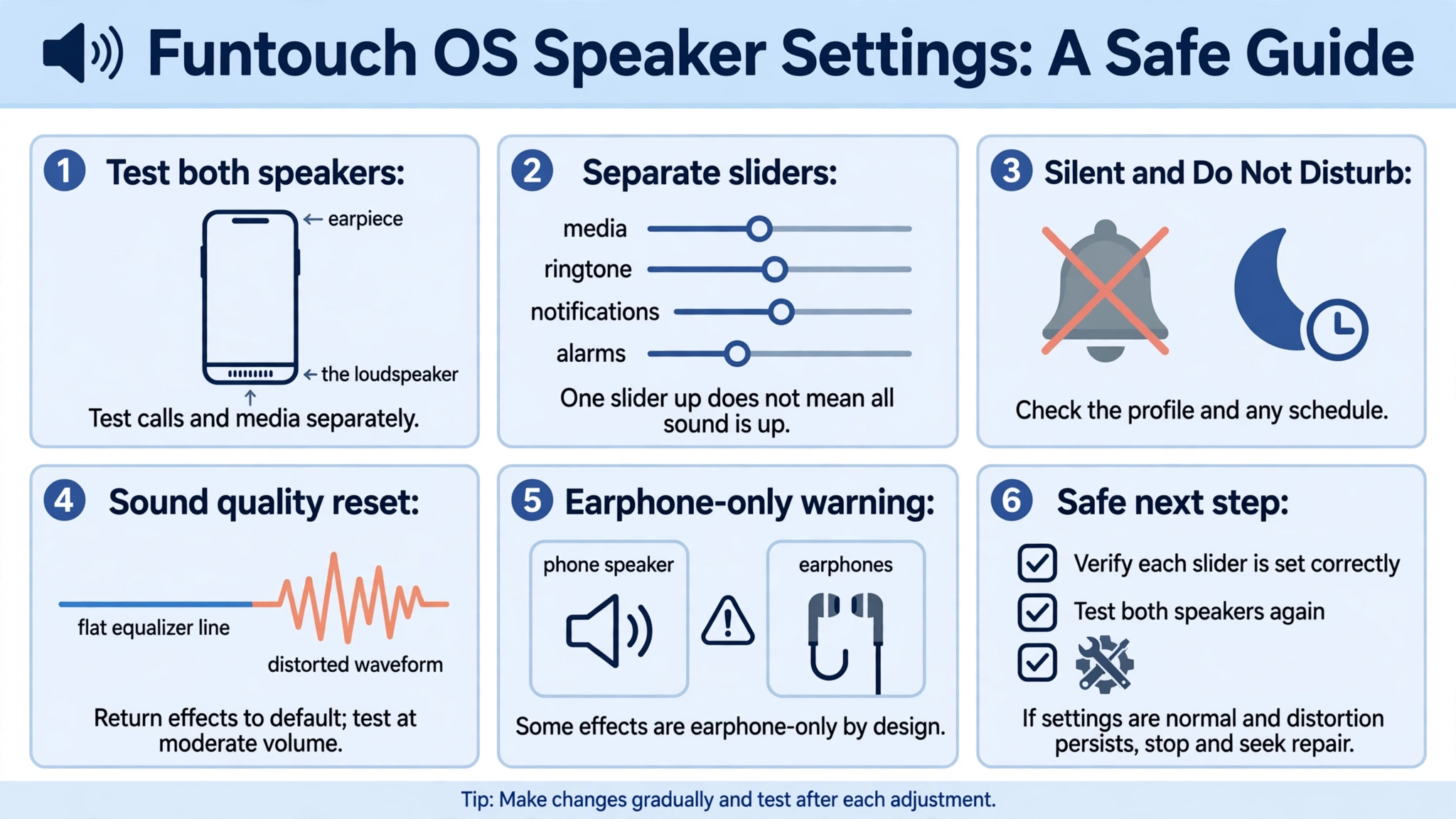
If your Vivo phone running Funtouch OS suddenly goes quiet, sounds muffled, or starts sounding distorted, the cause is often a setting rather than a broken speaker. A separate volume slider, a silence mode, a Bluetooth output, or a sound-effects mode can each change what you hear, while the speaker itself still works.
That is good news, because settings checks are quick and reversible. Work through them in order, test after each change, and note the original position of anything you change. Labels and menu positions vary by Funtouch OS version, model, region, and carrier, so if a label in this guide does not match your phone, use the search box inside Settings and type the setting name rather than assuming the setting does not exist.
Test the two speakers separately first
Before changing anything, find out whether the speaker can make sound at all. Play a short video or a song you know well, then make a test call and listen on the earpiece, then on speakerphone. Media normally uses the loudspeaker, while calls normally use the small earpiece at the top. A problem only during calls points to the earpiece, call volume, or call routing. A problem only with media points to media volume, media output, or a sound effect. A problem with callers hearing you points to the microphone, which is a different part from either speaker.
Also remove the case for the test. A thick case or a cover that overlaps a grille can muffle sound and look exactly like a settings fault. If sound returns without the case, the case was the problem, and no settings change is needed.
Check the separate volume sliders in Sounds and vibration
Funtouch OS does not have one volume control. It has several, and they work independently. Your ringtone can be loud while media is silent, or media can be loud while call volume is low. Open Settings, then the Sounds and vibration area, and check each slider in turn: media, ringtone, notifications, and alarms. During a call, press the volume buttons to check call volume separately, because call volume is normally adjusted while a call is active.
Raise each slider gradually, not straight to maximum. Listen at a moderate, comfortable level first. If a slider is at zero or very low, that alone explains silence for that kind of sound. Do not use maximum volume as a diagnostic tool. Loud sound does not clean a speaker, does not repair damage, and can make distortion worse.
While you are in the Sounds and vibration area, check the sound profile and the ringtone selection. A silent profile, or a ringtone set to none, silences calls and notifications even though media may still play. Set the profile back to sound for testing, and choose a real ringtone and notification sound rather than silence, so the test is meaningful.
Check Do Not Disturb, including schedules
Do Not Disturb is a separate control from the silent profile, and it is one of the most common causes of a phone that never rings. Look for Do Not Disturb in the Sounds and vibration area or the notifications area, check whether it is on, and check whether it is scheduled to turn on at certain times. A schedule explains a problem that appears every evening and disappears every morning.
If Do Not Disturb is the cause, you have two safe choices: turn it off, or keep it and add exceptions for the people and apps that should still ring. Do not assume a contact is excepted. Open the exceptions list and confirm it, because an exception that was never added will not help. Also check for any sleep or focus mode that can silence notifications, since a mode left on after the night can keep a phone quiet well into the morning.
Check Sound quality and effects before blaming the speaker
This is the Funtouch OS step most often missed. Vivo's own documentation gives the path as Settings, then Sounds and vibration, then Sound quality and effects, and the same documentation notes that feature availability may vary by model, carrier, and country or region. On versions where a fuller sound area is offered, it may include a Super Audio equalizer that adapts output for movies, music, or games, a Smart mode that tunes audio automatically, and per-app Hi-Fi audio output.
If distortion, harshness, or muffled sound appeared after a sound mode or preset was changed, return the area to its default or Smart setting and test at a moderate volume. A heavy preset can push small phone speakers into distortion, especially at higher volumes, and the fix is simply to undo the preset. Test with the effect at default first. Only after clear sound returns should you try one mode at a time, testing after each change, rather than switching several modes at once and losing track of the culprit.
Treat sound effects as listening preferences, not repairs. They can change tone and spaciousness, but they cannot unblock a grille, eject water reliably, or repair a damaged speaker. If distortion persists at moderate volume with effects at default, the problem is probably not a setting.
Remember that many Funtouch effects are earphone-only
One Funtouch OS quirk deserves its own warning, because it causes a lot of false alarms. Several audio effects in the sound area work only when earphones are plugged in. Vivo's own support material states this plainly for older effect systems, and the same design logic applies to later earphone modes: an effect that seems missing, grayed out, or inactive on the built-in speaker may simply be earphone-only by design, not broken.
Do not judge the built-in speaker by an earphone effect, and do not judge earphones by a speaker test. Test the built-in speaker with effects at default and no accessory connected. Then, separately, plug in earphones and check whether the earphone effect appears. Keeping those two tests apart prevents a working speaker from being blamed for an effect that was never meant to apply to it.
The reverse also matters. If sound is fine through earphones but absent through the speaker, the problem is speaker output, routing, or the grille — not the effect. If sound is fine through the speaker but wrong through earphones, check the earphone effect and the earphone itself before blaming the phone.
Check where the sound is going
A phone with a working speaker can still sound silent if it is sending audio elsewhere. Bluetooth headphones, a car system, a smart speaker, or wired earphones can all take over output, sometimes without an obvious indicator. Turn Bluetooth off temporarily, unplug any wired audio accessory, and test again. If sound returns, the speaker was never broken; the output was routed elsewhere. Also check the media output control in quick settings or the volume panel, where your phone may list the phone speaker alongside connected devices. Choose the phone speaker for the test, and only switch back to another device when you intend to use it.
If only one app is silent, check that app's own volume, mute, and notification settings before blaming the whole phone. A video app can be muted inside the app while system volume is fine, and a messaging app can have its notification sound turned off while calls still ring.
Check hearing and accessibility options
Funtouch OS places hearing-related options in the accessibility area. Two of them can look like a speaker fault. Mono audio combines stereo channels into one channel, which can help when one side is weaker but does not fix a blocked grille or a damaged speaker. A left and right balance control, where present, can shift sound to one side, which makes a phone sound quiet or one-sided. If sound is one-sided, center the balance control and test again.
Note the original position of any accessibility setting before you change it, and restore anything you do not intend to change permanently. Accessibility settings should be adjusted to your needs, not reset blindly, because they may have been set deliberately for hearing assistance.
Keep the distinction between parts in mind throughout. The loudspeaker, the earpiece, the microphone, and the charging port are different parts with different checks. Cleaning the wrong opening, or treating a microphone problem as a speaker problem, wastes time and can cause damage.
When settings are not the cause
If every slider is up, no silence profile or Do Not Disturb schedule is on, sound effects are at default, no Bluetooth device is connected, accessibility options are normal, and sound is still absent or distorted, the problem is probably not settings. Check gently for dust or lint blocking a grille, and check whether the phone got wet. For a wet phone, follow the manufacturer's guidance first, let the phone dry completely, and do not charge it while a liquid warning is present. Sound does not always eject water or dust, and it cannot repair damage, so do not keep raising the volume in the hope that repetition will fix it.
Stop and seek repair if you hear persistent crackling or distortion at moderate volume, if sound stays quiet after drying, if a grille or case is visibly damaged, or if the phone was submerged. Do not open the phone yourself unless you are qualified, do not insert sharp objects into a grille, and do not use high-pressure air or liquid cleaners.
A safe order to remember
The safest Funtouch OS troubleshooting order is: test the loudspeaker and earpiece separately, then volume sliders, then sound profile and ringtone, then Do Not Disturb and its schedule, then Sound quality and effects at default, then the earphone-only check, then Bluetooth and media output, then accessibility balance, then physical checks, then repair. Most Funtouch OS speaker silences turn out to be a slider, a profile, a routed output, or a preset. Checking those first saves a cleaning attempt on a clean speaker and a repair visit for a muted phone.
FAQ
1. Why is my Funtouch OS phone silent even though the volume is up?
Because Funtouch OS has separate sliders for media, ringtone, notifications, alarms, and calls. Check each slider, not just the one shown by the volume buttons. Also check the sound profile, Do Not Disturb, and whether sound is routed to Bluetooth or earphones.
2. Where is the Funtouch OS sound quality area?
Vivo's documentation gives the path as Settings, then Sounds and vibration, then Sound quality and effects. Availability varies by model, carrier, and country or region, so if the label does not match your phone, use the search box inside Settings.
3. Why does a sound effect seem missing on my Vivo speaker?
Many Funtouch OS audio effects work only when earphones are plugged in. An effect that seems missing or inactive on the built-in speaker may be earphone-only by design, not broken. Test the speaker with effects at default and no accessory connected.
4. Can a Super Audio or equalizer preset distort my Vivo speaker?
Yes. A heavy preset can push small phone speakers into harshness or distortion, especially at higher volumes. Return the sound area to its default or Smart setting and test at a moderate volume before concluding the speaker is damaged.
5. Can Do Not Disturb silence my Vivo phone on a schedule?
Yes. Do Not Disturb can be scheduled, so a phone can miss calls every evening and ring normally every morning. Check both whether Do Not Disturb is on now and whether a schedule is set to turn it on again.
6. Why does my Funtouch OS phone sound one-sided?
Check the left and right balance control in the accessibility area, where present. If it is shifted to one side, center it and test again. A blocked grille or a damaged speaker can also cause one-sided sound, so check the grille gently if balance does not explain it.
7. My Funtouch OS speaker is still muffled after checking settings. What next?
Check gently for dust or lint, and check whether the phone got wet. Follow the manufacturer's drying guidance for a wet device, and do not keep raising the volume. If distortion persists at moderate volume after drying, seek repair rather than repeating tones.
Leave a Reply