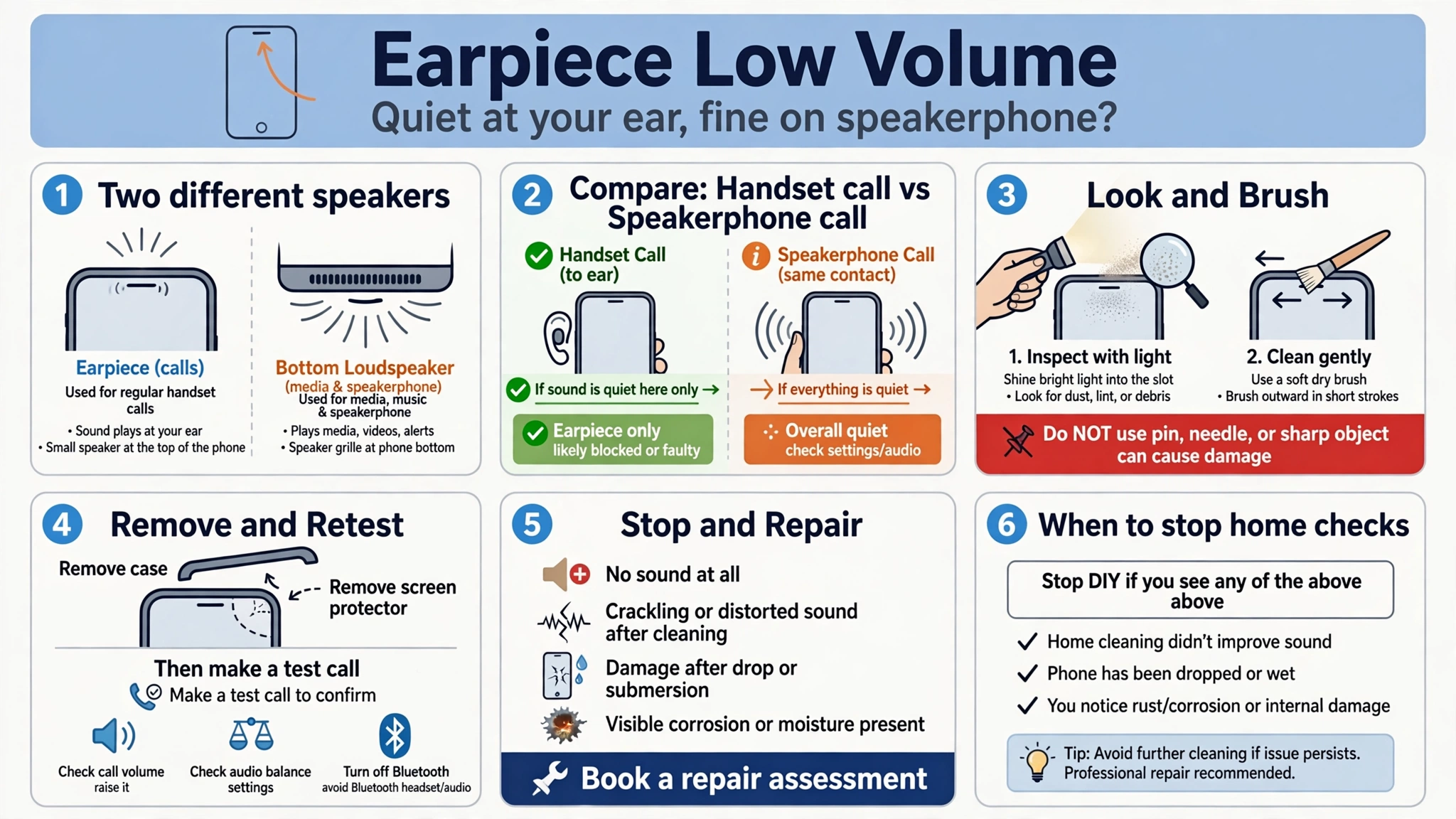
If callers sound quiet at your ear but normal on speakerphone, the earpiece is the likely problem, not your whole audio system. Check the slot for blockage, remove the case and screen protector and retest, confirm call volume and balance settings, and test another contact. If it stays quiet, repair is the next step.
The earpiece is a separate speaker
Most modern phones have at least two speakers with different jobs. The earpiece is the small speaker behind the narrow slot above the screen. It plays call audio at low volume, close to your ear. The loudspeaker at the bottom of the phone plays media, ringtones, and speakerphone calls at much higher volume. Some phones also use the earpiece as a second stereo channel for media, which is why it can matter for music too, but its main job is calls.
This distinction is the whole diagnosis. If music and speakerphone calls sound fine and only handset calls are quiet, the loudspeaker, the phone's overall audio system, and the network connection are probably fine. The fault is concentrated in the earpiece path: its mesh, its outlet, its settings, or the driver itself. If everything is quiet — media, ringtones, and calls — the problem is broader, and a general low-volume guide fits better than this one.
It also helps to separate the earpiece from two nearby parts that are often confused with it. The microphone picks up your voice; a microphone problem makes you sound quiet to the other person, not the other way around. The charging port has nothing to do with call volume. Keeping those three parts separate prevents wasted effort, such as cleaning a port when the earpiece mesh is the blocked part.
First comparison: handset call vs speakerphone
Start with a controlled comparison, because it costs nothing and narrows the cause immediately. Call the same contact twice: once with the phone at your ear, once on speakerphone, at the same volume setting, in the same room. Note three things: how loud the caller sounds at your ear, how loud they sound on speakerphone, and whether the quietness is constant or comes and goes.
If the caller is quiet only at your ear, stay on the earpiece path in this guide. If the caller is quiet on speakerphone too, check the broader causes: media volume, a Bluetooth device that has taken over audio output, Do Not Disturb or silent settings, and the loudspeaker grille. If the caller is quiet only with one contact, the cause may be on their end — a weak signal, a quiet microphone, or a faulty device — and no cleaning of your phone will fix it. Calling a second contact, as manufacturer troubleshooting guidance recommends, rules this out quickly.
The most common cause: a blocked earpiece slot
The earpiece slot is narrow, and it sits directly against your face during every call. Over months, skin oil, makeup, sweat, and dust can form a film across the mesh. Unlike loose pocket lint, this film is sticky, so it does not simply shake loose. It often looks grey or shiny before the volume drop becomes obvious, which makes a visual check worthwhile.
Look at the slot in bright light. Compare it with the bottom speaker grille if you can: a grey, dull, or filled-in earpiece slot next to a clean grille is a strong clue. Clean the outside of the slot gently with a clean, dry, soft-bristled brush, using light outward strokes so loosened debris falls away from the phone rather than into it. Do not push pins, needles, or any sharp object into the slot. The mesh is fine and easily deformed, and a punctured mesh cannot be undone by cleaning.
A sound-based cleaning tool can be used as a follow-up check, but treat it honestly: sound may help move loose surface debris, but it does not guarantee that water or dust is ejected, and it cannot repair a damaged driver. Run any tone at a moderate volume, not at maximum, because the earpiece driver is smaller than the loudspeaker. If the volume improves gradually across a couple of gentle cycles, debris was probably part of the cause. If nothing changes, move on to the settings and blockage checks rather than repeating loud cycles.
The second most common cause: case or screen protector blockage
A case or screen protector that looks correctly fitted can still partially cover the earpiece outlet. This is especially common after a protector has shifted slightly from heat, pressure, or a drop, or after a non-standard case has been fitted. The result is exactly the symptom in this guide: quiet, sometimes muffled, call audio with normal speakerphone sound.
Remove the case and, if you can do so safely, the screen protector, then repeat the test call. If volume returns to normal, you have found the cause. Replace the protector or case with one made for your exact model, and check that its cutout lines up with the earpiece slot before you settle it in place. Do not cut a larger opening in a protector yourself unless the manufacturer allows it; a rough edge can shed debris into the slot.
Also check how you hold the phone. Pressing the phone tightly against your ear can seal the outlet against your skin and reduce volume, and holding it at an angle can move the outlet away from the ear canal. Adjust the position so the outlet faces your ear directly, and test again before concluding the speaker is faulty.
Settings that mimic a quiet earpiece
Several settings can make the earpiece sound quiet even when the hardware is fine. Work through them one at a time, retesting after each change so you know which one mattered.
First, check call volume during an actual call. On most phones, the volume buttons adjust call volume only while a call is active, and media volume separately at other times. Raising media volume to maximum will not fix quiet calls. During a call, press volume up and listen for a change.
Second, check audio balance and mono audio settings. Accessibility settings on many phones include a left-right balance slider and a mono audio option. A balance slider pushed to one side can silence or quiet one channel, which matters on phones where the earpiece acts as a stereo channel. Center the slider and turn mono audio off, then retest.
Third, check Bluetooth and connected audio devices. If your phone is connected to earbuds, a car system, or a smartwatch with audio output, call audio may be routed there instead of to the earpiece, or may switch back and forth. Turn Bluetooth off temporarily and make a test call with nothing connected. If volume returns, the earpiece was never the problem — routing was.
Fourth, check Do Not Disturb, silent mode, and any hearing-enhancement or equalizer settings that may cap call volume. Turn enhancements off one at a time and retest. If a recent software update coincided with the problem, check for a newer update; audio bugs after updates are usually fixed by a later patch rather than by cleaning. Restart the phone as well, since a restart clears temporary audio routing glitches.
Water, drops, and the point where cleaning stops
If the earpiece went quiet right after rain, a shower, a spill, or a drop, the cause may be moisture or physical damage rather than everyday buildup. For a wet phone, follow your manufacturer's guidance for that model: power it down if advised, dry the outside with a soft cloth, hold the earpiece slot facing down so water can drain outward, and let the phone air-dry in a dry room with airflow, away from direct heat. Do not charge a wet phone, and do not use rice, which can leave starch dust in the openings. This guide gives no specific waiting-hour figure, because manufacturer guidance differs by model and should be followed directly.
If the earpiece went quiet immediately after a drop and never recovered, or if it crackles, cuts out, or produces no sound at all after the checks above, stop cleaning. A displaced speaker module, a loose internal connection, or a torn driver membrane cannot be fixed from outside the phone, and repeated brushing or loud tones can make things worse. The same applies if you see corrosion, discoloration, or physical damage around the slot, or if other parts near the earpiece misbehave — for example, the screen failing to wake after a call, which can indicate damage in the same area. A reputable repair shop or authorized service center can confirm whether the driver or its connection is at fault.
A safe check sequence you can follow in order
Work through these steps in order, and stop as soon as the volume returns to normal. First, compare a handset call with a speakerphone call to the same contact. Second, call a different contact to rule out the other person's signal. Third, inspect the earpiece slot in bright light and brush it gently with a dry soft brush. Fourth, remove the case and screen protector and retest. Fifth, adjust your holding position so the outlet faces your ear. Sixth, during a call, raise call volume, center the balance slider, turn mono audio off, and disconnect Bluetooth. Seventh, restart the phone and check for software updates. If the earpiece is still quiet after all seven steps, book a repair assessment rather than opening the phone or forcing tools into the slot.
Preventing the next quiet-earpiece episode
A short routine keeps the earpiece clear. Wipe the top of the phone with a dry microfiber cloth after calls on hot or humid days, check the slot in bright light every few weeks, and brush it lightly only when you can see buildup. When fitting a new case or protector, confirm the earpiece cutout is aligned before pressing it into place. Avoid putting the phone face-down in dusty pockets or bags, where lint collects around the slot. None of this guarantees the earpiece will never clog, but it addresses the most common cause before it becomes noticeable.
FAQ
Why is my earpiece quiet but speakerphone loud?
Because they use different speakers. The earpiece is a small driver behind the narrow slot above the screen, while speakerphone uses the larger bottom loudspeaker. Quiet handset calls with normal speakerphone sound point to the earpiece path — its mesh, its outlet, or its settings — rather than to the phone's overall audio system.
Can a screen protector really make calls quiet?
Yes. A protector that has shifted, or a case that is not made for your exact model, can partially cover the earpiece outlet and muffle call audio. Remove the case and protector and make a test call; if volume returns, the accessory was the cause, and it should be replaced with a correctly cut one.
Will a software update fix a quiet earpiece?
Only if the cause is a settings or software glitch. No update can clear physical debris sitting on the mesh. If cleaning and settings checks do not help, and the problem started after an update, check for a newer patch and restart the phone — but treat persistent quietness after cleaning as a possible hardware fault.
Is it safe to use a sound cleaner on the earpiece?
It can be used gently, at moderate volume, as a follow-up to physical cleaning — not as a substitute for it, and not as a guaranteed way to eject water or dust. The earpiece driver is smaller than the loudspeaker, so avoid maximum volume and repeated loud cycles. If nothing improves after a couple of gentle cycles, move on to other checks or repair advice.
Why does my earpiece volume change during a call?
Holding position matters: pressing the phone tightly against your ear can block the outlet, and shifting it away from the ear canal reduces what you hear. Bluetooth switching can also change routing mid-call. Check your hold, disconnect Bluetooth for a test call, and see whether the fluctuation follows the phone or the connection.
Should I use a pin to clear the earpiece slot?
No. Pins and needles can puncture or deform the fine mesh and push debris deeper into the speaker. Use only a clean, dry, soft-bristled brush with light outward strokes, and stop if the mesh looks clear or if brushing does not help.
When should I stop troubleshooting and get a repair?
Seek repair if the earpiece stays quiet after the full check sequence, if it produces no sound or crackling at normal volume, if the problem started immediately after a drop or submersion and never recovered, or if you see corrosion or physical damage around the slot. Those signs point to a damaged driver or internal connection, not to debris.
Leave a Reply