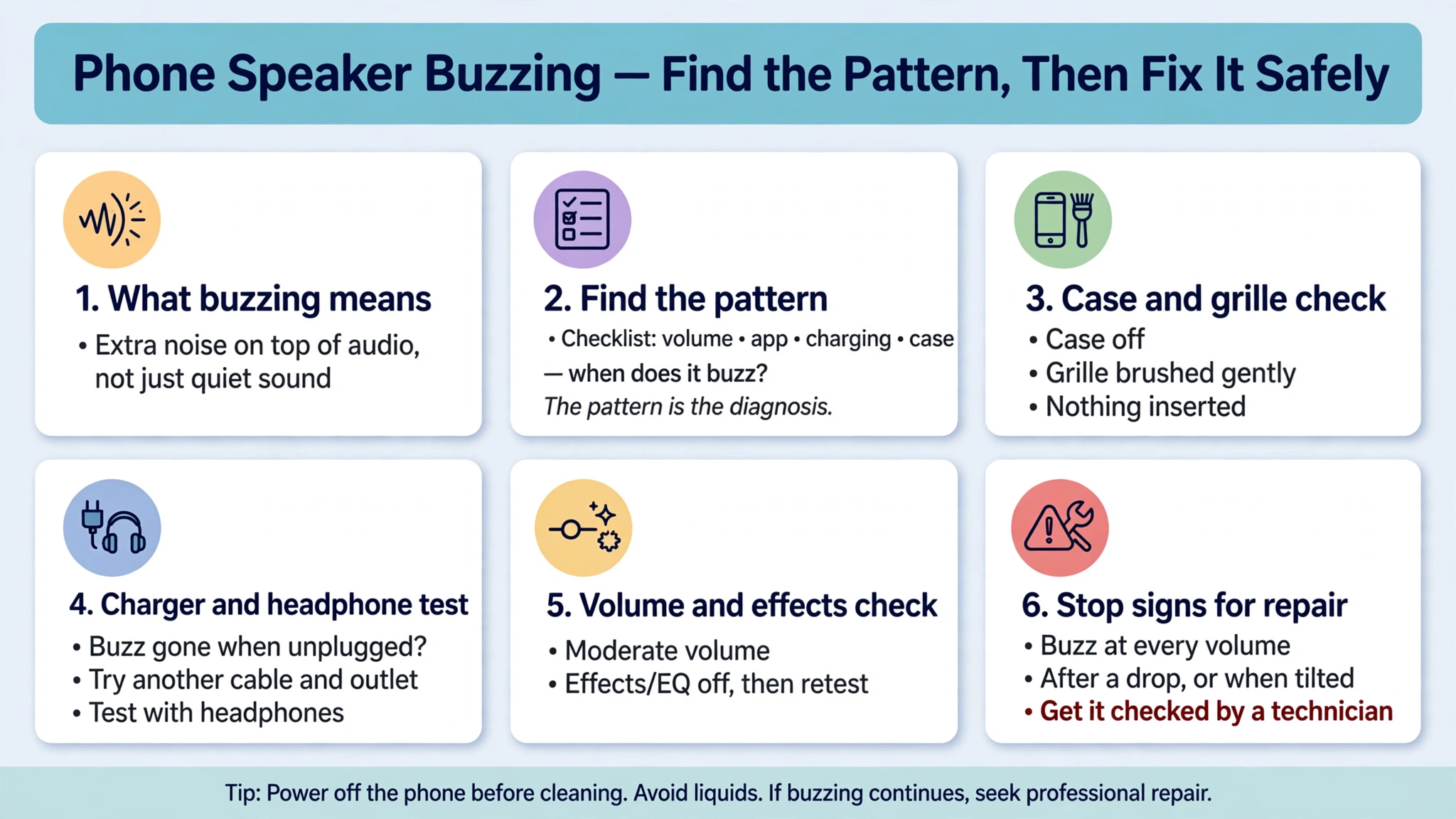
A buzzing phone speaker is usually one of four things: something loose at the grille vibrating with the sound, a charger or accessory interfering with the audio, a sound setting pushing the speaker too hard, or a damaged speaker driver. The pattern tells you which one it is, so check when the buzz appears before you try to fix it.
Buzzing is not the same as muffled sound. Muffled sound means the volume is down and the treble is dull, which often points to blockage. Buzzing means an extra noise is added on top of the audio — a rattle, a vibration, or a harsh edge on loud notes. That difference matters, because a cleaning tone that may help loose dust will not fix a torn driver, and turning the volume up to push past a buzz can make damage worse.
Start with the pattern, not a fix
Play the same song or voice clip three times and note the answers before changing anything. Does the buzz happen at every volume, or only when the volume is high? Does it happen with music, calls, ringtones, and system sounds, or only in one app? Does it happen only while charging, only on speakerphone, or only with a case on? Does it stop when you listen through headphones or a Bluetooth speaker?
Write down short answers. They are the diagnosis. A buzz that appears only at high volume and disappears at a moderate volume points to debris, an overdriven amplifier, or a speaker being pushed past its limit. A buzz at every volume, on every source, points toward damage. A buzz only while charging points toward charger interference. A buzz only in one app points toward that app or a sound effect inside it. A buzz that changes when you gently tilt or tap near the speaker points toward a loose internal connection, and that is a repair check, not a home fix.
Check 1: Remove the case and clear the outside of the grille
Remove the case first, because a loose case edge, a misaligned speaker cutout, or a case that vibrates against the phone can buzz on its own. Play the same clip with the case off and the phone on a soft, flat surface, not held tightly in your hand. If the buzz stops, the case was the cause, or the case was amplifying a small vibration. Try a different case, or leave the case off for calls and music until you can replace it.
Next, look at the loudspeaker grille in good light. Pocket lint, sand, or a small hard particle caught in the mesh can vibrate against the grille each time the speaker moves, which sounds very much like a damaged speaker. Brush the outside of the grille very gently with a soft, dry brush, and wipe the phone with a soft, lint-free cloth. Do not insert a pin, needle, toothpick, or any sharp object into the grille, and do not use compressed air or blow hard into it. Those actions can push debris deeper or damage the mesh, and they can turn a simple blockage into a repair.
If the phone was recently wet, let it air-dry with the speaker facing down before judging the buzz. Light water at the grille can cause sputtering and buzzing until it dries. Follow the phone maker’s guidance for a wet device, and do not charge it until it is completely dry. A cleaning tone may help move light water near the grille once the phone is dry, but sound does not always eject water or dust, and it cannot repair damage.
Check 2: Unplug the charger and disconnect accessories
Unplug the charger and any wired accessory, turn off Bluetooth, and play the same clip again. If the buzz stops when the charger is unplugged, the charger, cable, or power source is interfering with the audio. Try a different cable and power adapter, and try a different outlet, before assuming the speaker is at fault. This check costs nothing and rules out a whole category of causes.
Also test with headphones. If the same clip sounds clean through wired headphones or a Bluetooth speaker, the audio file and the app are probably fine, and the problem is in the phone’s own speaker or its grille. If the buzz follows the audio to headphones too, the cause is more likely the file, the app, or a system sound setting, not the speaker itself.
Check 3: Turn the volume down and turn off sound effects
Set the volume to a moderate level and listen again. Many buzzes only appear near maximum volume, where the amplifier clips the signal or the speaker cone moves farther than it comfortably can. If the buzz disappears at a moderate volume, keep it there for now. That does not prove the speaker is undamaged, but it tells you the speaker is being overdriven or is struggling with debris at large cone movement, and louder testing will not help.
Next, turn off sound enhancements for a test: equalizer presets, bass boost, surround or spatial effects, and any volume-booster feature in the music app or system settings. These features can push the signal past what the small speaker can reproduce cleanly, which sounds like harsh buzzing on loud passages. If the buzz stops when effects are off, leave them off or use a gentler preset. If your phone has a separate loudspeaker and earpiece, test them separately — music uses the loudspeaker, while calls normally use the smaller earpiece at the top. A buzz in one and not the other narrows the problem to that speaker.
Check 4: Rule out one app, then restart
Play audio from a different app: a music app, a video, a voice recording, and a ringtone. If only one app buzzes, the problem is likely in that app’s settings, its audio processing, or a corrupted file. Clear that app’s cache where your phone offers that option, check for an app update, and try a different file in the same app.
If every app buzzes, restart the phone and test again. A restart clears temporary audio-routing glitches that can leave sound distorted after an app crash or a failed Bluetooth handoff. On Android, Safe Mode can help as a further test: it temporarily disables third-party apps, so if the buzz stops in Safe Mode, a recently installed or updated app is a likely cause, and you can remove recent apps one at a time and retest. On iPhone, there is no built-in Safe Mode, so the equivalent test is to remove the most recently installed audio-related app and test again. Do not install a new booster or cleaner app to chase the buzz; a new app can add its own processing and hide the real cause.
Check 5: Test with a sweep, then stop on damage signs
A frequency sweep can show whether the buzz is tied to one part of the audio range. Use the site’s speaker test or tone generator at a moderate volume, and listen for where the buzz appears: low tones move the cone farther, so a buzz only on low tones can suggest debris or a driver struggling with large movement, while a buzz across the whole range is a stronger damage sign. Keep the volume moderate throughout. Do not run repeated loud sweeps to “break through” a buzz, and do not test a cleaning tone at maximum volume through earbuds.
Stop and seek repair if any of these are true: the buzz is present at every volume and on every source, the sound is distorted or rattling even at a low volume, the buzz started right after a drop or impact, the buzz changes when you tilt the phone, or the speaker cuts in and out. Those patterns point to a torn diaphragm, a rubbing voice coil, a displaced speaker module, or a loose connector. None of those can be fixed by a tone, a setting, or a cleaning brush, and continued loud testing can make a tear larger. Also seek repair promptly if the phone shows swelling, unusual heat, a damaged port, or any sign of battery trouble after a drop — do not keep using it while you troubleshoot sound.
What not to do
Do not keep raising the volume to drown out the buzz. Do not open the phone yourself unless you are qualified to do so. Do not pour liquid into the grille, use heat to dry it, or poke at the mesh. Do not assume a buzzing speaker is always blown, and do not assume it is always just dust, either — the pattern checks above exist because both are common, and guessing wrong wastes time or risks further damage.
When the buzz is probably simple
The buzz is most likely simple when it stops after one clear change: case off, charger unplugged, volume lowered, sound effects off, grille brushed, or a single app closed. In those cases, keep the change that fixed it, retest the next day with the same clip, and only try a cleaning tone if loose dust at the grille is still the likely cause. A single careful dust sweep at a moderate volume is reasonable for loose debris; it is not a treatment for a damaged driver.
Conclusion
Buzzing is a symptom with several causes, and the pattern is the diagnosis. Check the case, the grille, the charger, the volume, the sound effects, and the app, in that order, and test with headphones to separate a speaker problem from a file or setting problem. If the buzz is constant at every volume, started after a drop, or changes when the phone moves, stop testing loudly and get the speaker checked. That restraint is what keeps a small problem — a vibrating case or a speck of debris — from becoming a damaged speaker.
FAQ
Why is my phone speaker buzzing?
It is usually debris vibrating at the grille, charger interference, a sound effect pushing the speaker too hard, or a damaged driver. The pattern — when it appears and what stops it — separates those causes.
Why does my phone speaker buzz only at high volume?
At high volume the speaker cone moves farther and the amplifier can clip the signal. Debris that is silent at a moderate volume can rattle at large movement, and a damaged driver often shows up first on loud passages. Lower the volume and retest before assuming damage.
Why does my phone speaker buzz only while charging?
A charger, cable, or power source can introduce electrical interference into the audio. Unplug the charger and test again; if the buzz stops, try a different cable, adapter, and outlet before blaming the speaker.
Can dust cause a buzzing phone speaker?
Yes. A small hard particle or lint caught in the grille can vibrate against the mesh and sound like a rattle or buzz. A gentle brush of the outside of the grille may help, but do not insert anything into the speaker or use compressed air.
Does a buzzing speaker mean it is blown?
Not always. A blown or torn driver usually buzzes at every volume and on every audio source. If the buzz stops when you remove the case, unplug the charger, lower the volume, or turn off sound effects, the speaker itself may be fine.
Should I keep playing sound loudly to test a buzz?
No. Keep test volume moderate, and stop if the sound gets worse, distorted, or rattling. Repeated loud testing can make a torn driver worse, and it will not fix a loose connector or internal damage.
Related tools on this site
Related tools:
Related guides:
Leave a Reply