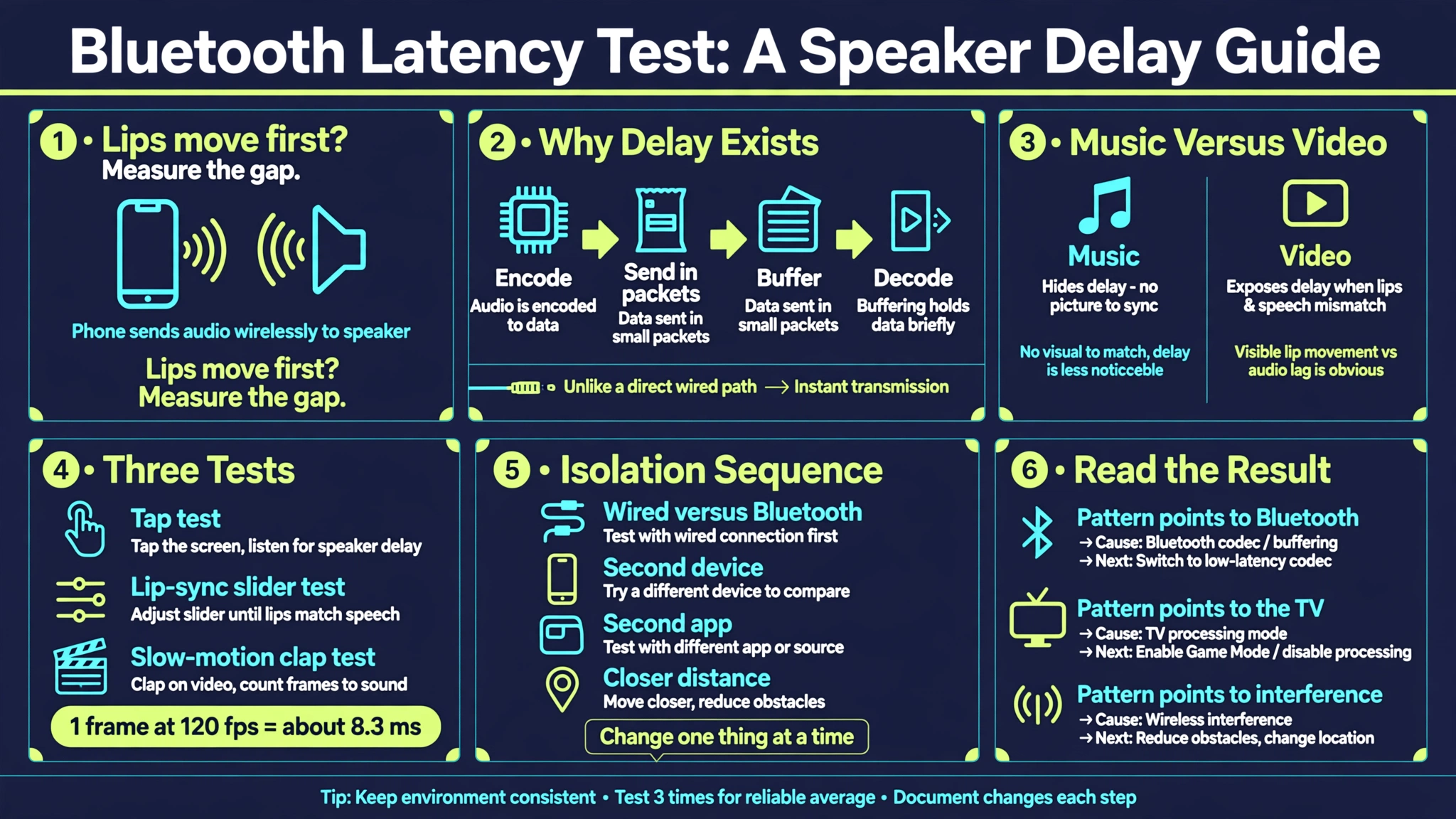
A Bluetooth latency test measures the delay between a visual event and the sound that should match it, so you can tell whether Bluetooth is the cause of lip-sync lag or whether the TV, app, or speaker is responsible. Use a tap test or a lip-sync slider test for a quick estimate, or a slow-motion video of a clap for a frame-counted estimate, and always compare against a wired connection. If wired audio is in sync and Bluetooth audio lags, Bluetooth delay is the cause; if wired audio lags too, the delay lies elsewhere in the chain.
What Bluetooth latency is, and why it exists
Latency is the time between an event and its sound reaching your ears. With wired audio, that time is very short: the signal travels directly to the speaker or headphone. With Bluetooth, the audio must be encoded by the source device, sent wirelessly in packets, received, buffered against radio interference, decoded by the headphones or speaker, and then played. Each step takes time, and the total is the latency you notice as lips moving before speech is heard, or as a game sound arriving after the on-screen action.
That is also why Bluetooth latency varies so much between setups. The codec — the method used to encode and decode the audio — matters, because different codecs take different amounts of time and need support on both the source and the receiving device to deliver their benefit. Distance, interference from nearby wireless networks, low battery, and heavy processing on the source device can all add delay on top of the codec's baseline. A latency figure quoted for one combination of phone and earbuds therefore does not transfer to a different combination, and a test on your own setup is more useful than any general number.
Why music hides latency but video exposes it
Latency matters differently depending on what you are doing, and that explains why many people only notice Bluetooth lag when watching video. For music alone, there is no visual event to sync with, so a delay of even a few hundred milliseconds is usually unnoticeable — the music simply starts slightly later than the press of play. For video, the picture provides a constant timing reference: lips, footsteps, and impacts must match their sounds. Research summaries found for this draft place the point where lip-sync errors become noticeable at roughly 80–100 ms for video, which is why standard Bluetooth setups, often well above that range, feel laggy on video while sounding fine on music.
Gaming is stricter still, because the player reacts to sound cues, and a delay between an on-screen event and its sound can affect timing. Live music performance through monitors is strictest of all, because the performer hears their own playing delayed. Knowing which use you care about prevents chasing a number you do not need: a setup that is fine for music may still be poor for video, and a setup that is acceptable for video may still be poor for fast gaming. Test for the use you actually care about, not for an abstract "best" figure.
Before you test: control the variables
Test in the setup you actually use, with the same phone, TV, or computer, the same Bluetooth speaker or earbuds, and the same app or video that showed the lag. Changing all three at once makes the result meaningless. Charge both devices reasonably, move closer to the source to reduce interference for the first test, and close other apps that might compete for processing or wireless bandwidth. Note the volume: keep it at a comfortable, moderate level, since test clicks at maximum volume are tiring and unnecessary.
Also note whether any audio delay or lip-sync setting is already active on your TV, speaker, or media player. Many TVs and players offer a manual audio delay adjustment, and a setting left over from a previous setup can add or subtract delay. Record the current setting before changing it, so you can restore it if the test shows it was not the cause. Finally, confirm the correct output is selected: audio playing through a different speaker than the one you are watching will look like delay when it is actually a routing difference.
Test 1: The tap test
The tap test is the quickest estimate and works on phones and computers without extra equipment. It has two steps. First, you tap along with a flashing visual circle, which measures your own tapping timing against a visual cue. Second, you tap along with clicks you hear, looking away from the screen so you follow only the sound. The difference between your visual tapping timing and your audio tapping timing estimates how late the sound arrives after the picture. Warm-up taps are usually discarded, and the test should be repeated two or three times, with the average taken as the estimate.
The tap test's limits should be understood before trusting its number. It includes your human reaction time and tapping variability, so a single run can be off by tens of milliseconds. It also depends on the device's screen and touch response. Treat the result as a range, not a precise figure: if three runs cluster around a similar value, that cluster is a useful estimate; if runs scatter widely, the test is telling you that your tapping variability is larger than the delay you are trying to measure, and a different test will serve you better. Do not chase a single-millisecond figure from a tap test; no tap test can deliver one.
Test 2: The lip-sync slider test
The lip-sync test is the most direct test for video watching, because it measures exactly what bothers you: whether lips and speech match. A repeating click or beep is played alongside a flashing visual marker, and you adjust a slider that shifts the audio earlier or later until the click and the flash feel simultaneous. The slider value at the point of best match is your estimated delay. This test is intuitive and requires no recording equipment, and it directly produces the correction value you would enter into a TV or player lip-sync setting.
Its limits are similar to the tap test: it relies on your perception, and the point of "simultaneous" is a small range rather than a single exact value. Adjust the slider in small steps, and approach the best point from both directions — from too early and from too late — to narrow the range. Repeat the test with a real video afterward: play a talking-head clip and check whether lips and speech now match at the slider's value. If they do, the test has served its purpose even if the number is approximate. If they do not, the delay may vary by app or by content, which points to the app or source rather than a single fixed Bluetooth delay.
Test 3: The slow-motion clap test
The slow-motion clap test gives a frame-counted estimate and needs only a second phone with slow-motion video. Place the Bluetooth speaker next to the screen, play a video with a sharp visual event — a clap, a drum hit, or a beep flash — and record both the screen and the speaker in slow motion, typically at 120 or 240 frames per second. Play the recording back frame by frame, count the frames between the visual event (hands meeting, for example) and the audio peak (the sound wave appearing on the video's audio track or the speaker's visible vibration), and convert frames to milliseconds: at 120 frames per second, each frame is about 8.3 ms, so ten frames of delay is about 83 ms.
This test is more objective than tapping, because it counts frames rather than relying on reaction time, but it is still approximate. Slow-motion audio tracks are not always frame-accurate, the camera's own audio processing can add delay, and identifying the exact audio peak frame takes judgment. Run the test twice with different clips and average the results, and treat the outcome as an estimate within a frame or two, not as a laboratory measurement. Its real value is comparison: run the same test on a wired connection and on Bluetooth, and the difference between the two is a much more reliable figure than either absolute number alone.
The isolation sequence: finding which link is slow
A latency number alone does not tell you what to fix. Run this isolation sequence, changing one thing at a time. First, compare wired versus Bluetooth on the same device and the same video: if wired audio is in sync and Bluetooth lags, Bluetooth delay is confirmed. If wired audio lags too, the delay is in the TV, app, or source, not in Bluetooth, and Bluetooth fixes will not help. Second, try a second Bluetooth device on the same source: if the second device is in sync, the first device's codec, firmware, or processing is the likely cause. If both Bluetooth devices lag similarly, the source device or its codec choice is the likely cause.
Third, try a second app or a second video on the same Bluetooth setup: if one app lags and another does not, the app's own buffering or processing is contributing. Fourth, move closer to the source and remove nearby interference sources, such as a busy wireless router or a microwave oven in use, and repeat the test; a large improvement points to interference or distance rather than a fixed codec delay. Record each result in plain words — "wired: in sync; Bluetooth earbuds: lag; Bluetooth speaker: lag; second app: in sync" — because that record is what turns a vague "Bluetooth lags" complaint into a targeted fix.
Reading your result and choosing the next step
Match your result to your use. For music only, almost any Bluetooth delay is acceptable, since there is no picture to sync. For video, a delay that is noticeable on lip-sync tests is worth addressing, and the most direct fix is often a lip-sync or audio delay setting on the TV or player, adjusted by the amount your slider or clap test estimated. For gaming, a setup that lags on video will usually lag in games too, and the practical options are a wired connection, a low-latency codec supported by both devices, or a dedicated low-latency wireless mode where the manufacturer provides one — not louder volume or repeated test tones.
If the isolation sequence points to the source device, check its Bluetooth codec settings where the device exposes them, update firmware on both devices, and remove unused paired devices that might compete for connection. If it points to a single Bluetooth device, check that device's firmware and its low-latency or gaming mode, if it offers one. If delay varies by app, check that app's audio settings and try a different player for the same content. If delay persists on every device, every app, and wired connections too, the source or TV processing is the likely cause, and its audio delay setting or a factory reset of its audio settings, following the manufacturer's guidance, is the next step — not a new Bluetooth device.
What a latency test cannot tell you
A home latency test cannot measure delay to single-millisecond precision, cannot separate every contributor inside the Bluetooth chain (encoding, transmission, buffering, decoding) without specialized equipment, and cannot certify a device as "low latency" in general. Codec figures quoted online are typical ranges for a codec, not guarantees for your combination of devices, and a test result on one phone and earbud pair does not transfer to another pair. A browser-reported latency figure, where a test page shows one, usually reflects the browser and operating system path only and does not include Bluetooth delay, so it will typically read lower than a tap or clap test on Bluetooth. Treat the browser figure as a floor, not as the Bluetooth delay.
Also keep device-side distinctions clear. A Bluetooth speaker test says nothing about the phone's built-in loudspeaker or earpiece, which are separate outputs with their own behavior. A latency problem on Bluetooth does not mean the phone speaker is faulty, and a phone speaker problem does not explain Bluetooth lag. Similarly, a charging-port or microphone problem is a different part entirely and should not be treated as a latency cause. If a device was exposed to water, follow the wet-device rules — dry the outside, air-dry completely before charging, follow the manufacturer's guidance — and do not assume a latency or tone test proves the inside is dry.
FAQ
What is Bluetooth latency?
It is the delay between an event and its sound reaching your ears over Bluetooth. Audio must be encoded, sent in packets, buffered, and decoded, and each step takes time. The total is the latency you notice as lip-sync lag or late game sounds.
How much Bluetooth latency is noticeable on video?
It depends on the person and content, but research summaries found for this draft place noticeable lip-sync errors at roughly 80–100 ms for video. Music alone usually hides much larger delays because there is no picture to sync with.
What is the easiest Bluetooth latency test?
The tap test: tap along with a flashing circle, then tap along with clicks you hear, and the difference estimates the delay. Repeat two or three times and average the runs. It is quick but approximate, since it includes your tapping variability.
How does the slow-motion clap test work?
Record the screen and speaker in slow motion while a clap or drum hit plays, count frames between the visual event and the audio peak, and convert frames to milliseconds — about 8.3 ms per frame at 120 frames per second. Compare wired and Bluetooth results for the most reliable figure.
Why does Bluetooth lag but wired audio does not?
Because Bluetooth adds encoding, packet transmission, buffering, and decoding steps that wired audio does not need. If wired audio is in sync and Bluetooth lags on the same device and video, Bluetooth delay is confirmed as the cause.
Do codec names guarantee low latency?
No. Codec latency ranges quoted online are typical ranges, not guarantees, and both the source and the receiving device must support the codec for its benefit to apply. Test your own combination rather than trusting a codec name alone.
Why does my browser test show lower latency than my tap test?
A browser-reported latency figure usually covers the browser and operating system path only and does not include Bluetooth delay. Treat it as a floor; the tap or clap test on Bluetooth is the more relevant estimate for Bluetooth lag.
When is Bluetooth latency not a Bluetooth problem?
When wired audio lags too, when only one app lags, or when delay varies with distance and interference. Those patterns point to the TV, app, source processing, or interference rather than Bluetooth itself, and the fix lies there.
Leave a Reply